

Introduction
I assume you have already read my previous article on Template Rendering and Redirecting In Ruby on Rails. Now, you will learn about the View templates, naming of template files, ERB tags, and how to use ERB tags in HTML templates. We will learn all this via two examples in this article.
Requirements
- Software - Ruby on Rails installed on your system.
- Editor- Atom Text Editor is the best in class.
- Browser – Google Chrome.
View templates
- Now, let's see the View templates. We will use HTML tags in Rails. HTML tags provide static web pages only but ERB tags give us dynamic information in that HTML template.
- To view the template file, go to Rails application >> app >> View>> Home folder where the templates files are available.
Template File Naming
File name - Home.html.erb
Template name - Home
Process with - ERB
Output format - HTML
- The template is named home, it is going to process with our ERB function and it completes with the final output format in HTML, this is the default template naming system in Ruby on Rails.
What is ERB tag?
- ERB is short for “Embedded Ruby”, the eRuby templating system will allowed inside embed ruby our HTML pages.
- This ERB tag is very important tag in Rails without this tag rails is nothing it will used to create variable, conditions statements, array and event works in this ERB tag it will show our static HTML page into dynamic HTML web page in browser.
Sample expression tags
<% code %> - non output printing tag.
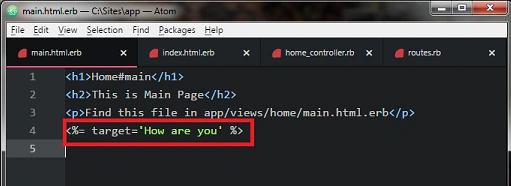
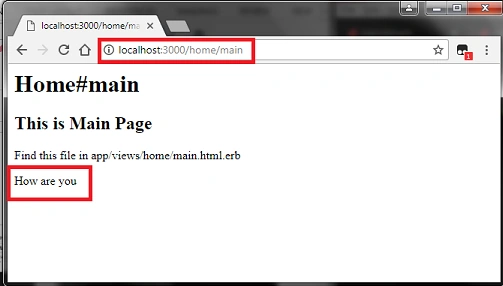
<%= code %> - output printing tag.
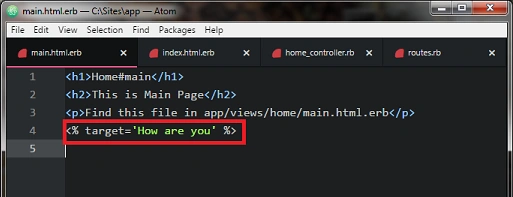
- This expression tags are called non-output printing tags and they execute code and give output in yoru browser. We can see one text printing example for this tag in end of the content.
Comment tag
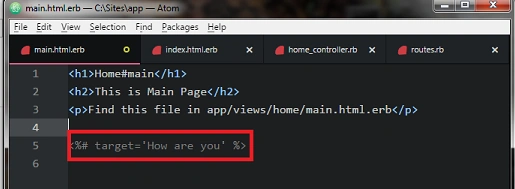
<%# comments %> - it’s used to documentation work only.
- This comment tag is using for documentation purpose only it will not give output page in browser.
Now we can see Two ERB tag examples one by one, I cannot explain ERB tags fully because this ERB tag is using an event, functioning only within Ruby on Rails. We are not using events and functions in this application, so I can’t explain fully in this article but I shal explain futher in an upcoming article.
Step 1
- Open the Ruby On Rails Command Prompt By Going To Start >> All Programmes >> Railsinstaller >> Command Prompt with Ruby and Rails.
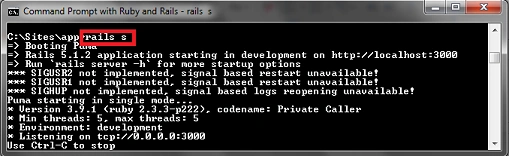
- After opening the command prompt, let’s create a new application in rails using the following code.
- Rails new app
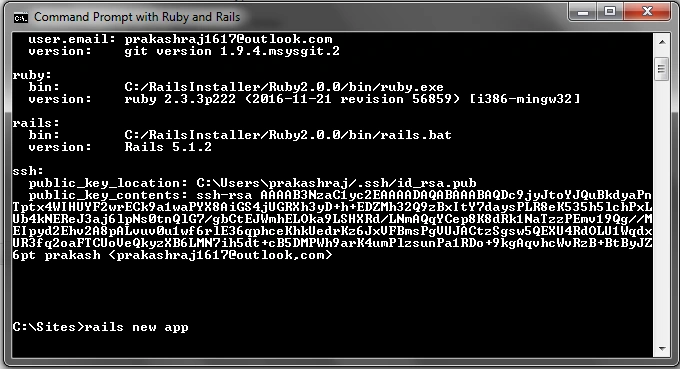
- After put above the code in Rails command prompt some process going in there, we skip that process, if you have any doubt in application creation refer my previous article Creating application in ruby on rails.
Step 2
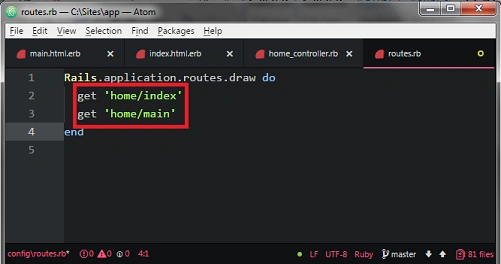
- After creating the application open the application in our atom editor, now we just create one HTML file, in this example I name them main page and index page.
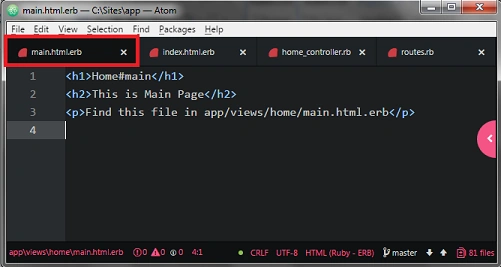
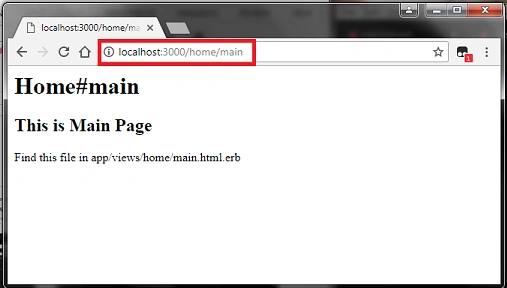
- Now we going to create our main page (main.html.erb) template in app>>views>>home folder. Open that folder now using the following code to create the file and then we will add some HTML tags.
Main.html.erb code- <h1>Home#main</h1>
- <h2> This is Main Page</h2>
- <p>Find this file in app/views/home/main.html.erb</p>
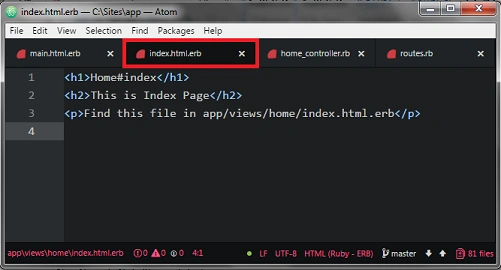
- The index page file is already created in our controller generation, you can use that file (index.html.erb) in view>>home folder. Open that folder now using the following code to create the file and add some HTML tags.
Index.html.erb code- <h1>Home#index</h1>
- <h2> This is Index Page</h2>
- <p>Find this file in app/views/home/index.html.erb</p>
Nandhini SPosted Aug 19, 2017, 1:16 AM
Nice Article .....Thanks for sharing....