What is Range
A Range object can be a single cell, a row or
column, a selection of cells, or a 3D range, the Range method is the most
straightforward way to identify a cell or range. Range method is represents a
cell, a row, a column, a selection of cells containing one or more contiguous
blocks of cells, or a 3-D range.
The most common method that I see used to set
the value of a cell from VBA and you will see the working of this method later
in this article, method is this:
Syntax
Range("B1").Value = 1111
Range("B1").Value = "ABC"
Microsoft Office 2010 gives you the tools
needed to create powerful applications. The Microsoft Visual Basic for
Applications (VBA) code samples can assist you in creating your own applications
that perform specific functions or as a starting point to create more complex
solutions.
Lets Create an application
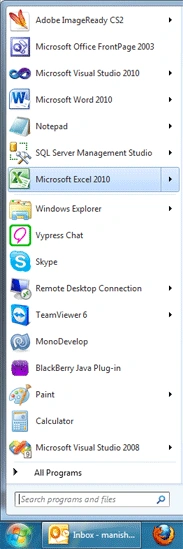
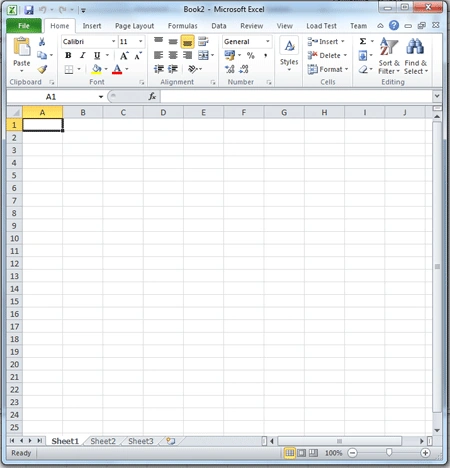
Step 1: Start Microsoft Excel 2010
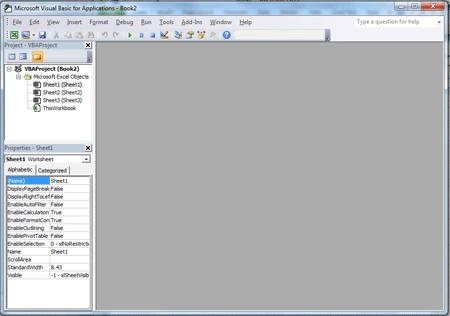
Step 2: Now press Alt + F11 to open
Microsoft Visual Basic for Applications
Step 3: Now choose Sheet1 to write your
code from the project window
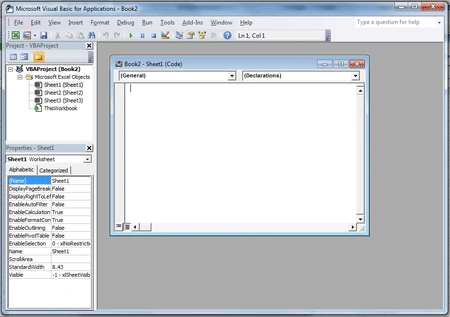
Step 4: Write the following code in
code window
Sub
ImagesSetsForRanges()
Dim i As
Integer
Dim rng As
Range
For i = 1 To
8
rng = SetTextRange(i)
Select Case
i
Case 1
AddPictureInRange("C:\Users\manish\Documents\My Received
Files\shalini juneja\icons\icons\Add.gif", _
Range("A1:A2"))
Case 2
AddPictureInRange("C:\Users\manish\Documents\My Received
Files\shalini juneja\icons\icons\Backword.gif", _
Range("A5:A6"))
Case 3
AddPictureInRange("C:\Users\manish\Documents\My Received
Files\shalini juneja\icons\icons\Forword.gif", _
Range("A9:A10"))
Case 4
AddPictureInRange("C:\Users\manish\Documents\My Received
Files\shalini juneja\icons\icons\Pause.gif", _
Range("A13:A14"))
Case 5
AddPictureInRange("C:\Users\manish\Documents\My Received
Files\shalini juneja\icons\icons\Play.gif", _
Range("A17:A18"))
Case 6
AddPictureInRange("C:\Users\manish\Documents\My Received
Files\shalini juneja\icons\icons\Refresh.gif", _
Range("A21:A22"))
Case 7
AddPictureInRange("C:\Users\manish\Documents\My Received
Files\shalini juneja\icons\icons\Stop.gif", _
Range("A25:A26"))
Case 8
AddPictureInRange("C:\Users\manish\Documents\My Received
Files\shalini juneja\icons\icons\Volume.gif", _
Range("A29:A30"))
End Select
Next i
End
Sub
Sub
AddPictureInRange(PictureFileName As
String, TargetCells As
Range)
Dim q As
Object, t As
Double, l As
Double, w As
Double, h As
Double
If TypeName(ActiveSheet) <>
"Worksheet" Then Exit
Sub
If Dir(PictureFileName) = ""
Then Exit Sub
q = ActiveSheet.Pictures.Insert(PictureFileName)
With TargetCells
t = .Top
l = .Left
w = .Offset(5, .Columns.Count).Left - .Left
h = .Offset(.Rows.Count, 0).Top - .Top
End With
With q
.Top = t
.Left = l
.Width = w
.Height = h
End With
q = Nothing
End
Sub
Function
SetTextRange(col As
Integer) As Range
Dim text1 As
Range
text1 = Cells(1, 2)
text1.Value = "ADD Button"
Dim text2 As
Range
text2 = Cells(5, 2)
text2.Value = "Backward Button"
Dim text3 As
Range
text3 = Cells(9, 2)
text3.Value = "Forward Button"
Dim text4 As
Range
text4 = Cells(13, 2)
text4.Value = "Pause Button"
Dim text5 As
Range
text5 = Cells(17, 2)
text5.Value = "Play Button"
Dim text6 As
Range
text6 = Cells(21, 2)
text6.Value = "Refresh Button"
Dim text7 As
Range
text7 = Cells(25, 2)
text7.Value = "Stop Button"
Dim text8 As
Range
text8 = Cells(29, 2)
text8.Value = "Volume Button"
End
Function
Step 5: Press F5 to run the
application.
Step 6:
Macros window will open, here check the macro
name and hit the run button
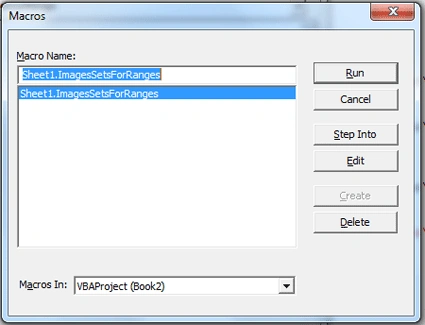
Step 7: You output will shows on
Microsoft Excel 2010
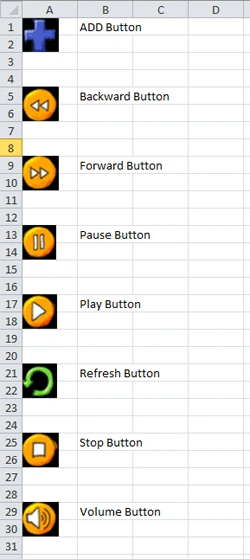
I hope you like this article and want
to try yourself..
Thank You...

Join the conversation! Your thoughts help the community grow.