

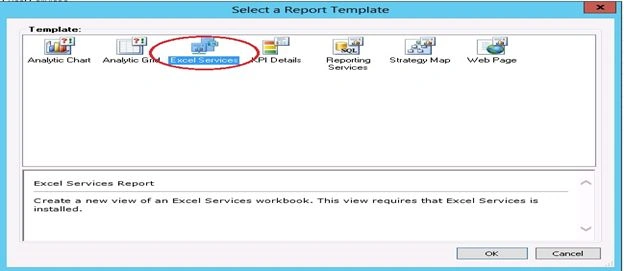
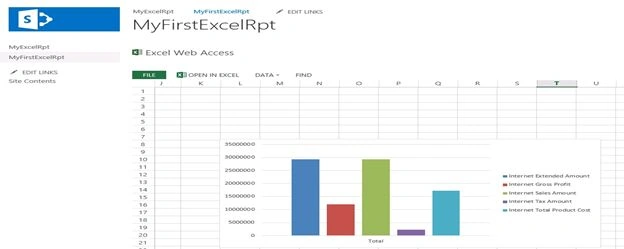
One of the other advantages of using the PerformancePoint Dashboard Designer is that you can include Excel Services reports in your PerformancePoint dashboards. Excel Services reports are Excel workbooks that have been published to a SharePoint Server. You can display a single item in the workbook, or the entire workbook in your PerformancePoint dashboard.
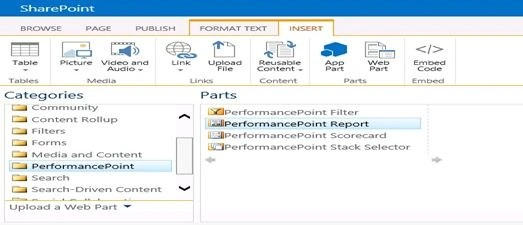
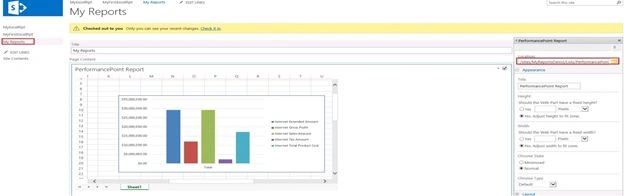
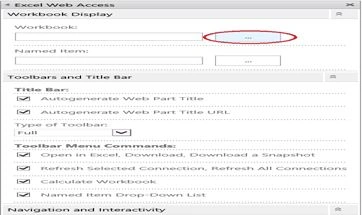
When you use Dashboard Designer to include Excel Services reports in your dashboard, you do not actually create the reports. Instead, you create PerformancePoint Web Parts that are designed to display Excel Services reports and receive dashboard filters.
Use Excel Services reports for purposes such as the following:
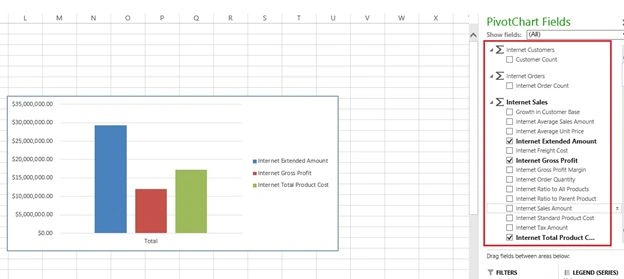
- To display view types that you cannot be created using Dashboard Designer. Examples include PivotChart reports, PivotTable reports, and tables that contain conditional formatting or other custom formatting that is not available in analytic grids.
- To save time by displaying existing reports instead of creating (or recreating) new Excel workbooks.
- To include interactive reports in your dashboards that users can either view in a web browser or open in Excel.
- To create reports that use data source types not available in Dashboard Designer.
These are only some examples of how an Excel Services report can be useful. An Excel Services report displays all or part of an Excel workbook that was published to SharePoint Server 2013 using Excel Services. You can include Excel Services reports in your dashboard, either as a single item on the page or as an item alongside other dashboard items. In addition, you can connect dashboard filters to Excel Services reports, together with other kinds of PerformancePoint reports and scorecards.
Interactive functionality in Excel Services reports
You would typically include one or more Excel Services reports in your dashboard to enable dashboard users to easily view and explore data. Depending on how you set up your reports, dashboard users can perform the following kinds of tasks:
- Browse through pages in Excel workbooks without opening Excel
- Apply (or change) internal filters for charts and tables that were created in Excel
- Sort rows or columns in charts or tables
- Use the Refresh button in the browser window to restore the Excel Services report to its default view
Data sources for Excel Services reports
Excel Services reports can use various data sources, such as those in the following list:
- A SQL Server database
- A SQL Server Analysis Services data cube
- A Access database
- An online analytical processing (OLAP) database
- A relational database
- An Excel workbook
- A text file
- An external data connection file that is defined as a trusted data provider. Examples might include those in the following list:
- SQL Server OLE DB, ODBC, or OLAP
- OLE DB and ODBC for Oracle
- OLE DB and ODBC for IBM DB2
Overview of Excel Services reports displayed in PerformancePoint Web Parts


Sreejith GopinathanPosted Feb 24, 2014, 4:15 AM
Good one Shiju, Thanks for sharing :)