

Introduction
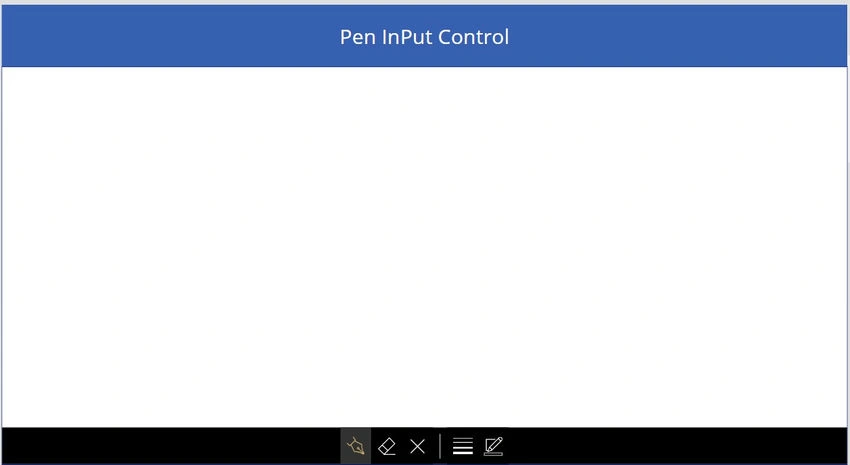
In the realm of app development, interactivity and customization are paramount for creating engaging user experiences. The Pen Input control in Power Apps offers a versatile canvas for unleashing creativity and capturing handwritten input within your applications. Whether it's sketching diagrams, annotating images, or collecting signatures, the Pen Input control empowers developers to incorporate freehand drawing capabilities seamlessly. In this comprehensive blog post, we delve into the benefits, features, limitations, and step-by-step instructions for leveraging the Pen Input control effectively in your Power Apps projects.
Benefits
- Enhanced User Engagement: The Pen Input control enables users to interact with your apps in a more intuitive and natural way, fostering engagement and usability.
- Versatility: From capturing signatures on forms to annotating images and diagrams, the Pen Input control offers a wide range of applications across various scenarios.
- Customization: Developers can customize the appearance and behavior of the Pen Input control to suit the specific requirements of their apps, providing flexibility and control.
- Efficiency: With the ability to capture handwritten input directly within the app, users can complete tasks more efficiently, reducing the need for additional tools or manual processes.
- Personalization: Handwritten input adds a personal touch to apps, enhancing the overall user experience and making interactions more memorable.
Features
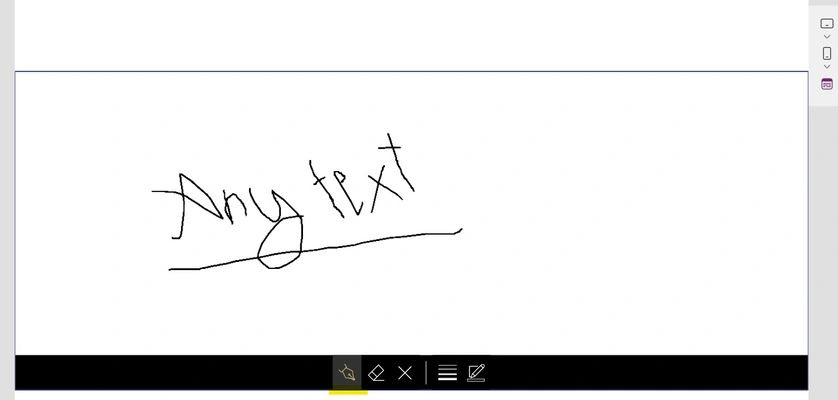
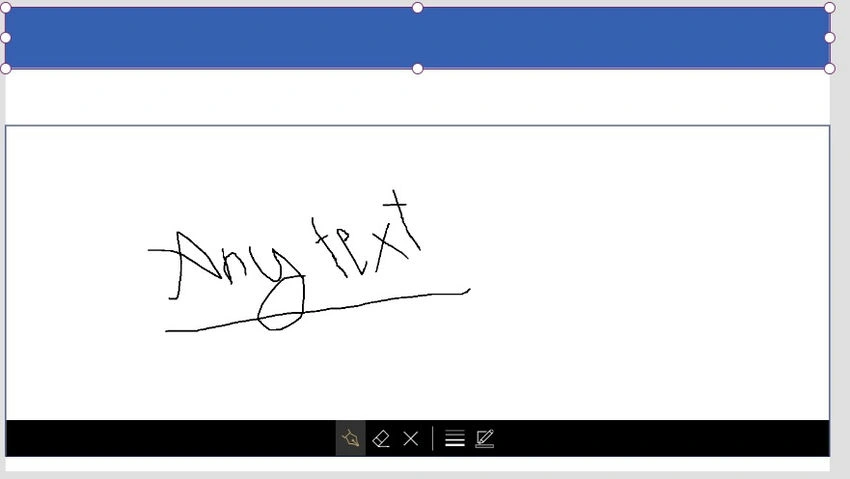
- Freehand Drawing: Users can draw or write directly on the canvas using their finger, stylus, or mouse.
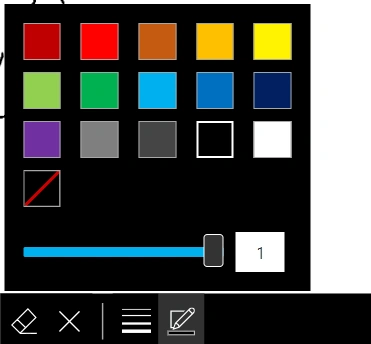
- Color and Thickness Options: Customize the color and thickness of the pen stroke to suit your design preferences.
- Undo and Redo: Easily correct mistakes or undo changes with the built-in undo and redo functionality.
- Clear and Erase: Clear the entire canvas or erase specific portions of the drawing as needed.
- Export as Image: Save the handwritten input as an image file for further use or sharing.
- Integration with Other Controls: Seamlessly integrate the Pen Input control with other controls and functions within your Power Apps, such as saving drawings to a database or triggering actions based on user input.
Limitations
- Precision: Handwriting recognition may vary based on the input device and the user's handwriting style, leading to potential inaccuracies.
- Complexity: Advanced features such as shape recognition or text conversion may not be fully supported by the Pen Input control.
- Performance: Drawing complex or intricate designs may impact app performance, especially on low-powered devices or slower connections.



Join the conversation! Your thoughts help the community grow.