

Overview
In this article series, we will learn how we can export the filtered data from Power BI report and insert the data back to the SQL Server.
Power BI Service doesn’t provide such customization. However, we can export the data with the selected filters with the help of the Power BI Embedded concept.
In order to achieve this functionality, I believe you already have embedded the Power BI report using .NET SDK. If you haven’t embedded the report, please rede the following article or steps are mentioned to this article or you can visit the vLog Series.
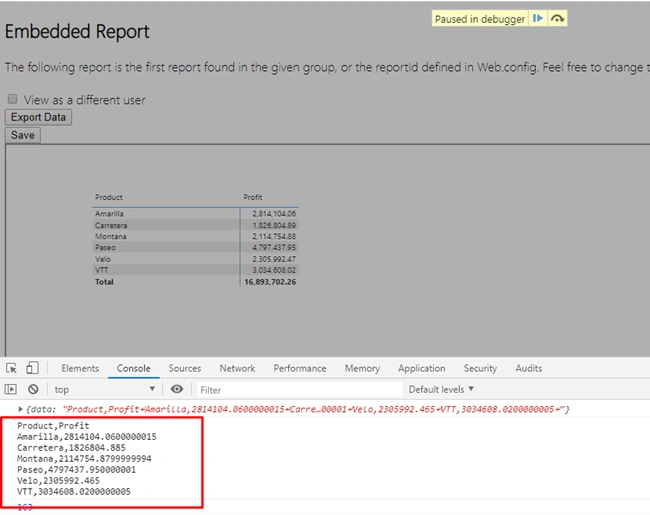
First, we need to embed the Power BI report. Once our report is embedded, we will add custom button “Export Data” to export the data from the specific table visual using API. Power BI API provide us the data in a form of the string. We will parse the string and insert the record back to SQL Server database.
So, I have divided this article series into two parts,
- In the first part, we will add the UI element to export the data and talk about the API part to export the data programmatically.
- In the second part, we will talk about the controller method and SQL Server Stored Procedure part.
Download the Code
For your convenience, I have uploaded the code solution files to my GitHub account. You can directly download from below link.
The same article series available in a form of a video which can be viewed using this URL.
So, now let’s get started!
Step 1
- Open the solution file.
- Below is a structure of the code files.
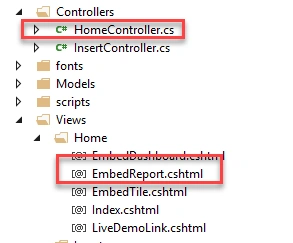
- We need to focus on the following two files.
- HomeController
- EmbedReport.cshtml
Step 2
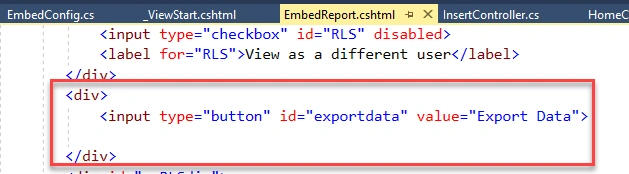
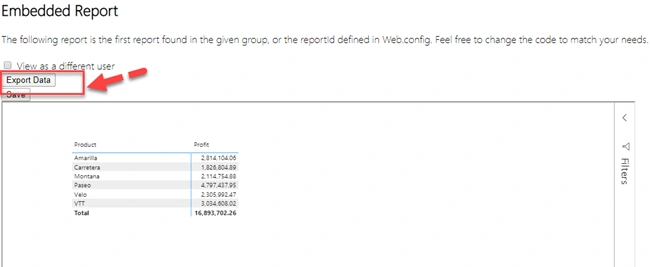
Add a button in the EmbedReport.cshtml file.
Below is the code,
- <div>
- <input type="button" id="exportdata" value="Export Data">
- </div>
Step 3
Publish your report in a workspace.
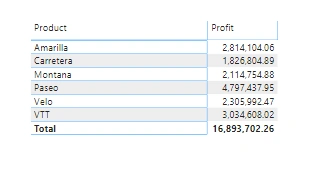
I have following things in my report.
- One table visual with Product and Profit Column.
Step 4
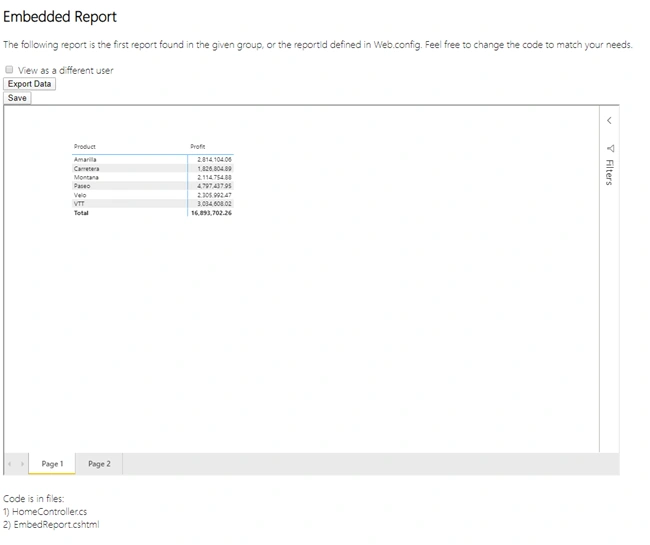
Now, I believe, you have embedded the report already and when you run your solution it will show the embedded report showing in the below screen.
Ankur MistryPosted Jan 2, 2020, 8:38 PM
Nice work Dhruvin