

Before going further, I would highly recommend to read these articles first:
In this article, you will learn how to export Unity project to Visual Studio. Once your Hologram is complete, so project is ready to be exported to Visual Studio and then to your HoloLens.
Follow these steps to export Unity to Visual Studio.
Performance Setting
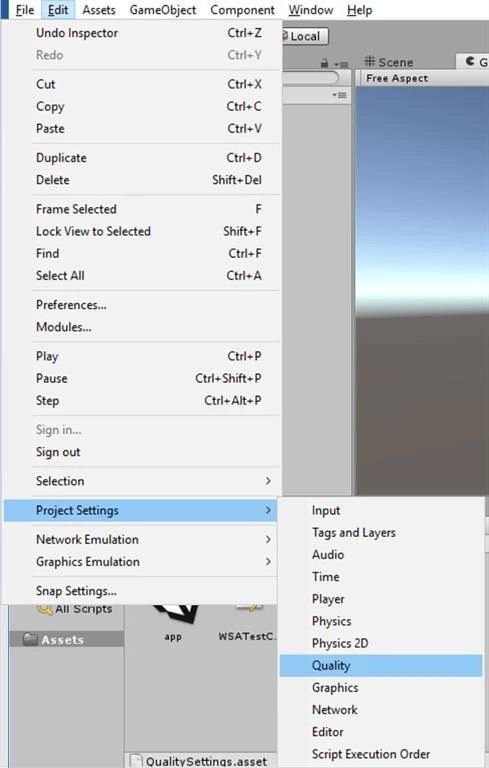
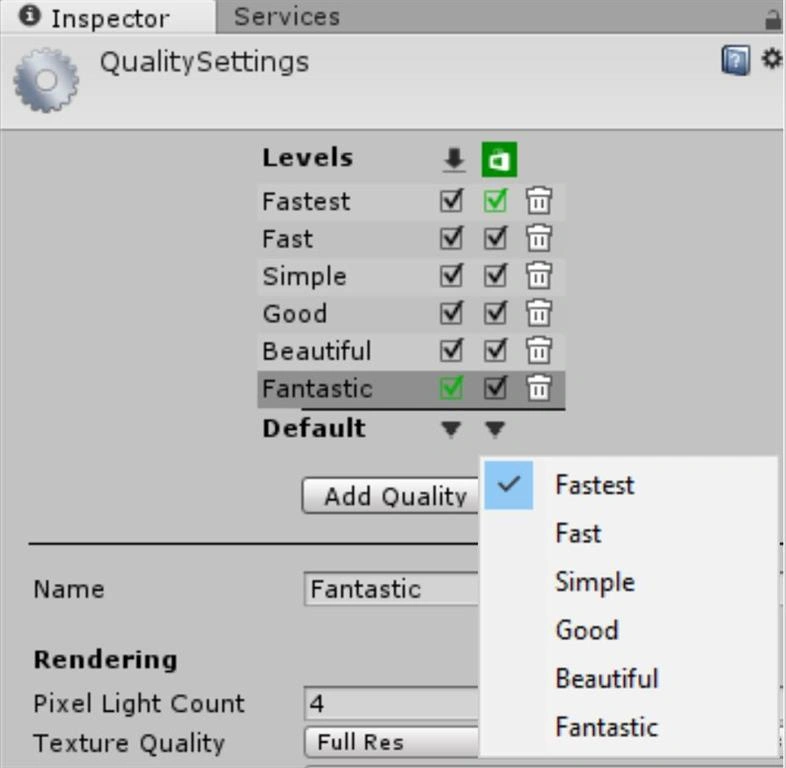
Select Edit tab >> Project Setting >> Quality
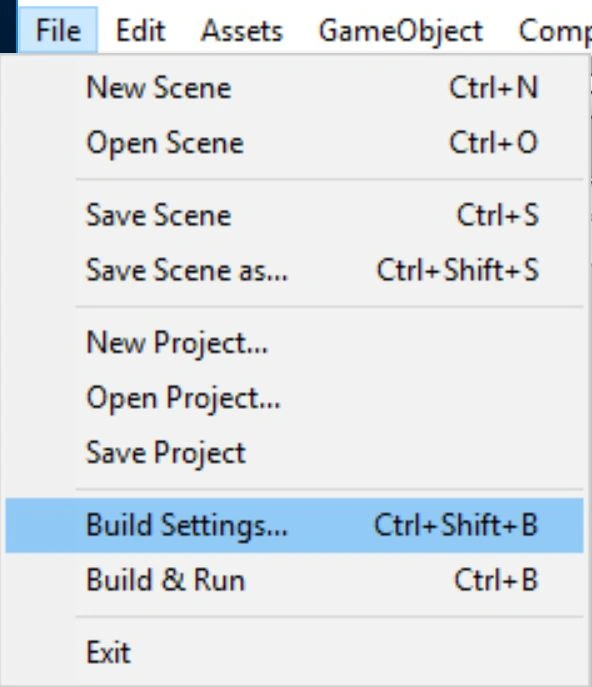
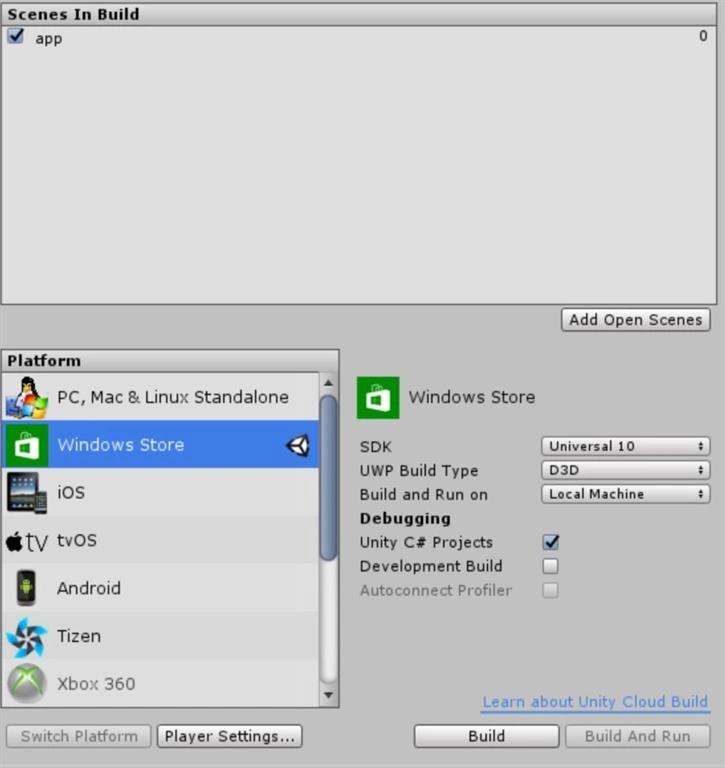
Select File >> Build Settings
Set SDK to Universal 10
Set Build Type to D3D
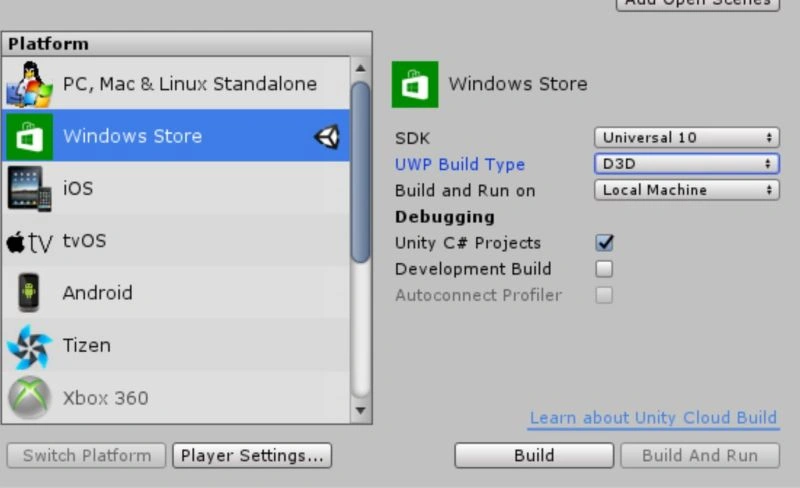
From the Build Settings... window, open Player Settings...
Expand the Other Settings group
In the Rendering section, check the Virtual Reality Supported checkbox to add a new Virtual Reality Devices list and confirm "Windows Holographic" is listed as a supported device.
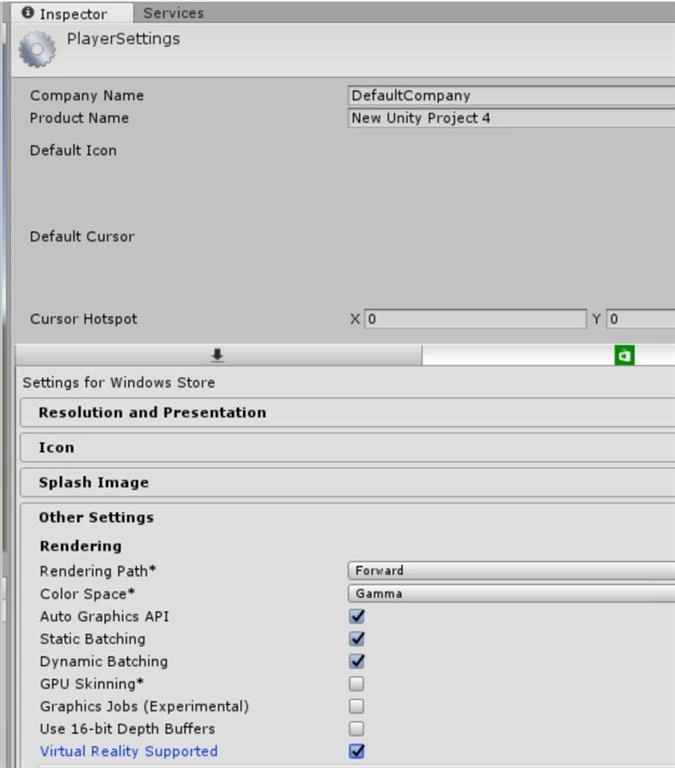
Now your Unity project has all the settings applied to be properly exported as a Visual Studio solution for a HoloLens app.
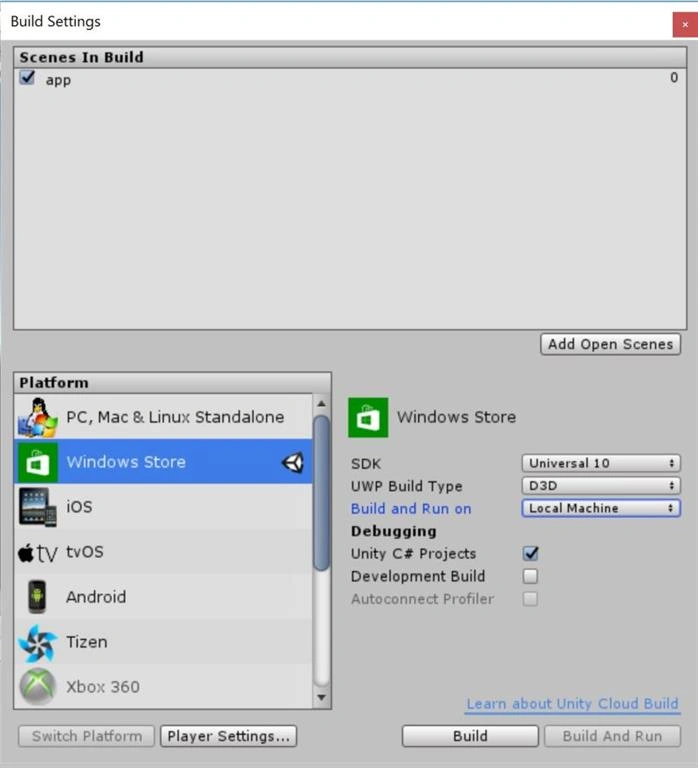
Return to the Build Settings window.
Click Add Open Scenes to add the scene
Check Unity C# Projects
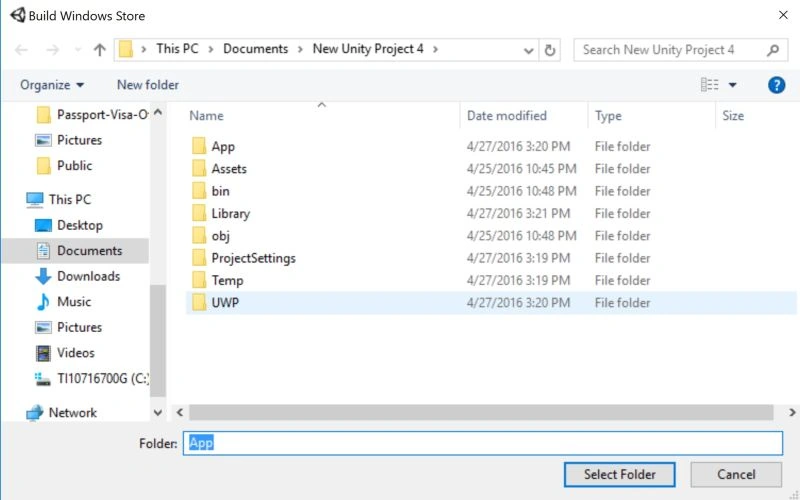
Click Build
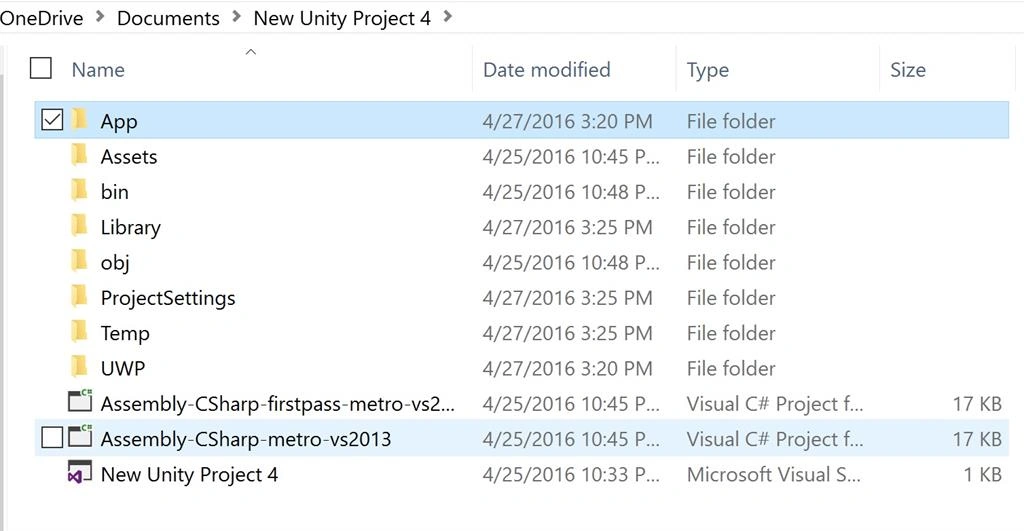
With the App folder selected, click the Select Folder button.
Open the App folder in File Explorer.
Open the generated Visual Studio solution (TestHolograms.sln in this example)
In this article, you have learnt how to export Unity to Visual Studio. If you have any question and comments, then post a comment in C# Corner comments section.
kalu singh raoPosted Jul 4, 2016, 2:13 AM
Nice...
Prasanna MuraliPosted Jun 27, 2016, 9:19 AM
Nice one....
Kishor Bikram OliPosted Apr 28, 2016, 12:35 PM
wow nice!
Debasis SahaPosted Apr 28, 2016, 10:47 AM
Good One..
Gowtham RajamanickamPosted Apr 28, 2016, 2:09 AM
good Work