

Scope
In this article we will show a sample to export data from a ListView to a CSV file. A CSV file can be opened in Excel, that is why I suggest it for exporting the data to Excel.
Introduction
In this sample we will show a sample to export data shown in ListView, to a CSV file.
Description
This sample could be called "Export to Excel", but it is not supported, the only way is to write the data in a CSV file that can be opened in Excel.
Here is the class diagram: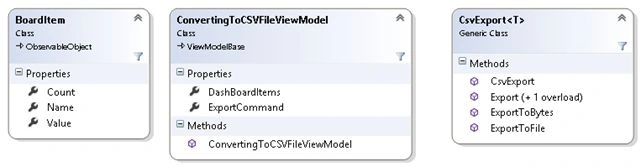
Here is the class for converting the data into a CSV file:
- public class CsvExport<T> where T : class
- {
- public IList<T> Objects;
- public CsvExport(IList<T> objects)
- {
- Objects = objects;
- }
- public string Export()
- {
- return Export(true);
- }
- public string Export(bool includeHeaderLine)
- {
- var sb = new StringBuilder();
- //Get properties using reflection.
- var propertyInfos = typeof(T).GetTypeInfo();
- if (includeHeaderLine)
- {
- //add header line.
- foreach (var propertyInfo in propertyInfos.DeclaredProperties)
- {
- sb.Append(propertyInfo.Name).Append(System.Globalization.CultureInfo.CurrentCulture.TextInfo.ListSeparator);
- }
- sb.Remove(sb.Length - 1, 1).AppendLine();
- }
- //add value for each property.
- foreach (T obj in Objects)
- {
- foreach (var propertyInfo in propertyInfos.DeclaredProperties)
- {
- sb.Append(MakeValueCsvFriendly(propertyInfo.GetValue(obj,null))).Append(System.Globalization.CultureInfo.CurrentCulture.TextInfo.ListSeparator);
- }
- sb.Remove(sb.Length - 1, 1).AppendLine();
- }
- return sb.ToString();
- }
- //export to a file.
- public async void ExportToFile(string path)
- {
- var storageFolder = KnownFolders.DocumentsLibrary;
- var file = await storageFolder.CreateFileAsync(path, CreationCollisionOption.ReplaceExisting);
- await FileIO.WriteTextAsync(file, Export());
- }
- //export as binary data.
- public byte[] ExportToBytes()
- {
- return Encoding.UTF8.GetBytes(Export());
- }
- //get the csv value for field.
- private string MakeValueCsvFriendly(object value)
- {
- if (value == null) return "";
- if (value is DateTime)
- {
- if (((DateTime)value).TimeOfDay.TotalSeconds == 0)
- return ((DateTime)value).ToString("yyyy-MM-dd");
- return ((DateTime)value).ToString("yyyy-MM-dd HH:mm:ss");
- }
- string output = value.ToString();
- if (output.Contains(",") || output.Contains("\""))
- output = '"' + output.Replace("\"", "\"\"") + '"';
- return output;
- }
- }
There is an important point in that class.
The ListSeparator that you have defined in:
Can be found programmatically using System.Globalization.CultureInfo.CurrentCulture.TextInfo.ListSeparator.
But is depends on the list of languages preferences: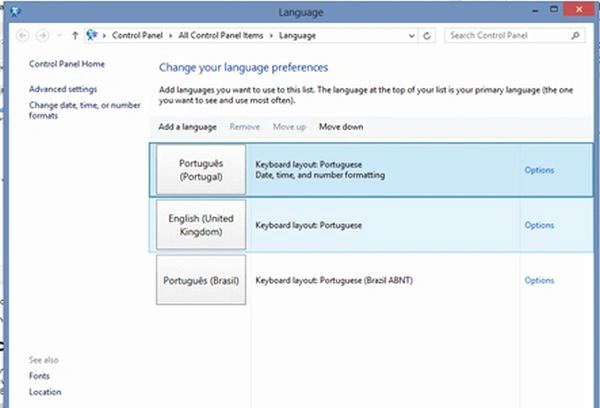
If I choose English the ListSeparator is "," (comma) and for my Excel it is ";" (semicolon) because that is what I have in my regional settings.
If I choose Portugues then the ListSeparator is ";" (semicolon) and for my Excel it also is ";" (semicolon) and it works well.
Running the app
The myexportresult.csv file opened in Excel: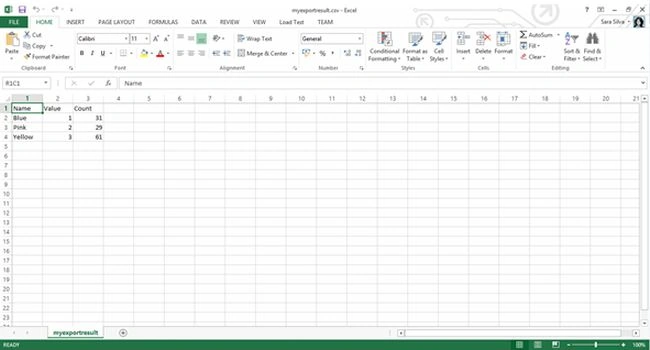
Source Code Files
- BoardItem is my item that has Name, Value and Count properties
- ConvertingToCSVFileViewModel: is my view model to connect data with the view (I use binding)
- CsvExport is the class that convert the data into CSV file.
Source Code
The source code is available in MSDN Samples
Gareth BradleyPosted Jul 9, 2015, 5:41 AM
very good, i started writing a *-To-CSV converted, but I presume for Windows Store Apps it is about using the API storageFolder.CreateFileAsync for file creation.