

This article explains the functionality of Export to Excel using NPOI dll
DLL download link -
http://npoi.codeplex.com/releases/view/49524
Also you can find NPOI.dll by downloading the attached source code - inside the bin
folder.
The best thing I found using NPOI.dll is that it works for both Open Office and
MS Excel.
Below are the 9 steps we follow for Export to Excel using NPOI DLL
- Create new Excel workbook.
- Create new Excel sheet.
- (Optional) set the width of the columns.
- Create a header row.
- Set the column names in the header row.
- (Optional) freeze the header row so it is not scrolled.
- Populate the sheet with values.
- Write the workbook to a memory stream.
- Return the result to the end user.
So we will be coding for all the above 9 steps
using NPOI dll.
To show it working I will be using my -
Telerik Grid View
in ASP.NET MVC2: Part 2 - source code and add Export to Excel functionality
for the data displayed in Telerik Grid.
- Download NPOI dll from this link -
http://npoi.codeplex.com/releases/view/49524
I have used NPOI dll (1.2.3.0) for this demo app.
- Now open the downloaded Project - First
step would be to place the NPOI dll to the local bin folder of our project.
- Now Add a reference to above dll -
Solution explorer -> Right Click References -> Add Reference -> Browse ->
Look in -> Local bin folder of your project where you have placed the dll in
step 2 -> Select NPOI.dll -> Click Ok
- Views
Open Home -? Index .aspx which contains Telerik Grid View. On the right top of Grid -> Let's place the Export to Excel link.
<p align="right">
<%= Html.ActionLink("Export to Excel", "Articles_Export_ToExcel", new { page = 1, orderBy = "~", filter = "~" }, new { id = "exportLink" })%>
</p>
"Export to Excel" - Text to be displayed over the Grid
"Articles_Export_ToExcel"- Action name which we will code in our Controller Class(HomeController.cs)
- Controller - Open HomeController.cs - Add
the action name( Articles_Export_ToExcel) which we have provided for Export
to Excel in the View
-> 9 steps which I have mentioned in beginning of the article has been coded down in this function.
-> Add the below 2 using statements
using NPOI.HSSF.UserModel;//For using NPOI dll
using System.IO;//For memory stream//Export to Excel Action
public ActionResult Articles_Export_ToExcel(int page, string orderBy, string filter)
{
var tempArticles = objRepository.MyArticles_DisplayRecords();//Create new Excel Workbook
var workbook = new HSSFWorkbook();//Create new Excel Sheet
var sheet = workbook.CreateSheet();//(Optional) set the width of the columns
sheet.SetColumnWidth(0, 20 * 256);//Title
sheet.SetColumnWidth(1, 20 * 256);//Section
sheet.SetColumnWidth(2, 20 * 256);//Views
sheet.SetColumnWidth(3, 20 * 256);//Downloads
sheet.SetColumnWidth(4, 20 * 256);//Status//Create a header row
var headerRow = sheet.CreateRow(0);
headerRow.CreateCell(0).SetCellValue("Title");
headerRow.CreateCell(1).SetCellValue("Section");
headerRow.CreateCell(2).SetCellValue("Views");
headerRow.CreateCell(3).SetCellValue("Downloads");
headerRow.CreateCell(4).SetCellValue("Status");//(Optional) freeze the header row so it is not scrolled
sheet.CreateFreezePane(0, 1, 0, 1);int rowNumber = 1;
//Populate the sheet with values from the grid data
foreach (IndexTelerikGridViewModel objArticles in tempArticles)
{
//Create a new Row
var row = sheet.CreateRow(rowNumber++);//Set the Values for Cells
row.CreateCell(0).SetCellValue(objArticles.sTitle);
row.CreateCell(1).SetCellValue(objArticles.sSection);
row.CreateCell(2).SetCellValue(objArticles.iViews);
row.CreateCell(3).SetCellValue(objArticles.iDownloads);
row.CreateCell(4).SetCellValue(objArticles.sStatus);}
//Write the Workbook to a memory stream
MemoryStream output = new MemoryStream();
workbook.Write(output);//Return the result to the end user
return File(output.ToArray(), //The binary data of the XLS file
"application/vnd.ms-excel", //MIME type of Excel files
"ArticleList.xls"); //Suggested file name in the "Save as" dialog which will be displayed to the end user
}
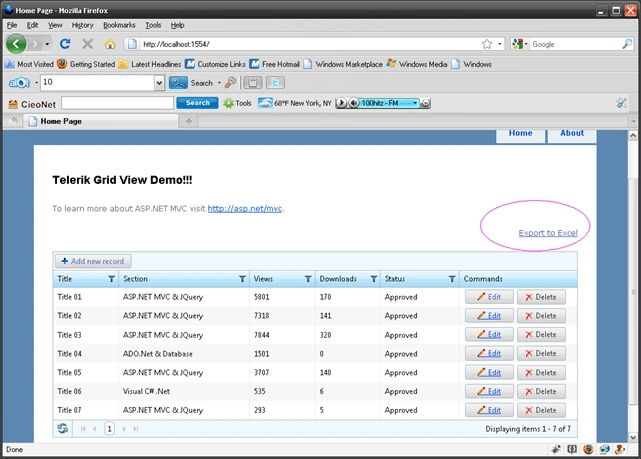
-
Run the application.
Once we click Export to Excel link- we will be provided option to open the file with MSOffice/OpenOffice
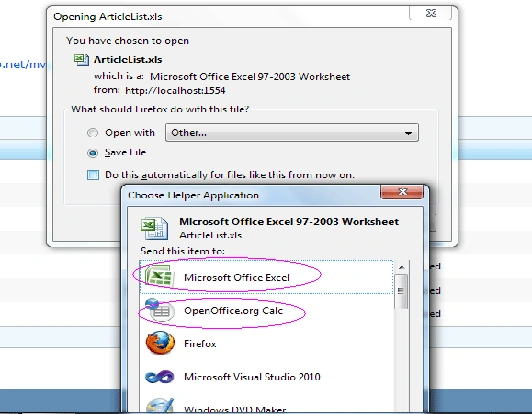
So in this article we have seen how to use NPOI
dll for implementing Export to Excel functionality.
Happy Learning!
Mohammad AnsariPosted Nov 16, 2020, 2:55 AM
How to generate password protect excel using NPOI.dllin c#
zaki anwarPosted Mar 7, 2020, 3:23 PM
How to generate password protect excel using NPOI.dllin c#
Hemant SharmaPosted May 15, 2019, 7:29 AM
Hi Kumar, please let me know how to get the activeCell ref no. from Excel (.xls) with NPOI DLL using C#.
Aniket FirkePosted Nov 2, 2018, 8:27 AM
Can i export sortable excel sheet using npoi means i want to provide sort functionality on excel sheet header similar to any grid sorting
Nikhilesh VaraPosted Mar 30, 2017, 6:03 AM
Its really good article very helpful. But i get the above error when it will try to execute below code line var workbook =new HSSFWorkbook(); Exception : -------------- {"Could not load file or assembly 'ICSharpCode.SharpZipLib,Version=0.86.0.518, Culture=neutral, PublicKeyToken=1b03e6acf1164f73' or one of its dependencies. The system cannot find the file specified.":"ICSharpCode.SharpZipLib, Version=0.86.0.518, Culture=neutral, PublicKeyToken=1b03e6acf1164f73"} Request you to help me in
b pPosted Jul 25, 2014, 5:10 AM
I'm wondering if there is support for canceling the excel generation. It would be useful for large files. And also progress indication would be nice. So far I didn't found such options. Have you any ideas regarding these features?
Ambika kandasamyPosted Aug 22, 2013, 2:25 AM
eventhough action hit happening, open dialog box is not appearing in my page I tried using kendo grid. pls help me
Former memberPosted Sep 30, 2012, 1:16 PM
This is really nice article. http://www.dotnetpools.com/Article/ArticleDetiail/?articleId=22&title=Gridview%20Export%20To%20Excel%20In%20Asp.Net%20C#