

PDFs are everywhere.
Invoices arrive as PDFs. Bank statements are PDFs. Vendor reports, training records, audit logs, and even critical operational reports often live inside PDFs. Yet, when you try to analyze this data in Power BI, you quickly realize something frustrating:
Power BI cannot analyze what it cannot read.
For many professionals, PDFs feel like locked containers. The data is visible to humans but inaccessible to machines.
Fortunately, Power Query provides a powerful and often overlooked capability — extracting structured data directly from PDF files.
In this article, I’ll walk you through this feature in a very practical, real-world way. Not just the steps, but also the thinking behind it, the common pitfalls, and how you can use it effectively in real enterprise scenarios.
Why extracting data from PDFs matters in real life
Let’s start with reality.
In most organizations, especially large enterprises, not all data lives in clean databases. Many business-critical datasets exist in:
Monthly PDF reports generated by legacy systems
Vendor invoices sent as PDFs
Financial statements
Compliance and audit reports
Training completion reports
Operational summaries
Imagine this situation:
Your finance team receives 200 PDF invoices every month. They want to analyze:
Total spend per vendor
Monthly spending trends
Cost distribution
Manually typing this into Excel would be slow, error-prone, and frankly, unacceptable in a modern data environment.
This is where Power Query shines.
What Power Query actually does with PDFs
Power Query does something incredibly useful: it scans the internal structure of a PDF and identifies:
Tables
Pages
Structured elements
It then presents them in a way that you can transform, clean, and load into Power BI.
In simple terms:
Power Query converts PDF data into analyzable datasets.
This capability is built into Power BI Desktop, which is part of the ecosystem developed by Microsoft.
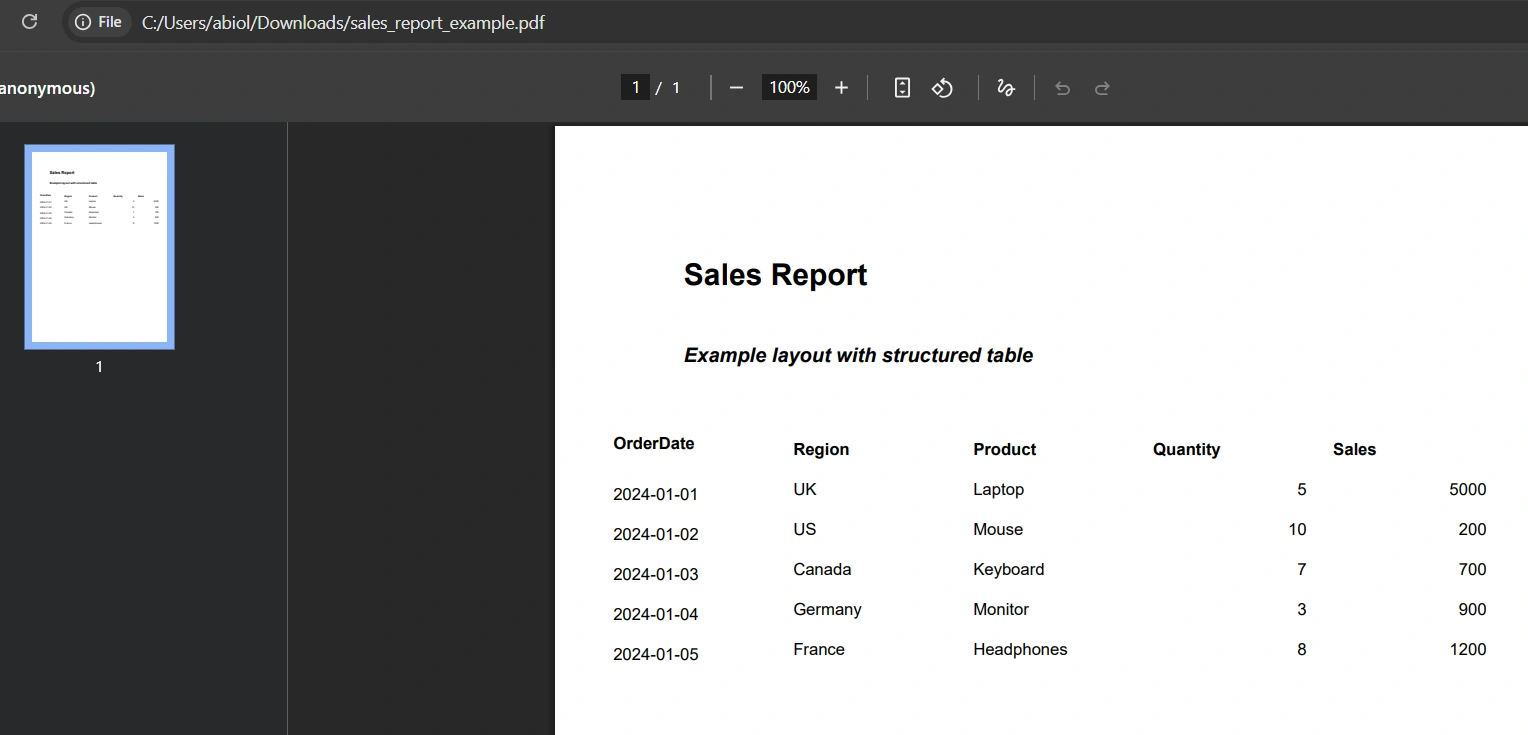
In the screenshot below, we have a table in PDF we'd like to extract in Power Query and analyse in Power BI
Step-by-step: Extracting data from PDF in Power BI
Let’s walk through the process.
Launch Power BI Desktop.
Go to:
Home → Get Data → PDF → Connect
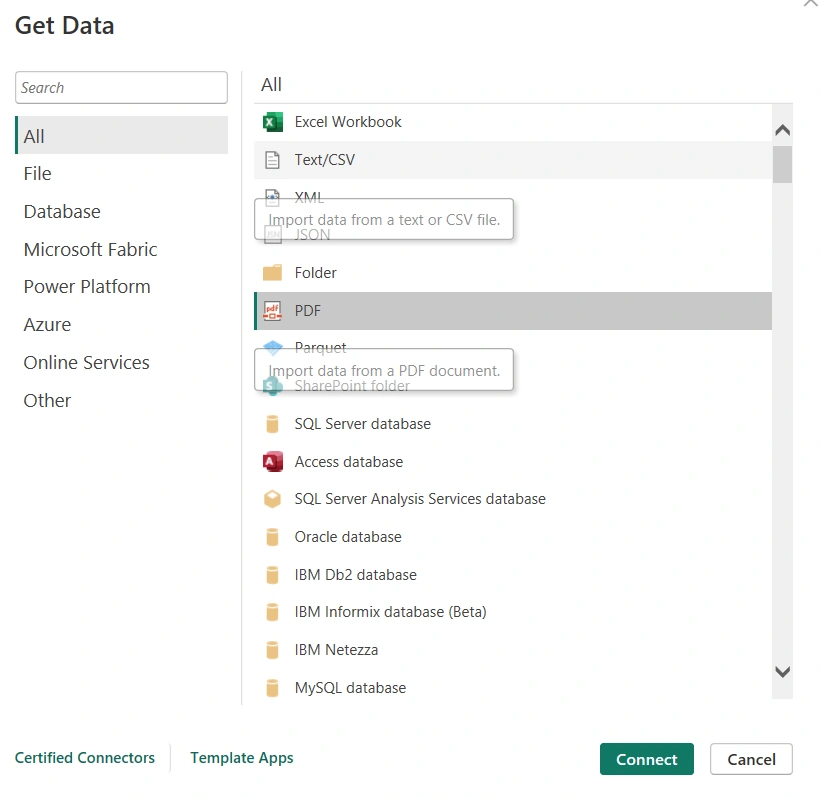
Browse to your PDF file.
Click Open.
Power Query will now analyze the PDF.
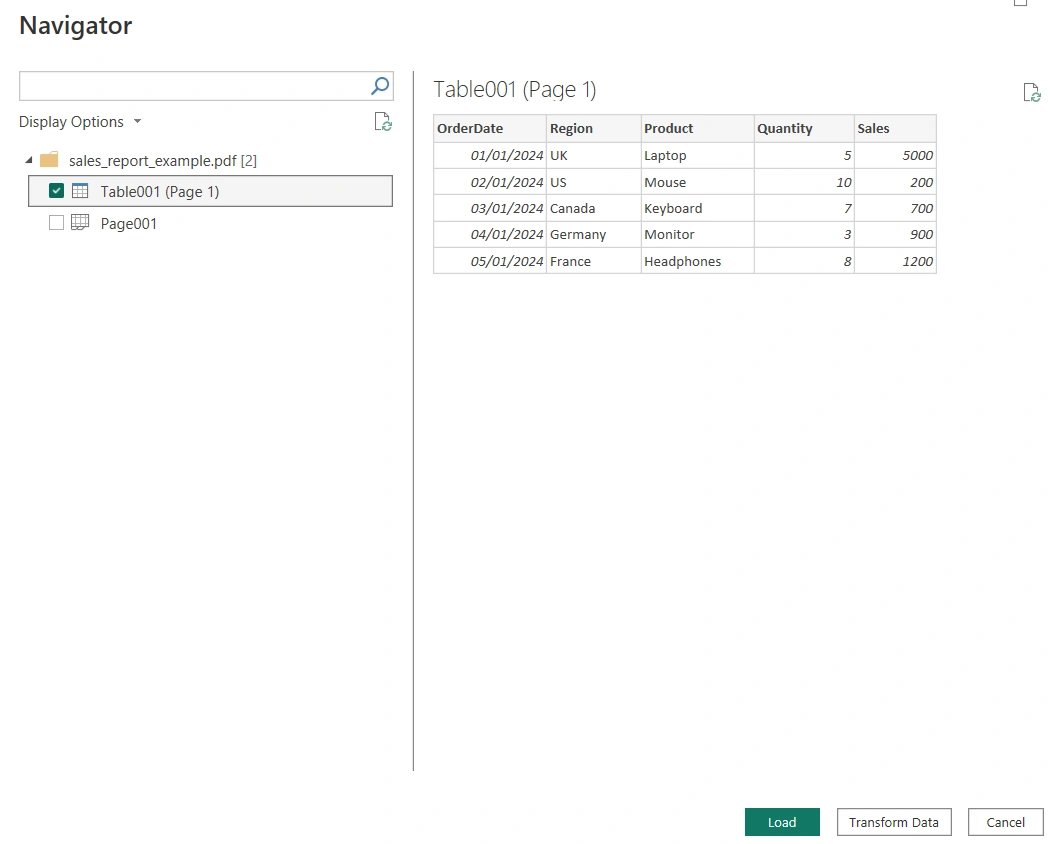
Click Transform
Rename the table as appropriate
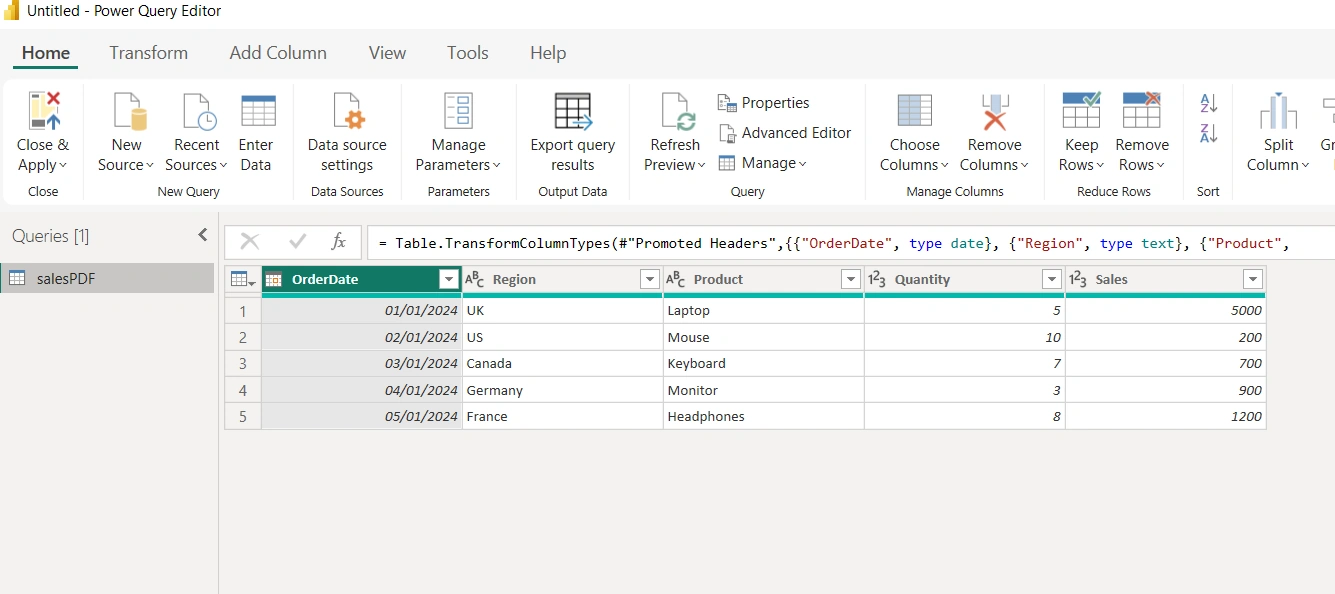
Close and Apply
Build table visual from the fields as seen below

What makes Power Query extremely powerful
This is where things get exciting.
Once configured, Power Query can refresh automatically.
If new PDF files replace old ones, Power BI can reload and update dashboards.
No manual intervention.
This transforms static reports into dynamic intelligence.
Final thoughts
Extracting data from PDFs using Power Query is one of those features that quietly transforms how professionals work.
It removes barriers.
It saves time.
It unlocks insights hidden inside static files.
If you work in data engineering, analytics, finance, or operations, this is a capability you should absolutely master.
Because in the real world, data doesn’t always come from perfect databases.
Sometimes, it comes from PDFs.
And now, you know exactly how to unlock it.
Join the conversation! Your thoughts help the community grow.