

Contents Focused On
- What is Cognitive Services?
- What is Face API?
- Sign Up for Face API
- Create ASP.Net MVC Sample Application
- Add AngularJS
- Install & Configure the Face API
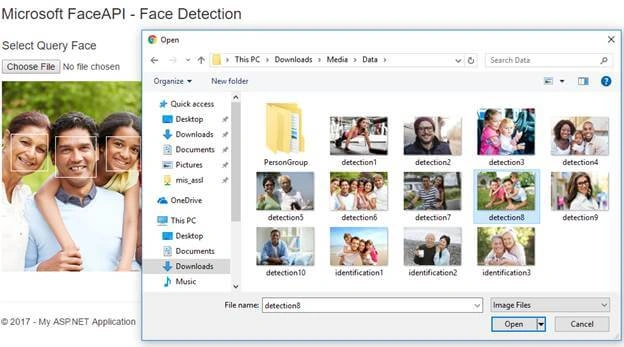
- Upload images to detect faces
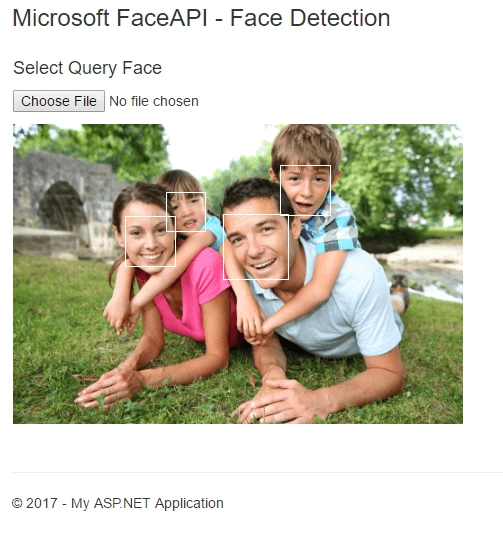
- Mark faces in the image
- List detected faces with face information
- Summary
What is Cognitive Services (Project Oxford)
Microsoft Cognitive Services, formerly known as Project Oxford, is a set of machine-learning application programming interfaces (REST APIs), SDKs, and services that helps developers to make smarter application by add intelligent features – such as, emotion and video detection; facial, speech, and vision recognition; and speech and language understanding.
Get more details from website.
What is Face API?
In Microsoft Cognitive Services, there are four main components.
- Face recognition recognizes faces in photos; groups faces that look alike; and verifies whether two faces are the same.
- Speech processing recognizes speech and translates it into text, and vice versa.
- Visual tools analyze visual content to look for things like inappropriate content or a dominant color scheme, and
- Language Understanding Intelligent Service (LUIS) understands what users mean when they say or type something using natural, everyday language.
Get more details from the Microsoft blog. We will implement Face recognition API in our sample application. So what is Face API?
Face API, is a cloud-based service that provides the most advanced face algorithms to detect and recognize human faces in images.
Face API has,
- Face Detection
- Face Verification
- Similar Face Searching
- Face Grouping
- Face Identification
Get a detailed overview here.
Face Detection
In this post, we are focusing on detecting faces so before we deal with the sample application, let’s take a closer look on API Reference (Face API - V1.0). To enable the services, we need to get an authorization key (API Key) by signing up with the service for free. Go to the link for signup.
Sign Up for Face API
Sign up using anyone by clicking on it.
- Microsoft account
- GitHub
After successfully joining, it will redirect to subscriptions page. Request new trials for any of the products by selecting the checkbox.
Process: Click on Request new trials > Face - Preview > Agree Term > Subscribe
Here, you can see that I have attached a screenshot of my subscription. In the Keys column, from Key 1, click on “Show” to preview the API Key. Then, click “Copy” to copy the key for further use.
Key can be regenerated by clicking on “Regenerate”.

So far, we are done with the subscription process. Now, let’s get started with the ASP.NET MVC sample application.
Create Sample Application
Before starting the experiment, let’s make sure that Visual Studio 2015 is installed on the development machine.
Now, let’s open Visual Studio 2015. From the File menu, click on New > Project.
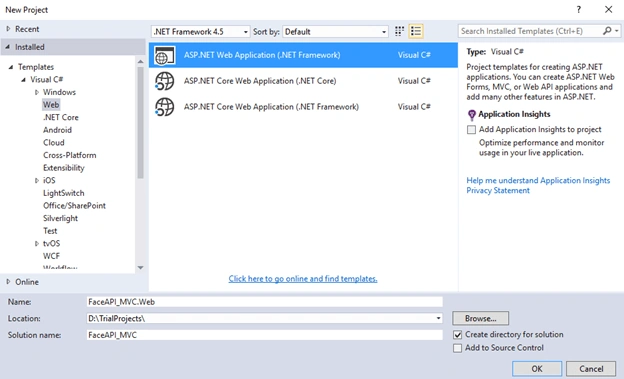
Select ASP.NET Web application, name it as you like, I just named it “FaceAPI_MVC”. Click OK button to proceed for next step.
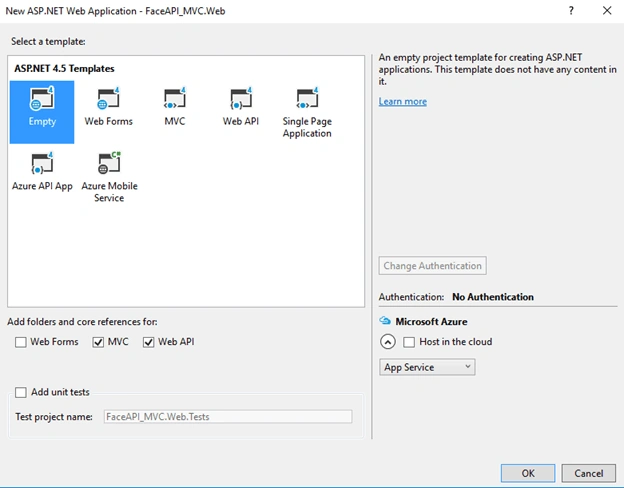
Choose empty template for the sample application, select “MVC” check box, then click OK.
In our empty template, let’s now create MVC Controller and generate views by scaffolding.

Add AngularJS
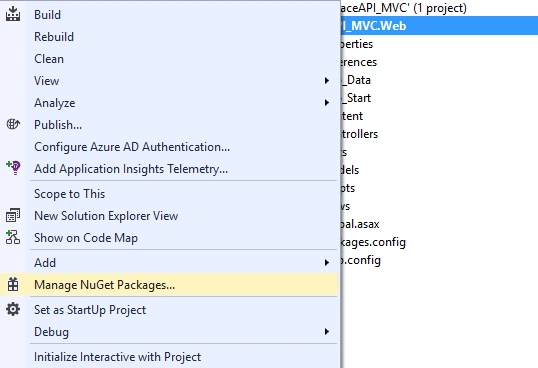
We need to add packages in our sample application. To do that, go to Solution Explorer and right click on Project > Manage NuGet Package.
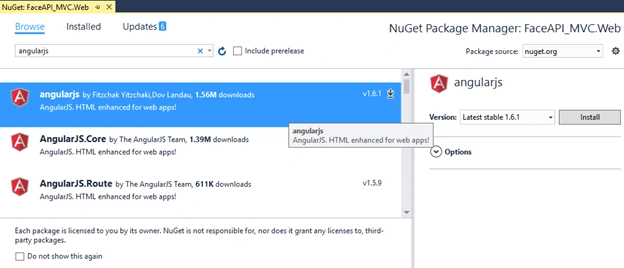
In "Package Manager", search by typing “angularjs”, select package, then click "Install".
After installing “angularjs” package, we need to reference it in our layout page. Also, we need to define app root using “ng-app” directive.
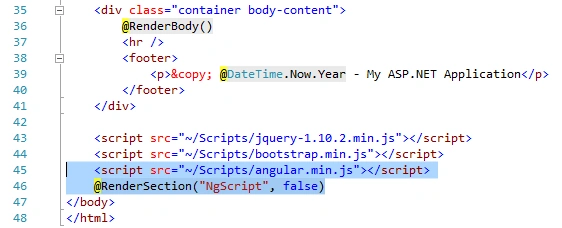
If you are new to AngularJS, please get a basic overview on AngularJS with MVC application from here.
Install & Configure the Face API
We need to add “Microsoft.ProjectOxford.Face” library in our sample application. Type and search like below screen, then select and Install.
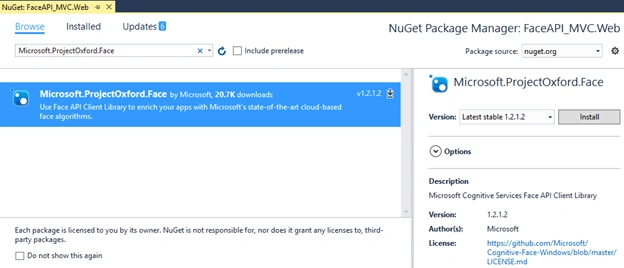
Web.Config
In application Web.Config, add a new configuration setting in appSettings section with our previously generated API Key.
- <add key="FaceServiceKey" value="XXXXXXXXXXXXXXXXXXXXXXXXXXX" />
Finally, appSettings
- <appSettings>
- <add key="webpages:Version" value="3.0.0.0" />
- <add key="webpages:Enabled" value="false" />
- <add key="PreserveLoginUrl" value="true" />
- <add key="ClientValidationEnabled" value="true" />
- <add key="UnobtrusiveJavaScriptEnabled" value="true" />
- <add key="FaceServiceKey" value="xxxxxxxxxxxxxxxxxxxxxxxxxxx" /> <!--replace with API Key-->
- </appSettings>
MVC Controller
This is where we are performing our main operation. First of all, get FaceServiceKey Value from web.config by ConfigurationManager.AppSettings.
- private static string ServiceKey = ConfigurationManager.AppSettings["FaceServiceKey"];
Here, in MVC Controller, we have two main methods to perform the face detection operation. One is HttpPost method, which is used for uploading the image file to folder and the other one is HttpGet method, used to get uploaded image and detecting faces by calling API Service.
Both the methods are getting called from client script while uploading image to detect faces. Let’s explain the steps.
Image Upload
This method is responsible for uploading images.
- [HttpPost]
- public JsonResult SaveCandidateFiles()
- {
- //Create Directory if Not Exist
- //Requested File Collection
- //Clear Folder
- //Save File in Folder
- }
Image Detect
This method is responsible for detecting the faces from uploaded images.
- [HttpGet]
- public async Task<dynamic> GetDetectedFaces()
- {
- // Open an existing file for reading
- // Create Instance of Service Client by passing Servicekey as parameter in constructor
- // Call detection REST API
- // Create & Save Cropped Detected Face Images
- // Convert detection result into UI binding object
- }
This is the code snippet where the Face API is getting called to detect the face from uploaded image.
- // Open an existing file for reading
- var fStream = System.IO.File.OpenRead(FullImgPath)
- // Create Instance of Service Client by passing Servicekey as parameter in constructor
- var faceServiceClient = new FaceServiceClient(ServiceKey);
- // Call detection REST API
- Face[] faces = await faceServiceClient.DetectAsync(fStream, true, true, new FaceAttributeType[] { FaceAttributeType.Gender, FaceAttributeType.Age, FaceAttributeType.Smile, FaceAttributeType.Glasses });
Create & Save Cropped detected face images.
- var croppedImg = Convert.ToString(Guid.NewGuid()) + ".jpeg" as string;
- var croppedImgPath = directory + '/' + croppedImg as string;
- var croppedImgFullPath = Server.MapPath(directory) + '/' + croppedImg as string;
- CroppedFace = CropBitmap(
- (Bitmap)Image.FromFile(FullImgPath),
- face.FaceRectangle.Left,
- face.FaceRectangle.Top,
- face.FaceRectangle.Width,
- face.FaceRectangle.Height);
- CroppedFace.Save(croppedImgFullPath, ImageFormat.Jpeg);
- if (CroppedFace != null)
- ((IDisposable)CroppedFace).Dispose();
Method that is cropping images according to face values.
- public Bitmap CropBitmap(Bitmap bitmap, int cropX, int cropY, int cropWidth, int cropHeight)
- {
- // Crop Images
- }
Finally Full MVC Controller
- public class FaceDetectionController : Controller
- {
- private static string ServiceKey = ConfigurationManager.AppSettings["FaceServiceKey"];
- private static string directory = "../UploadedFiles";
- private static string UplImageName = string.Empty;
- private ObservableCollection<vmFace> _detectedFaces = new ObservableCollection<vmFace>();
- private ObservableCollection<vmFace> _resultCollection = new ObservableCollection<vmFace>();
- public ObservableCollection<vmFace> DetectedFaces
- {
- get
- {
- return _detectedFaces;
- }
- }
- public ObservableCollection<vmFace> ResultCollection
- {
- get
- {
- return _resultCollection;
- }
- }
- public int MaxImageSize
- {
- get
- {
- return 450;
- }
- }
- // GET: FaceDetection
- public ActionResult Index()
- {
- return View();
- }
- [HttpPost]
- public JsonResult SaveCandidateFiles()
- {
- string message = string.Empty, fileName = string.Empty, actualFileName = string.Empty; bool flag = false;
- //Requested File Collection
- HttpFileCollection fileRequested = System.Web.HttpContext.Current.Request.Files;
- if (fileRequested != null)
- {
- //Create New Folder
- CreateDirectory();
- //Clear Existing File in Folder
- ClearDirectory();
- for (int i = 0; i < fileRequested.Count; i++)
- {
- var file = Request.Files[i];
- actualFileName = file.FileName;
- fileName = Guid.NewGuid() + Path.GetExtension(file.FileName);
- int size = file.ContentLength;
- try
- {
- file.SaveAs(Path.Combine(Server.MapPath(directory), fileName));
- message = "File uploaded successfully";
- UplImageName = fileName;
- flag = true;
- }
- catch (Exception)
- {
- message = "File upload failed! Please try again";
- }
- }
- }
- return new JsonResult
- {
- Data = new
- {
- Message = message,
- UplImageName = fileName,
- Status = flag
- }
- };
- }
- [HttpGet]
- public async Task<dynamic> GetDetectedFaces()
- {
- ResultCollection.Clear();
- DetectedFaces.Clear();
- var DetectedResultsInText = string.Format("Detecting...");
- var FullImgPath = Server.MapPath(directory) + '/' + UplImageName as string;
- var QueryFaceImageUrl = directory + '/' + UplImageName;
- if (UplImageName != "")
- {
- //Create New Folder
- CreateDirectory();
- try
- {
- // Call detection REST API
- using (var fStream = System.IO.File.OpenRead(FullImgPath))
- {
- // User picked one image
- var imageInfo = UIHelper.GetImageInfoForRendering(FullImgPath);
- // Create Instance of Service Client by passing Servicekey as parameter in constructor
- var faceServiceClient = new FaceServiceClient(ServiceKey);
- Face[] faces = await faceServiceClient.DetectAsync(fStream, true, true, new FaceAttributeType[] { FaceAttributeType.Gender, FaceAttributeType.Age, FaceAttributeType.Smile, FaceAttributeType.Glasses });
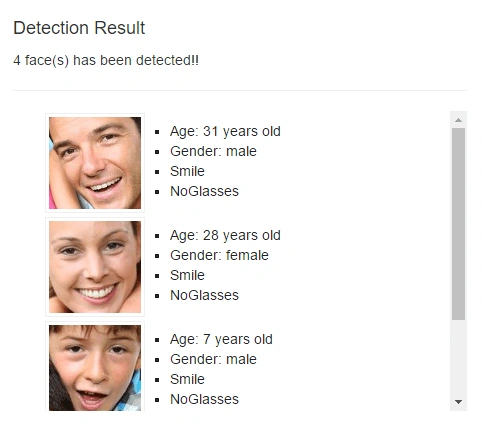
- DetectedResultsInText = string.Format("{0} face(s) has been detected!!", faces.Length);
- Bitmap CroppedFace = null;
- foreach (var face in faces)
- {
- //Create & Save Cropped Images
- var croppedImg = Convert.ToString(Guid.NewGuid()) + ".jpeg" as string;
- var croppedImgPath = directory + '/' + croppedImg as string;
- var croppedImgFullPath = Server.MapPath(directory) + '/' + croppedImg as string;
- CroppedFace = CropBitmap(
- (Bitmap)Image.FromFile(FullImgPath),
- face.FaceRectangle.Left,
- face.FaceRectangle.Top,
- face.FaceRectangle.Width,
- face.FaceRectangle.Height);
- CroppedFace.Save(croppedImgFullPath, ImageFormat.Jpeg);
- if (CroppedFace != null)
- ((IDisposable)CroppedFace).Dispose();
- DetectedFaces.Add(new vmFace()
- {
- ImagePath = FullImgPath,
- FileName = croppedImg,
- FilePath = croppedImgPath,
- Left = face.FaceRectangle.Left,
- Top = face.FaceRectangle.Top,
- Width = face.FaceRectangle.Width,
- Height = face.FaceRectangle.Height,
- FaceId = face.FaceId.ToString(),
- Gender = face.FaceAttributes.Gender,
- Age = string.Format("{0:#} years old", face.FaceAttributes.Age),
- IsSmiling = face.FaceAttributes.Smile > 0.0 ? "Smile" : "Not Smile",
- Glasses = face.FaceAttributes.Glasses.ToString(),
- });
- }
- // Convert detection result into UI binding object for rendering
- var rectFaces = UIHelper.CalculateFaceRectangleForRendering(faces, MaxImageSize, imageInfo);
- foreach (var face in rectFaces)
- {
- ResultCollection.Add(face);
- }
- }
- }
- catch (FaceAPIException)
- {
- //do exception work
- }
- }
- return new JsonResult
- {
- Data = new
- {
- QueryFaceImage = QueryFaceImageUrl,
- MaxImageSize = MaxImageSize,
- FaceInfo = DetectedFaces,
- FaceRectangles = ResultCollection,
- DetectedResults = DetectedResultsInText
- },
- JsonRequestBehavior = JsonRequestBehavior.AllowGet
- };
- }
- public Bitmap CropBitmap(Bitmap bitmap, int cropX, int cropY, int cropWidth, int cropHeight)
- {
- Rectangle rect = new Rectangle(cropX, cropY, cropWidth, cropHeight);
- Bitmap cropped = bitmap.Clone(rect, bitmap.PixelFormat);
- return cropped;
- }
- public void CreateDirectory()
- {
- bool exists = System.IO.Directory.Exists(Server.MapPath(directory));
- if (!exists)
- {
- try
- {
- Directory.CreateDirectory(Server.MapPath(directory));
- }
- catch (Exception ex)
- {
- ex.ToString();
- }
- }
- }
- public void ClearDirectory()
- {
- DirectoryInfo dir = new DirectoryInfo(Path.Combine(Server.MapPath(directory)));
- var files = dir.GetFiles();
- if (files.Length > 0)
- {
- try
- {
- foreach (FileInfo fi in dir.GetFiles())
- {
- GC.Collect();
- GC.WaitForPendingFinalizers();
- fi.Delete();
- }
- }
- catch (Exception ex)
- {
- ex.ToString();
- }
- }
- }
- }
Manohar APosted Sep 18, 2018, 2:32 AM
FaceServiceKey how will get the key?
Anu VPosted Feb 6, 2018, 12:52 AM
Nice article......... Thanks for sharing..
kristan rae arcinoPosted Jul 5, 2017, 3:56 AM
Please Make a tutorial on detecting similar faces..https://azure.microsoft.com/.../cognitive-services/face/
Mahesh ChandPosted Jan 10, 2017, 11:34 PM
Well written and nice to see Angular sample.
Manav PandyaPosted Jan 10, 2017, 1:12 AM
Thanks for sharing this sir
Humayun Kabir MamunPosted Jan 10, 2017, 12:54 AM
Thanks for this nice article...