
Fetch Column Headers from Excel Files in a Folder using Power Automate
This article mainly focuses on extracting the column header names from multiple Excel sheets stored in a folder using Power Automate.
Here’s a step-by-step process for creating a Power Automate for fetching the data from Excel sheets in a folder.
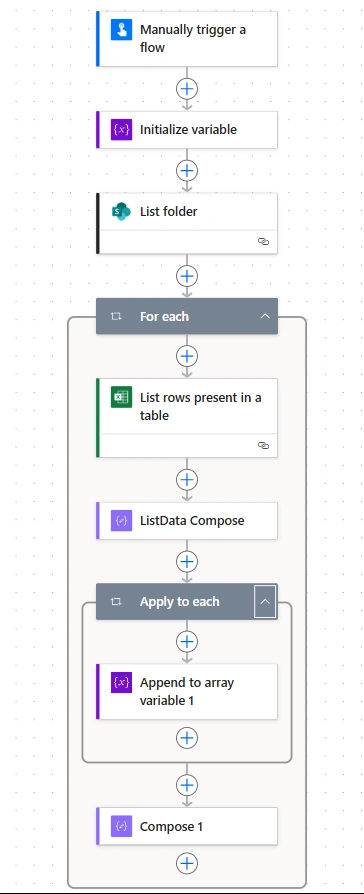
1. Create an Instant Cloud Flow
Start by creating a new instant cloud flow in Power Automate.
2. Add a Manual Trigger
Choose a manual trigger to run the flow on demand.
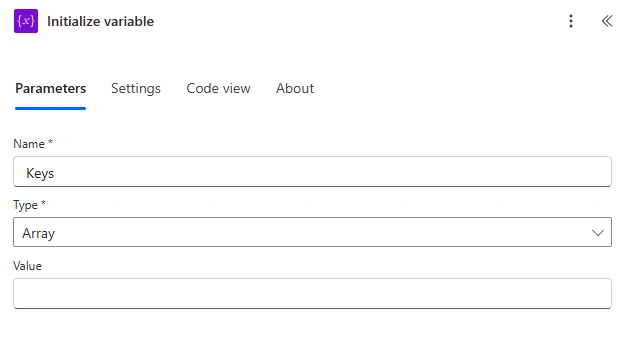
3. Initialize a Variable
Create an array variable (e.g., Keys) to store extracted column names along with their respective Excel sheet names.
4. List the Excel Files in the Folder
- Use the List folder action.
- Provide the Site Address and Folder Path where the Excel files are stored.
- This step retrieves all Excel file names within the folder.
5. Loop Through Each File
- Add a For each control.
- Select the output of the List folder action so that the flow processes each file individually.
6. List Rows in the Excel Sheet
- Use the List rows in a table action to fetch rows from each Excel file.
- This retrieves all rows in the table for the given workbook.
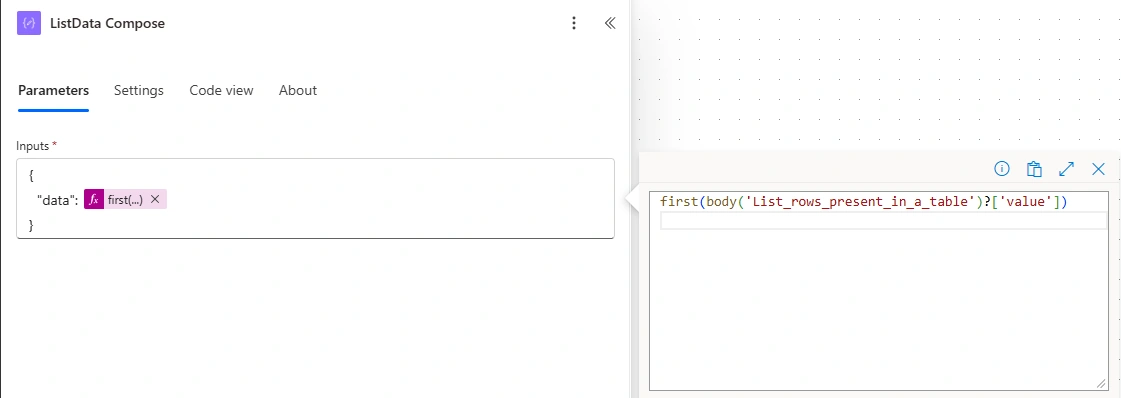
7. Extract Only the First Row (Headers)
- Add a Compose action to fetch the first row (which usually contains the column headers).
8. Apply to Each (Loop Through the Headers)
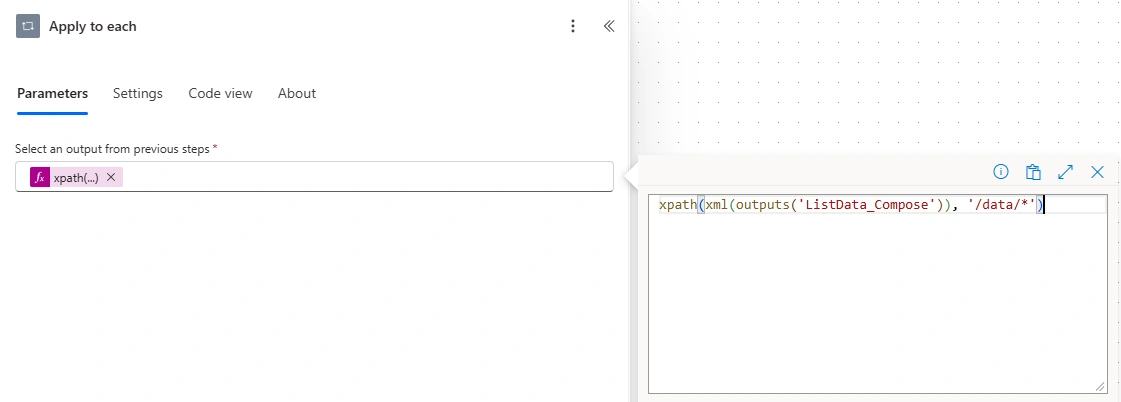
- Add another Apply to each action.
- In the Select an output field, use an XPath expression to get header names from the first row.
9. Append Column Names with File Name
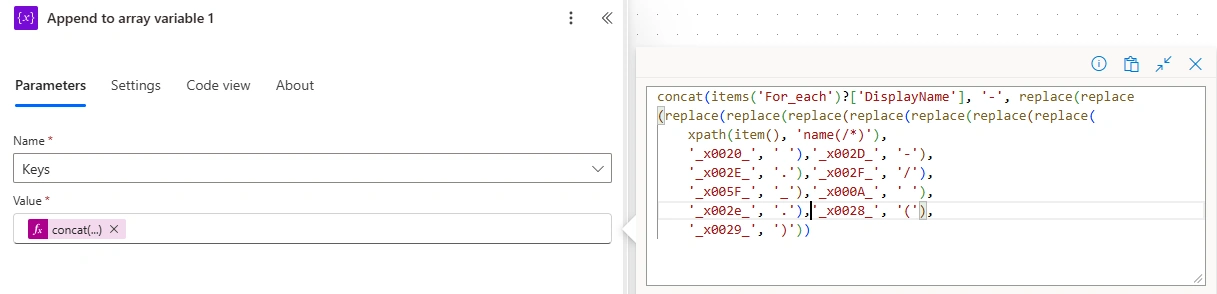
- Use the Append to array variable action.
- Concatenate the Excel sheet name with each header name, replacing any special characters.
The final Power Automate flow:
Join the conversation! Your thoughts help the community grow.