

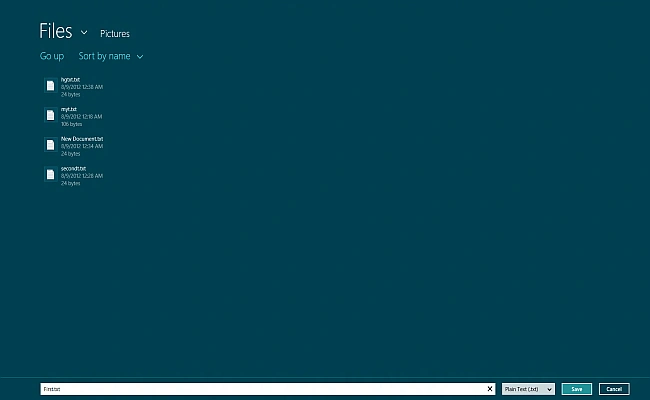
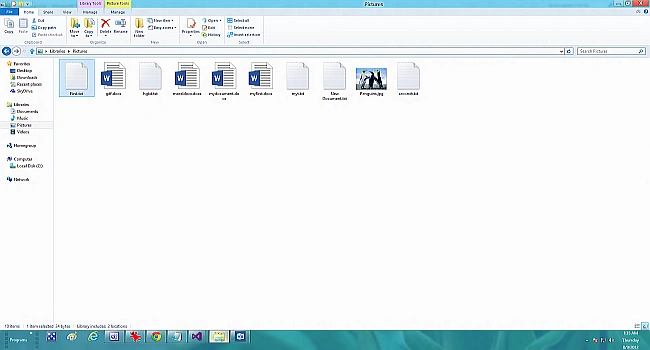
Today we learn about the FileSavePicker control in a Windows 8 Apps using C#. FileSavePicker allows users to specify the name and location of where they want to save your app's content. You can also customize the file picker by setting properties on the FileSavePicker according to their need.
Before we start work with the FileSavePicker have a look at the Properties and Methods of SaveFilePicker.
Properties:
- SuggestedStartLocation: Sets the location that the file suggests to the user to save a file.
- FileTypeChoices: It lets the user select the file types from the Dropdown list.
- SuggestedFileName: It is used for the Default file name if the user does not type one in or select a file to replace.
- DefaultFileExtension: Used for the Default extension if the user does not select a choice explicitly from the dropdown.
- CommitButtonText: Used for a customized commit button that is displayed to save.
- SuggestedSaveFile: Gets or Sets the Storage File that the file suggests to the user to save the file.
Methods:
- PickSaveFileAsync(): Lets the user save the file.
Now, we create an application to show how to use the FileSavePicker.
In the MainPage.XAML file we take a button that is used to open the FileSavePicker and a textblock to show the status message.
XAML Code:
<Page
x:Class="filesavepicker.MainPage"
IsTabStop="false"
xmlns="http://schemas.microsoft.com/winfx/2006/xaml/presentation"
xmlns:x="http://schemas.microsoft.com/winfx/2006/xaml"
xmlns:local="using:filesavepicker"
xmlns:d="http://schemas.microsoft.com/expression/blend/2008"
xmlns:mc="http://schemas.openxmlformats.org/markup-compatibility/2006"
mc:Ignorable="d">
<Grid Background="#FF318083">
<StackPanel Orientation="Vertical" Margin="40,50">
<Button x:Name="save" Content="save" Click="save_Click_1" Width="94"></Button>
<TextBlock x:Name="status" FontSize="30"/>
</StackPanel>
</Grid>
</Page>
In the MainPage.XAML.cs include the following Namespaces:
using Windows.Storage.Pickers;
using Windows.Storage;
In the MainPage.XAML.cs file create an event handler and customize the FileSavePicker by using the preceding properties and methods.
Code of MainPage.XAML.cs file:
using System;
using System.Collections.Generic;
using System.IO;
using System.Linq;
using Windows.Foundation;
using Windows.Foundation.Collections;
using Windows.Storage.Pickers;
using Windows.UI.Xaml;
using Windows.UI.Xaml.Controls;
using Windows.UI.Xaml.Controls.Primitives;
using Windows.UI.Xaml.Data;
using Windows.UI.Xaml.Input;
using Windows.UI.Xaml.Media;
using Windows.UI.Xaml.Navigation;
using Windows.Storage;
using Windows.Storage.Streams;
// The Blank Page item template is documented at http://go.microsoft.com/fwlink/?LinkId=234238

Teja KumarPosted Jan 7, 2017, 8:10 AM
Thanks for it Gaurav Gupta garu. Can you provide some more information about saving a mediafiles like mp3,mp4,png,jpg,e.t.c., by using FileSavePicker.
aaron LairdPosted Apr 11, 2016, 11:09 AM
is there a way to set SuggestedStartLocation to a subfolder in documents?
Devi PrasadPosted Jul 10, 2015, 3:21 AM
Then how to save a Audio file using FileSavePicker...I tried a lot but the saved audio file shows 0 Bytes..