
Introduction
This article demonstrates how to filter Crystal Report's data based on textbox value without logon prompt using ASP.NET with C#. Here I have created two web pages and a Crystal Report. One web page for a textbox value and a button and another web page for displaying Crystal Reports.
Problem with single web page
By using a single webpage, the Crystal Report's options export, print, zoom, etc. will not work properly, so this article can shows how to do that with two web pages for proper functionality without a logon prompt.
Database for this sample
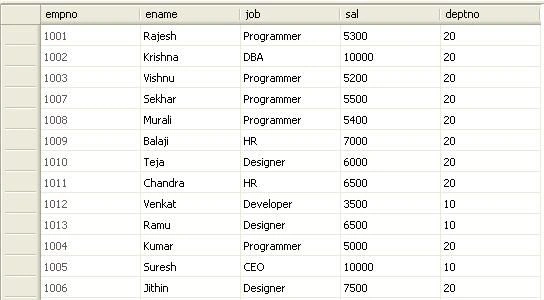
I have used the database name "EmpDetails", in that the table will be an "empno" and other columns as follows:
Creating first web page
Create the first web page for the Textbox value for filtering the Crystal Report data. In this add a textbox and a button. See the following designer code:
<html xmlns="http://www.w3.org/1999/xhtml">
<head runat="server">
<title>.: Filter The Data Here :.</title>
</head>
<body>
<form id="form1" runat="server">
<div style="text-align:center; padding:50px 0px 50px 0px;">
<h1>Filtering Crystal Report Data based on TextBox Value without Logon Promt</h1>
Enter Designation : <asp:TextBox ID="TxtDesig" runat="server"></asp:TextBox><br />
<asp:Button ID="BtnReport" runat="server" Text="Show Report" onclick="BtnReport_Click" />
</div>
</form>
</body>
</html>
Now write the code in the button click event to take a textbox value in the session and redirect to another page. The code will be as shown below:
protected void BtnReport_Click(object sender, EventArgs e)
{
Session["JOB"] = TxtDesig.Text;
Response.Redirect("ReportPage.aspx");
}
Then create the Crystal Reports report.
Creating Crystal Report
First create the Crystal Reports report with Create New Connection -> OLE DB(ADO) -> Select SQL Server provider -> Enter Server Name, User Name,
Password, Database Name -> add table (I used Emp table) -> add columns (I used EmpNo, Name, Job, Sal, Deptno) -> Finish.
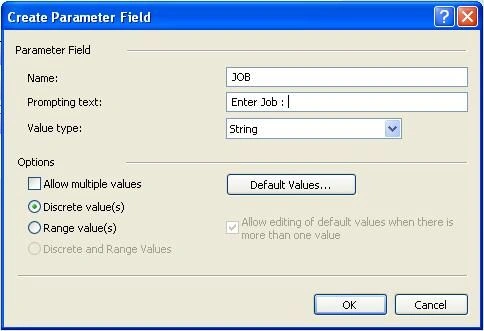
Now Field Explorer -> Parameter Fields -> Right-click -> New -> Enter details like below -> Click OK.
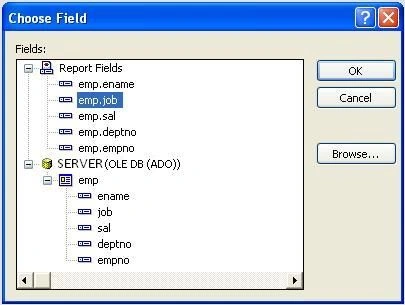
Now select Crystal Reports -> Crystal Reports Menu -> Report -> Select Expert… -> select emp.job (Which was filtering column) like below:
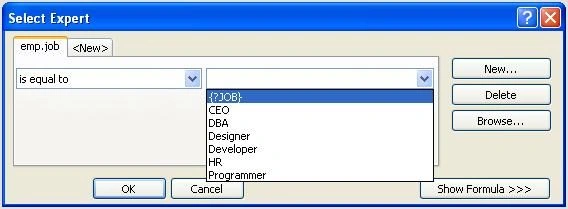
Click OK -> in first drop down list select "is equal to" then select Parameter field {?JOB} then click OK as shown below:
Dinesh BeniwalPosted Jun 27, 2012, 8:46 AM
Good work Rajesh.
Gaurav GuptaPosted Jun 27, 2012, 12:53 AM
Hi, Is there any option to filter crystal report after its generated?