

Introduction
In this article we will create a mobile app for finding GPS (geolocation) position and learn how to integrate Google Maps in Cordova (Phone Gap) application. This provides information about the device's location like latitude and longitude with GPS. The API returns the device's approximate location.
Step by step to create a Mobile App using Cordova
Step 1: To create a Mobile App using Cordova we will open a node.js Command Prompt.
Step 2: Now we will go to specific directory where we want to create the Mobile App.
Step 3: Now we will create a new Cordova Project using the following command:
"cordova create Geo com.demo.Geo Geolocation"
"cordova create Geo com.demo.Geo Geolocation"

Here,
- The first argument Geo specifies directory name that is generated for our project.
- The second argument com.demo.Geo provides our project with a reverse-style identifier.
- The third argument Geolocation provides the application's display name.

Step 5: Now we will go to the project directory using the following command:
"cd Geo"

Step 6: Now before building the project, we need to specify a set of target platforms. To add a different platform we will use the following command:
For Android:
- cordova platform add android
For Windows Phone 8:
- cordova platform add wp8
For BB10:
- cordova platform add blackberry10
For Windows:
- cordova platform add windows
For Amazon‐FireOS:
- cordova platform add amazon‐fireos
For FireFoxOS:
- cordova platform add firefoxos
Now here we will add platform for Android.
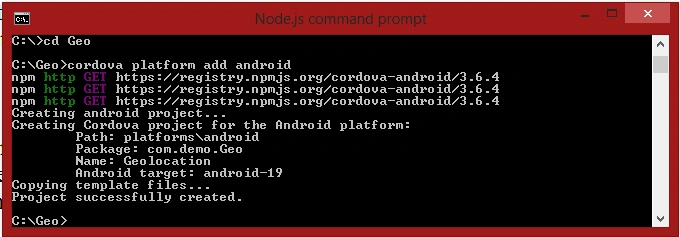
In this project folder Android platform will be added.
In this project folder Android platform will be added.

Step 7: Now for finding geolocation we will add Geolocation Plugin using the following command:
"cordova plugin add org.apache.cordova.geolocation"
"cordova plugin add org.apache.cordova.geolocation"
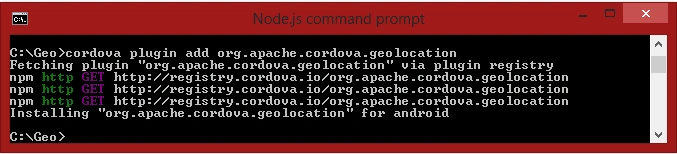
In this project folder geolocation plugin will be added.

There are three methods in geolocation plugin and we will understand these by example.
- geolocation.getCurrentPosition :This method returns the device's current GPS position.
Syntax:Parameters:- navigator.geolocation.getCurrentPosition(geolocationSuccess,[geolocationError],[geolocationOptions]);
geolocationSuccess: The callback that is passed the current position.
geolocationError: (Optional) The callback that executes if an error occurs.
geolocationOptions: (Optional) The geolocation options. - geolocation.watchPosition: This method continuously watch divice's current GPS position.
Syntax:- var watchId = navigator.geolocation.watchPosition(geolocationSuccess,[geolocationError],[geolocationOptions]);
- geolocation.clearWatch: Stop watching for changes to the device's location.
Syntax:Parameters:- navigator.geolocation.clearWatch(watchID);
watchID: The id of the watchPosition interval to clear.
Step 8: Now we will go to the project directory and to the www folder and for writing the code we will open index.html (C:\Geo\www\index.html) in any editor.
Now we will create Main Page(index.html) of the Cordova Application by writing the following code:
Now we will create Main Page(index.html) of the Cordova Application by writing the following code:
- <!DOCTYPE html>
- <html lang="en">
- <head>
- <meta charset="UTF-8">
- <title>Geo Location</title>
- </head>
- <body>
- <h2>Current Location:</h2>
- <div id="geolocation"></div>
- <h2>Location Map:</h2>
- <div id="map-canvas"></div>
- </body>
- </html>
- <!DOCTYPE html>
- <html lang="en">
- <head>
- <meta charset="UTF-8">
- <title>Geo Location</title>
- <style type="text/css">
- html {
- height: 100%;
- }
- body {
- height: 100%;
- margin: 0;
- padding-top: 5px;
- color: #ff0000;
- }
- body h2 {
- color: #0026ff;
- }
- #map-canvas {
- height: 100%;
- }
- </style>
- </head>
- <body>
- <h2>Current Location:</h2>
- <div id="geolocation"></div>
- <h2>Location Map:</h2>
- <div id="map-canvas"></div>
- </body>
- </html>
Now we want to add Google Map in our application so we will add Google Maps API it is a JavaScript library.
We will add the following script inside the <head></head> tag.
We will add the following script inside the <head></head> tag.
- <script src="https://maps.googleapis.com/maps/api/js" type="text/javascript"></script>
Now we will find current position of device, display latitude and longitude and integrate Google Maps in our Cordova application by writing the following script inside the <head></head> tag:
- <script type="text/javascript">
- // Find current position of divice with GPS(latitude,longitude)
- navigator.geolocation.getCurrentPosition(onSuccess, onerror);
- function onSuccess(position)
- {
- var element = document.getElementById('geolocation');
- element.innerHTML = 'Latitude: ' + position.coords.latitude + '<br />' + 'Longitude: ' + position.coords.longitude + '<br />' + '<hr />' + element.innerHTML;
- var lat = position.coords.latitude;
- var lang = position.coords.longitude;
- var myLatlng = new google.maps.LatLng(lat, lang);
- var mapOptions = {
- zoom: 4,
- center: myLatlng
- }
- //Creates a new map inside the <div> element
- var map = new google.maps.Map(document.getElementById('map-canvas'), mapOptions);
- //A marker identifies a location on a map.
- var marker = new google.maps.Marker(
- {
- position: myLatlng,
- map: map
- });
- }
- function onError(error)
- {
- alert('code: ' + error.code + '\n' + 'message: ' + error.message + '\n');
- }
- //Continuously watch divice's current GPS position
- var watchID = navigator.geolocation.watchPosition(onSuccess, onError,
- {
- timeout: 3000
- });
- //Simply passes the indicated event to the browser, which handles it according to the browser's DOM event model.
- google.maps.event.addDomListener(window, 'load', onSuccess);
- </script>
Step 9: Build Application
Now we will build this application for an Android phone only using the following command in Node.Js command prompt.
C:\Geo>cordova build android
Now we will build this application for an Android phone only using the following command in Node.Js command prompt.
C:\Geo>cordova build android
Step 10: To run this application in an emulator we will use the following command.
C:\Geo>cordova emulate android
C:\Geo>cordova emulate android
Now after building the application we will get .apk file at:
C:\Geo\platforms\android\ant-build\CordovaApp-debug.apk
C:\Geo\platforms\android\ant-build\CordovaApp-debug.apk

Now we will use this .apk file in Android mobile and see our Geolocation Mobile App output.
Note: We must have internet connection and mobile GPS on.
Note: We must have internet connection and mobile GPS on.
Output:
Geolocation App Icon,
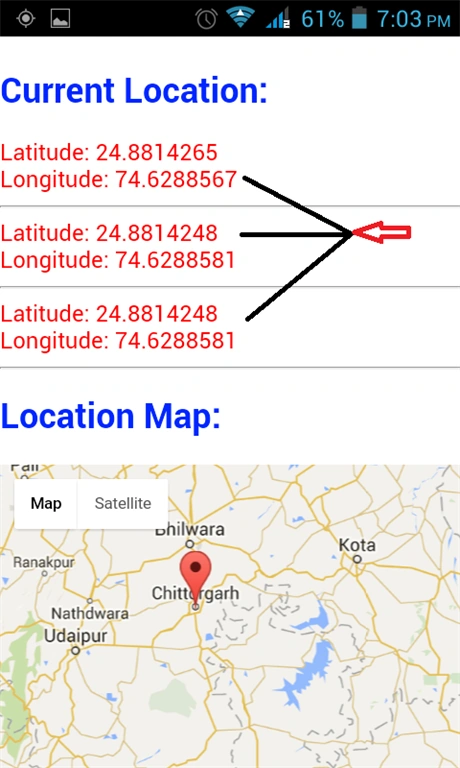
Using this App we can see current position of device and find latitude and longitude.
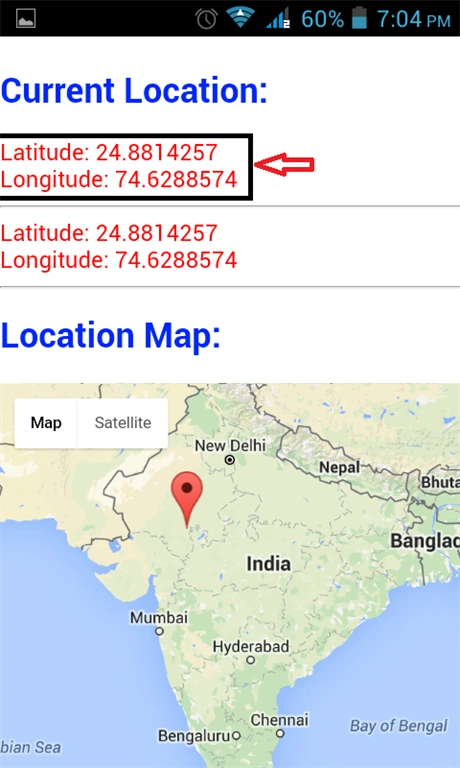
Using this App we can see current position in Google Map
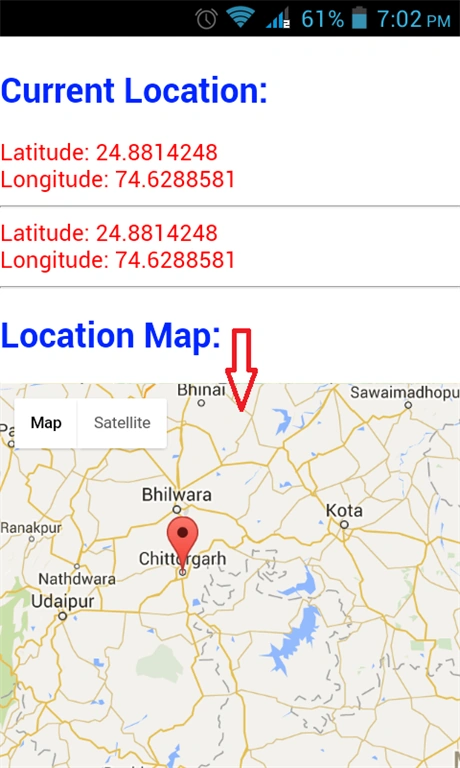
Using this App we can watch continuous changes in current GPS location of device.
Read more articles on Android:
Rajesh KumarPosted Apr 2, 2019, 12:48 AM
I am using fcm plugin for notification and i am tap notification then open specific page an android working fine but not working in ios. can you please help me and any resource
Rajesh KumarPosted Apr 2, 2019, 12:43 AM
Nice Article
Sharjeel ImtiazPosted Feb 25, 2017, 6:24 PM
Can we really use google maps without using any plugin in cordova?
Dipendra ShekhawatPosted Jun 27, 2016, 4:54 AM
Very Good Article Shaili Dashora !!
Bhuvanesh MohankumarPosted May 10, 2016, 2:25 AM
Nice Shaili.
Kuppurasu NagarajPosted Apr 11, 2016, 2:06 PM
Nice Sharing
Sibeesh VenuPosted Mar 7, 2016, 7:30 AM
Nice Share
Jithil JohnPosted Mar 7, 2016, 7:03 AM
Good one
Debasis SahaPosted Mar 6, 2016, 11:48 PM
Nice one..
Humayun Kabir MamunPosted Mar 6, 2016, 10:44 PM
Nice...
Vignesh ManiPosted Mar 6, 2016, 12:11 PM
Good one.
Mohammed IbrahimPosted Mar 6, 2016, 9:54 AM
nice
Asfend YarPosted Mar 6, 2016, 7:27 AM
nice share love that stuff