
Introduction
This article demonstrates the use of FluentView in an Android application using the Android Studio. Follow the below-given steps.

Step 1
- Create a new project in Android Studio.
- Give a name to the project and click "Next".
- Select the "Phone and Tablet" and click "Next".
- Select an empty activity and click "Next".
- At last, give the activity name and click "Finish".
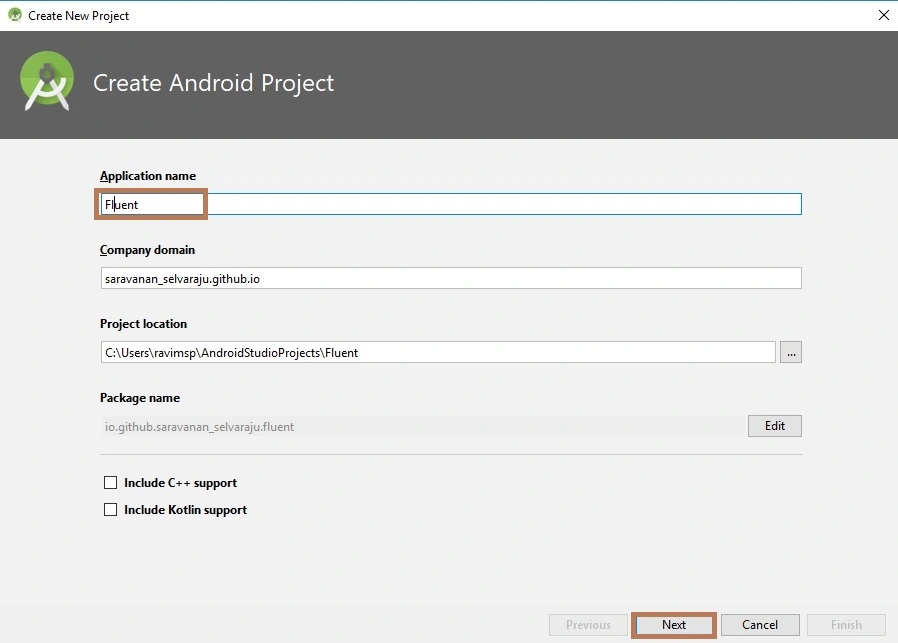
Step 2
Next, go to Gradle Scripts >> build.gradle (Module:app).
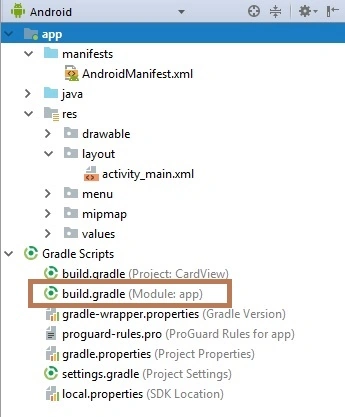
Select build.gradle (Module:app). The app Gradle compiles the code so buildTypes will appear. Just replace that with the following code.
Compile Code
- dependencies {
- implementation 'com.vlstr:fluentappbar:1.1.0'
- }
Step 3
Next, go to App >> res >> layout >> activity_main.xml. Select the activity_main.xml page. The XML code will appear. Just select and replace the following code.
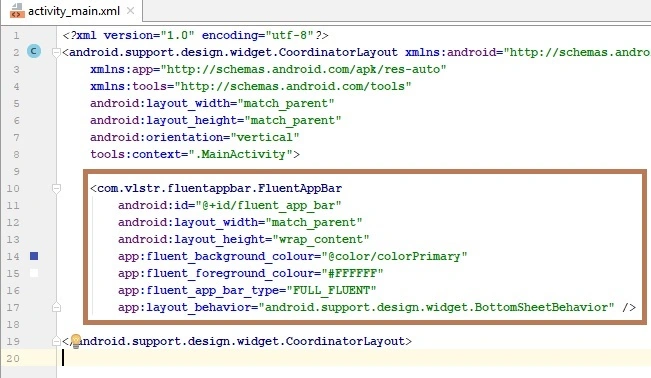
activity_main Code
- <?xml version="1.0" encoding="utf-8"?>
- <android.support.design.widget.CoordinatorLayout xmlns:android="http://schemas.android.com/apk/res/android"
- xmlns:app="http://schemas.android.com/apk/res-auto"
- xmlns:tools="http://schemas.android.com/tools"
- android:layout_width="match_parent"
- android:layout_height="match_parent"
- android:orientation="vertical"
- tools:context=".MainActivity">
- <com.vlstr.fluentappbar.FluentAppBar
- android:id="@+id/fluent_app_bar"
- android:layout_width="match_parent"
- android:layout_height="wrap_content"
- app:fluent_background_colour="@color/colorPrimary"
- app:fluent_foreground_colour="#FFFFFF"
- app:fluent_app_bar_type="FULL_FLUENT"
- app:layout_behavior="android.support.design.widget.BottomSheetBehavior" />
- </android.support.design.widget.CoordinatorLayout>
Step 4
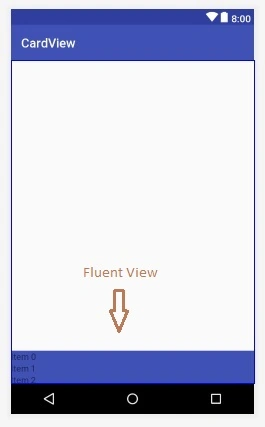
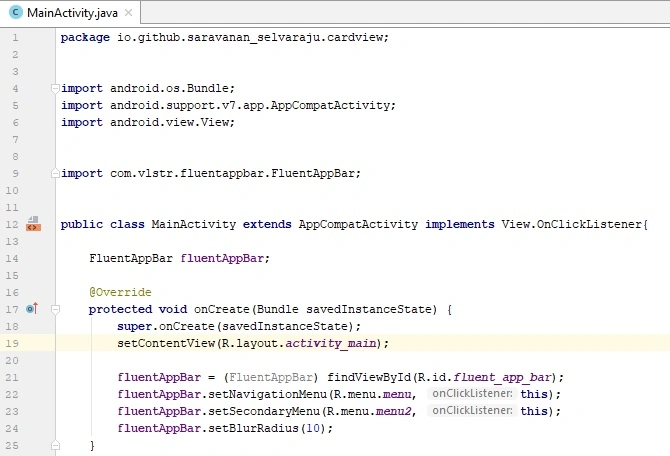
HariharanPosted Nov 2, 2018, 12:28 AM
Buile.gradle -(using this code) dependencies { compile 'com.github.nantaphop:fluentview:1.0.0'}
Hadshana KamalanathanPosted Jul 22, 2018, 6:23 AM
Good one...
Viknaraj ManogararajahPosted Jul 14, 2018, 11:13 PM
Nice Article, Thank you for sharing.........