
Introduction
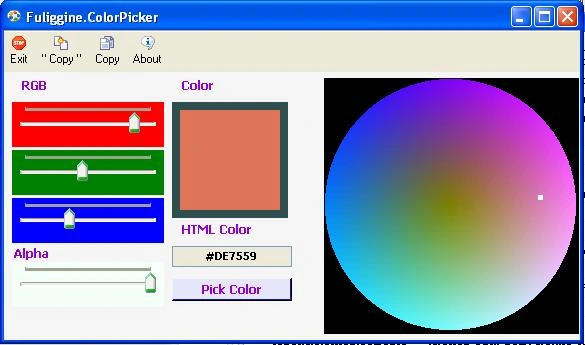
One big framework's handicap is the low number of visual controls. Luckily the most useful are yet present, but often we find some problem with the less common control. Some days ago I developed a program that translate the colors in the HTML code. In the beginning, I used simply three trackbar to change the red, green and blue. In a second moment I need to put a more quick and intuitive solution, so I build this ColorPicker. This control allow to select a color faster than the previous one. Because I haven't seen a similar control in this section, I decide to post it.
In the last update I added a consistent number of controls. All controls are listed below:
| ColorPickers (namespace Fuliggine.ColorPickers) | |
| StableColorPicker | Is a circular color picker. It allow to select a single color. |
| SquareColorPicker | Is a control that, given a base color show and allow to select it's tones. |
| ColorBar | Is a control that show and allow to select all base color derived from RGB except white and black. |
| FullColorBar | Is a control that show and allow to select all base color derived from RGB (also white and black). |
|
ColorViewers (namespace Fuliggine.ColorPickers) | |
| MonoFrameColor | Is a control with frame that show the selected color. |
| DoubleFrameColor | Is a control with two frame that show the two selected colors. |
| ColorGradient | Is a control that show all tones of a given color; |
|
Special Pointers (namespace Fuliggine.ColorPickers) | |
| HolePointer | Is the pointer that select the color in the controls. |
The ColorPickers Controls
The most part of these controls don't need any word, almost I think. For CodeBar and full code bar I divided the width in some section to allow all the possible combination of R,G,B. After that I found the step of color done in every pixel and draw the control line by line...
protected override void OnPaint(PaintEventArgs e)
{
int R=255;
int G=0;
int B=0;
//orizzontal...
int colorstep=255/ ( this.Width/6 );
int i=0;
//the color step x pixel
for(B=0;B<256;B+=colorstep ,i++)
{
e.Graphics.DrawLine(new Pen(new SolidBrush(Color.FromArgb(R,G,B)),1),i,0,i,this.Height);
}
B=255;
for(R=255;R>0;R-=colorstep,i++)
{
e.Graphics.DrawLine(new Pen(new SolidBrush(Color.FromArgb(R,G,B)),1),i,0,i,this.Height);
}
R=0;
for(G=0;G<256;G+=colorstep,i++)
{
e.Graphics.DrawLine(new Pen(new SolidBrush(Color.FromArgb(R,G,B)),1),i,0,i,this.Height);
}
G=255;
for(B=255;B>0;B-=colorstep,i++)
{
e.Graphics.DrawLine(new Pen(new SolidBrush(Color.FromArgb(R,G,B)),1),i,0,i,this.Height);
}
B=0;
for(R=0;R<256;R+=colorstep,i++)
{
e.Graphics.DrawLine(new Pen(new SolidBrush(Color.FromArgb(R,G,B)),1),i,0,i,this.Height);
}
R=255;
B=0;
for(G=255;G>0;G-=colorstep,i++)
{
e.Graphics.DrawLine(new Pen(new SolidBrush(Color.FromArgb(R,G,B)),1),i,0,i,this.Height);
}
}
A similar way is used also in the Color Gradient and SquareColorPicker, but there only the tones of the color are shown.
protected override void OnPaint(PaintEventArgs e)
{
int ScaleY=255/this.Height;
for ( int y = 0 ; y<this.Height;y++)
{
int r=pColor.R-(y*ScaleY);
if(r<0)
{
r=0;
}
int g=pColor.G-(y*ScaleY);
if(g<0)
{
g=0;
}
int b=pColor.B-(y*ScaleY);
if(b<0)
{
b=0;
}
e.Graphics.DrawLine(new Pen(new SolidBrush(Color.FromArgb(r,g,b)),1),0,y,this.Width,y);
}
}
The Mono and Double Fame Color are realized by simple panels. The Hole pointer is a simple control that bring itself in the apparent bounds when the mouse drag it. Basing on its position controls it is decided what's the selected color.
Gowtham RajamanickamPosted Apr 16, 2016, 8:21 AM
Good article