

In this article, we will see how to create a full-text search index for a SQL Server database. When we develop an application, in many cases we need to provide the search facility in our application. You can search records using keywords like "where" and "like" and there might be other ways. In this article, we will see the full-text search index technique to search records and the effect of it. So let's take a look at a practical example of how to create a full-text search index in SQL Server. The example is developed in SQL Server 2012 using the SQL Server Management Studio.
Creating Table in SQL Server
First I have created a table named News. The table News has a column Title as below:
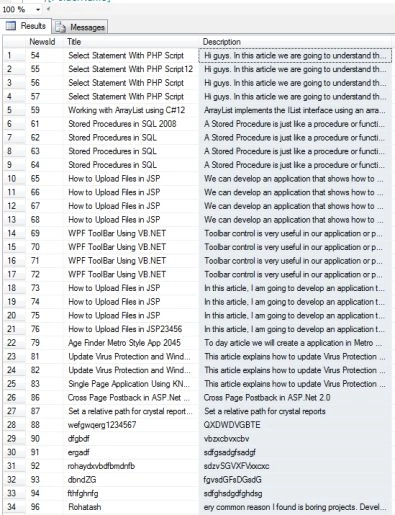
Using Where and Like Predicates
After you have created a table named News with a column named Title you could construct these queries to search records:
- SELECT * FROM News WHERE Title = 'Statement'
- SELECT * FROM News WHERE Title LIKE '%Statement%'
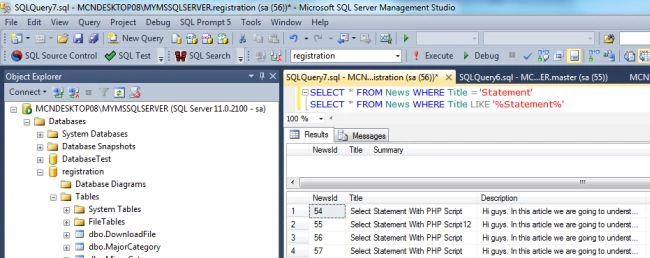
The above image does not display any records, in other words the "where" keyword is used for the full text of the column and the "like" keyword is used for parts of the column.
Now execute the following statement which contains the search text near the statement. Such as:
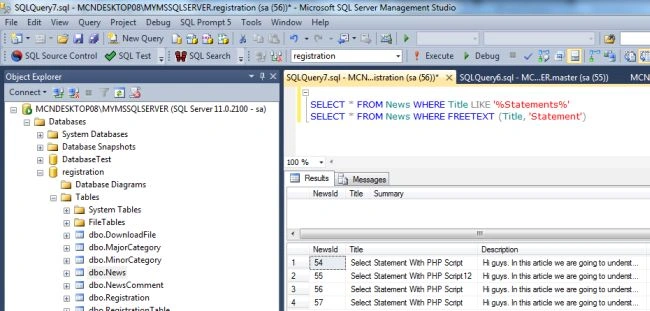
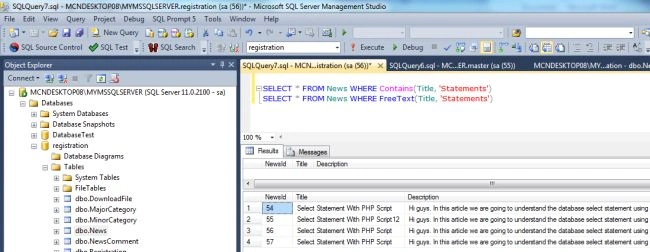
- SELECT * FROM News WHERE Title LIKE '%Statements%'

The above image does not display any record, in other words the "like" keyword is used for the full text or part of the column. It does not support:
- Two words near each other
- Multiple words with distinct weightings
- A word or phrase close to the search word or phrase
Full-Text Search Index for SQL Server
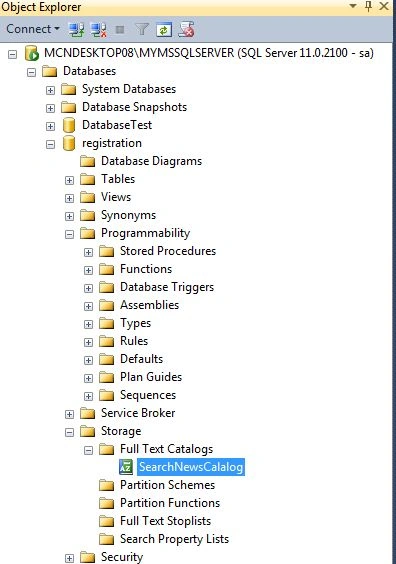
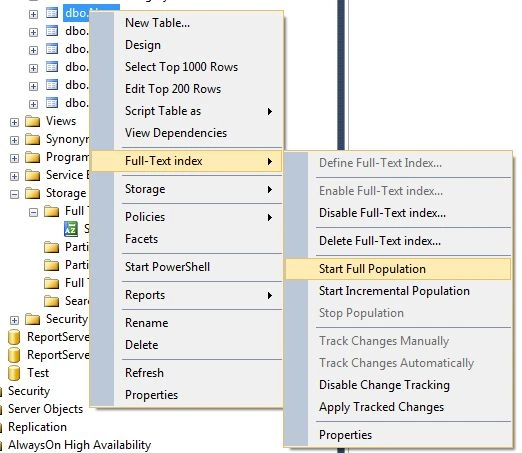
First of all start SQL Server 2012 and select a database and right-click on the News table and select Full-Text Index to define the Full-Text Index.

This would open the full-text index wizard window.
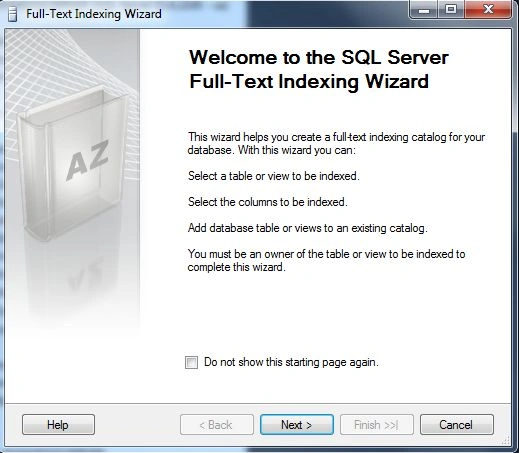
Now click on the Next Button. The unique index, the default, is correct.
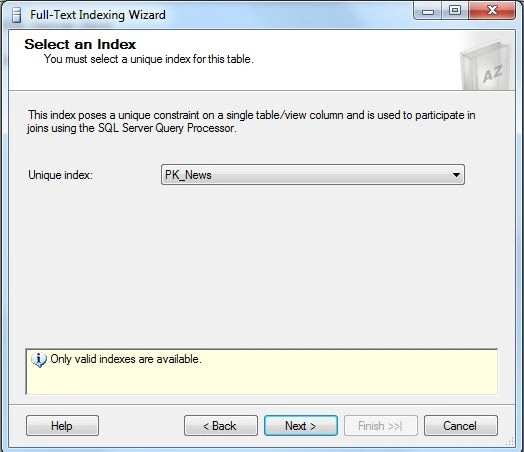
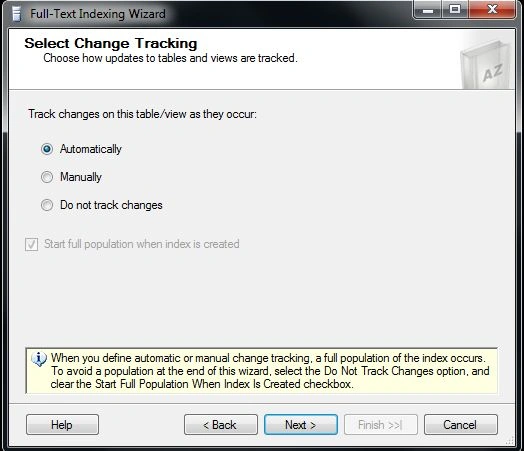
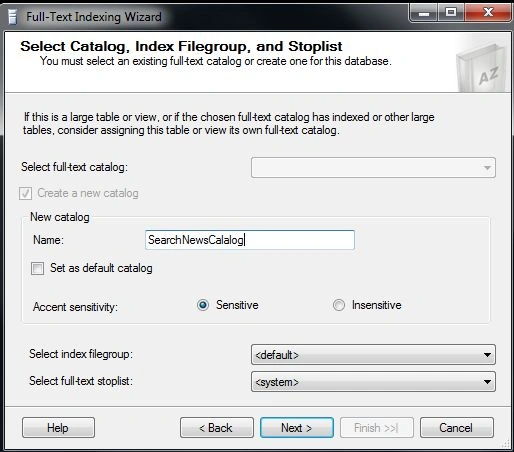
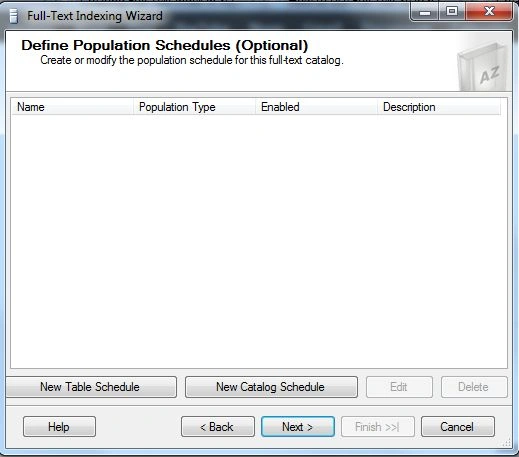
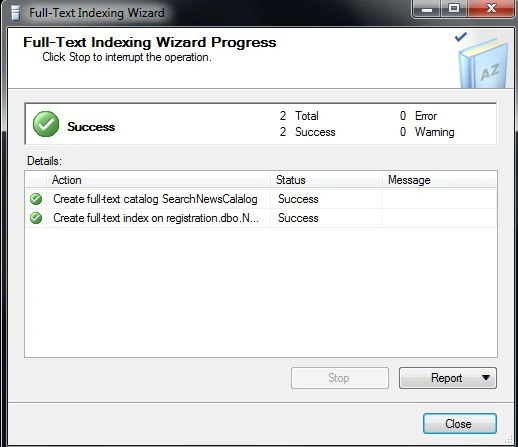
Now click on the Next Button and select columns from the News table to create a Full Text Search Index.


Join the conversation! Your thoughts help the community grow.