Programmatically generating Word documents from templates is a frequent requirement in enterprise software development. Use cases include automated contract generation, personalized correspondence, report creation, and batch document processing. This article walks through a practical example: generating a personalized confirmation letter from a template, using a .NET library that handles Word documents without requiring Microsoft Office to be installed on the system.
The example will demonstrate two alternative implementation strategies, allowing you to choose the approach that best fits your data structure and template complexity.
Scenario: Generating a Confirmation Letter
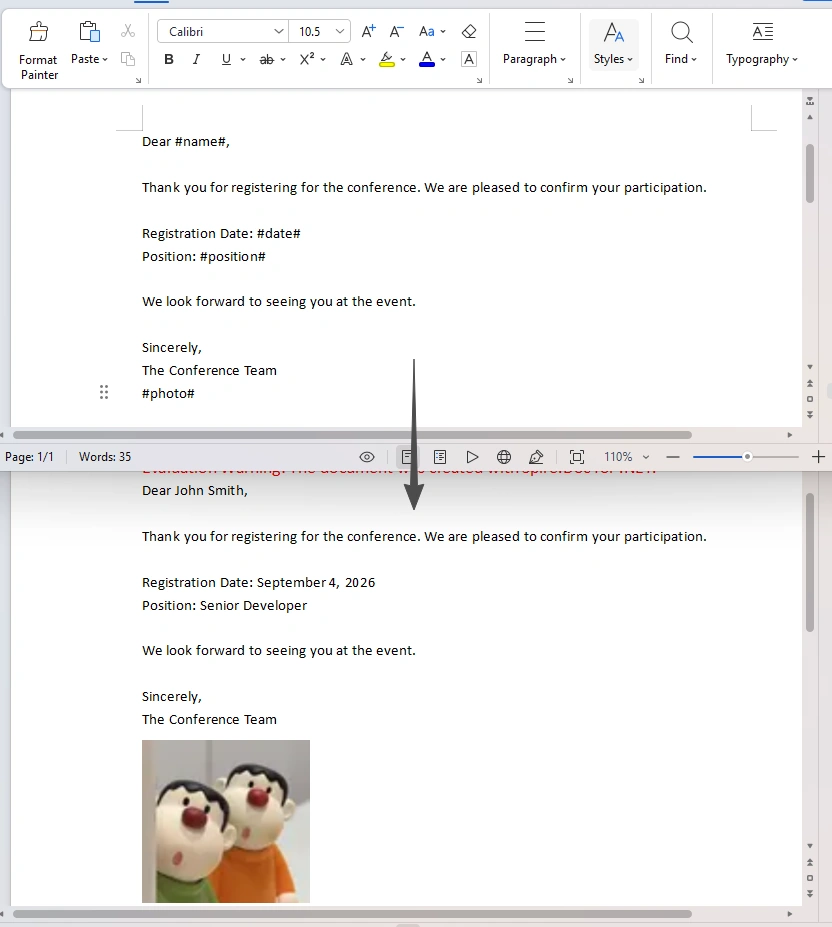
Suppose you need to generate a confirmation letter for event registrants. The template contains the recipient's name, registration date, position, and optionally a profile photo. Your application has this data available in memory, and you need to produce individual .docx files for each registrant.
Here is the sample template content:

Implementation Strategy One: Text-Based Placeholder Replacement
This method treats the template as plain text with recognizable markers. It is straightforward and requires minimal setup.
Loading the Template
using Spire.Doc;
using Spire.Doc.Fields;
using System.Drawing;

Document document = new Document();
document.LoadFromFile("Template.docx");
Preparing the Data
Define a mapping between each placeholder and its corresponding value:

csharp
var registrant = new
{
    Name = "John Smith",
    Date = "September 4, 2026",
    Position = "Senior Developer"
};

Dictionary<string, string> replacements = new Dictionary<string, string>
{
    { "#name#", registrant.Name },
    { "#date#", registrant.Date },
    { "#position#", registrant.Position }
};
Executing the Replacements
Loop through the dictionary and apply each substitution:
foreach (KeyValuePair<string, string> kvp in replacements)
{
    document.Replace(kvp.Key, kvp.Value, true, true);
}
Handling Images Separately
Since the Replace() method works only with text, image placeholders require a dedicated function:
foreach (KeyValuePair<string, string> kvp in replacements)
{
    document.Replace(kvp.Key, kvp.Value, true, true);
}

Handling Images Separately
Since the Replace() method works only with text, image placeholders require a dedicated function:

csharp
static void ReplaceTextWithImage(Document document, string placeholder, string imagePath)
{
    Image image = Image.FromFile(imagePath);
    DocPicture picture = new DocPicture(document);
    picture.LoadImage(image);

    TextSelection selection = document.FindString(placeholder, false, true);
    TextRange range = selection.GetAsOneRange();
    int index = range.OwnerParagraph.ChildObjects.IndexOf(range);

    range.OwnerParagraph.ChildObjects.Insert(index, picture);
    range.OwnerParagraph.ChildObjects.Remove(range);
}
Usage
ReplaceTextWithImage(document, "#photo#", @"C:\Photos\john.png");
Saving the Final Document
csharp
document.SaveToFile($"Confirmation_{registrant.Name.Replace(" ", "")}.docx", FileFormat.Docx);
document.Dispose();
Implementation Strategy Two: Merge Fields
If your data originates from a database table and your template authors are comfortable working with Word's field codes, merge fields offer a more structured alternative. Instead of embedding text placeholders like #name#, you insert Word merge fields (Name, Date, Position, etc.) directly into the template. The library can then populate these fields from a DataTable or DataSet in a single operation.
This approach is particularly useful when your templates are maintained by non-developers who prefer Word's built-in field editing tools. For simple scenarios with a handful of placeholders, however, the text replacement method shown above is quicker to implement and easier to debug.
Alternatively, you can create the template entirely in code:
using Spire.Doc;
using Spire.Doc.Documents;

Document document = new Document();
Section section = document.AddSection();
Paragraph paragraph = section.AddParagraph();

paragraph.AppendText("Dear ");
paragraph.AppendField("Name", FieldType.FieldMergeField);
paragraph.AppendText(",");
paragraph.AppendBreak(BreakType.LineBreak);
paragraph.AppendBreak(BreakType.LineBreak);

paragraph.AppendText("We are pleased to confirm your position as ");
paragraph.AppendField("Position", FieldType.FieldMergeField);
paragraph.AppendText(".");
paragraph.AppendBreak(BreakType.LineBreak);
paragraph.AppendBreak(BreakType.LineBreak);

paragraph.AppendText("Start Date: ");
paragraph.AppendField("StartDate", FieldType.FieldMergeField);
paragraph.AppendBreak(BreakType.LineBreak);

paragraph.AppendText("Location: ");
paragraph.AppendField("Location", FieldType.FieldMergeField);
paragraph.AppendBreak(BreakType.LineBreak);

paragraph.AppendText("Please bring your photo ");
paragraph.AppendField("Image:Photo", FieldType.FieldMergeField);
paragraph.AppendBreak(BreakType.LineBreak);
paragraph.AppendBreak(BreakType.LineBreak);

paragraph.AppendText("Sincerely,");
paragraph.AppendBreak(BreakType.LineBreak);
paragraph.AppendText("HR Department");

document.SaveToFile("OfferLetterTemplate.docx", FileFormat.Docx);
document.Dispose();

Populating Data
Merge fields are designed to work with data sources such as DataTable, DataSet, or XML. The library maps each field name to a column or value from the source during execution.
A Note on Implementation Choices
Both strategies achieve the same outcome: generating a populated document from a template. The text replacement method is easier to implement and requires no special template editing tools—any plain text or Word document can serve as a template. The merge field approach adds structure and aligns well with database-driven workflows, but requires creating templates with proper merge fields beforehand.
The choice is largely a matter of how your data is structured and how comfortable your template authors are with Word's merge field functionality.
Putting It All Together: A Simple Console Example
Here is a complete console application that generates a confirmation letter using the text replacement method:
using Spire.Doc;
using Spire.Doc.Fields;
using System;
using System.Collections.Generic;
using System.Drawing;

class Program
{
    static void Main()
    {
        // Load template
        Document document = new Document();
        document.LoadFromFile("Template.docx");

        // Registrant data
        var data = new Dictionary<string, string>
        {
            { "#name#", "John Smith" },
            { "#date#", "September 4, 2026" },
            { "#position#", "Senior Developer" }
        };

        // Apply replacements
        foreach (var kvp in data)
        {
            document.Replace(kvp.Key, kvp.Value, true, true);
        }

        // Optional: insert image
        ReplaceTextWithImage(document, "#photo#", "john.png");

        // Save result
        document.SaveToFile("Output.docx", FileFormat.Docx);
        document.Dispose();

        Console.WriteLine("Document generated successfully.");
    }

    static void ReplaceTextWithImage(Document document, string placeholder, string imagePath)
    {
        Image image = Image.FromFile(imagePath);
        DocPicture picture = new DocPicture(document);
        picture.LoadImage(image);

        TextSelection selection = document.FindString(placeholder, false, true);
        TextRange range = selection.GetAsOneRange();
        int index = range.OwnerParagraph.ChildObjects.IndexOf(range);

        range.OwnerParagraph.ChildObjects.Insert(index, picture);
        range.OwnerParagraph.ChildObjects.Remove(range);
    }
}
Summary
Generating Word documents from templates is a common task that can be approached in multiple ways. This article demonstrated two practical strategies using a .NET Word-processing library:
Text-based replacement – simple, flexible, and works with plain text templates.
Merge fields – structured, database-friendly, and uses native Word field elements.
The example of generating a confirmation letter illustrates how either approach can be applied in a real-world scenario. The method you choose will depend on your data source, template complexity, and the technical environment of your project.

Join the conversation! Your thoughts help the community grow.