

To know about Cognitive Services Face API, you must read this article first.
Getting Started
- Start Visual Studio 2015
- From the file menu, select New, then Project
- Select Windows template
- Select .NET Framework 4.6.1
- Select WPF Application
- Enter Name
- Browse save location
- Click OK
As I discussed in my previous article, how to add Newston.json and ProjectOxford.Face and you need a subscription of Cognitive Service Face preview and copy the subscription key. Once you are done with all this then let’s move to the .xaml page.
- <Window x:Class="CognitiveServicesFaceAPI_WPFSample.MainWindow1"
- xmlns="http://schemas.microsoft.com/winfx/2006/xaml/presentation"
- xmlns:x="http://schemas.microsoft.com/winfx/2006/xaml"
- xmlns:d="http://schemas.microsoft.com/expression/blend/2008"
- xmlns:mc="http://schemas.openxmlformats.org/markup-compatibility/2006"
- xmlns:local="clr-namespace:CognitiveServicesFaceAPI_WPFSample"
- mc:Ignorable="d"
- Title="MainWindow1" Height="550" Width="725">
- <Grid x:Name="BackPanel" Margin="10">
- <Grid.ColumnDefinitions>
- <ColumnDefinition Width="2*" />
- <ColumnDefinition Width="1*" />
- </Grid.ColumnDefinitions>
- <Grid.RowDefinitions>
- <RowDefinition Height="2*" />
- </Grid.RowDefinitions>
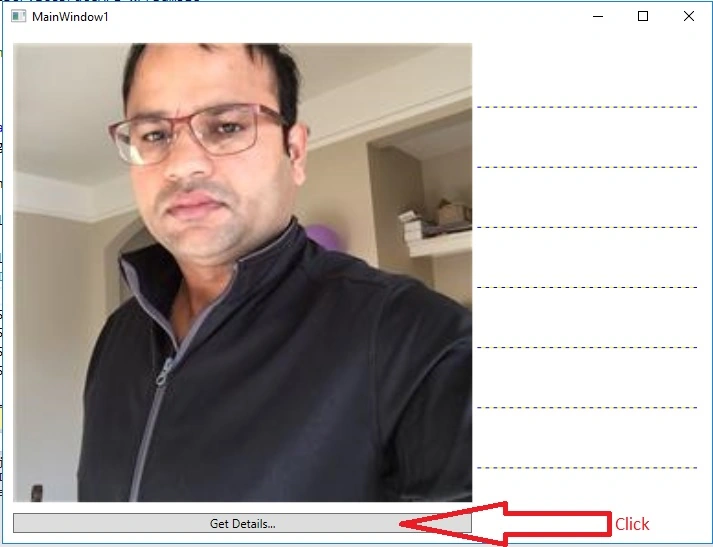
- <Image x:Name="imgPhoto" Grid.Row="1" Grid.Column="0" Stretch="Uniform" Margin="0,0,0,30"/>
- <Button x:Name="btnBrowse" Height="20" VerticalAlignment="Bottom" Content="Get Details..." Grid.Row="1" Grid.Column="0"
- Click="btnBrowse_Click"/>
- <Grid Grid.Row="1" Grid.Column="1" ShowGridLines="true" Margin="5">
- <Grid.RowDefinitions>
- <RowDefinition></RowDefinition>
- <RowDefinition></RowDefinition>
- <RowDefinition></RowDefinition>
- <RowDefinition></RowDefinition>
- <RowDefinition></RowDefinition>
- <RowDefinition></RowDefinition>
- <RowDefinition></RowDefinition>
- <RowDefinition></RowDefinition>
- </Grid.RowDefinitions>
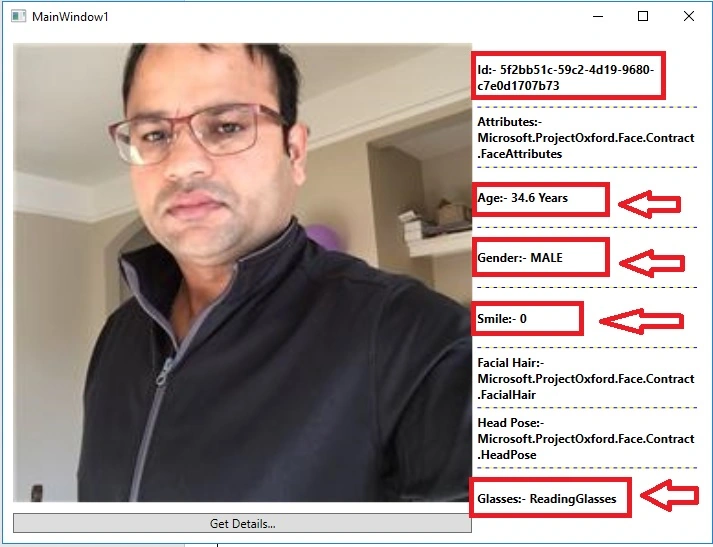
- <TextBlock Grid.Row="0" x:Name="txtId" FontWeight="Bold" HorizontalAlignment="Left" VerticalAlignment="Center" TextWrapping="Wrap"></TextBlock>
- <TextBlock Grid.Row="1" x:Name="txtAttributes" FontWeight="Bold" HorizontalAlignment="Left" VerticalAlignment="Center" TextWrapping="Wrap"></TextBlock>
- <TextBlock Grid.Row="2" x:Name="txtAge" FontWeight="Bold" HorizontalAlignment="Left" VerticalAlignment="Center" TextWrapping="Wrap"></TextBlock>
- <TextBlock Grid.Row="3" x:Name="txtGender" FontWeight="Bold" HorizontalAlignment="Left" VerticalAlignment="Center" TextWrapping="Wrap"></TextBlock>
- <TextBlock Grid.Row="4" x:Name="txtSmile" FontWeight="Bold" HorizontalAlignment="Left" VerticalAlignment="Center" TextWrapping="Wrap"></TextBlock>
- <TextBlock Grid.Row="5" x:Name="txtFacialHair" FontWeight="Bold" HorizontalAlignment="Left" VerticalAlignment="Center" TextWrapping="Wrap"></TextBlock>
- <TextBlock Grid.Row="6" x:Name="txtHeadPose" FontWeight="Bold" HorizontalAlignment="Left" VerticalAlignment="Center" TextWrapping="Wrap"></TextBlock>
- <TextBlock Grid.Row="7" x:Name="txtGlasses" FontWeight="Bold" HorizontalAlignment="Left" VerticalAlignment="Center" TextWrapping="Wrap"></TextBlock>
- </Grid>
- </Grid>
- </Window>
Mahesh ChandPosted Oct 6, 2016, 2:14 PM
Nice. What about attributes like location of the photo, camera details, and date it was taken.
Vignesh ManiPosted Oct 5, 2016, 4:48 AM
Good One