

My previous articles explained what KnockoutJS is, how to use it and what the available features are. In this article, we will see how to use KnockoutJS with ASP.Net MVC4 applications. If you are new to KnockoutJS, please go through these articles to get some basics.
If you are new to ASP.Net MVC4 then please have a look at these articles.
Prerequisites
To create an example ASP.Net MVC4 application, we need to install the following:
- Visual Studio 2012
- Visual Studio 2012 Update 3 - optional
If you have already installed it, great!. If not, please download and install the Visual Studio Express 2012 for Web for free. Its optional to install the Visual Studio 2012 Update 3 from here.
Setup the Project
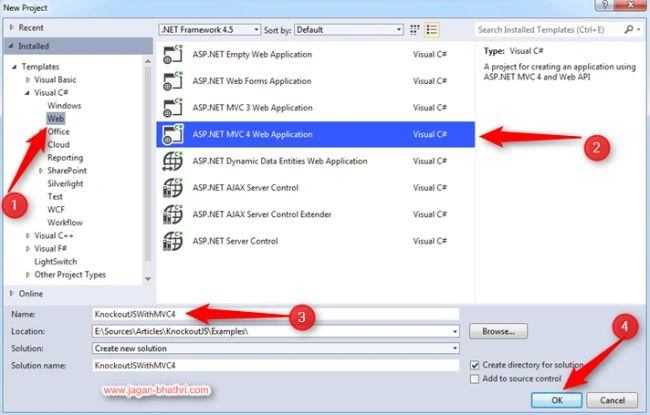
Once you are done with your installations, start Visual Studio and create a new ASP.Net MVC4 web application as shown below.
Then, a dialog box will be displayed to select the ASP.Net MVC4 project type. Select the "Basic" project type.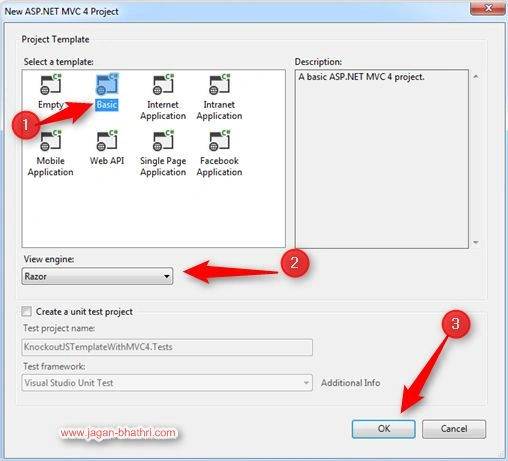
We need to select the view engine for the ASP.Net mvc application. Select "Razor view engine".
After selecting the project type, the ASP.Net MVC4 application project structure will be created for the Basic project type.
We won't have any of the views except layout and viewstart since we have selected a Basic type. So we need to create an index view as well as controller for the same.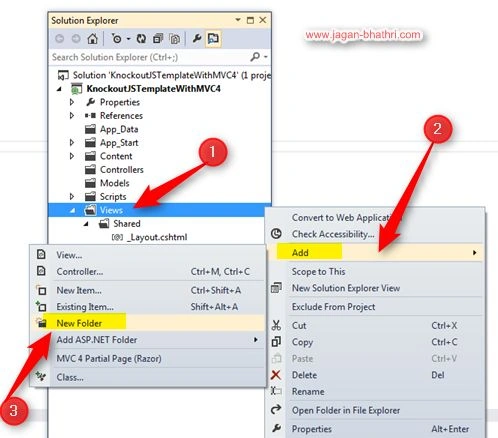
Create a folder "Home" to add an Index view for our application as shown in the preceding image. 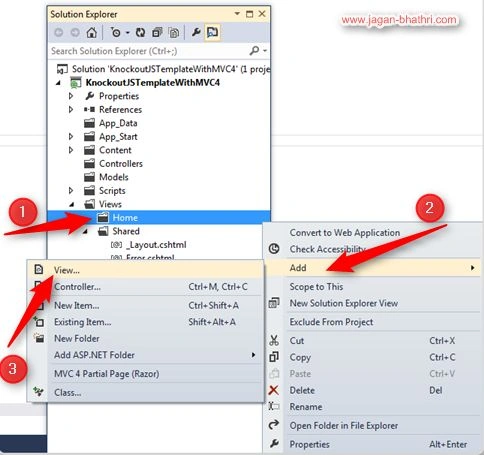
If you follow the preceding shown steps then a dialog box will be displayed to name the view, type the name "Index" for the view and click "Ok". Leave the other option as it is.
To render the views, we need the controller. So let us create a controller as shown in the following figure.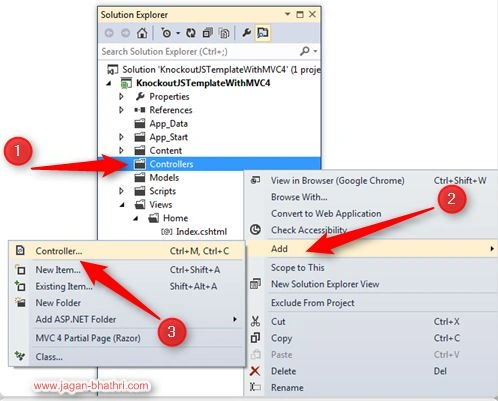
As we know, the naming convention is followed for creating folders, views and controllers, just follow it. While creating the controller, select the scaffold option to add the default MVC read/write/delete actions.
Now our project structure is proper. Let us check for the existence of a necessary JavaScript framework like jQuery, Knockoutjs,. and so on. Double-check that latest the Knockout framework script files are added to the Scripts folder. If not then use NuGet Manager and add it to the script folder.
As a feature of ASP.Net MVC4, we need to bundle the JavaScript and CSS files. By default, the jQuery framework will be bundled. For KnockoutJS, we need to add the Knockoutjs file to bundle.
In the App_Start folder, you could find the BundleConfig.cs file. Add the Knockoutjs file to the bundle as shown below.
public static void RegisterBundles(BundleCollection bundles)
{bundles.Add(new ScriptBundle("~/bundles/jquery").Include( "~/Scripts/jquery-{version}.js"));
bundles.Add(new ScriptBundle("~/bundles/knockoutjs").Include(
"~/Scripts/knockout-{version}.js"));
bundles.Add(new StyleBundle("~/Content/css").Include("~/Content/site.css"));
}
After adding the scripts to Bundle, it should be available on the page. MVC4 has the @Scripts.Render() to render the bundled scripts and CSS. Let us check the _Layout.cshtml file's head part.
<head>
<meta charset="utf-8" /><meta name="viewport" content="width=device-width" />
<title>@ViewBag.Title</title>@Styles.Render("~/Content/css"
@Scripts.Render("~/bundles/jquery")
@Scripts.Render("~/bundles/knockoutjs")
</head>
Note: Ensure the order of the Scripts/CSS is proper while bundling and Bundled scripts/CSS are rendered in proper order.
Jaganathan BantheswaranPosted Oct 9, 2013, 1:39 AM
Thanks Vithal :)
Vithal WadjePosted Oct 7, 2013, 12:51 PM
good article Jaganathan Bantheswaran sir keep it up