

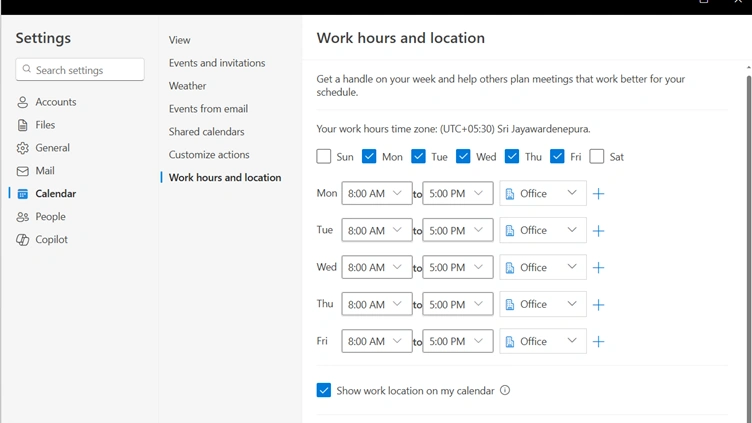
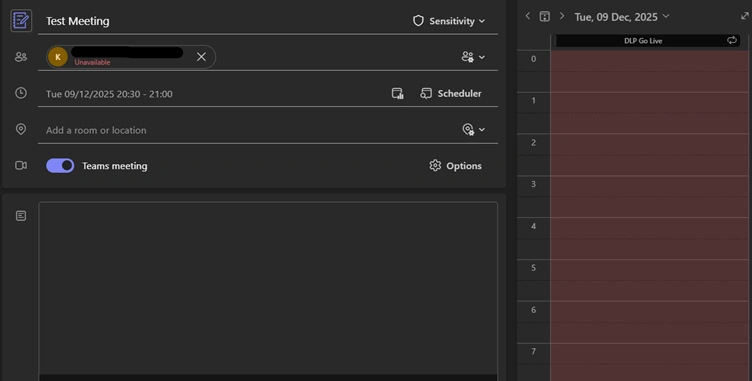
When creating a meeting in Microsoft Teams or Outlook, you may notice that a user appears unavailable or busy at certain times even though they are actually free. This usually happens because of differences in Working Hours and Time Zone settings configured in Outlook Calendar.
These settings determine how a user’s availability is displayed in the Scheduling Assistant. If a user’s Working Hours or Time Zone is incorrect, their calendar may show them as unavailable during times when they would normally be working. This can cause confusion and impact meeting scheduling especially in global or cross-region teams.
To avoid such issues, organizations should ensure that all users have consistent Time Zone and Working Hours settings, based on the region where the organization primarily operates.
Why Working Hours and Time Zone Settings Matter
Accurate Availability: Scheduling Assistant relies on the user’s configured working hours. If these are set incorrectly, users may appear busy or offline.
Cross-Region Meetings: When employees work from different countries or regions, having inconsistent time zone settings can result in meetings being booked outside someone’s actual working hours.
Mobile and Remote Work: Users who travel or work remotely may forget to update their time zone, leading to incorrect availability.
Reliability Across Apps: These settings sync across Microsoft Teams, Outlook Desktop, and Outlook on the Web, ensuring consistent scheduling behavior.
Best Practices for Organizations
Standardize Default Settings: Configure organization-wide defaults for time zone and working hours for new users.
User Education: Advise users to verify and update their Outlook Calendar time zone when traveling.
Admin Monitoring: IT admins can periodically review mailbox settings to ensure consistency, especially for cross-tenant or multi-region deployments.
Policy-Based Controls (if applicable): Larger organizations can use scripts or automation to enforce correct settings for all users.
Ensuring consistent Time Zone and Working Hours configurations greatly reduces scheduling conflicts and improves the overall meeting experience in Microsoft Teams.
Get Working Hour Time and Time zone for individual user
Get-MailboxCalendarConfiguration -Identity “”
Set Working Hour Time and Time zone for individual user
Set-MailboxCalendarConfiguration -Identity “” -WorkingHoursStartTime "08:30:00"-WorkingHoursEndTime "17:30:00" `
-WorkingHoursTimeZone "Sri Lanka Standard Time" `
-WorkDays Monday,Tuesday,Wednesday,Thursday,Friday

Get All user list of Working Hours Time Zone and Times
$out = ".\user_workinghours.csv"

Get-ExoMailbox -ResultSize Unlimited -RecipientTypeDetails UserMailbox | ForEach-Object {

$cal = Get-MailboxCalendarConfiguration -Identity $_.PrimarySmtpAddress

 [pscustomobject]@{

UserPrincipalName     = $_.PrimarySmtpAddress

DisplayName           = $_.DisplayName

WorkingHoursStartTime = $cal.WorkingHoursStartTime

WorkingHoursEndTime   = $cal.WorkingHoursEndTime

WorkingHoursTimeZone  = $cal.WorkingHoursTimeZone

WorkingDays           = ($cal.WorkingDays -join ",")

 }

 } | Export-Csv -Path $out -NoTypeInformation -Encoding UTF8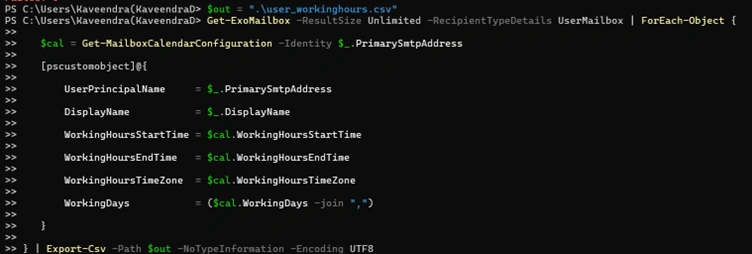
Use below script to set all users Working Hours Time to correct region
# ==== 1. Update the path to your CSV ==== (Create CSV file with primary email addresses)

$CsvPath = "C:\Temp\Users_To_Fix_TimeZone.csv"   # ← Change this


# Expected column name in the CSV: UserPrincipalName  (or PrimarySmtpAddress)

$Users = Import-Csv -Path $CsvPath


# ==== 2. Optional: Dry-run first (highly recommended) ====

Write-Host "DRY-RUN: These users will be updated (no changes made yet):" -ForegroundColor Cyan

$Users | Format-Table UserPrincipalName


$Confirm = Read-Host "Type YES to proceed with the actual change"

if ($Confirm -ne "YES") { Write-Host "Aborted." -ForegroundColor Red; break }


# ==== 3. Actual update ====

$Success = 0

$Failed  = 0


foreach ($User in $Users) {

    $UPN = $User.UserPrincipalName.Trim()   # works if column is named UserPrincipalName

    # If your column is named PrimarySmtpAddress or Email instead, use:

    # $UPN = $User.PrimarySmtpAddress.Trim()

    # $UPN = $User.Email.Trim()


    try {

        Set-MailboxCalendarConfiguration -Identity $UPN `

            -WorkingHoursStartTime "08:30:00" `

    -WorkingHoursEndTime   "17:30:00" `

    -WorkingHoursTimeZone  "Sri Lanka Standard Time" `

    -WorkDays Monday,Tuesday,Wednesday,Thursday,Friday -ErrorAction Stop


        Write-Host "$UPN → Fixed" -ForegroundColor Green

        $Success++

    }

    catch {

        Write-Host "$UPN → FAILED: $($_.Exception.Message)" -ForegroundColor Red

        $Failed++

    }

}


Write-Host "`n=== DONE ===" -ForegroundColor Cyan

Write-Host "Successfully updated: $Success" -ForegroundColor Green

Write-Host "Failed: $Failed" -ForegroundColor Red
Join the conversation! Your thoughts help the community grow.