

Pre-requisites: Read the following articles prior to starting with this article.
Download the complete source code provided with this article and start comparing with this article step-by-step by analyzing it.
Objective: This article walks through the procedure and codes to get route directions using maps in Windows Store Apps. This article also covers route optimization and a route summary calculation based on route direction calculation.
Step 1: Getting route direction from current location to the destination
- Add the namespace
It contains all the necessary classes to get the directions from one place to another and it provides a class to display routes on Bing Maps.- using Bing.Maps.Directions;
- Designing and developing the user screen
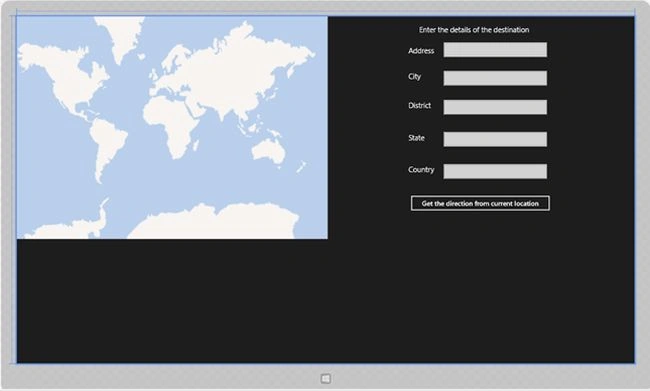
Figure: Snapshot of the design view of the application main page.
As shown in the preceding screen, the page contains a map view to show the direction from the current location to the destination on the map. The user must fill up the details of the destination using the form given right beside the map. Once he clicks on the Get the direction from current location button, the ShowDirections( ) method is being called. This ShowDirections method acts as an event handler that is triggered or called upon the button click event. Here we are trying to get the current location of the user's device using GPS and the direction is shown from the current location to the destination location that is given as input by the user.
- Getting the current user device's location using GPS sensor
In the preceding piece of code, the location is the object of type Location class. This location object is being declared at the class level.- Geolocator geoLocator = new Geolocator();
- Geoposition userPos = await geoLocator.GetGeopositionAsync();
- location = new Location(userPos.Coordinate.Point.Position.Latitude, userPos.Coordinate.Point.Position.Longitude);
- Representing current location using Pushpin
- Pushpin pushPin = new Pushpin();
- MapLayer.SetPosition(pushPin, location);
- bingMap.Children.Add(pushPin);
- Setting start and end waypoints along with the direction manager
The route waypoint can be represented using a class named Waypoint. In our sample application, the current location is considered as the start waypoint, the location (latitude and longitude) of which is received using the device's GPS capabilities. Therefore, the end waypoint, in other words destination location in this case, is taken based on the detailed inputs by the user.- Waypoint sourcePoint = new Waypoint(location);
- string destinationLocation=txtAddress+","+txtCity+","+txtDistrict+","+txtState+","+txtCountry;
- Waypoint destinationPoint = new Waypoint(destinationLocation);

All details about the destination location or end point location is being taken from the user. The details include Address, City, District, State and Country of the user's choice. All these strings inputs will be concatenated to get the complete address and the resulting concatenated string is being set as the end waypoint.
- Using the DirectionManager class
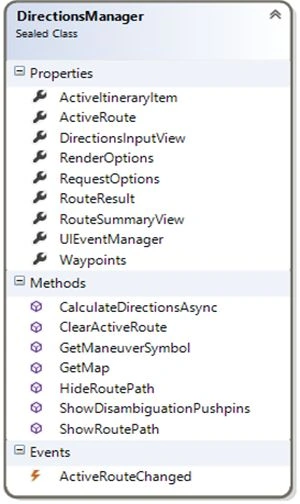
Figure: DirectionManager class diagram.
Providing access to a collection of Waypoint objects can be attained with the aid of the WaypointCollection class. The DirectionsManager class aids in calculating and displaying the route directions. We need to create a new object of type DirectionsManager class and need to assign the current map's direction manager to this new object. Since starting points and ending points along with the stops in between are stored in the WaypointCollection class's object, this object must be utilized and we should set it to the DirectionsManager class's Waypoints property.- WaypointCollection wayPoints = new WaypointCollection();
- wayPoints.Add(sourcePoint);
- wayPoints.Add(destinationPoint);
- DirectionsManager directionManager = bingMap.DirectionsManager;
- directionManager.Waypoints = wayPoints;
- Calculating the route directions
Based on the route calculation request, the route is calculated. The response to a calculated route will be present in the object of the RouteResponse class.
- RouteResponse response = await directionManager.CalculateDirectionsAsync();
- Displaying route on the map
Displaying the route from the start point, in other words the current location, to the destination point, in other words to the location, is information given by the user.
- directionManager.ShowRoutePath(response.Routes[0]);
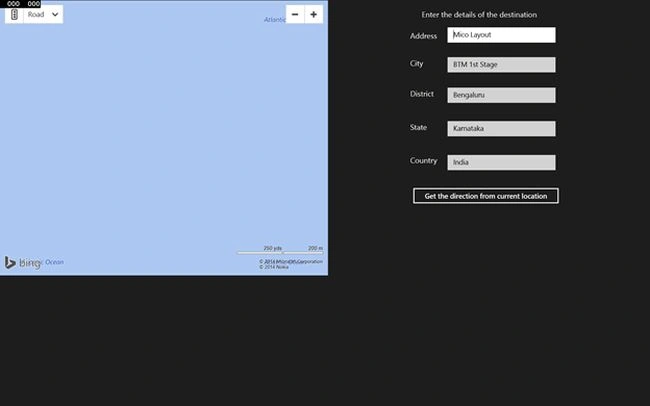
Figure: Details of the destination location being entered.
The preceding screen shows the address that is being entered by the user. Here, it is not mandatory to fill in the complete information. We can just as well fill up only the first address line to get the route to the destination point from the current location.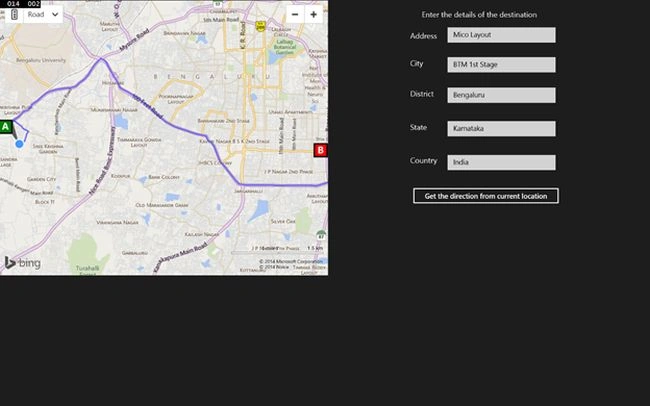
Figure: Route from the source to the destination is being shown.
Figure: The source to destination route is being displayed on the map upon clicking the Get the destination from current location button.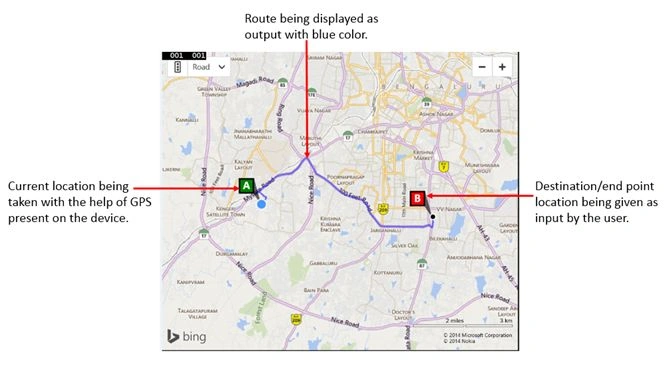
Figure: Display of output marked with labels.
All the preceding figures/screens clearly illustrate the output of showing the route on the map. In the preceding scenario, the current location is being taken as the start point/source location using the device's GPS sensor and the flexibility of giving the destination location as input is given to the user. Once the user enters the complete details of the destination location and clicks on Get the direction from the current location, the ShowDirection event handler will be called. Upon this call, a route will be plotted on the current map view that visualizes the exact route from the start point to the end point. The source/start point will be annotated on the map with the letter "A" and the end point/destination location will be annotated on the map with the letter "B". The route will be shown with the Blue color to get more highlight on the map view. A Pushpin is being displayed on the map in Blue color.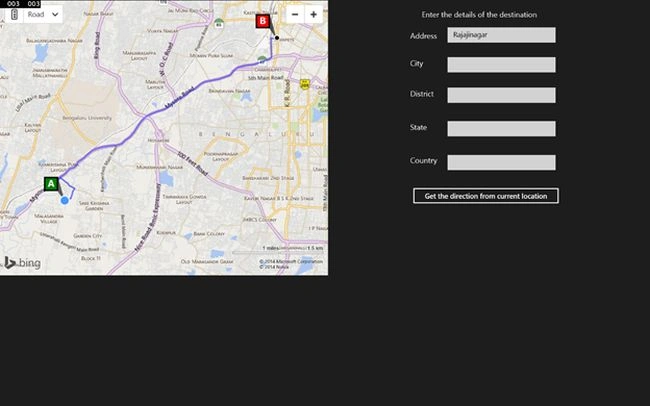
Figure: The route is being displayed on the map by just giving the address in the form of a location name without specifying other details such as City, District, State and Country and so on.
You can also specify only the location address without specifying other details that include City, District, State and Country. Even in such a scenario, the application will be able to display the route between the current location and the destination location. The purpose of taking complete details about a location here is to avoid the ambiguity that could occur due to multiple places bearing the same name.
Step 2: Displaying instructions in an instructions summary box
I will use a scenario where the instruction will be displayed within a Scroll Viewer upon clicking on the Get the direction from current location button. The scroll viewer is placed right below the button. The route summary is displayed within this scroll viewer. Initially, the scroll viewer is kept collapsed and it will be made visible upon loading the route summary in it. The code block to make this possible with respect to this application is as shown below:
- instructionBox.Content = directionManager.RouteSummaryView;
- instructionBox.Visibility = Visibility.Visible;
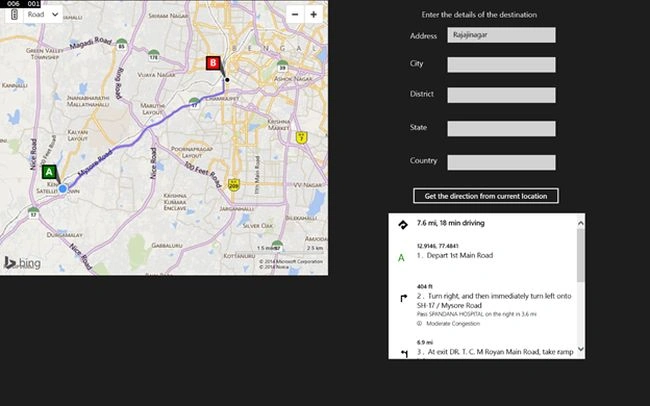
Figure: Snapshot of output with information in the form of route summary contained inside the scroll viewer.
Let's see what the route summary information consists of. The complete instruction sets are as displayed below.
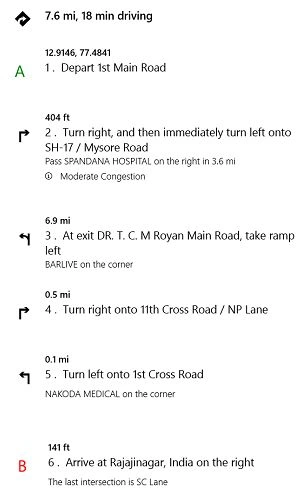
Figure: Snapshot of complete route summary that is displayed in the scroll viewer in this application.
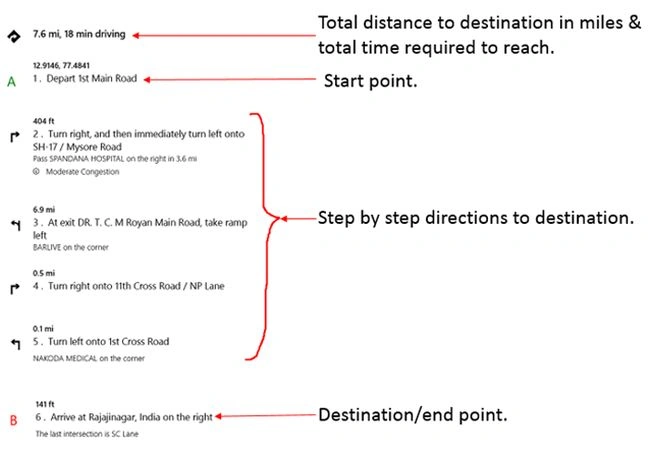
Figure: Route summary information being labelled for a better understanding.
Step 3: Changing route calculations based on user inputs
Calculating the time taken to reach the destination location from the start location can change based on the type of route direction. An enum class type named RouteModeOption has various route direction types that can help us in time estimations and other calculations based on the user's interest and mode of journey towards the destination/end point. RouteModeOption contains various enumerators that are relevant for calculating route directions as listed below.

In this sample application, I have taken a small scenario wherein users will have the flexibility to select the route direction mode using a dropdown list that is being placed right above the Get the direction from current location button. Upon selection of a suitable route direction mode and clicking the button, the route summary information with respect to the selected route direction mode will be displayed within the scroll viewer kept just below the button. This scroll viewer acts as a route summary information display box. If you don't select any of the route direction modes and press the button without selecting anything from the dropdown, the application shows a message specifying “You have not selected any route direction mode”. The entire logic has been implemented in the sample application provided below using a switch statement.
- List<string> routeModeOptions = new List<string>() { "--Select Mode--", "Driving", "Walking", "Transit" };
- //Changing route calculations using "DirectionsRequestOptions" class.
- DirectionsRequestOptions directionRequest = new DirectionsRequestOptions();
- directionRequest.FormattedInstruction = true;
- //Selecting route direction calculation type and calculating based on the user input.
- int selectedRouteMode = comboBoxRoute.SelectedIndex;
- switch (selectedRouteMode)
- {
- case 1:
- directionRequest.RouteMode = RouteModeOption.Driving;
- break;
- case 2:
- directionRequest.RouteMode = RouteModeOption.Walking;
- break;
- case 3:
- directionRequest.RouteMode = RouteModeOption.Transit;
- break;
- default:
- MessageDialog msg = new MessageDialog("You have not selected any route direction mode");
- await msg.ShowAsync();
- break;
- }
- directionManager.RequestOptions = directionRequest;
In this application code, the list of strings variable routeModeOptions is declared and string values will be added to it at the class level. Binding the list of strings containing all route direction modes is done within the MainPage constructor as shown below. In the following piece of code, comboBoxRoute is the combo box name. In order to set “--Select Mode--" as the default selected item within the combo box during the application launch or page display, the statement “comboBoxRoute.SelectedItem = routeModeOptions [0];” will be added immediately after setting the ItemSource property of the comboBoxRoute combo box. This acts as a dropdown for selecting the route direction mode based on which the calculations need to be made and should be displayed within the scroll viewer placed. Scroll Viewer acts as a route summary information box. The “--Select Mode--" string will be set as the first string element in the RouteModeOptions list of strings.
- public MainPage()
- {
- this.InitializeComponent();
- //Binding the route modes combo box with the list of route mode options.
- comboBoxRoute.ItemsSource = routeModeOptions;
- comboBoxRoute.SelectedItem = routeModeOptions[0];
- }
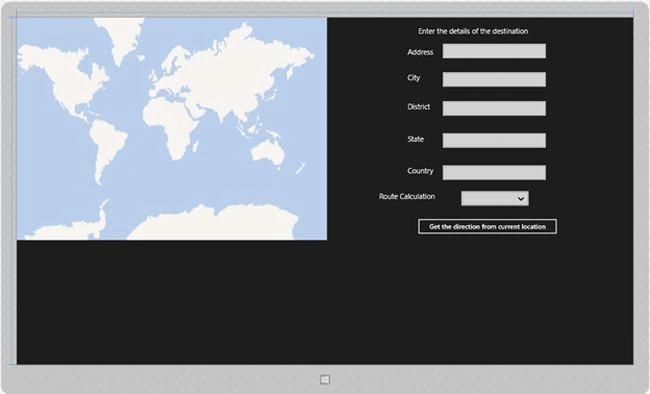
Figure: Design view of the page with combo box control for selection of route direction mode.

Figure: The output screen showing the relevant message upon submitting the get route request by clicking the button without selecting any route direction mode from the dropdown.
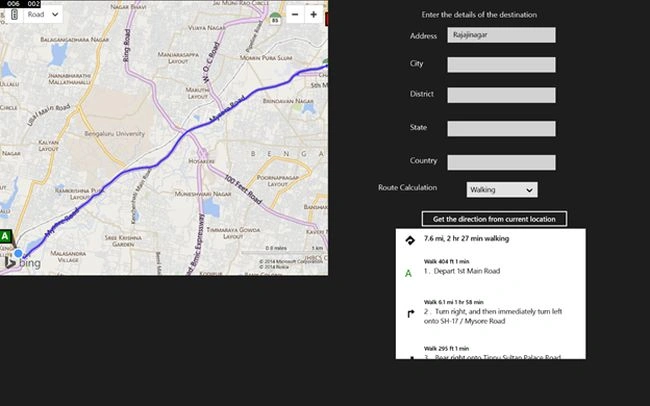
Figure: Route summary being displayed for “Walking” route direction mode.
The instruction box clearly depicts the route summary information that contains the prediction that it takes 2 hours 27 minutes to reach the end point from the start point if the mode of reaching the destination is walking. The calculated distance is around 7.6 miles. Here, the start point is the current location of my device and the destination/end point is “Rajajinagar”, as specified in the address text box.
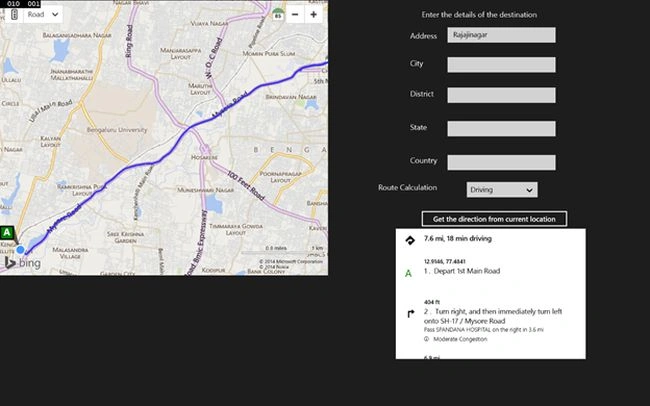
Figure: Route summary being displayed for “Driving” route direction mode.
The instruction box clearly shows the route summary information that contains the predicted information that it takes 18 minutes to reach the end point from the start point if the mode of reaching the destination is driving. The calculated distance is around 7.6 miles. Here, the start point is the current location of my device and the end point is “Rajajinagar”, as specified in the address text box.
Step 4: Route optimization based on route optimization options
In general, there may be more than one route from point "A" to point "B". In fact, choosing the best optimized route among many available routes is an important task. There are a few optimization factors that, based on which, we can think of getting optimized routes between two places. The Bing Maps API provides the ability to optimize the route calculation based on various options. These options are nothing but factors on which we can think of getting optimized routes between two places or locations. The Bing Maps API provides route optimization based on some factors upon which people are usually bothered the most about. Hence, in this sample application, we can derive a route optimization based on options such as distance, money, time, time with traffic and walking. The Bing Maps API provides OptimizeOption enumeration. It defines all the options that help us to optimize route calculations. The DirectionsRequestOptions class itself provides a property named Optimize that can be set to any optimization options defined in the OptimizeOption enumeration, based on which the route calculation is optimized. OptimizeOption contains various enumerators that are relevant for calculating optimized routes as listed below.
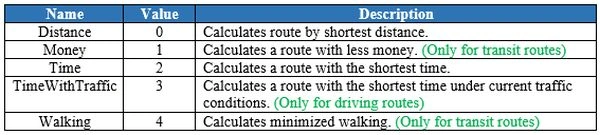
The table gives complete data on enumerators present in OptimizeOption enumeration. It contains the enumerator name, value and description.
- //Optimizing the route based on optimization options
- int selectedOptimization = comboBoxOptimizationOptions.SelectedIndex;
- switch (selectedOptimization)
- {
- case 1:
- directionRequest.Optimize = OptimizeOption.Distance;
- break;
- case 2:
- directionRequest.Optimize = OptimizeOption.Money;
- break;
- case 3:
- directionRequest.Optimize = OptimizeOption.Time;
- break;
- case 4:
- directionRequest.Optimize = OptimizeOption.TimeWithTraffic;
- break;
- case 5:
- directionRequest.Optimize = OptimizeOption.Walking;
- break;
- default:
- MessageDialog msg = new MessageDialog("You have not selected any route optimization options");
- await msg.ShowAsync();
- break;
- }

Figure: Design view of the application page after adding the combo box for selecting optimization mode options.
Based on the selection of a suitable route optimization mode from the optimization dropdown list and upon clicking the Get the direction from current location button, suitable route summary data is placed in the scroll viewer instruction box.
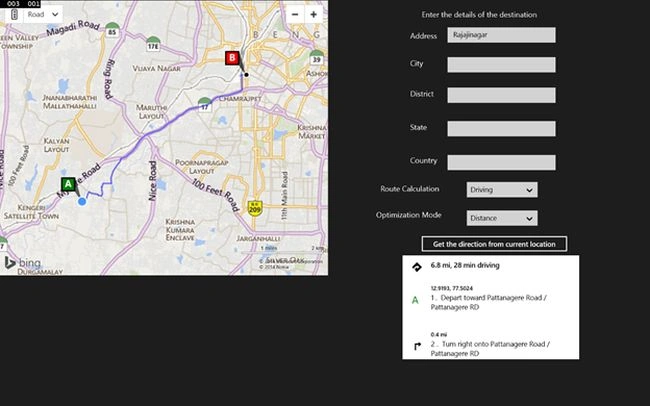
Figure: Optimized route based on the shortest distance being displayed with driving route calculation.
As displayed in the preceding screen, the shortest distance to reach end point, in other words Rajajinagar, from the current location is displayed in the map. The shortest distance is 6.8 miles and it takes 28 minutes driving in the current traffic to reach the destination from the current location.
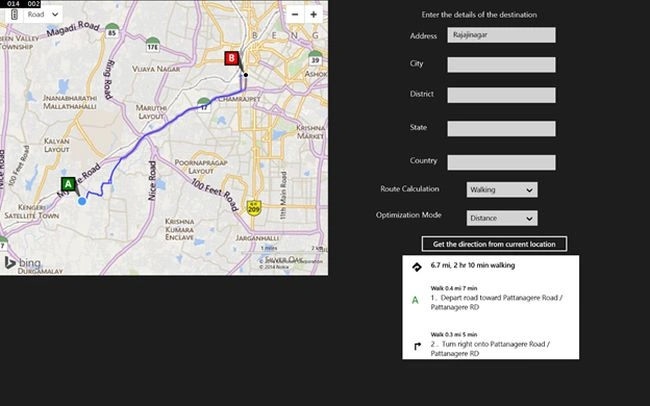
Figure: Optimized route based on the shortest distance being displayed with walking routes calculation.
The shortest distance to reach the end point (Rajajinagar) from the current location is displayed in the map as shown in the preceding screen. The shortest distance is 6.7 miles and it requires walking for 2 hours 10 minutes to reach the destination from the current location.
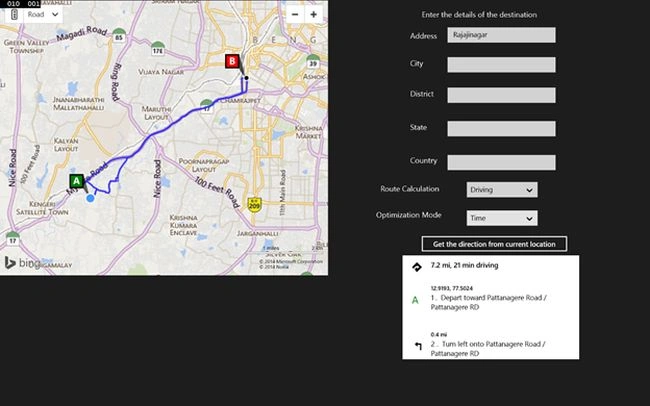
Figure: Optimized routes based on least time to reach is being displayed with driving route calculation.
The optimized route that takes the least time to reach the end point (Rajajinagar) from the current location is displayed in the map shown in the preceding screen. The optimized route as determined by the least time has the distance of 7.2 miles and it takes 21 minutes by driving to reach the destination from the current location.
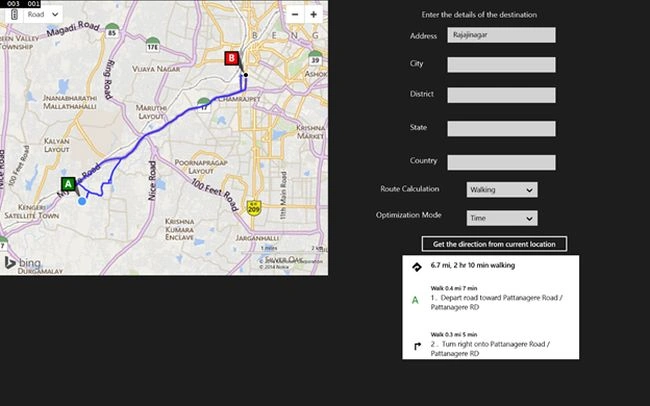
Figure: Optimized route based on the least time is being displayed with walking routes calculation.
The optimized route that takes the least time to reach the end point (Rajajinagar) from the current location is displayed in the map shown in the preceding screen. The optimized route as determined by least time has the distance of 6.7 miles and it takes 2 hours 10 minutes by walking to reach the destination from the current location.
Complete XAML code of the application is given below:
- <Page
- x:Class="BingMapDemo.MainPage"
- xmlns="http://schemas.microsoft.com/winfx/2006/xaml/presentation"
- xmlns:x="http://schemas.microsoft.com/winfx/2006/xaml"
- xmlns:local="using:BingMapDemo"
- xmlns:d="http://schemas.microsoft.com/expression/blend/2008"
- xmlns:mc="http://schemas.openxmlformats.org/markup-compatibility/2006"
- xmlns:bingmap="using:Bing.Maps"
- mc:Ignorable="d">
- <Grid Background="{ThemeResource ApplicationPageBackgroundThemeBrush}">
- <bingmap:Map Name="bingMap" ZoomLevel="16" Credentials="AiLMrOJ_t-Uh1FA72XddZfmyGK0hse3b-AINKEUSWOAul2hVx_jhdwWGVJVBuYMp" Margin="0,0,679,276">
- <bingmap:Map.Center>
- <bingmap:Location />
- </bingmap:Map.Center>
- </bingmap:Map>
- <Button x:Name="getCurrentLocation" Content="Get the direction from current location" HorizontalAlignment="Left" Margin="887,496,0,0" VerticalAlignment="Top" Width="312" Click="ShowDirection"/>
- <TextBlock HorizontalAlignment="Left" Margin="890,22,0,0" TextWrapping="Wrap" Text="Enter the details of the destination" VerticalAlignment="Top" Height="31" Width="251" FontSize="16"/>
- <TextBlock HorizontalAlignment="Left" Margin="866,67,0,0" TextWrapping="Wrap" Text="Address" VerticalAlignment="Top" Height="31" Width="70" FontSize="16"/>
- <TextBlock HorizontalAlignment="Left" Margin="866,189,0,0" TextWrapping="Wrap" Text="District" VerticalAlignment="Top" Height="31" Width="70" FontSize="16"/>
- <TextBlock HorizontalAlignment="Left" Margin="866,260,0,0" TextWrapping="Wrap" Text="State" VerticalAlignment="Top" Height="31" Width="70" FontSize="16" />
- <TextBlock HorizontalAlignment="Left" Margin="866,330,0,0" TextWrapping="Wrap" Text="Country" VerticalAlignment="Top" Height="31" Width="70" FontSize="16"/>
- <TextBlock HorizontalAlignment="Left" Margin="866,125,0,0" TextWrapping="Wrap" Text="City" VerticalAlignment="Top" Height="31" Width="70" FontSize="16"/>
- <TextBox x:Name="txtAddress" HorizontalAlignment="Left" Margin="944,58,0,0" TextWrapping="Wrap" VerticalAlignment="Top" Width="228"/>
- <TextBox x:Name="txtCity" HorizontalAlignment="Left" Margin="944,121,0,0" TextWrapping="Wrap" VerticalAlignment="Top" Width="228"/>
- <TextBox x:Name="txtDistrict" HorizontalAlignment="Left" Margin="944,185,0,0" TextWrapping="Wrap" VerticalAlignment="Top" Width="228"/>
- <TextBox x:Name="txtState" HorizontalAlignment="Left" Margin="944,256,0,0" TextWrapping="Wrap" VerticalAlignment="Top" Width="228"/>
- <TextBox x:Name="txtCountry" HorizontalAlignment="Left" Margin="944,327,0,0" TextWrapping="Wrap" VerticalAlignment="Top" Width="228"/>
- <ScrollViewer HorizontalAlignment="Left" Height="219" Margin="849,539,0,0" VerticalAlignment="Top" Width="373" Name="instructionBox"/>
- <ComboBox Name="comboBoxRoute" HorizontalAlignment="Left" Margin="985,384,0,0" VerticalAlignment="Top" Width="149"/>
- <TextBlock HorizontalAlignment="Left" Margin="798.526,389.732,0,0" TextWrapping="Wrap" Text=" Route Calculation" VerticalAlignment="Top" Height="31" Width="134.478" FontSize="16" RenderTransformOrigin="0.5,0.5" UseLayoutRounding="False" d:LayoutRounding="Auto">
- <TextBlock.RenderTransform>
- <CompositeTransform Rotation="-0.114"/>
- </TextBlock.RenderTransform>
- </TextBlock>
- <ComboBox x:Name="comboBoxOptimizationOptions" HorizontalAlignment="Left" Margin="985,444,0,0" VerticalAlignment="Top" Width="149"/>
- <TextBlock HorizontalAlignment="Left" Margin="794.047,444.961,0,0" TextWrapping="Wrap" Text="Optimization Mode" VerticalAlignment="Top" Height="31" Width="144.926" FontSize="16" RenderTransformOrigin="0.5,0.5" UseLayoutRounding="False" d:LayoutRounding="Auto">
- <TextBlock.RenderTransform>
- <CompositeTransform Rotation="-0.114"/>
- </TextBlock.RenderTransform>
- </TextBlock>
- </Grid>
- </Page>
Sarva SiddarthaPosted Aug 24, 2015, 5:56 AM
Hello Chetan, Please let me know how to found distance between two places in windows phone applications using maps