The AI Toolkit for Visual Studio Code is a free extension that lets you download, test, fine‑tune, and use AI models directly from VS Code, either on your own machine or in the cloud. It gives you a simple, step‑by‑step experience so you can go from “no model” to “AI inside my app” without leaving your editor.
What the AI Toolkit does
The AI Toolkit adds a side panel in VS Code where you can see your models, browse a catalog of available models, and open tools like Playground, Bulk Run, Evaluation, and Fine‑tuning. You can start with a ready‑made model, try it in chat, and then decide whether to run it locally or call it from your app.
In simple terms, it helps you
Install and manage AI models
Try prompts quickly in a safe space
Optimize models for your hardware (CPU, GPU, or NPU)
Connect the model to your code with REST or ONNX Runtime
Before you start
You need Visual Studio Code installed on your machine. If you are new to VS Code, the official “Getting started” guide shows how to install and use the basics of the editor.
Because you are working with AI, it is also recommended to read Microsoft’s guidance on building responsible AI apps, especially if you plan to use real user data.
Step 1: Install the AI Toolkit extension
Installing the AI Toolkit is like installing any other VS Code extension.
Open VS Code.
Click the Extensions icon in the Activity Bar on the left.
In the search box, type “AI Toolkit”.
Find “AI Toolkit for Visual Studio Code” and click Install.
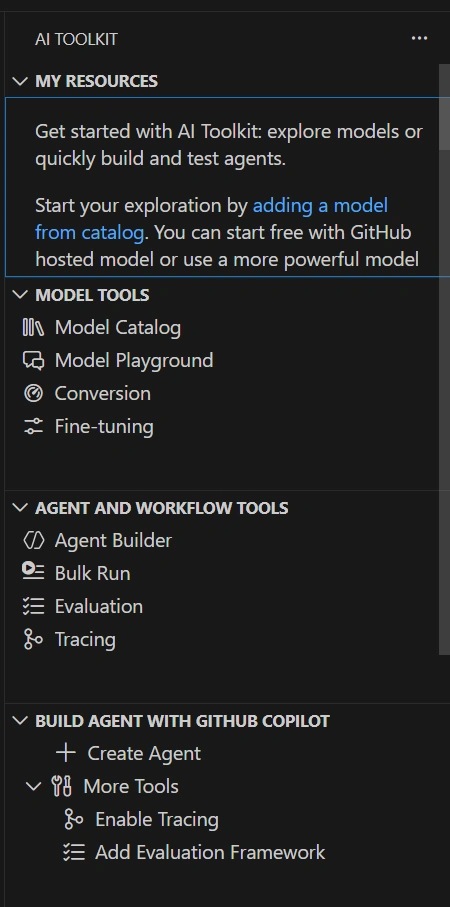
After installation, a new AI Toolkit icon appears in the Activity Bar; this is your entry point to all features.

Step 2: Download a model from the catalog
Open the AI Toolkit view and go to the Catalog section to see available models. From there you can open the Model Catalog and filter by:
Who hosts the model
The publisher
What task it is good at (chat, code, vision, etc.)
Model type: local CPU, local GPU, NPU, or remote access only
For example, on Windows devices with a GPU you will see options like:
Mistral 7B (DirectML – small, fast)
Phi‑3 Mini 4K (DirectML – small, fast)
Phi‑3 Mini 128K (DirectML – small, fast)
You can turn on Fine‑Tuning Support to show only models that you can later fine‑tune for your own data. When you pick a model (such as Phi‑3 Mini 4K) and click Download, the model files are saved to your machine; larger models may take a few minutes.
Step 3: Run the model in the Playground
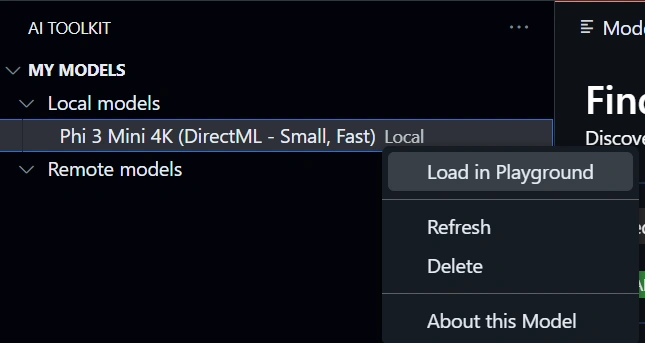
Once the download finishes, your model appears under My Models → Local models. Right‑click it and choose Load in Playground to open an interactive chat window.
In the Playground you can:
Type a message (for example, “Explain the golden ratio in simple terms”) and press Enter to see the model’s response stream back.
Change Context instructions to give the model background or a role (“You are a math tutor, answer simply”).
Adjust inference parameters like:
Maximum response length (how long the answer can be)
Temperature (more creative vs more predictable)
Top P, frequency penalty, presence penalty (how varied and non‑repetitive the text is)
If you run a GPU‑optimized model on a machine with no GPU, responses can be very slow, so the article suggests choosing the CPU‑optimized version instead.
Step 4: Choose the best hardware option
The Model type filter helps you pick models tuned for your device.
Local run w/ GPU: Best for machines with at least one GPU; uses DirectML to accelerate the model.
CPU models: Work on devices without GPUs; slower but more widely compatible.
NPU‑optimized models (for Copilot+ PCs): Use the Neural Processing Unit for efficient local AI; for example, a distilled DeepSeek R1 model is available for Snapdragon‑based Copilot+ PCs.
You can check if you have a GPU by opening Task Manager → Performance and looking for “GPU 0”, “GPU 1”, etc.
Step 5: Connect the model to your app
When you are happy with a model in the Playground, you can use it from your own application in two main ways.
Option 1: Local REST API server
The AI Toolkit can run a local REST API server on your machine that speaks the same format as the OpenAI Chat Completions API.
Endpoint: http://127.0.0.1:5272/v1/chat/completions
You send JSON with a model name, messages array, and parameters like temperature and max_tokens.
pip install openai
    from openai import OpenAI

client = OpenAI(
    base_url="http://127.0.0.1:5272/v1/",
    api_key="x" # required by API but not used
)

chat_completion = client.chat.completions.create(
    messages=[
        {
            "role": "user",
            "content": "what is the golden ratio?",
        }
    ],
    model="Phi-3-mini-4k-directml-int4-awq-block-128-onnx",
)

print(chat_completion.choices[0].message.content)
You can
Test it with curl or a tool like Postman.
Use the official OpenAI client libraries (for example, the Python openai library) by pointing base_url to the local server and using a dummy API key.
This is ideal if you want to develop locally but later switch to a cloud endpoint with minimal code changes.
Option 2: ONNX Runtime in your app
If you want to ship the model with your app and run fully on‑device, you can use ONNX Runtime GenAI directly.
The article shows
How to install the right ONNX Runtime package (DirectML, CUDA, or CPU‑only) based on your platform and GPU.
Sample code in Python and C# that:
Loads the model from the AI Toolkit cache folder (.aitk/models/...)
Tokenizes input text
Runs a generation loop token by token using APIs like generate() or a manual loop
Prints the model’s responses to the console
ONNX Runtime gives you fine control over generation (search strategy, max length, repetition penalties), similar to the Playground but in your own code.
What you can do next
After you have a model running, the next recommended step is to learn how to fine‑tune it using AI Toolkit so that it better matches your own data and use case. The VS Code AI Toolkit docs also cover Prompt Builder, Batch evaluation, and more advanced workflows, all from inside the same extension.
In everyday language: AI Toolkit turns VS Code into a simple control center for AI install one extension, pick a model, try it in chat, and then plug it into your app with either a local API or ONNX Runtime.


Join the conversation! Your thoughts help the community grow.