

Introduction
In this article, I will explain how to install .NET Core tools preview for Visual Studio and how to print “Hello World” in the latest ASP.NET Core 1.0.
Step 1
First download Visual Studio 2015 with Update 3 through the link click here.
Step 2
Go to Install .NET Core tools preview for Visual Studio. This .NET Core tools adds support for .NET Core projects in Visual Studio 2015.

Step 3
Step 3
This is really interesting. Open Visual Studio 2015 and create new Project.
Open Templates – > Visual C# -> Click .NET Core Category and you can see “ASP.NET Core Web Application” template.

Step 4
Open Templates – > Visual C# -> Click .NET Core Category and you can see “ASP.NET Core Web Application” template.
Step 4
Select Empty Templates ( based on your requirement ) in ASP.NET Core Templates Category if you are going to host the app in Microsoft Azure Service and check in the “Host in the cloud option”.

Step 5
Step 5
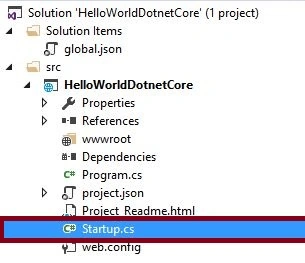
Open “Startup.cs” class in “HelloWorldDotnetCore” project folder.
Step 6
Step 6
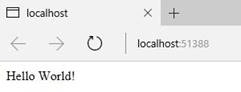
We are creating mini middle ware Application, using lambda expression in “app.Run”. This piece of code is creating “Hello World”.
C# Code
- using System;
- using System.Collections.Generic;
- using System.Linq;
- using System.Threading.Tasks;
- using Microsoft.AspNetCore.Builder;
- using Microsoft.AspNetCore.Hosting;
- using Microsoft.AspNetCore.Http;
- using Microsoft.Extensions.DependencyInjection;
- using Microsoft.Extensions.Logging;
- namespace HelloWorldDotnetCore
- {
- public class Startup
- {
- // This method gets called by the runtime. Use this method to add services to the container.
- // For more information on how to configure your application, visit http://go.microsoft.com/fwlink/?LinkID=398940
- public void ConfigureServices(IServiceCollection services)
- {
- }
- // This method gets called by the runtime. Use this method to configure the HTTP request pipeline.
- public void Configure(IApplicationBuilder app, IHostingEnvironment env, ILoggerFactory loggerFactory)
- {
- loggerFactory.AddConsole();
- if (env.IsDevelopment())
- {
- app.UseDeveloperExceptionPage();
- }
- app.Run(async (context) =>
- {
- await context.Response.WriteAsync(" Hello World! ");
- });
- }
- }
- }
Step 7
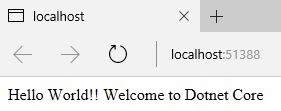
“app.run” doesn’t work in .NET Core followed by using “app.Use”. It will pass two parameters and add the next middleware content In .NET Core.
C# Code
- using System;
- using System.Collections.Generic;
- using System.Linq;
- using System.Threading.Tasks;
- using Microsoft.AspNetCore.Builder;
- using Microsoft.AspNetCore.Hosting;
- using Microsoft.AspNetCore.Http;
- using Microsoft.Extensions.DependencyInjection;
- using Microsoft.Extensions.Logging;
- namespace HelloWorldDotnetCore
- {
- public class Startup
- {
- // This method gets called by the runtime. Use this method to add services to the container.
- // For more information on how to configure your application, visit http://go.microsoft.com/fwlink/?LinkID=398940
- public void ConfigureServices(IServiceCollection services)
- {
- }
- // This method gets called by the runtime. Use this method to configure the HTTP request pipeline.
- public void Configure(IApplicationBuilder app, IHostingEnvironment env, ILoggerFactory loggerFactory)
- {
- loggerFactory.AddConsole();
- if (env.IsDevelopment())
- {
- app.UseDeveloperExceptionPage();
- }
- app.Use(async (context, next) =>
- {
- await context.Response.WriteAsync("Hello World!!");
- await next();
- });
- app.Run(async (context) =>
- {
- await context.Response.WriteAsync(" Welcome to Dotnet Core ");
- });
- }
- }
- }
Reference
Conclusion
We learned how to Install .NET Core tools preview for Visual Studio and how to print “Hello World” in the latest ASP.NET Core 1.0.
RakeshPosted Dec 9, 2016, 2:47 AM
Good explain Rajeesh Menoth. waiting for more series .Net Core
Priyaranjan K SPosted Dec 8, 2016, 1:33 PM
Good One Rajeesh Menoth . Nicely written . Waiting for more core :)
Manav PandyaPosted Dec 8, 2016, 3:09 AM
Personally i can not understand whole file structure
Manav PandyaPosted Dec 8, 2016, 3:09 AM
But i suggest you tht explain whole folders and file structure so newbie can grasp it more in depth Rajeesh Menoth sir
Manav PandyaPosted Dec 8, 2016, 3:08 AM
Nicely explained article sir Rajeesh Menoth
Jaco ZwartsPosted Dec 8, 2016, 1:41 AM
Thank you Rajeesh good read!
NIKHIL KAPosted Dec 7, 2016, 11:49 PM
Looks neat and clean .....