

In this article, we will see all the steps for creating an AWS Free Tier account (for one year) and we will create an Amazon DynamoDB table from a .NET WinForms application. Later, we will insert some records to this DynamoDB table and display all the records in a Data Grid View control.
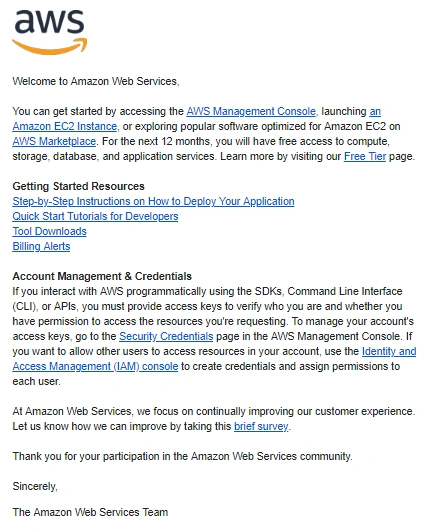
Please visit this URL to create a free account.
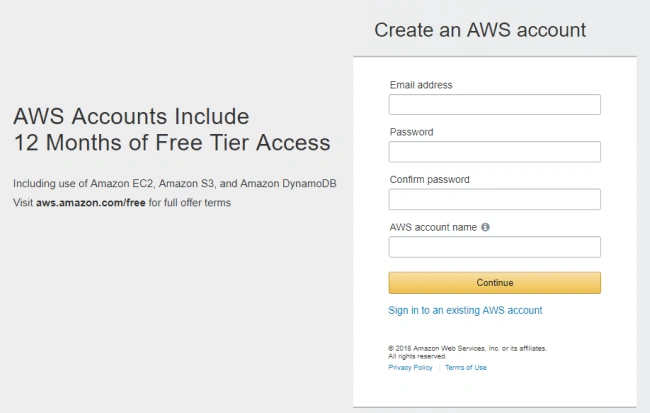
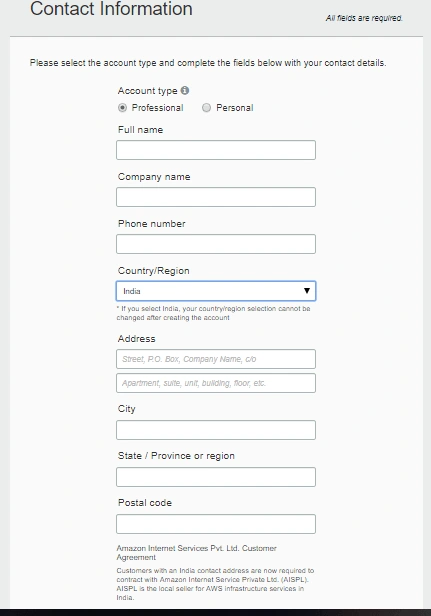
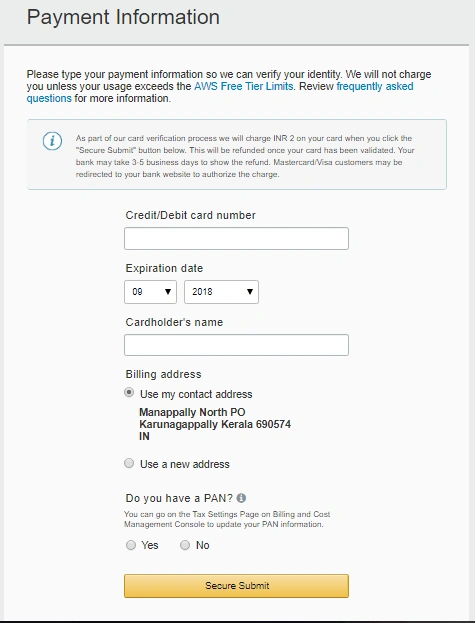
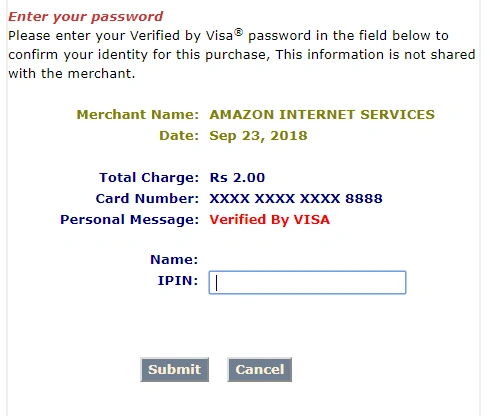
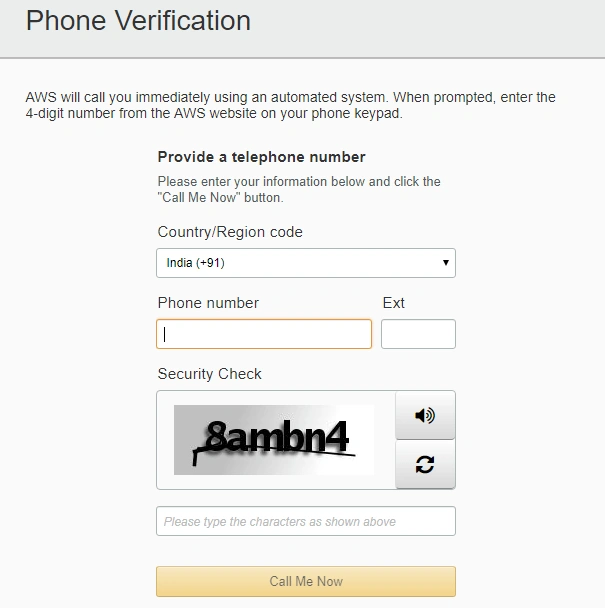
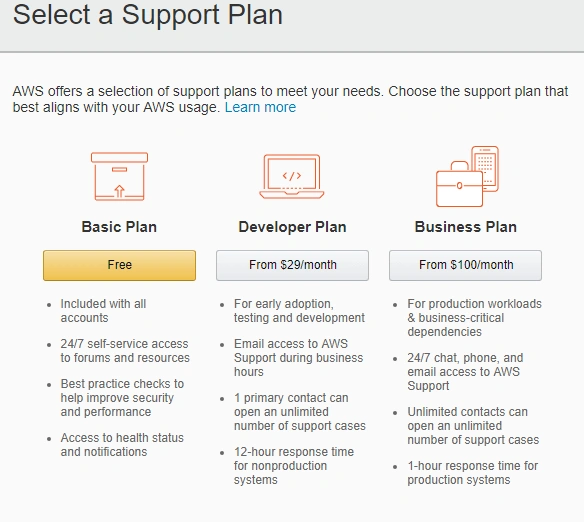
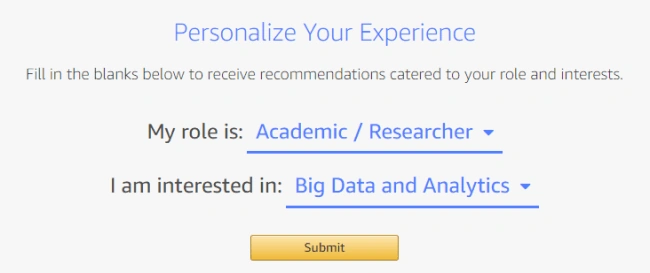


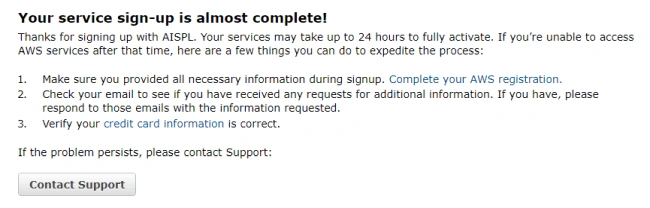
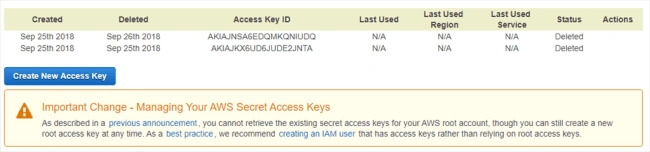
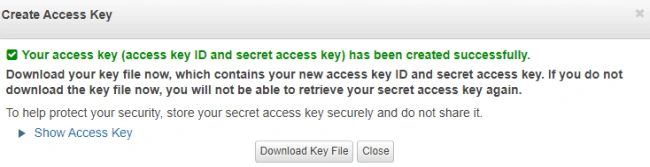
Step 2 - Please create Access Keys.
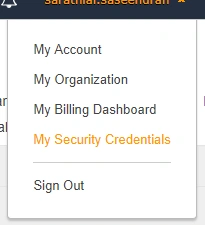
We must create access keys for connecting any of the AWS services from outside AWS. We are going to create an Amazon DynamoDB from the .NET application we need the access key to do this.
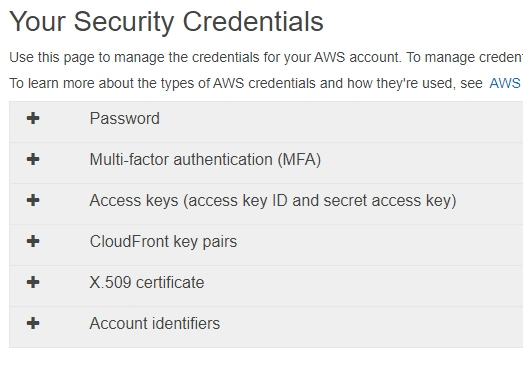
Please click “My Security Credentials” option under your username.
We are going to create a WinForms application. We will create a Student model with Student Id, Student Name, College Name, and Class Name. We will use this application to insert the Student data to DynamoDB and display Student records in a Grid. I am using Visual Studio 2017 to create a WinForms Application.
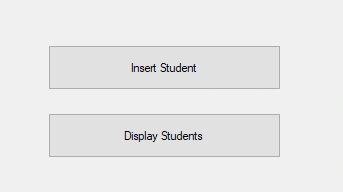
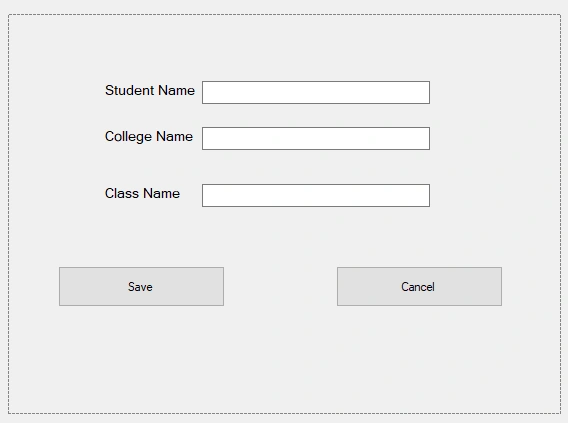
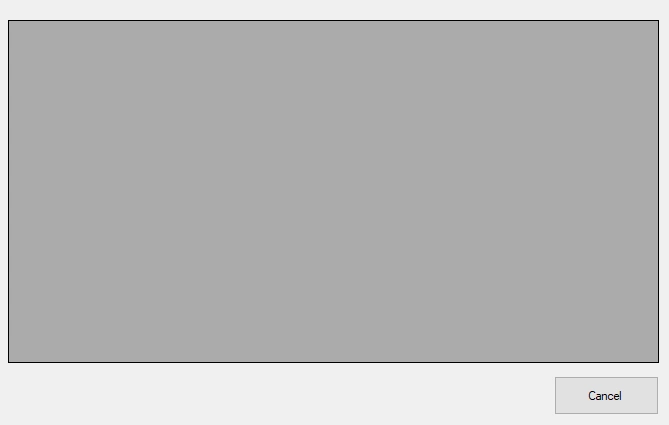
Our design part is over now.
We can add a Student model class now. Please create a “Models” folder and create Student class inside this folder.
- using Amazon.DynamoDBv2.DataModel;
- namespace AmazonDynamoDB.Models
- {
- [DynamoDBTable("Student")]
- public class Student
- {
- public string studentId { get; set; }
- public string studentName { get; set; }
- public string collegeName { get; set; }
- public string className { get; set; }
- public int isActive { get; set; }
- }
- }
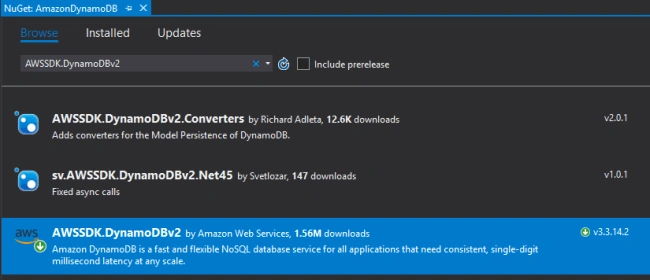
I have imported “Amazon.DynamoDBv2.DataModel” library in this class.
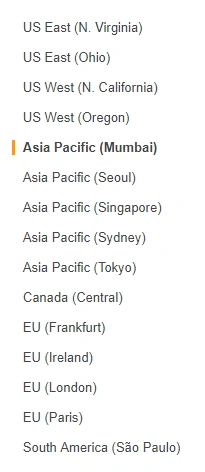
We can add a “CreateTable” method now. We will call this method inside the Form_Load event.
- private void CreateTable()
- {
- var credentials = new BasicAWSCredentials(accessKey, secretKey);
- client = new AmazonDynamoDBClient(credentials, RegionEndpoint.APSouth1);
- var tableResponse = client.ListTables();
- if (!tableResponse.TableNames.Contains(tableName))
- {
- MessageBox.Show("Table not found, creating table => " + tableName);
- client.CreateTable(new CreateTableRequest
- {
- TableName = tableName,
- ProvisionedThroughput = new ProvisionedThroughput
- {
- ReadCapacityUnits = 3,
- WriteCapacityUnits = 1
- },
- KeySchema = new List<KeySchemaElement>
- {
- new KeySchemaElement
- {
- AttributeName = hashKey,
- KeyType = KeyType.HASH
- }
- },
- AttributeDefinitions = new List<AttributeDefinition>
- {
- new AttributeDefinition { AttributeName = hashKey, AttributeType=ScalarAttributeType.S }
- }
- });
- bool isTableAvailable = false;
- while (!isTableAvailable)
- {
- Console.WriteLine("Waiting for table to be active...");
- Thread.Sleep(5000);
- var tableStatus = client.DescribeTable(tableName);
- isTableAvailable = tableStatus.Table.TableStatus == "ACTIVE";
- }
- MessageBox.Show("DynamoDB Table Created Successfully!");
- }
- }
BtnInsert_Click event
- private void BtnInsert_Click(object sender, EventArgs e)
- {
- TxtStudentName.Text = string.Empty;
- TxtCollegeName.Text = string.Empty;
- TxtClassName.Text = string.Empty;
- PnlInsert.Visible = true;
- }
BtnSave_Click event
- private void BtnSave_Click(object sender, EventArgs e)
- {
- //Set a local DB context
- context = new DynamoDBContext(client);
- //Create an Student object to save
- Student currentState = new Student
- {
- studentId = Guid.NewGuid().ToString(),
- studentName = TxtStudentName.Text,
- collegeName = TxtCollegeName.Text,
- className = TxtClassName.Text,
- isActive = 1
- };
- //Save an Student object
- context.Save<Student>(currentState);
- MessageBox.Show("Student Record Inserted Successfully!");
- PnlInsert.Visible = false;
- }
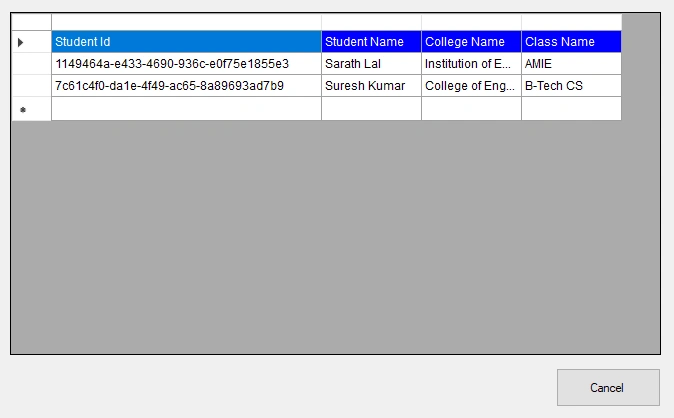
- private void BtnDisplay_Click(object sender, EventArgs e)
- {
- //Set a local DB context
- context = new DynamoDBContext(client);
- Table StudentTable = Table.LoadTable(client, tableName);
- ScanFilter scanFilter = new ScanFilter();
- scanFilter.AddCondition("isActive", ScanOperator.Equal, 1);
- Search search = StudentTable.Scan(scanFilter);
- List<Document> documentList = new List<Document>();
- DGV.Rows.Clear();
- DGV.ColumnCount = 4;
- DGV.Columns[0].Width = 270;
- DataGridViewRow row = new DataGridViewRow();
- row.CreateCells(DGV);
- row.Cells[0].Value = "Student Id";
- row.Cells[1].Value = "Student Name";
- row.Cells[2].Value = "College Name";
- row.Cells[3].Value = "Class Name";
- row.DefaultCellStyle.BackColor = Color.Blue;
- row.DefaultCellStyle.ForeColor = Color.White;
- DGV.Rows.Add(row);
- do
- {
- documentList = search.GetNextSet();
- foreach (var document in documentList)
- {
- row = new DataGridViewRow();
- row.CreateCells(DGV);
- foreach (var attribute in document.GetAttributeNames())
- {
- string stringValue = null;
- var value = document[attribute];
- if (value is Primitive)
- stringValue = value.AsPrimitive().Value.ToString();
- else if (value is PrimitiveList)
- stringValue = string.Join(",", (from primitive
- in value.AsPrimitiveList().Entries
- select primitive.Value).ToArray());
- if (attribute == "studentId")
- {
- row.Cells[0].Value = stringValue;
- }
- else if (attribute == "studentName")
- {
- row.Cells[1].Value = stringValue;
- }
- else if (attribute == "collegeName")
- {
- row.Cells[2].Value = stringValue;
- }
- else if (attribute == "className")
- {
- row.Cells[3].Value = stringValue;
- }
- }
- DGV.Rows.Add(row);
- }
- } while (!search.IsDone);
- foreach (DataGridViewColumn c in DGV.Columns)
- {
- c.DefaultCellStyle.Font = new Font("Arial", 12F, GraphicsUnit.Pixel);
- }
- PnlGrid.Visible = true;
- }
We have completed all the event methods inside our form. We can run our application.
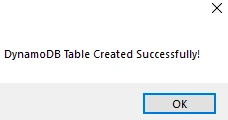
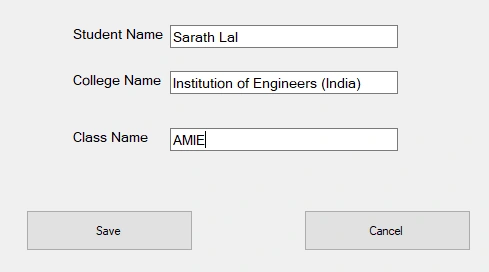
After clicking the “Save” button, our new Student record will be inserted to the DynamoDB table.
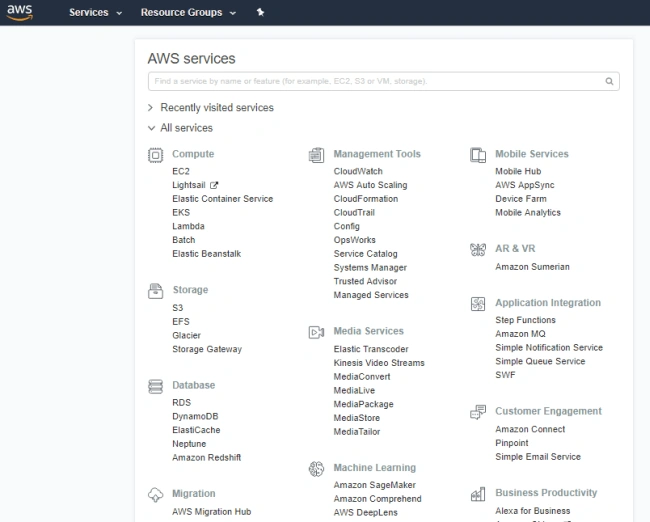
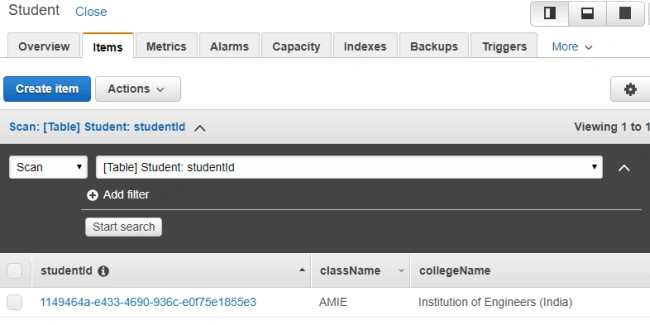
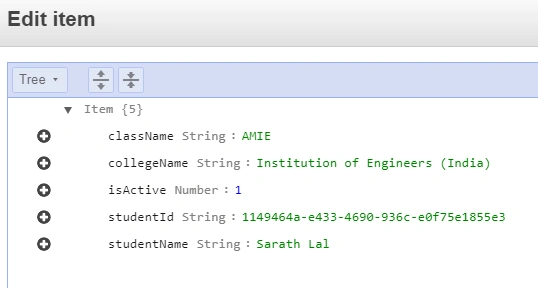
We can verify this data in AWS console. Please come to AWS console and open DynamoDB service.

You can see the newly created Student table there. We have used a “studentid” key as a partition key. This partition key can be used for all the searching operations.
If you click on the "Student", it will open the table details. Please click the “Items” tab. It will show all the records. Currently, there is only one record inside the table.
Robert WagonerPosted Jan 11, 2021, 5:33 PM
Sorry, I meant to comment in your Blazor version that isn't working.
Robert WagonerPosted Jan 11, 2021, 5:32 PM
Well done article, however the code doesn't work for VSC 2019. Can you update please.
DeepanPosted Jul 9, 2019, 2:01 AM
Useful article..