

Introduction
We are in a world where the pandemic is at its peak forcing white-collar jobs to work from home and there is a surge in the number of online meetings. There is a bigger challenge to host these meetings and stream for a larger audience hassle-free with the best Audio/Video quality irrespective of the user’s internet speed.
What is Azure media service?
Microsoft has introduced a feature where users can create live events and stream to audiences with Azure Managing latency and different streaming factors, making streaming a buttery smooth experience.
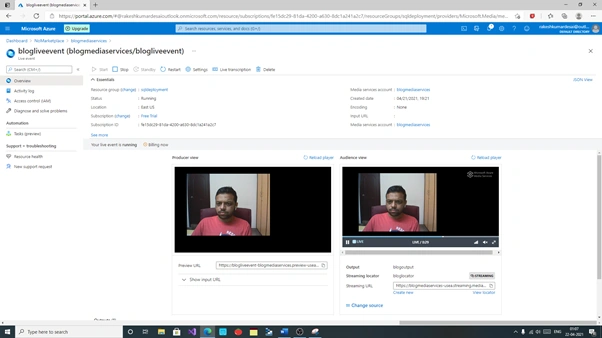
It offers to stream a static audio/video file in different encoding formats (480,720,1080p etc.) and live streaming with the help of input URL and output streamer using RTMP (Real-time messaging) protocol. We will see how we can set up basic Live streaming step by step in this article.
Prerequisites
- Azure account setup (Create a Free trial) in portal.azure.com.
- Some knowledge of basic cloud concepts.
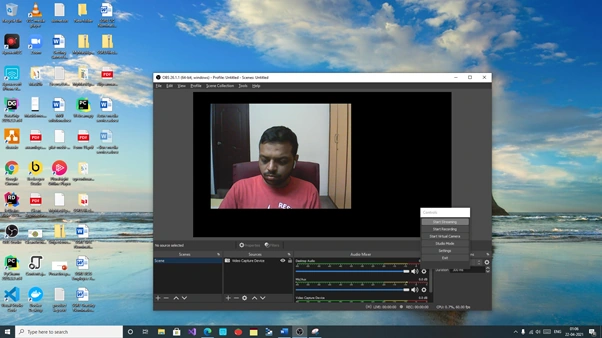
- OBS studio installed (google for it).
- VLC media player for this Demo.
Let's Jump to Action,
Step 1
Log in to here and click on create resource button.
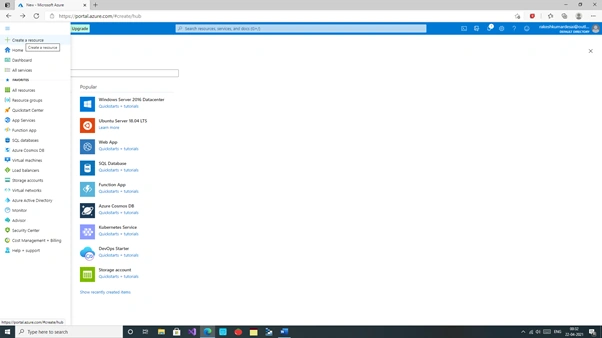
Step 2
Search for media services and press enter and click on create button.
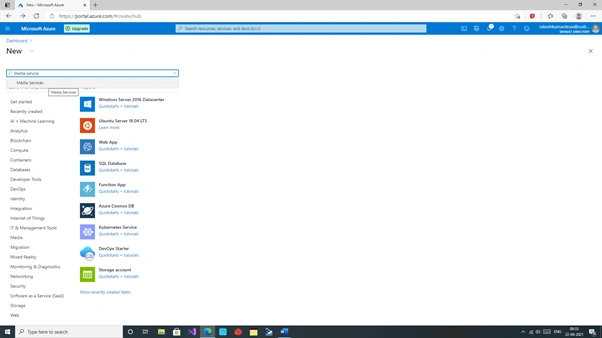
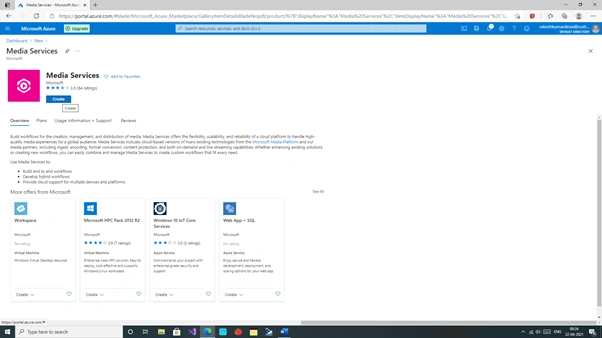
Step 3
Enter the required information as shown below. Create a Storage account and resource group if not available beforehand and hit on create and Review. Do not forget to enable the checkbox.
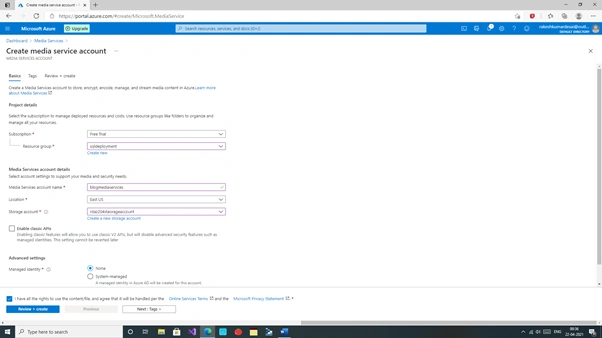
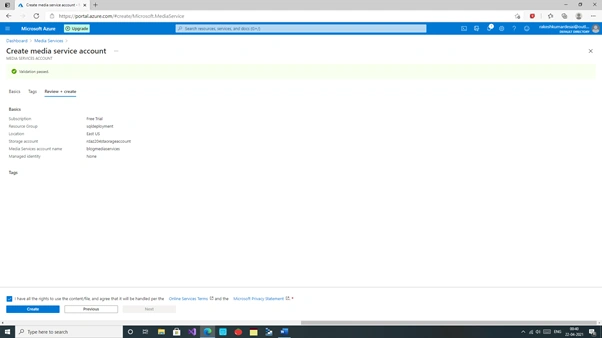
Once Created click on Go to Resource option.
Step 4
We can see our familiar left window for service along with a tab for media services where we can see Assets, API access, Live streaming, and some other options. Let select Live streaming.
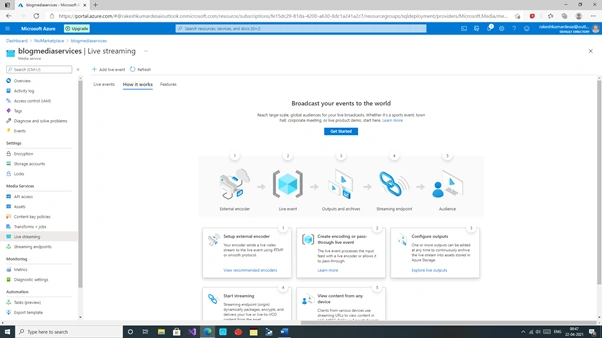
Step 5
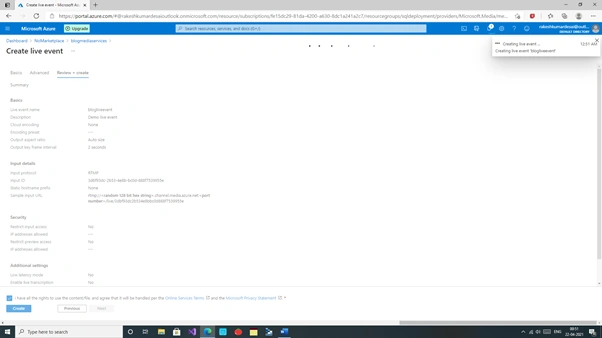
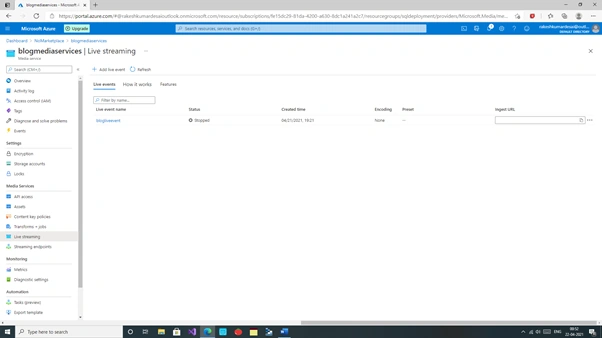
Click on Add Live event and fill in the required information as below
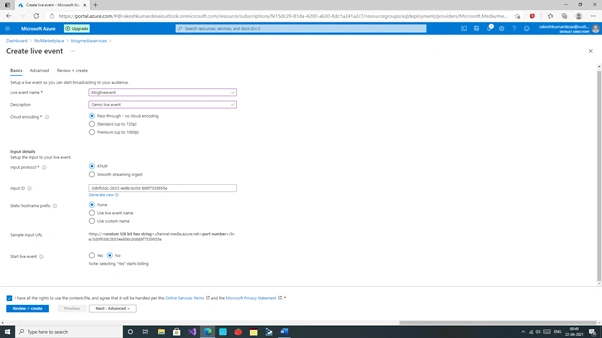
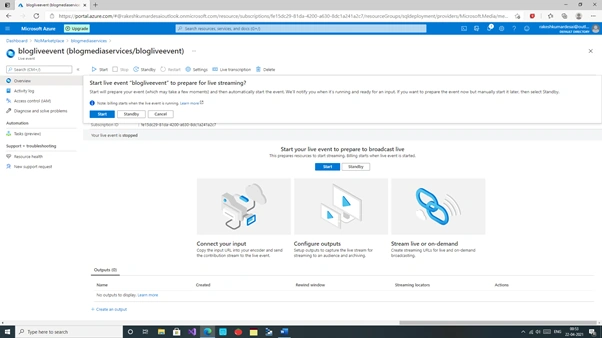
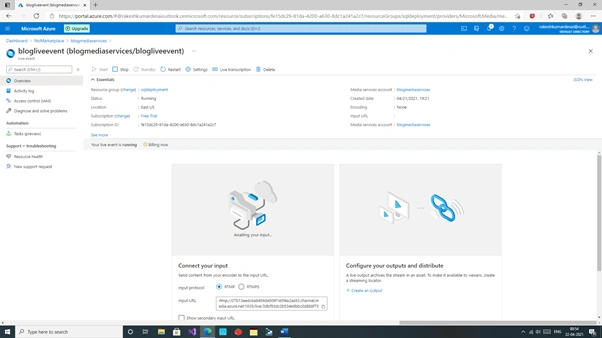
Please note we have selected RTMP as protocol. Click on Review and create and finally create. The Advanced Tab is left to reader research.
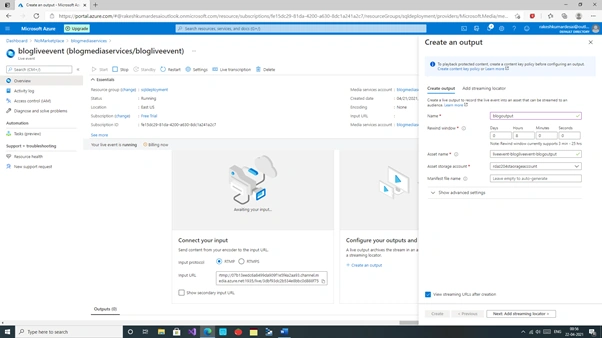
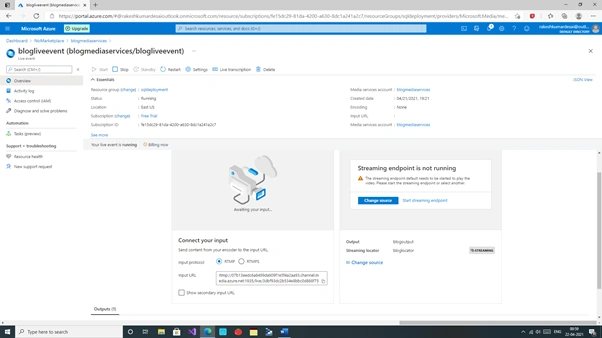
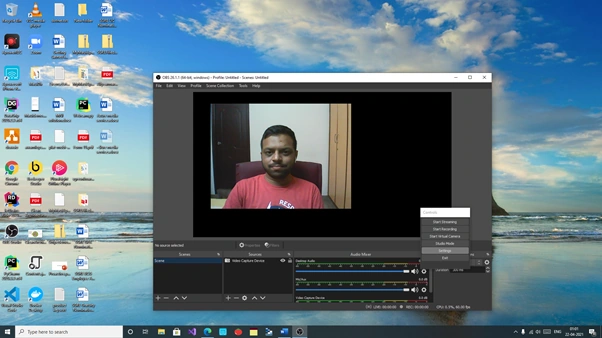
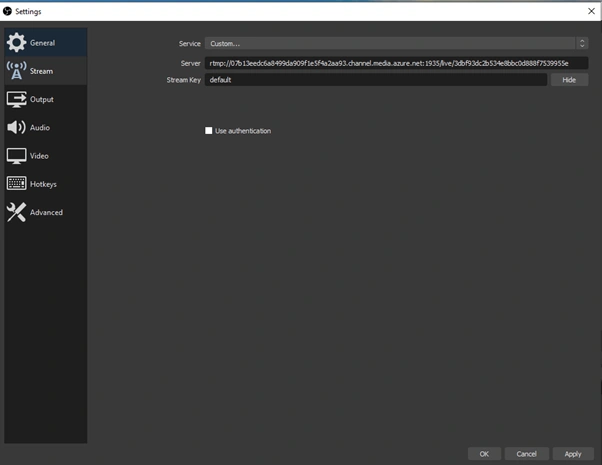
Join the conversation! Your thoughts help the community grow.