

Introduction
Microsoft Forms is an offering from Microsoft that can be used for creating quick and versatile forms for collecting data and quizzes. They are easily configurable and can be integrated with other Microsoft 365 offerings such as Teams, SharePoint and Power Automate, without any hassles.
This is a two-part article. This is the first part of the series and will cover the below articles
-
Designing a form
-
Deployment in Teams
-
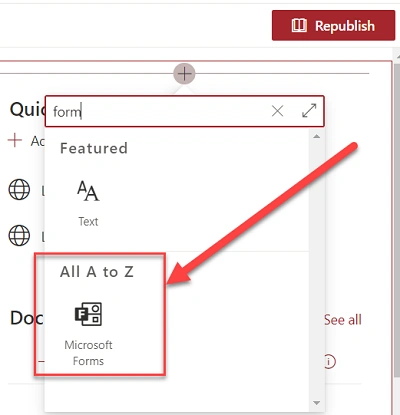
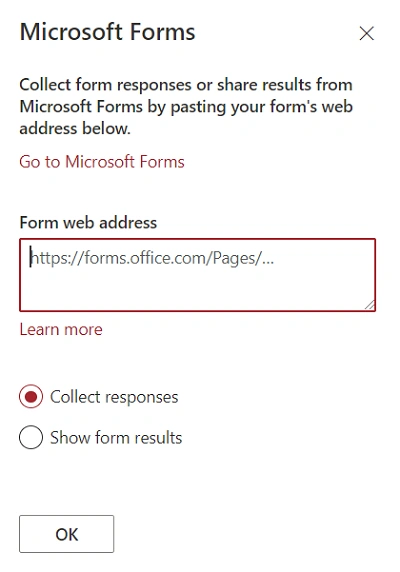
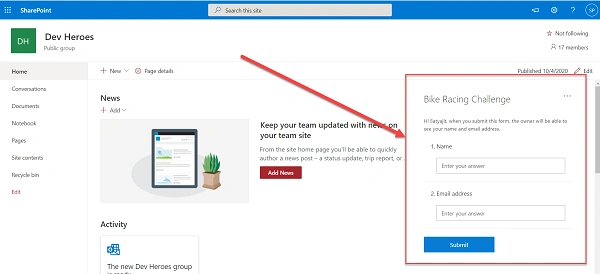
Deployment in SharePoint
-
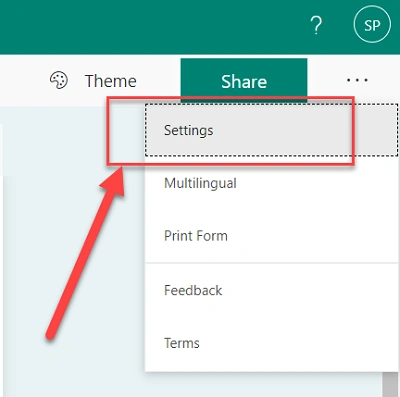
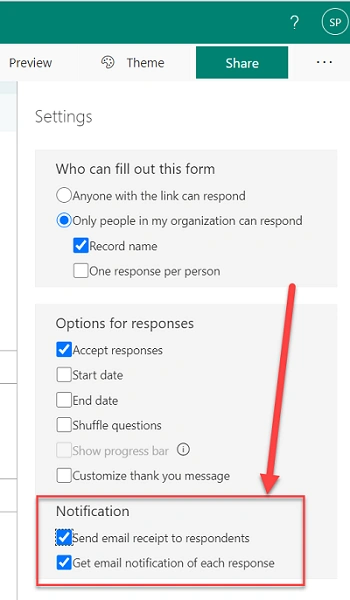
Getting notifications of user responses
-
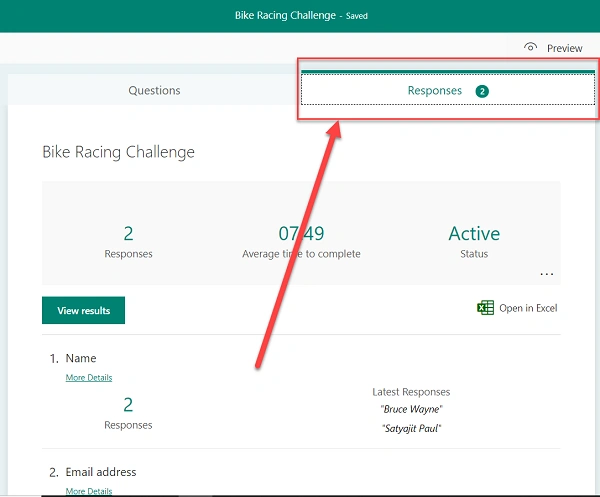
Viewing results
Designing a form
Step 1
From the app launcher click on “”. It can also be accessed from this URL - https://forms.office.com/Pages/DesignPage.aspx
Step 2
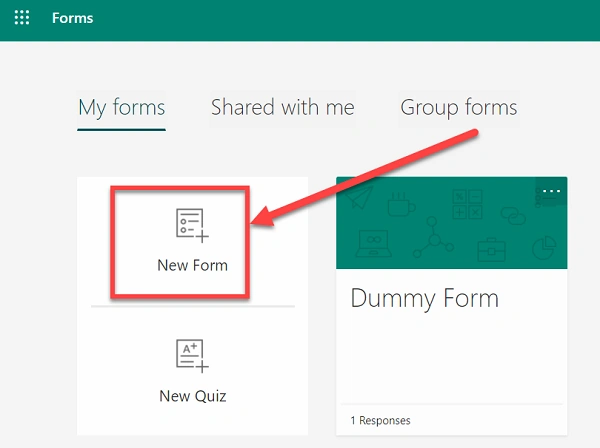
Click on New Form
Step 3
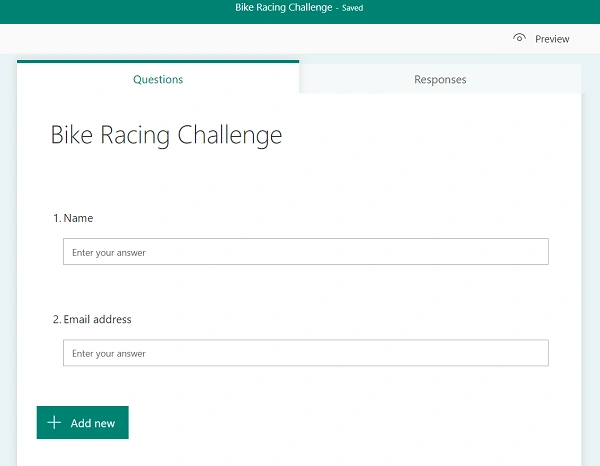
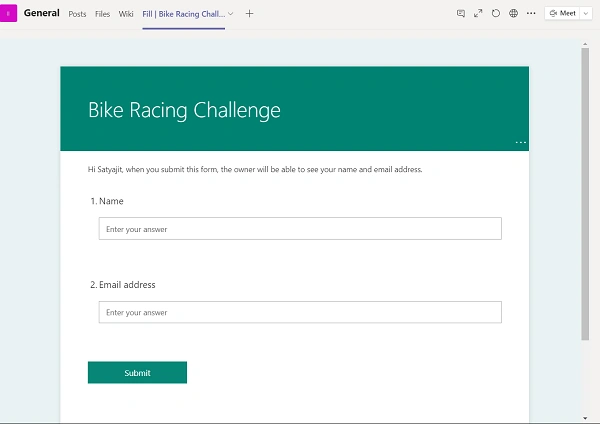
Start building the form. Give it a name. New form questions can be added by clicking on “+ Add New”. Once the questions are saved, click anywhere on the form outside. It has an auto-save feature. We will create a simple form named Bike Racing Challenge with two questions.
Step 4
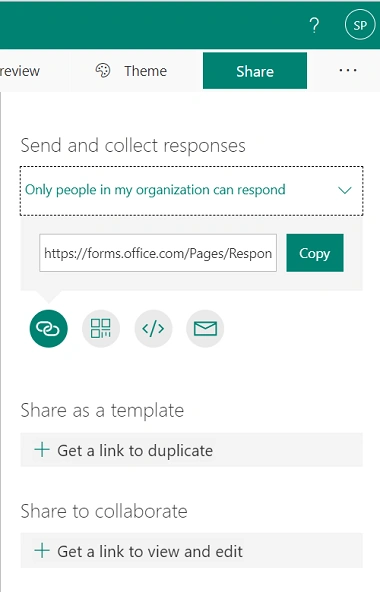
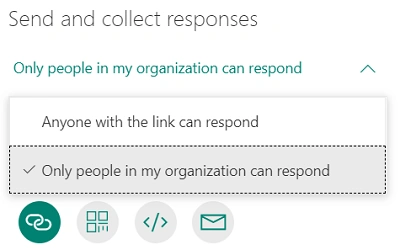
Click on Share button. Then, copy the link under the control Send and Collect Response. This control is also responsible for granting the form with public level or organization level access.
Now at this point, the form development is completed. The next section talks about Deployment in Teams and SharePoint
Deployment in Teams
Step 4
Open Teams. Go to the desired channel where you wish to add the form.
Step 5
Click on Add a tab and select Forms
Step 6
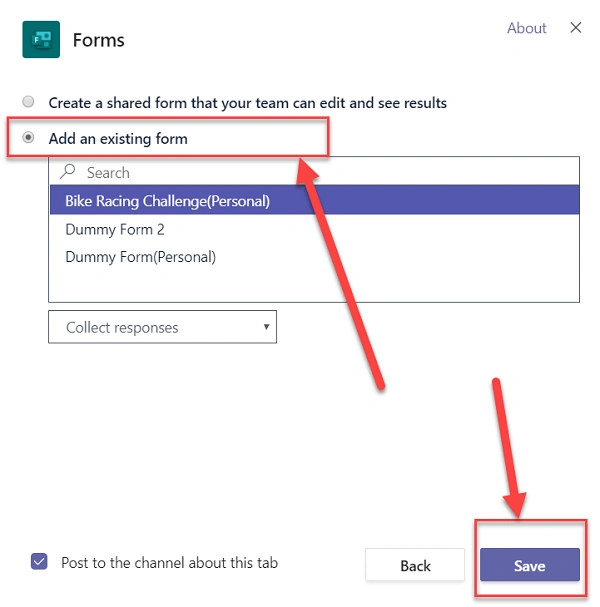
In the next screen, select Add an existing form and select Bike Riding Challenge. Select Collect Response from the dropdown below. Click on Save.

Join the conversation! Your thoughts help the community grow.