

Introduction
The .NET framework is a versatile and powerful platform for building a variety of applications, including web, desktop, mobile, cloud, gaming, and IoT applications. With the release of .NET 8, Microsoft has introduced several enhancements and features that make it even more appealing for developers.
.NET is a free, cross-platform, open-source framework that supports multiple programming languages, allowing developers to build applications for Windows, macOS, and Linux. It consists of a runtime (Common Language Runtime or CLR), a set of libraries, and development frameworks.
What is .NET MAUI?
.NET MAUI is designed to simplify cross-platform application development by allowing developers to create native apps using a single codebase. With .NET 8, MAUI introduces new features and improvements, making it an exciting choice for building modern, multi-platform applications.
Kay features of .NET8 can be found here.
Prerequisites
Before you begin, ensure that you have the following installed on your development machine:
- Visual Studio 2022 or Visual Studio Code
- .NET SDK 8.0
Additionally, you need to have .NET Multi-platform App UI workload to be installed on your machine.
Creating a .NET MAUI Project
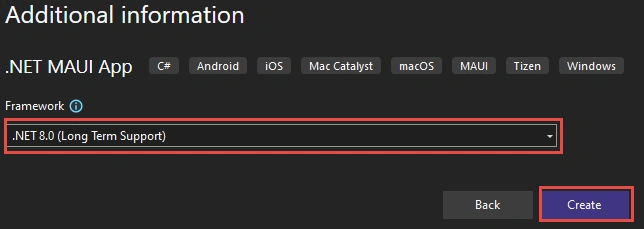
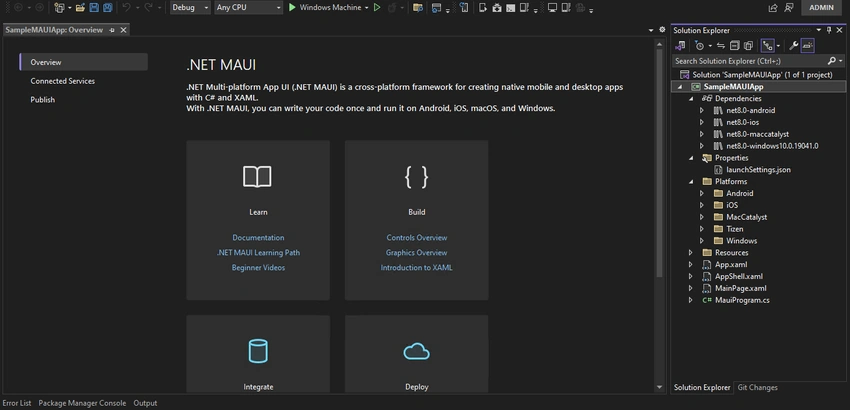
Now, let’s get started with creating .NET MAUI with .NET8. In this article, we will use Visual Studio 2022 to create a .NET MAUI application. Alternatively, you can use Visual Studio code as well.
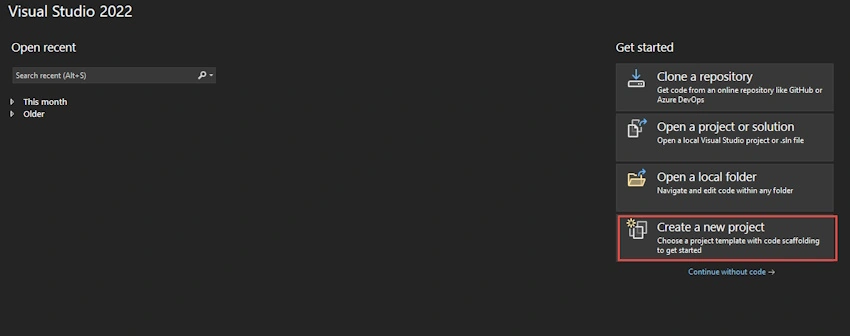
Step 1. Open Visual studio 2022 and create new project.
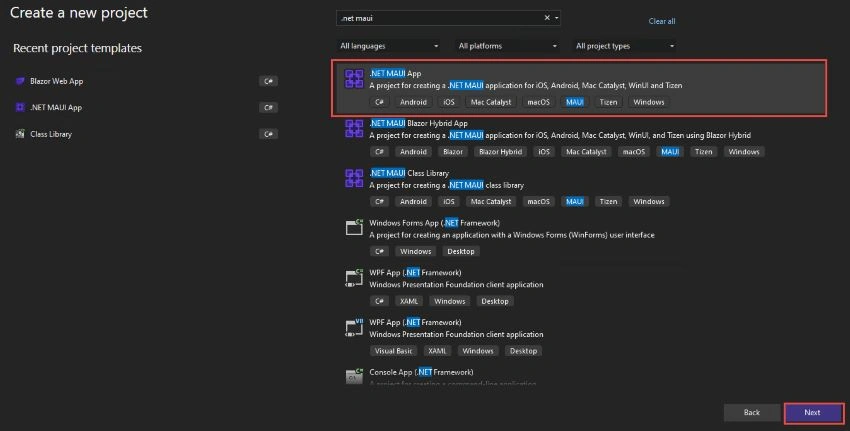
Step 2. In this step, you will see different categories of MAUI such as. NET MAUI App, .NET MAUI Blazor App, .NET MAUI Class Library.
.NET MAUI App: Using this we can develop applications for iOS, Android, Mac Catalyst, macOS, Tizen, and Windows from a single code base.
.NET MAUI Blazor App: This option is for MAUI app development using Blazor and these applications are able to run on iOS, Android, Mac Catalyst, macOS, Tizen, and Windows.
.NET MAUI Class Library: This is for building a class library using .NET MAUI which can run on Android, iOS, Mac Catalyst, macOS, Tizen, and Windows
However, we will select project template .NET MAUI App and click on the Next button as depicted below.
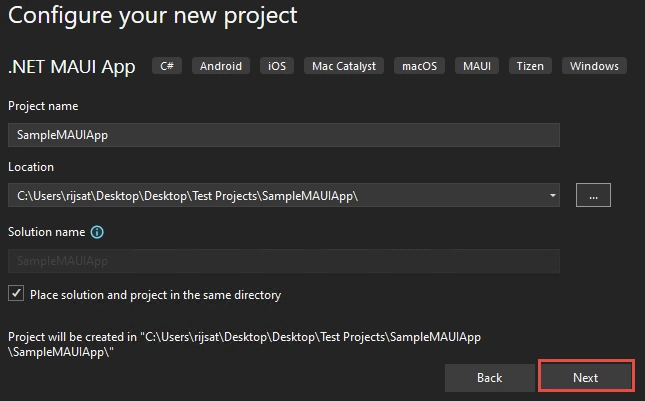
Step 3. Configure your project, give the project name, and location, and click on Next as shown below.
Join the conversation! Your thoughts help the community grow.