

Every developer has a lot to gain by using a powerful editor. Auto-complete, fast file switching and the ability to install packages for new technologies are a few of the perks that every developer enjoys utilizing. And you get all these features in Visual Studio Code. It's lightweight and ultra-fast. It's a fast editing experience, similar to what you get with brackets, Sublime Text and Atom while it's debugging and integration experience is similar to what you get with Web Storm or Visual Studio.
Everyone should master the tool that he has inside his toolbox. It helps to use the right tool at the right moment and gain the most from it. In this article I will walk you through what will help you the most when you start using Visual Studio Code and be productive at the meantime.
So, whether it's a Windows, OSX or Linux, let's start walking. If you haven't downloaded Visual Studio Code yet, download and install it from https://code.visualstudio.com.
Language Support
With the language support for 33 Languages Visual Studio Code blows off the following features:
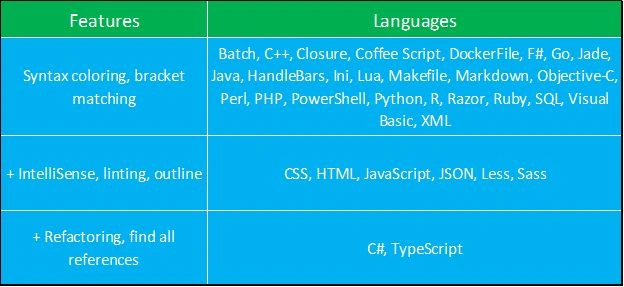
From the .Net Native Language Support family, C# wins the most of it with IntelliSense, Linting, Outline, Refactoring and all of the rest and not to say its celebration time for TypeScript developers.
“code” is the shortcut keyword to launch Visual Studio Code from cmd / console. So you can just type “code” in the Run Command box and hit Enter to start it.
Enhance your productivity with the following:
- code <filename>: will open a file in VSCode
- code <appDirectoryPath>: will open the project folder inside VSCode
- code . (dot): run this command from a console if you're inside a folder and want to start code and open the current folder into it.
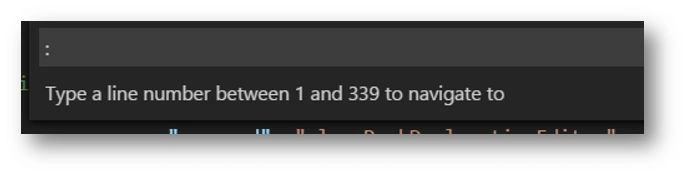
The Command Palette
Do Something:: CTRL+P
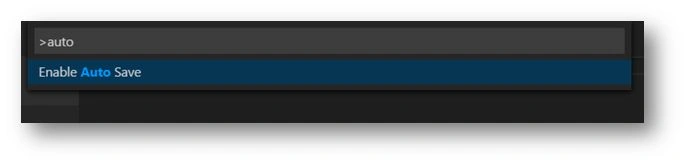
Start the command palette and do something. This is the keyboard shortcut you will be using most frequently in VSCode. It gives you access to all the available commands in context. It also shows the keyboard mapping for each command. You can just open the palette by hitting CTRL+P and begin typing whatever you want to do next and the command will be available to you. No need to visit the menu bar. For example, you can say “Open File” / Open Folder / Close File /Close Editor and so on and hit Enter when you see the desired command slide onto the top.
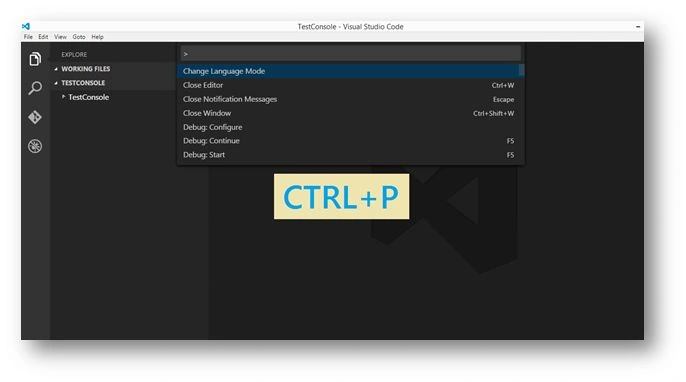
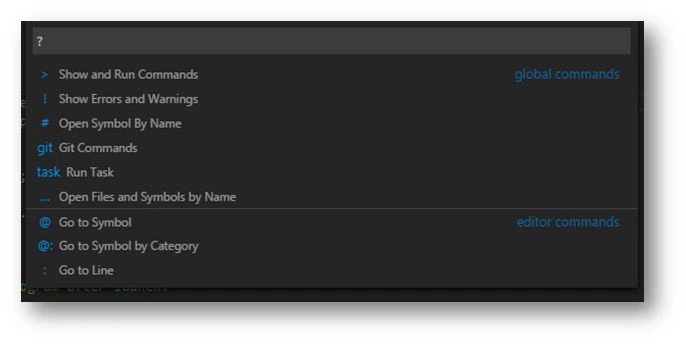
Did you notice the right angle bracket at the command palette? Actually it's a short code!
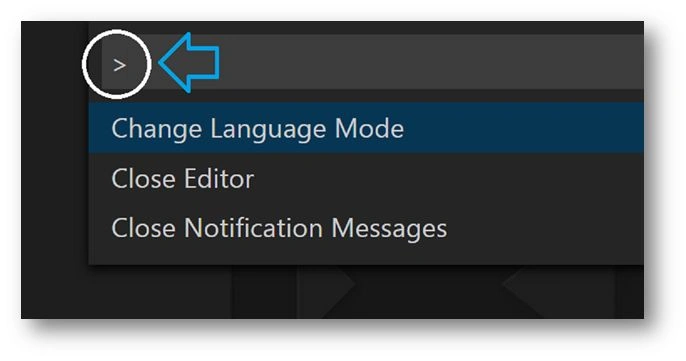
It's a short code for accessing all the commands in context. You can hit Backspace and you have several short codes. You might want to hit CTRL+O in case do not want to first see the command palette and hit Backspace.
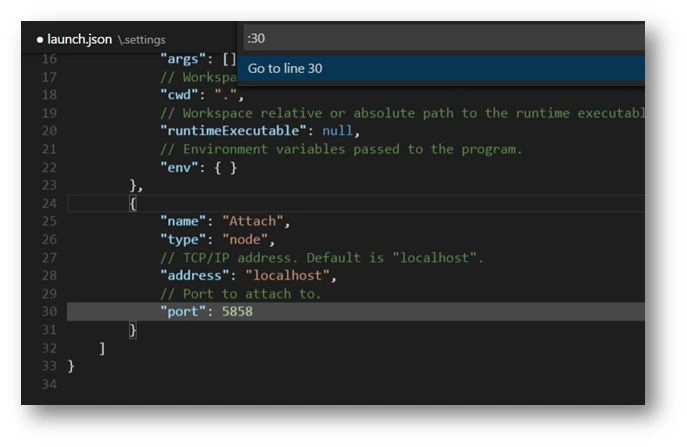
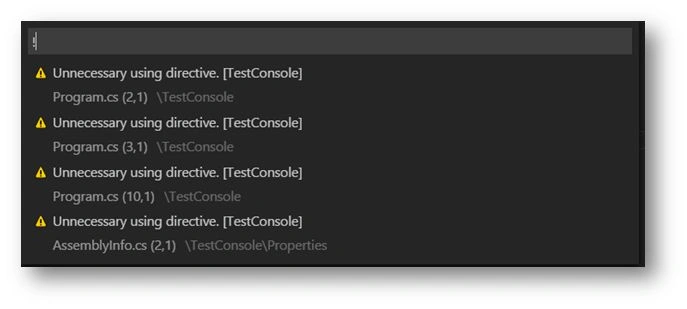
Let's look at the available short codes one by one:
- “>” Do Something:: CTRL+P, we've just seen above.
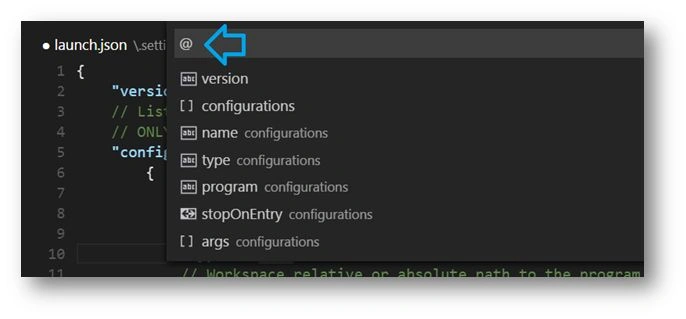
- “@” Go to Symbol: CTRL+O then hit “@”
Use this short code to find any symbol inside the currently opened file.
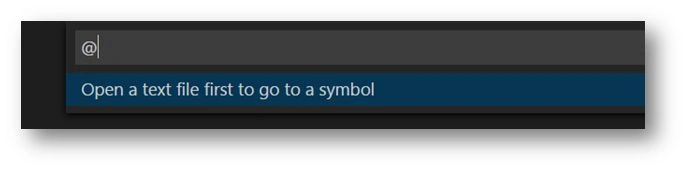
As you hit “@” after opening a file, it will provide a list of all the available symbols and also the type of the symbol! Did you notice the icons in the left side of the symbols?
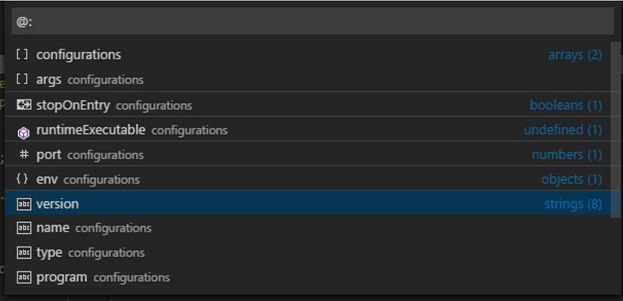
“@:” Go to Symbol by Category: CTRL+O then hit “@:”
Like Go to Symbol, it lists the available symbols in the currently opened file for you but in a Categorized manner. If you see in the right side of the command palette, you will find that it is categorized by Types. So, as in the image right below, I've two Array type symbols, 1 Boolean, 8 Strings and so on. The beauty of this short code!
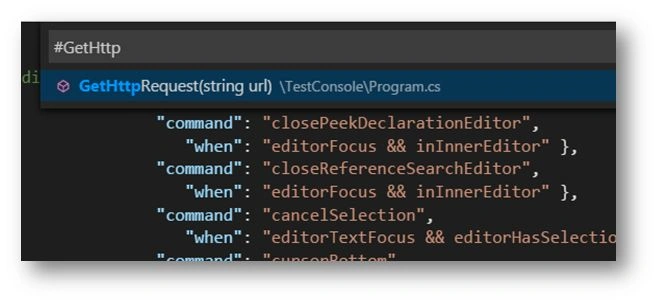
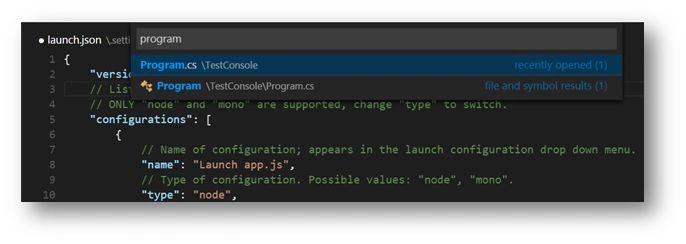
Guest UserPosted May 25, 2015, 9:46 AM
Very nice Sunny, your article answered my questions :)
Pankaj Kumar ChoudharyPosted May 25, 2015, 6:01 AM
Really Nice Explain ...........
Pankaj SinghPosted May 16, 2015, 12:40 PM
Good One Sir
Kiran MaramPosted May 9, 2015, 2:33 PM
How can we configure GitHub
NitinPosted May 8, 2015, 12:15 PM
thanks for sharing
Sunny SharmaPosted May 8, 2015, 7:03 AM
Thanks Abhishek
Sibeesh VenuPosted May 8, 2015, 7:03 AM
Good one .
Abhishek JaiswalPosted May 8, 2015, 5:49 AM
Informative article and good series! :)
Jeetendra GundPosted May 8, 2015, 1:53 AM
Good one
Santhakumar MunuswamyPosted May 8, 2015, 12:00 AM
Thanks for nice article