

Introduction
This is an introduction to the map activity in Android. In this article, I will explain how add a map application to your Android mobile. To add a map application to Android you first must get an MD5 fingerprint for your PC and use the fingerprint to get a Google Maps Android API Key from developer.google.com.
Then we extend the MapActivity class from "com.google.android.maps.MapActivity" as described in the following instructions.
Step 1
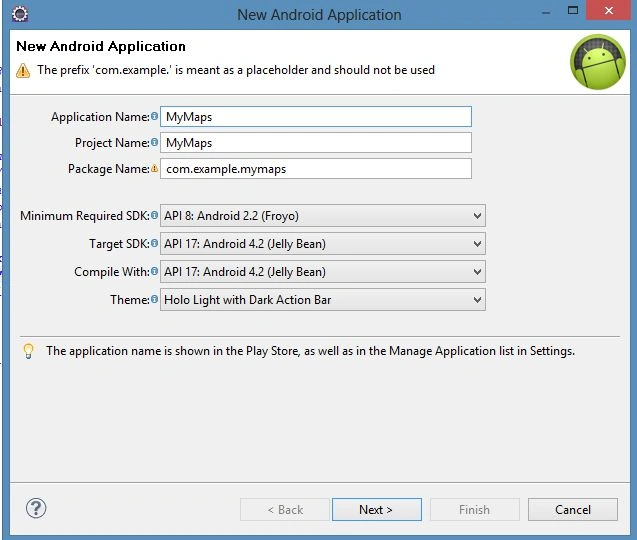
Create a new Android project as "File" -> "New" -> "Android Application Project" as shown in the following image. For every map application select a target that supports Google APIs.
Step 2
Now open the XML file "res/layout/activity_main.xml" and update it with the following code:
- <RelativeLayout xmlns:android="http://schemas.android.com/apk/res/android"
- xmlns:tools="http://schemas.android.com/tools"
- android:layout_width="match_parent"
- android:layout_height="match_parent"
- android:paddingBottom="@dimen/activity_vertical_margin"
- android:paddingLeft="@dimen/activity_horizontal_margin"
- android:paddingRight="@dimen/activity_horizontal_margin"
- android:paddingTop="@dimen/activity_vertical_margin"
- tools:context=".MainActivity" >
- <com.google.android.maps.MapView
- xmlns:android="http://schemas.android.com/apk/res/android"
- android:id="@+id/mapView"
- android:layout_width="fill_parent"
- android:layout_height="fill_parent"
- android:clickable="true"
- android:apiKey="0UPSNoPt1QRgh5ctoV_t1vbo2lRHQbM2AsnEMeQ"
- />
- </RelativeLayout>
- <RelativeLayout xmlns:android="http://schemas.android.com/apk/res/android"
- xmlns:tools="http://schemas.android.com/tools"
- android:layout_width="match_parent"
- android:layout_height="match_parent"
- android:paddingBottom="@dimen/activity_vertical_margin"
- android:paddingLeft="@dimen/activity_horizontal_margin"
- android:paddingRight="@dimen/activity_horizontal_margin"
- android:paddingTop="@dimen/activity_vertical_margin"
- tools:context=".MainActivity" >
- <com.google.android.maps.MapView
- xmlns:android="http://schemas.android.com/apk/res/android"
- android:id="@+id/mapView"
- android:layout_width="fill_parent"
- android:layout_height="fill_parent"
- android:clickable="true"
- android:apiKey="0UPSNoPt1QRgh5ctoV_t1vbo2lRHQbM2AsnEMeQ"
- />
- </RelativeLayout>
Rahat YasirPosted Dec 2, 2014, 9:48 AM
nice