
Firstly, we will learn how to fetch your data from a database (here we will use MsSql ) and then present it in the View using HighCharts.
To understand the complete article, you must have basic knowledge/understanding about the below mentioned technologies/ methods,
- Asp.Net MVC.
- MSSQL Server.
- JavaScript
- JSON (JavaScript Object Notation).
- ADO.Net
- Entity Framework
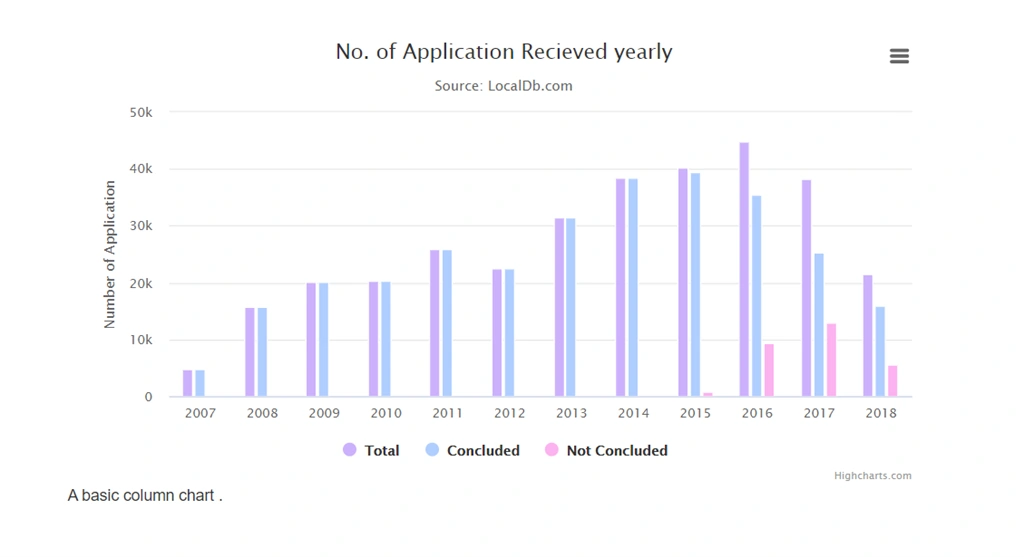
We will be using HighCharts for representing our record as chart/graph (given at the end of the article).
What is HighCharts?
Highcharts is a charting library written in pure JavaScript, offering an easy way of adding interactive charts to your web site or web application. In the vast majority of charts we will be using a basic column chart here to represent our data.
You can visit here to check more variety and select which is best for your scenario.
Steps 1 - Creating a basic Asp.Net MVC Web Based Application.
Create an Application in ASP.NET MVC web application using Visual Studio.
Go to File Menu > New > Project.
Select ASP.NET Web Application ( .NET Framework ) and change the application name:
e.g. : HighCharts, and then click OK
Choose MVC>
Now, the MVC web application project is created with the default ASP.NET MVC template.
Step 2 - Create/Step up your DataBase and Table.
Here, we are using an existing MsSql Database of a “Grievance Portal” and a table (T_Complaint) which stores the data of the person from whom the Complaint has been received and we will show the same number of applications which are received by year, by grouping them by years of application received and then sorting them by year.
The Structure of the table (T_Complaint) is as Below,
|
S. No
|
Column Name
|
Data Type
|
Description
|
|
1
|
ComplaineName
|
nvarChar(50)
|
Name of the complaint
|
|
2
|
ComplainLetterDate
|
DateTime
|
Application received date
|
|
3
|
ComplainNumber
|
Number
|
Primary Key for Complaint no.
|
|
4.
|
Concluded
|
Boolean
|
True when complaint is Resolved.
|
|
Many more…
|
|||
There will be many more columns like address, district, state, father’s name, complaint description, but as of now the above-mentioned columns are enough for our task.
Since the data that we will fetch could be huge here we are using “Stored Procedure” to retrieve it by just calling it from the controller as Stored Procedures take less time to fetch a huge amount of data as compared to SQL queries.
The below code will help you to create a Stored procedure.
- Create PROCEDURE [dbo].[SP_YearlyRec]
- AS
- select sum(Total)as 'Total',max(t1.concluded)as concluded,MAX(t1.Not_concluded)as Not_concluded,Complainletteryear from (
- select count(Complainletterdate) as 'Total',case when Conclusion=1 then count(year(Complainletterdate))end as concluded,
- case when Conclusion=0 then count(year(Complainletterdate)) else 0 end as Not_concluded,YEAR(Complainletterdate) as [Complainletteryear] from T_Complaint
- where Complainletterdate is not null
- group by year(Complainletterdate),Conclusion
- )t1 group by t1.Complainletteryear order by t1.Complainletteryear.
The output of the above created SP will be as below,
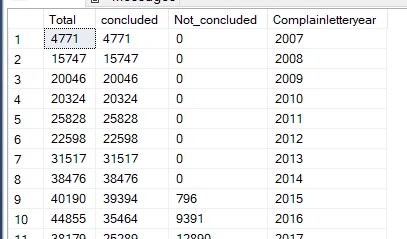
Step 3 - Working on Controller
Here we will use the default HomeController that is created automatically when we create a new MVC application.
In the HomeController we will use default Index() ActionMethod and modify it as per our need or you can also create a new ActionMethod for yourself.
- public ActionResult Index()
- {
- return View();
- }
Now create a view for your ActionMethod and give it the same name as your ActionMethod.
<view code is given below>
Next, we will create the WebMethod where we will call the Stored procedure which we have created previously.
Aditi SawhneyPosted May 27, 2020, 11:03 AM
Helpful Article....very nicely explained each and every step.