

Prologue:
On of my colleague got a chance to work on LightSwitch Business Application. In
that project, He supposed to use Silverlight Usercontrol to include more
functionality and better UI. One of the functionality of Silverlight Usercontrol
needs to access the Methods which are defined in LightSwitch.
He asked me that How to access the Property and Methods which are defined in
LightSwitch from Silverlight Application. As he asked, I thought to explain
Sheel Shah and Karol Zadora-Przylecki's way to access the methods and properties
which is explained by Michael Washington.
So in this article, I am going to explain the first way [Sheel Shah Method] to
access the Methods of LightSwitch from Silverlight Application as article part
I.
Let us create a demo Visual Studio LightSwitch 2011 application to explain the
situation discussed above.
Preparing LightSwitch Solution:
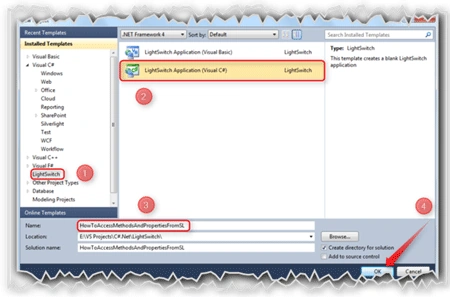
Start the Visual Studio LightSwitch 2011; create a LightSwitch project as shown
in the below figure.
In this demo application, we will simply define a method to say Hello to world
when we click on Silverlight button control.
Designing Entity:
As we are simply saying hello to world, we don't need any entity.
Designing Screen:
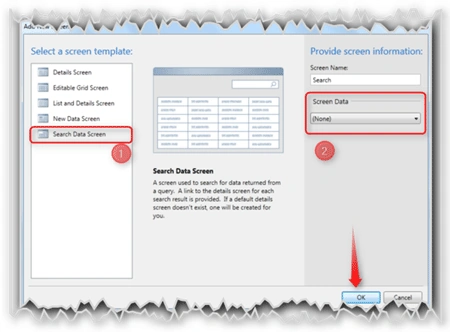
Create a Search Screen as show in the figure given below.
Here,
- Select "Search Data Screen" template from Screen template panel.
- As we have not designed any entity, simply select "None" from "Screen Data" dropdown list.
Adding LightSwitch Method:
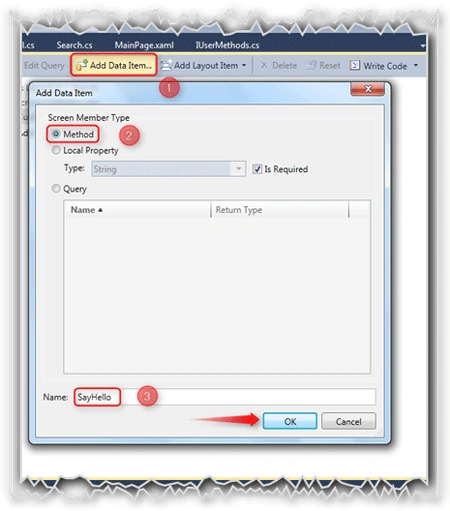
Add the LightSwitch method as shown in the below figure.
Here,
Open the screen designer then,
- Click on "Add Data Item..." button which is at the top of the screen designer.
- It will show a dialog box. In that, select "Method" option from the "Screen Member Type" group.
- Give the method name as "SayHello" and click on OK.
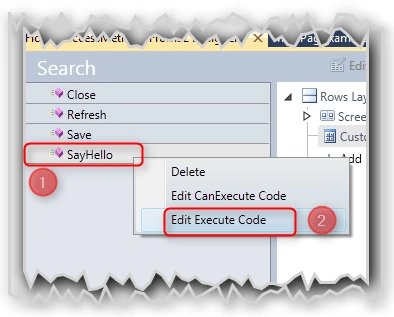
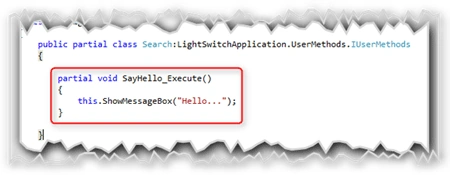
Editing the Method:
Here,
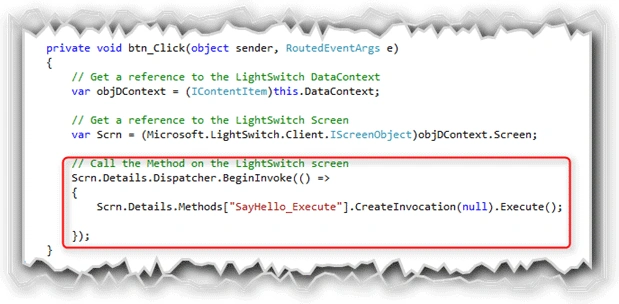
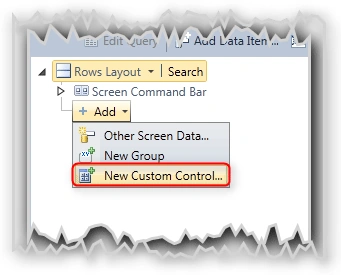
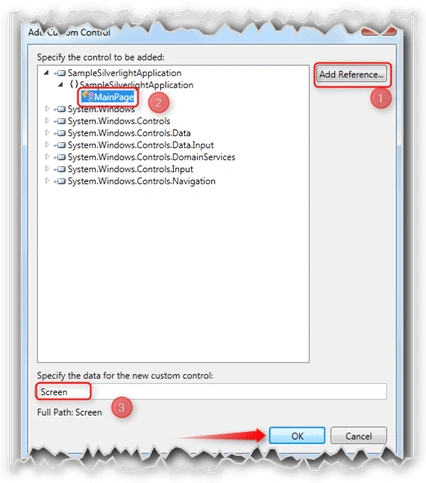
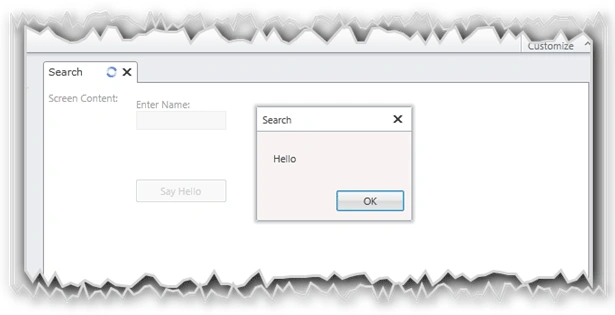
Join the conversation! Your thoughts help the community grow.