

Introduction
In this article, we will see how to add an AlertDialog in Android.
Procedure
- Start the Eclipse IDE.
- Create a new project.
- Create a MainActivity.java file.
- Create an activity_main.xml file for layout design.
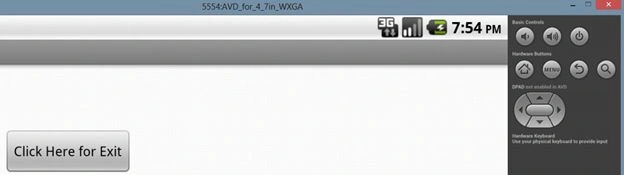
- Add a button in the XML layout.
- Then look up the button by its id in the MainActivity.java file.
- Create an object like this: AlertDialog.Builder a1=new AlertDialog.Builder(this);
The code for the example is given below.
MainActivity.java
- package com.example.aadialogtodayyy;
- import android.app.Activity;
- import android.app.AlertDialog;
- import android.content.DialogInterface;
- import android.content.DialogInterface.OnClickListener;
- import android.os.Bundle;
- import android.os.Process;
- import android.view.KeyEvent;
- import android.view.View;
- import android.widget.Button;
- public class MainActivity extends Activity implements android.view.View.OnClickListener
- {
- Button b1;
- @Override
- protected void onCreate(Bundle savedInstanceState) {
- // TODO Auto-generated method stub
- super.onCreate(savedInstanceState);
- setContentView(R.layout.activity_main);
- b1=(Button) findViewById(R.id.button1);
- b1.setOnClickListener(this);
- }
- public void adddddd()
- {
- AlertDialog.Builder a1=new AlertDialog.Builder(this);
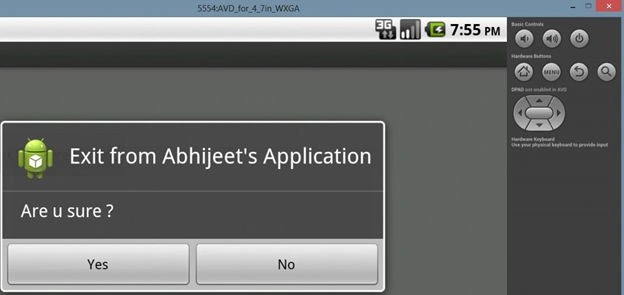
- a1.setTitle("Exit from Abhijeet's Application");
- a1.setMessage("Are u sure ?");
- a1.setIcon(getResources().getDrawable(R.drawable.ic_launcher));
- a1.setPositiveButton("Yes", new OnClickListener() {
- public void onClick(DialogInterface dialog, int which) {
- // TODO Auto-generated method stub
- finish();
- }
- });
- a1.setNegativeButton("No", new OnClickListener() {
- public void onClick(DialogInterface dialog, int which) {
- // TODO Auto-generated method stub
- Process.killProcess(Process.myPid());
- }
- });
- a1.show();
- }
- public void onClick(View v) {
- // TODO Auto-generated method stub
- adddddd();
- }
- @Override
- public boolean onKeyDown(int keyCode, KeyEvent event) {
- if(keyCode==KeyEvent.KEYCODE_MENU)
- {
- adddddd();
- }
- // TODO Auto-generated method stub
- return super.onKeyDown(keyCode, event);
- }
- }
Ashutosh PathakPosted Jun 7, 2014, 7:46 AM
Nice article. thanks...