

Introduction
In this article, we will learn how to append new comments and display the full comment history so users can easily read past discussions in PowerApps Edit form.
Use Case
In many forms, users need to add comments while working on requests or tasks. If we only show the latest comment, then old comments get lost and users cannot understand the full history. So we need a way to store every new comment and show all previous comments together. This helps users read past discussions.
Prerequisites
A SharePoint list connected to your PowerApps form.
A Comments column in the list with datatype of Multiple lines of text.
A basic Gallery is already created and connected to the same data source.
Steps to implement comment history
Step 1
In the gallery insert edit icon and in On Select property add below code
UpdateContext({varSelectedRecord:ThisItem})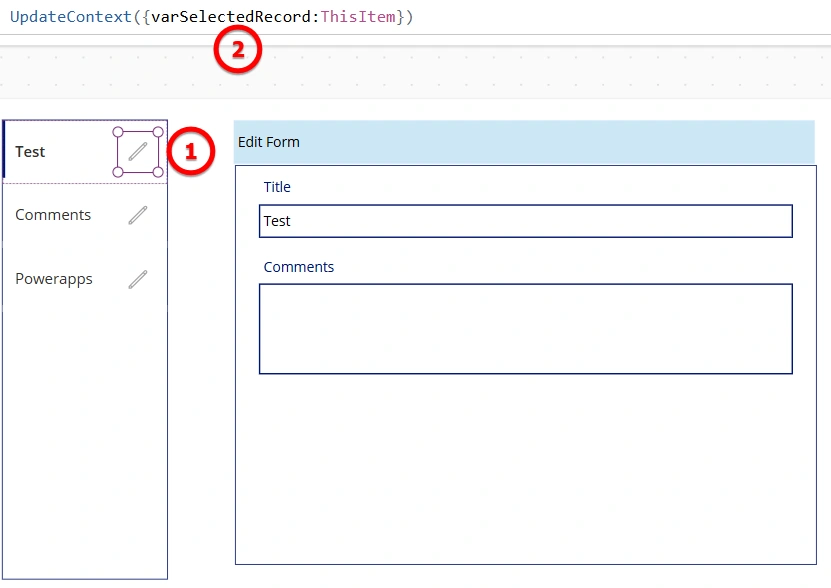
Step 2
Add an Edit Form control to the screen (as shown in the above image) and connect it to the same SharePoint data source used in the gallery.
After that, add the necessary fields into the form that you want the user to update, including the Comments field.
Form Items Properties
varSelectedRecordForm Display Mode
FormMode.EditStep 3
Inside the Comments Data Card, add a Button and name it "Add comment".
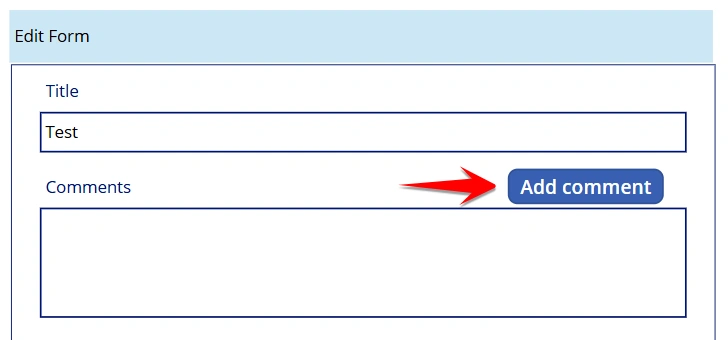
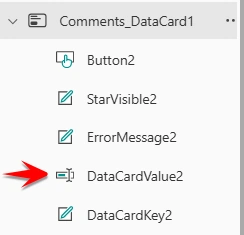
Set the On Select property of the button with the below logic and replace "CommentsList" with your own data source and DataCardValue2 with the actual Text Input control from your Comments field. Also, make sure remove DataCardValue2 default value.
UpdateIf(
    CommentsList,
    ID = varSelectedRecord.ID,
    {
        Comments: If(
            !IsBlank(DataCardValue2.Text),
            Concatenate(
                User().FullName,
                "   ",
                Text(
                    Now(),
                    "[$-en-US]dd mmmm yyyy hh:mm"
                ),
                Char(10),
                DataCardValue2.Text,
                Char(10) & Char(10),
                LookUp(
                    CommentsList,
                    ID = varSelectedRecord.ID
                ).Comments
            ),
            LookUp(
                CommentsList,
                ID = varSelectedRecord.ID
            ).Comments
        )
    }
);
UpdateContext(
    {
        varPreviousComments: LookUp(
            CommentsList,
            ID = varSelectedRecord.ID
        ).Comments
    }
);
Reset(DataCardValue2);
Logic Explanation
This updates your data source by appending the new comment to the existing comments. It also captures who wrote the comment and the current date and time. After that, we store the full comment history for that record in a variable varPreviousComments. and at last we reset DaatcardValue2 control so we do not have to remove the comment manually.
Step 4
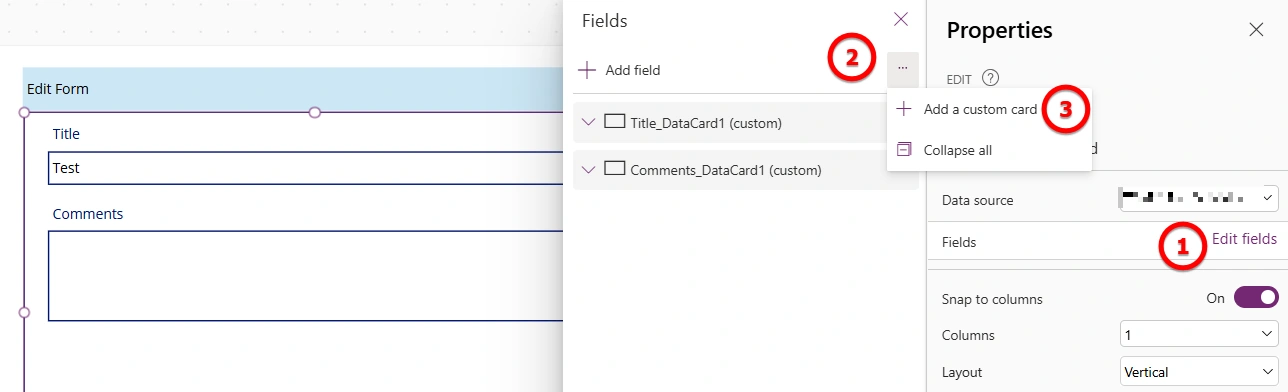
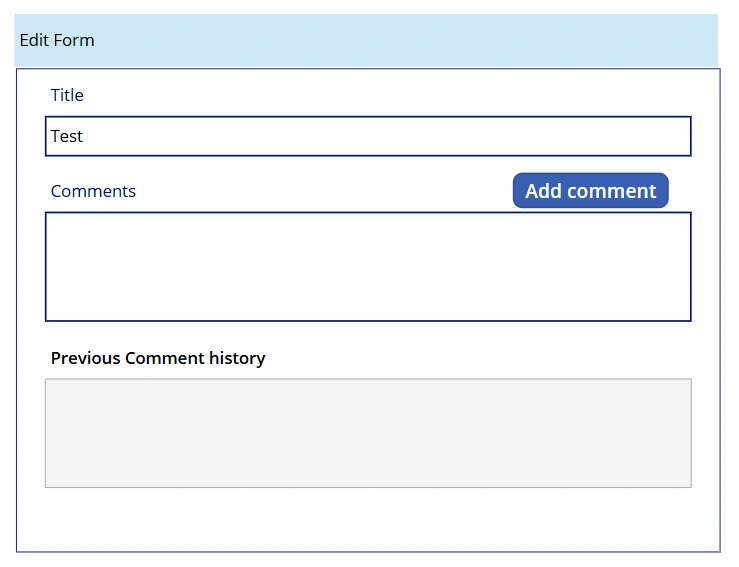
Select Form and add a Custom Data Card that will be used to show the previous comment history. Also You can adjust the custom data card position and layout as per your UI design.
Step 5
Inside the custom data card, insert a Label named "Previous Comments history" and a Text Input control.
You can also change the Text Input's fill color so it looks like a separate section. This section will show previous comments and will not be editable by users.
Set the Text Input Properties as per below:
Default: varPreviousComments
Display Mode: DisplayMode.Disabled
Fill: RGBA(237,237,237,0.5)
Mode: Multiline
Step 6
Now Update the gallery's edit icon logic so that when you click it, you can see the comment history for that selected record, if any comments exist.
UpdateContext(
    {
        varSelectedRecord: ThisItem,
        varPreviousComments: ThisItem.Comments
    }
)
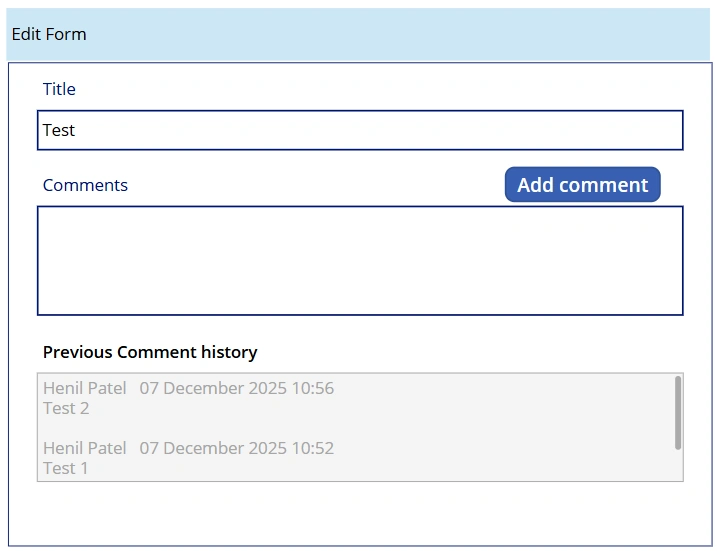
Final Output
Tip
The above steps help you add multiple comments in the edit form without navigating each time, and it only updates the specific comment. But if you also want to add a comment while creating a new request, then after the form is submitted, just use the below logic in the OnSuccess property.
UpdateIf(
    CommentsList,
    ID = Self.LastSubmit.ID,
    {
        Comments: Concatenate(
            User().FullName,
            "   ",
            Text(
                Now(),
                "[$-en-US]dd mmmm yyyy hh:mm"
            ),
            Char(10),
            Self.LastSubmit.Comments,
            Char(10) & Char(10)
        )
    }
);
Conclusion
By following these steps, you can keep all previous comments and show them in your PowerApps form. This makes it easy for users to read past discussions and add new comments without losing any information.
Join the conversation! Your thoughts help the community grow.