

In this article, Azure Cloud Shell (Azure CLI) is used to build one container image from existing application code and push it in to the Azure Container Registry (ACR). ACR Tasks contains various features within Azure Container Registry to provide efficient Docker container image builds in Azure. ACR Tasks are used to streamline various activities such as building, testing, pushing, and deploying images in Azure.
Following tasks are performed:
Create Azure Container Registry
Build and push image through Dockerfile
Verify results
Run image in ACR
Clean up resources
Create Azure Container Registry
Container registry is a service used to stores and manages container images and related artifacts. ACR, Docker Hub, and GitLab are popular options for integrating with Azure’s cloud services. Let’s created a container registry resource using the Azure CLI. Azure CLI is a free Bash shell which can be run directly within the Azure portal. It is preinstalled and configured within an account.
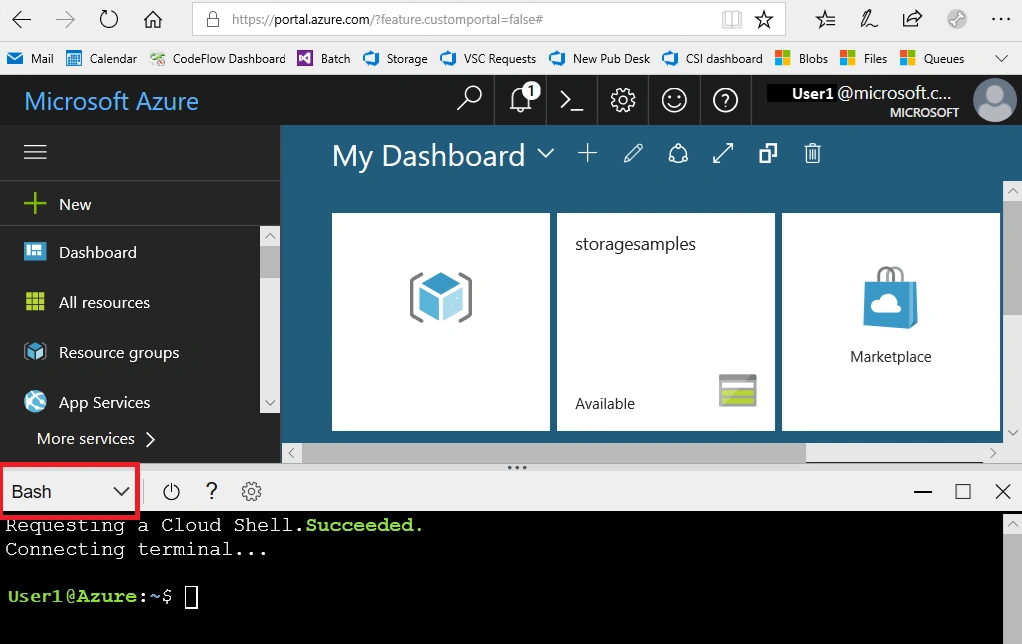
Click Cloud Shell button on the menu bar at the top right side of the Azure portal.

It will launch an interactive shell which can be used to run the steps outlined in this article. Select a Bash environment. To use code editor go to Settings menu in cloud shell toolbar and than select Go to Classic version.
Create Resource Group - Resource group is a logical container used to hold related resources. It includes all resources which are required to manage as a group. az group create command creates a resource group. If a resource group is already created and exists then this step can be omitted and it can be use in next steps.
Syntax
az group create \
--name <resource-group> \
--location <location>
Example
az group create \
--name myResourceGroup1 \
--location eastus2
eastus2 is location code instead of it one can use their nearest region location.
az account list-locations command gives complete list of available locations.
az account list-locations
az account list-locations --query "[*].name"
az account list-locations --query "[*].name" --out tsv | sort
Create Container Registry - az acr create command is used to create a basic container registry. Unique name is required for registry name and name can have 5-50 alphanumeric characters. Let’s create a Basic registry, which is a cost-optimized option used by developers during learning about Azure Container Registry.
Syntax
az acr create \
--name <container-registry-name> \
--resource-group <resource-group> \
--sku <sku-type>
Example
az acr create \
--name myContainerRegistry1\
--resource-group myResourceGroup1
--sku Basic
Build and Push Image through Dockerfile
In this section Azure Container Registry is used to build and push an image. Let’s first create Dockerfile and than build and push image.
Create Dockerfile - Dockerfile is created using following command. File is having one single line to references to hello-world hosted image at Microsoft Container Registry.
echo FROM mcr.microsoft.com/hello-world > DockerfileJust for basic testing purpose, one can also create a html file and put it into the Dockerfile using below command.
echo "RUN echo 'Hello, world!' > index.html" >> DockerfileBuild and Push Image - az acr build command is used to build and image and after successful build it will push image into the mentioned container registry.
az acr build \
--image sample1/hello-world:v1\
--registry myContainerRegistry1\
--file Dockerfile .
Here, command ends with a . which is used to set location of the Dockerfile. Here . indicated the current working directory. It will take few seconds and output with successful build and push will be displayed below to the command after it’s execution with run id and time taken.
Output
- image:
    registry: ...
	...
Run ID: dfm was successful after 9s
Verify results
Now it’s time to verify the results. First list out the repositories and than view tags using az acr repository list and az acr repository show-tags commands.
List of Repositories - az acr repository list command is used to list out all the registry from mentioned registry.
az acr repository list \
--name myContainerRegistry1\
--output table
Output
sample1/hello-worldList of Tags - Command az acr repository show-tags is used to list out all the tags from mentioned repository.
az acr repository show-tags \
--name myContainerRegistry1\
--repository sample1/hello-world
--output table
Output
v1Run Image in ACR
Now last task is to run container image from container registry. az acr run command is used to run container image from container registry as following:
az acr run
--registry myContainerRegistry1 \
--cmd '$Registry/sample1/hello-world:v1' /dev/null
$Registry is used to specify the registry where to run the command.
cmd parameter is used to runs container in it’s default configuration.
Output
Packing source code into tar to upload...
...
Run ID: cab was successful after 5s
Clean up resources
Once finished the exercise it’s recommended to delete cloud resources are being created to avoid the unnecessary resource usage and any future costs. Deleting a resource group will delete all resources contained within it. Perform following steps one by one in to Azure Portal to clean up resources:
Navigate to resource group which is being created here and view it’s contents.
Delete resource group selection from the toolbar.
Choose resource group name and then follow next directions to delete resource group and all the resources it contains.
Delete resource group - az group delete command can also be is used to remove resource group it from Azure CLI. It will remove resource group, container registry, and container images.
az group delete --name myResourceGroup1Summary
This article described how to prepare application for containerization, create ACR instance, and store container image in Azure. Following table summarizes the key commands used in this article:
| No | Operation | Command | Example |
|---|---|---|---|
| 1 | Create Resource Group | az group create | az group create --name myResourceGroup1 --location eastus2 |
| 2 | Create Container Registry | az acr create | az acr create --name myContainerRegistry1 --resource-group myResourceGroup1 --sku Basic |
| 3 | Build & Push image from Dockerfile | az acr build | az acr build --image sample1/hello-world:v1 --registry myContainerRegistry1 --file Dockerfile . |
| 4 | Run Image in ACR | az acr run | az acr run --registry myContainerRegistry1 --cmd '$Registry/sample1/hello-world:v1' /dev/null |
| 5 | Delete Resource Group | az group delete | az group delete --name myResourceGroup1 |
Join the conversation! Your thoughts help the community grow.