

Introduction
Azure Data Studio is a cross-platform database tool for data professionals who use Microsoft on-site and cloud data platforms on Windows, macOS, and Linux.
Azure Data Studio provides advanced IntelliSense editor experience, built-in and custom code snippets, source control functionality, and an interactive console. It's planned with the data platform user in mind, with built-in query result set charts and customizable dashboards.
In this tutorial, I have described how to use Azure Data Studio to connect and query SQL Server and also discuss how to create a custom code snippet. This article covers the following topics:
- Connect to a SQL Server
- Overview of code snippets
- a. Create a database
- b. Create a Table
- c. Insert Rows
- d. Result by using a query
- Creating custom code snippets
Connect to SQL Server
To download and install Azure Data Studio and want to connect it using SQL Server Instance, read my detailed article on the topic, "How To Download and Install Azure Data Studio".
Overview of Code Snippets
Azure Data Studio comes with various features. And a key feature of Azure Data Studio is its code snippets which have various built-in and custom code snippets.
It means, you don't have to write the same code again and again, which is very helpful to save time for writing queries. So, let's start without wasting time. I hope you have connected Azure Data Studio using the SQL Server Instance.
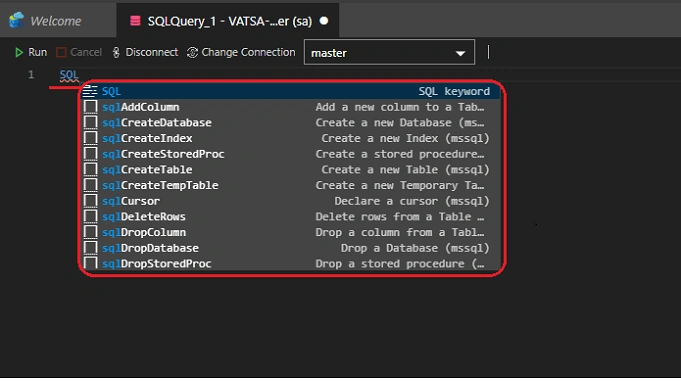
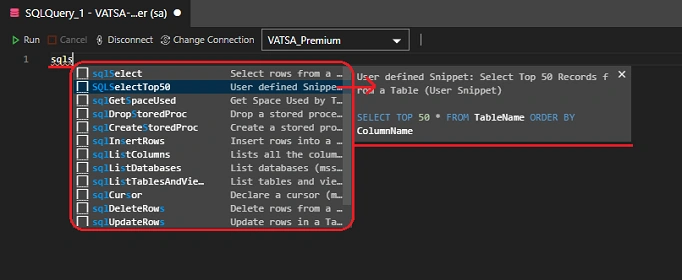
First, open the "New Query" window by pressing the "Ctrl + N" key and type the "SQL" here. This will show you the available list of code snippets.
A) Create a database
Follow the below instructions to create a new database.
Step 1
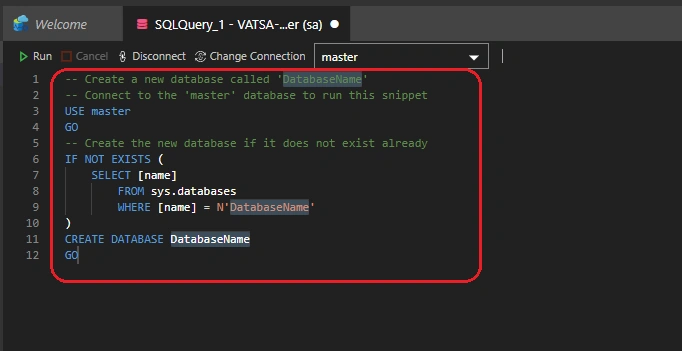
Type SQL, and choose the "sqlCreateDatabase" snippet and press the "Enter" key. (Then, you will see the "Create Database" query written in Query Editor).
Step 2
Now, type the name to the new database and execute the query by clicking on the "Run".
- -- Create a new database called 'VATSA_Premium'
- -- Connect to the 'master' database to run this snippet
- USE master
- GO
- -- Create the new database if it does not exist already
- IF NOT EXISTS (
- SELECT [name]
- FROM sys.databases
- WHERE [name] = N'VATSA_Premium'
- )
- CREATE DATABASE VATSA_Premium
- GO
After the successful execution of your query, the "VATSA_Premium" will appear in the list of databases.
B) Create a Table
Follow the below instructions to create a table.
Step 1
First, you have to change the connection context. In simple words, set your database to work by changing it manually.

Note
You can also set your database by typing your <database name> after the "USE" keyword, and click on the "Run" button to execute it.
Step 2
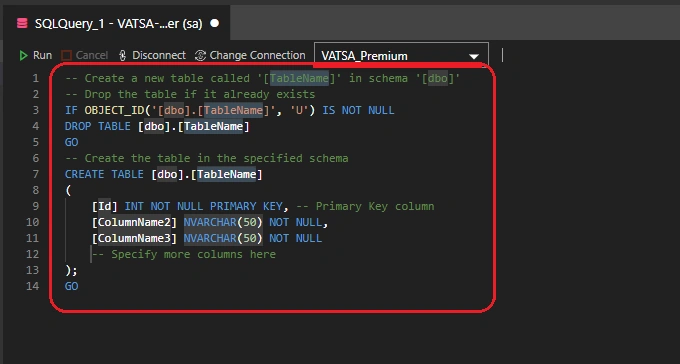
Type SQL, and choose the "sqlCreateTable" snippet and press the "Enter" key. (Then, you will see the "Create Table" query written in Query Editor).
Step 3
Now, paste the following snippet into your query window and then, execute the query by clicking on "Run".
- -- Create a new table called '[Employee]' in schema '[dbo]'
- -- Drop the table if it already exists
- IF OBJECT_ID('[dbo].[Employee]', 'U') IS NOT NULL
- DROP TABLE [dbo].[Employee]
- GO
- -- Create the table in the specified schema
- CREATE TABLE [dbo].[Employee]
- (
- [Id] INT NOT NULL PRIMARY KEY, -- Primary Key column
- [First_Name] VARCHAR(50) NOT NULL,
- [last_Name] VARCHAR(50) NOT NULL,
- [Address] VARCHAR(50) NOT NULL,
- [Contact_No] VARCHAR(15) NOT NULL
- -- Specify more columns here
- );
- GO


Join the conversation! Your thoughts help the community grow.