

In modern Microsoft Power Apps Code Apps, data integration is no longer done through drag-and-drop connectors like Canvas Apps. Instead, developers use the Power Apps CLI (PAC CLI) and a generated TypeScript SDK to connect to data sources such as Microsoft SharePoint.
Prerequisites
You must be connected to the environment using PAC CLI
Have a Power Apps Code App project created
Access to a SharePoint site + list
Proper permissions on the list (Read or Edit)
Step wise Implementation
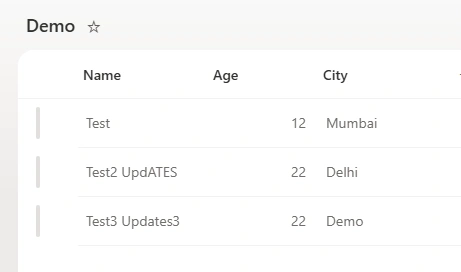
Step 1 : Prepare your SharePoint list.
This is my Demo list.
Step 2: Add SharePoint as a Data Source (PAC CLI)
Inside your Code App project, run this command
pac code add-data-source -a "shared_sharepointonline" -c "shared-sharepointonl-0000000-axxx-4ccxx-8wwee-ffffxxx00xx" -t "Demo" -d "https://tenant.sharepoint.com/sites/PACASite"-a adapter type
-c connection reference (connection ID)
-t table / list name
-d data source endpoint (SharePoint site URL)
Step 3: What happens after you add SharePoint
Once added, Code Apps automatically generate:
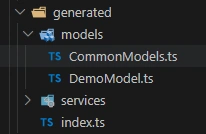
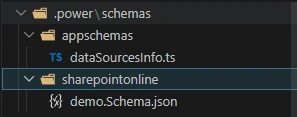
Where power folder contains schema of SharePoint list.
Where models and services are used for shaping list objects and built in methods for CRUD respectively.
Reference: https://learn.microsoft.com/en-us/power-apps/developer/code-apps/how-to/connect-to-data
Conclusion
In this way, we can successfully add SharePoint as a data source to a Power Apps Code App using the pac code add-data-source command
Join the conversation! Your thoughts help the community grow.