

Hey Folks,
In this article, we will cover the connection between SharePoint and .NET, including all required details.
In this article, we will see a demonstration where we will fetch data from a SharePoint list using ASP.NET Core API. Also, we will take a short look at Azure Functions, like how to create, and we will see a demo.
So, before we jump into details, let's check out the prerequisites for our Demo.
Prerequisites
Microsoft Azure AD Subscription
ASP.NET Core V8 is installed in your system
SharePoint latest version installed (current version is 1.22 but in this, we will use 1.21)
M365 Subscription to use SharePoint
Access to the Azure function to upload certificates.
SharePoint provides access to create sites and lists to access data.
Require admin consent to grant the Azure function the required permissions to access SharePoint.
Now, above we have checked out the prerequisites, and it’s time to jump into our detailed article.
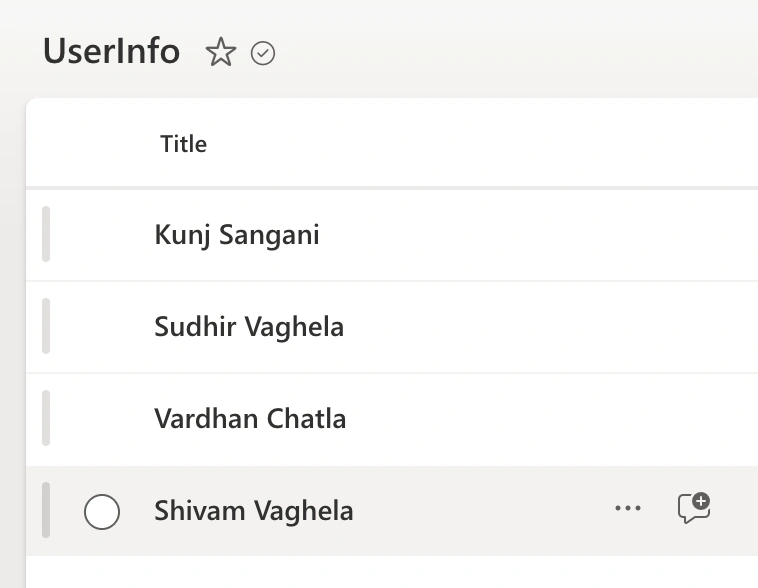
First, in SharePoint, create a List in your desired SharePoint site. Add some data to that list so we can access it via an Azure Function.
Once you complete the SharePoint list creation with data, we need to create an Azure Function in ASP.NET Core.
To create an Azure function, we will use the command given below.
func init MyFunctionAPP --worker-runtime dotnet-isolated Func init – to initialize new azure function project with Isolated worker model.
MyFunctionAPP – Project Name whatever you want. You can give name as per your project requirements and description.
--worker-runtime dotnet-isolated – Key part of the project. This specifies that create project in Isolated worker model.
Note - there are mainly two types of functions one is Isolated worker model and second one is In-Process. We are not covering In-Process. We will cover that in another article.
Then run below command
cd MyFunctionAPP go into your project folder.
func new --name GetSharePointListItems --template "HTTP trigger" Func new – adds new azure function in current project (MyFunctionAPP).
--name GetSharePointListItems – this is the class for function.
--template "HTTP trigger" - this for template. we will use HTTP trigger template. There are different types of templates available for Azure function.
Once your ran this command it would create a file with extension .cs in your current project.
And your project structure will look like in below image.
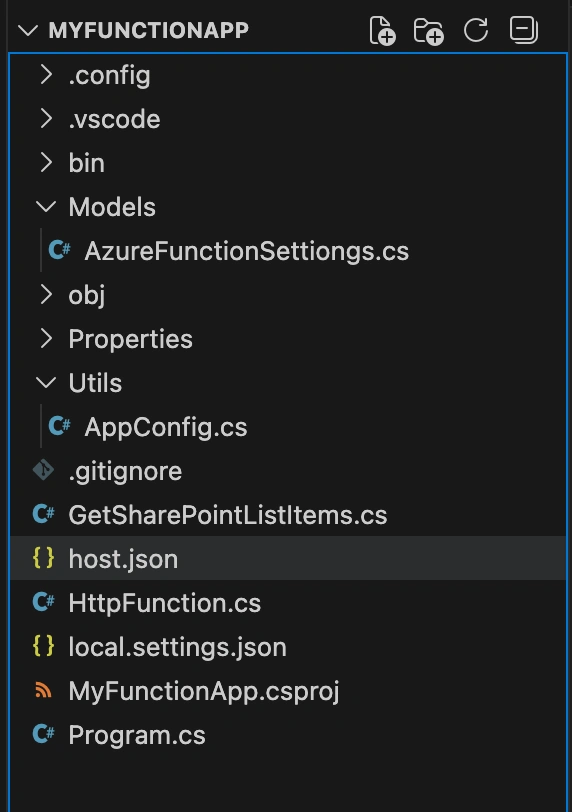
So now we have created our project with Azure isolated worker model function.
Now to connect with SharePoint we need certificates which authenticates our SharePoint sites and allows us to access that list’s data.
There are different types of authentications we can use but we will use Certificate based authentication in this demo. If you want more information about that different type of authentication, then comment below I will come with that article in detail.
So now, we have core of authentication, we just need to authenticate.
Now, create Self-Signed-Certificates. If you are not aware about self-signed certificates, then read below article I have provide all details from basic to generate of certificates.
Creating Self-Signed Certificates with Azure Functions and App Registration in Azure AD
After you generate a certificate, there would be two certificates with different extensions. One is .pfx and second one is .cer.
Now, we need to create a SPFx solution with latest version.
Run below command to create SharePoint SPFx solution with React framework.
npm install -g @microsoft/[email protected] npm install -g yo yo @microsoft/sharepoint If you are not aware about creating SPFx solution, check out below given link
Build your first SharePoint client-side web part (Hello World part 1)
Now, we have built SPFx solution and Azure Function both projects. Next step is to Register an APP in Azure AD (Active directory) cloud because, SharePoint does not authenticate your application directly, it needs some trust level proofs from Microsoft Entra ID. That’s why we need to register an application in Azure Active Directory.
To register an APP in Azure AD open https://portal.azure.com/
In this page it will show you a page like below
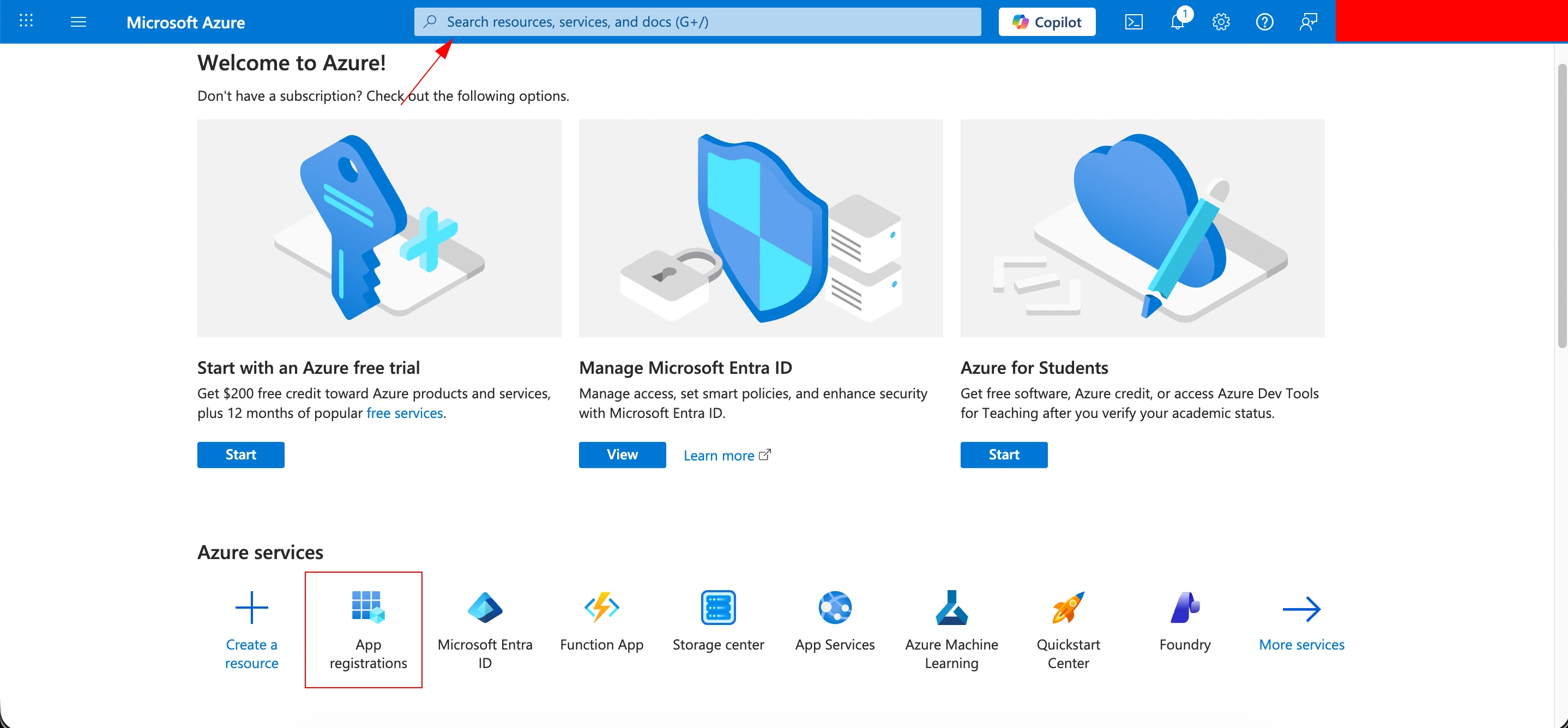
as shown in image above you can either click on App registration or if you are not able to see that option then direct search globally.
Once you click on that option it will redirect you to the page where you can register an app by clicking on (+ New registration) button at the top as mentioned in below image
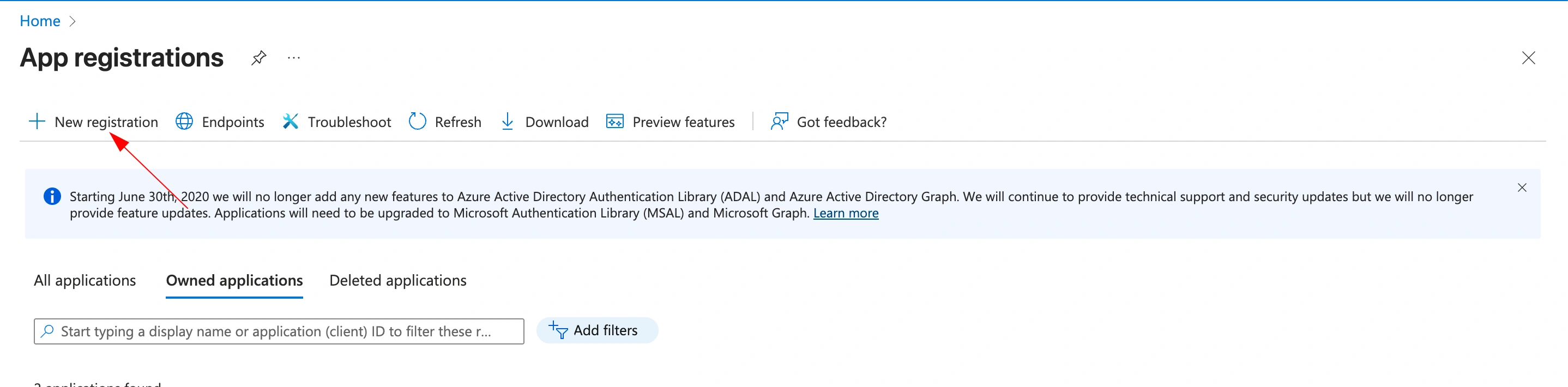
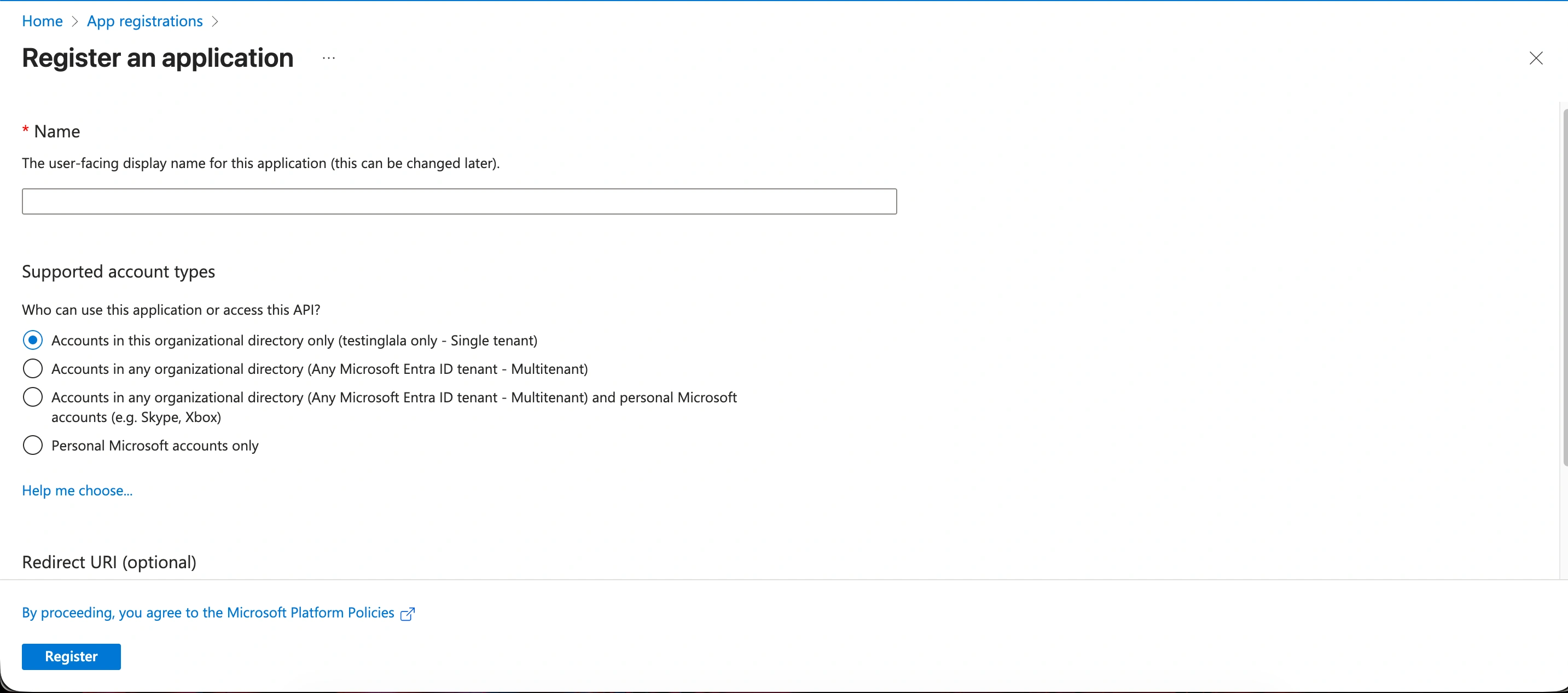
Once you click on that new registration it will redirect you to the new page where it would ask you few questions like app name and all.
We don't need to do anything else just give it a name just because we are only doing simple things.
So, just give it a name then click on register, and it will register an APP.
Once you register an app, it will show you the details of the app like in below image
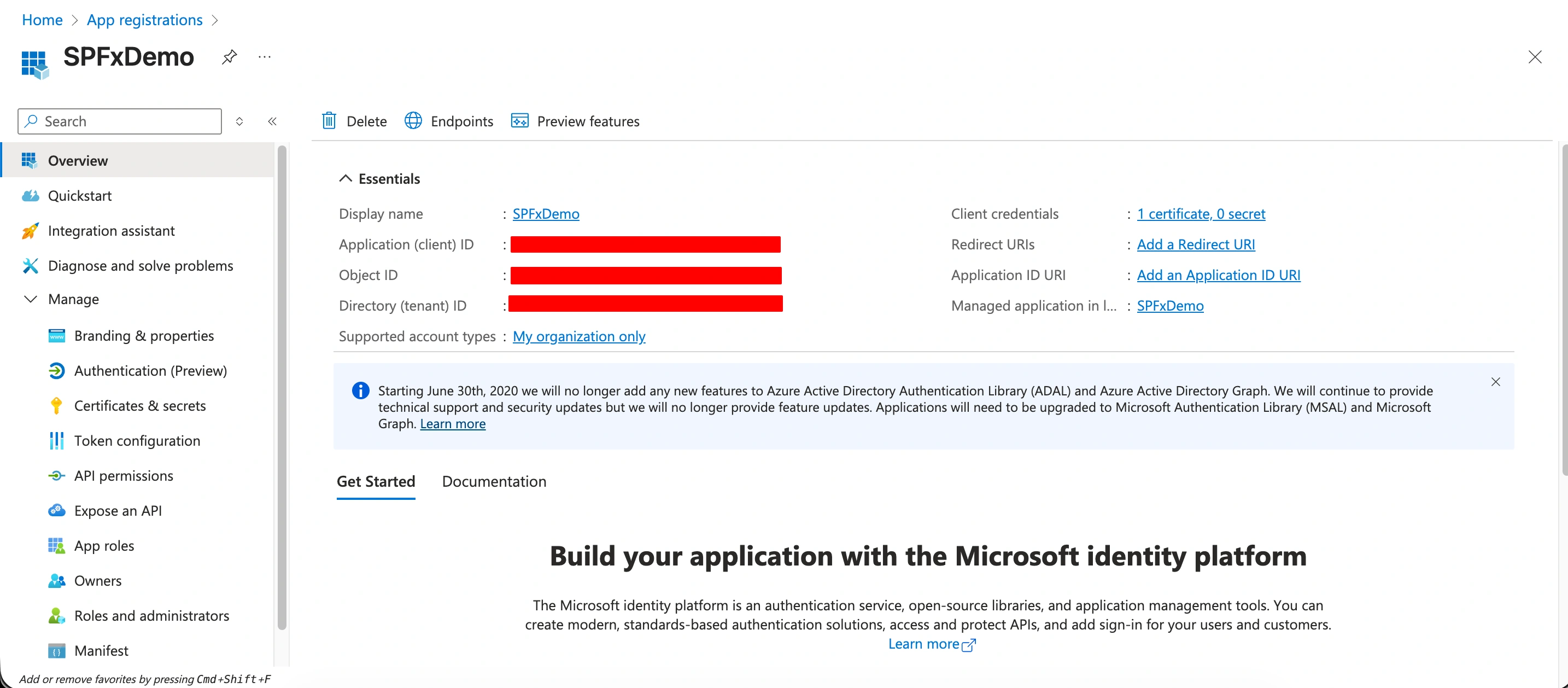
As shown in above image we have registered app with SPFxDemo name, and it is showing the Essentials of the registered app.
Now, copy the Application (client) ID, Directory (tenant) ID.
Now, we need to upload a certificate with extension .cer in our registered app.
To upload certificate go to Certificates & secrets section in left-hand navigation under Manage section.
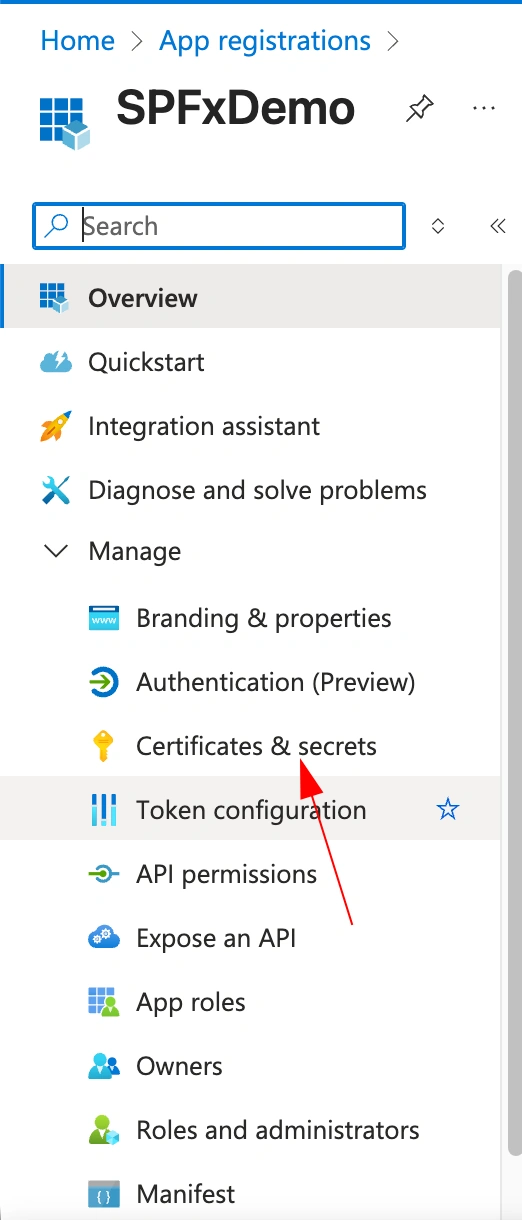
Now once you click on that it will redirect you to the new page to upload certificate.
In that page click on Upload certificate button as shown in image below.
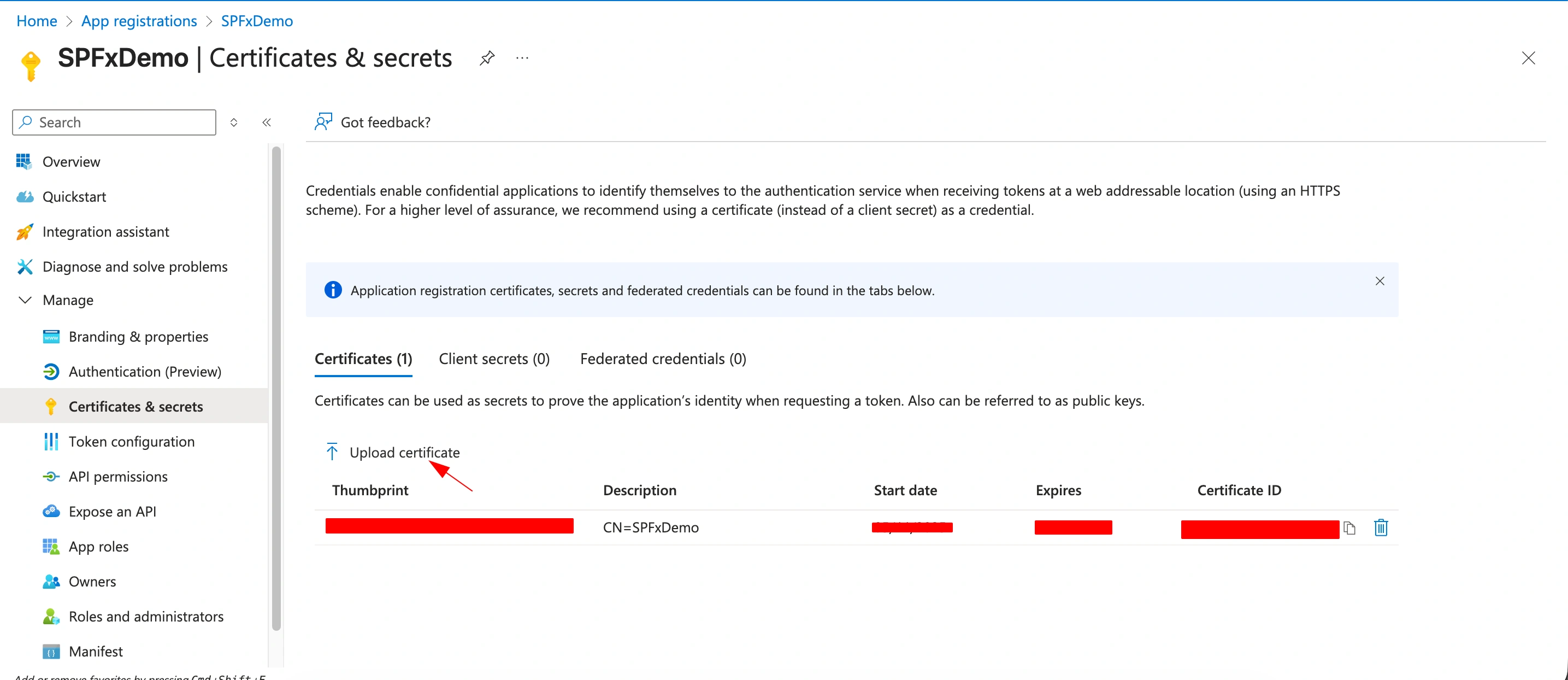
Now on click that button it will open panel from right side to upload certificate in that panel browse your certificate and upload it then click on Add button. Here if you have already uploaded a certificate then it will show you a Thumbprints of those certificates. As well if you want to use that then you can use it as well. Otherwise, if you have not any certificates uploaded then it will show you here Thumbprint of uploaded certificate which we required.
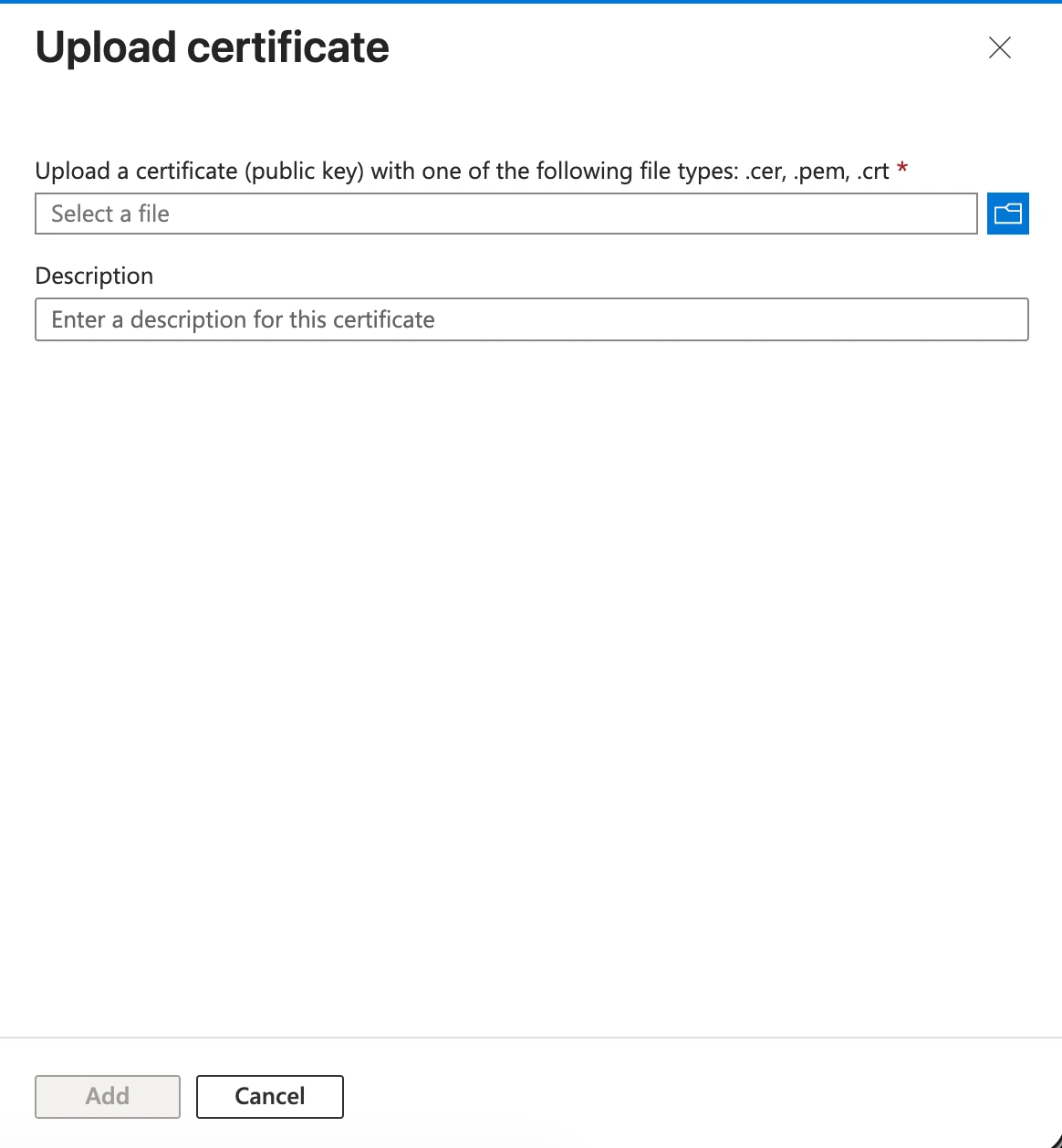
Once your certificate is added it will show you a Thumbprint of 40 digits. As shown in above image.
After this .cer certificate upload just install .pfx certificate in your local by clicking double-clicking. Or if you are using then follow just instructions in your windows and it will install certificate in your local.
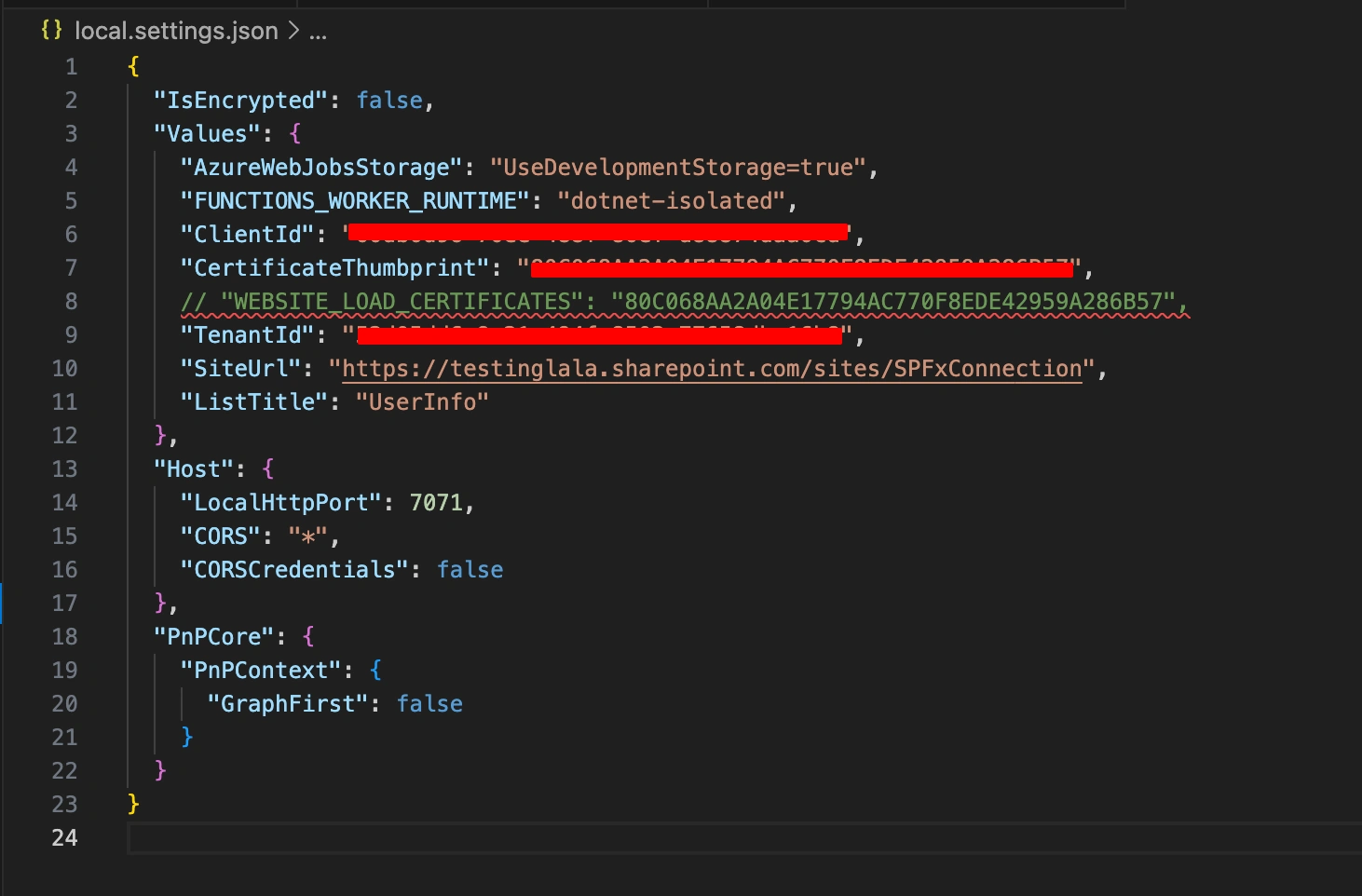
Now we must add those copied items in to our local.settings.json file in azure function project.
Also, you need to add Site URL where your list exists and from which you want to fetch data.
After adding those items in file, it will look like below image.
Now, update your program.cs file in Azure function project as below.
using System.Security.Cryptography.X509Certificates;
using CheckLicenshandelar.Models;
using Demo.AzFunction.ManagedIdentity;
using Microsoft.Azure.Functions.Worker;
using Microsoft.Extensions.Configuration;
using Microsoft.Extensions.DependencyInjection;
using Microsoft.Extensions.Hosting;
using Microsoft.Extensions.Logging;
using PnP.Core.Auth;
using PnP.Core.Services.Builder.Configuration;

var host = new HostBuilder()
    .ConfigureFunctionsWebApplication()
    .ConfigureAppConfiguration(
        (context, config) =>
        {
            config.AddJsonFile("local.settings.json", optional: true, reloadOnChange: true);
            config.AddEnvironmentVariables();
        }
    )
    .ConfigureServices(
        static (context, services) =>
        {
            services.AddApplicationInsightsTelemetryWorkerService();

            services.ConfigureFunctionsApplicationInsights();
            var config = context.Configuration;

            var azureFunctionSettings = new AzureFunctionSettings();
            config.Bind(azureFunctionSettings);
            services.AddSingleton(azureFunctionSettings);

            services.AddPnPCore(options =>
            {
                // Disable telemetry because of mixed versions on AppInsights dependencies
                options.DisableTelemetry = true;

                //If Managed Identity is configured

                // Configure an authentication provider with certificate (Required for app only)
                // App-only authentication against SharePoint Online requires certificate based authentication for calling the "classic" SharePoint REST/CSOM APIs. The SharePoint Graph calls can work with clientid+secret, but since PnP Core SDK requires both type of APIs (as not all features are exposed via the Graph APIs) you need to use certificate based auth.
                // var appConfigCert = new AppConfigCert();
                var authProvider = new X509CertificateAuthenticationProvider(
                    AppConfigCert.ClientId,
                    AppConfigCert.TenantId,
                    StoreName.My,
                    StoreLocation.CurrentUser,
                    AppConfigCert.CertificateThumbprint
                );
                // And set it as default
                options.DefaultAuthenticationProvider = authProvider;

                // Add a default configuration with the site configured in app settings
                options.Sites.Add(
                    "Default",
                    new PnP.Core.Services.Builder.Configuration.PnPCoreSiteOptions
                    {
                        SiteUrl = AppConfig.SiteUrl,
                        AuthenticationProvider = authProvider,
                    }
                );
            });
        }
    )
    .Build();

host.Run();
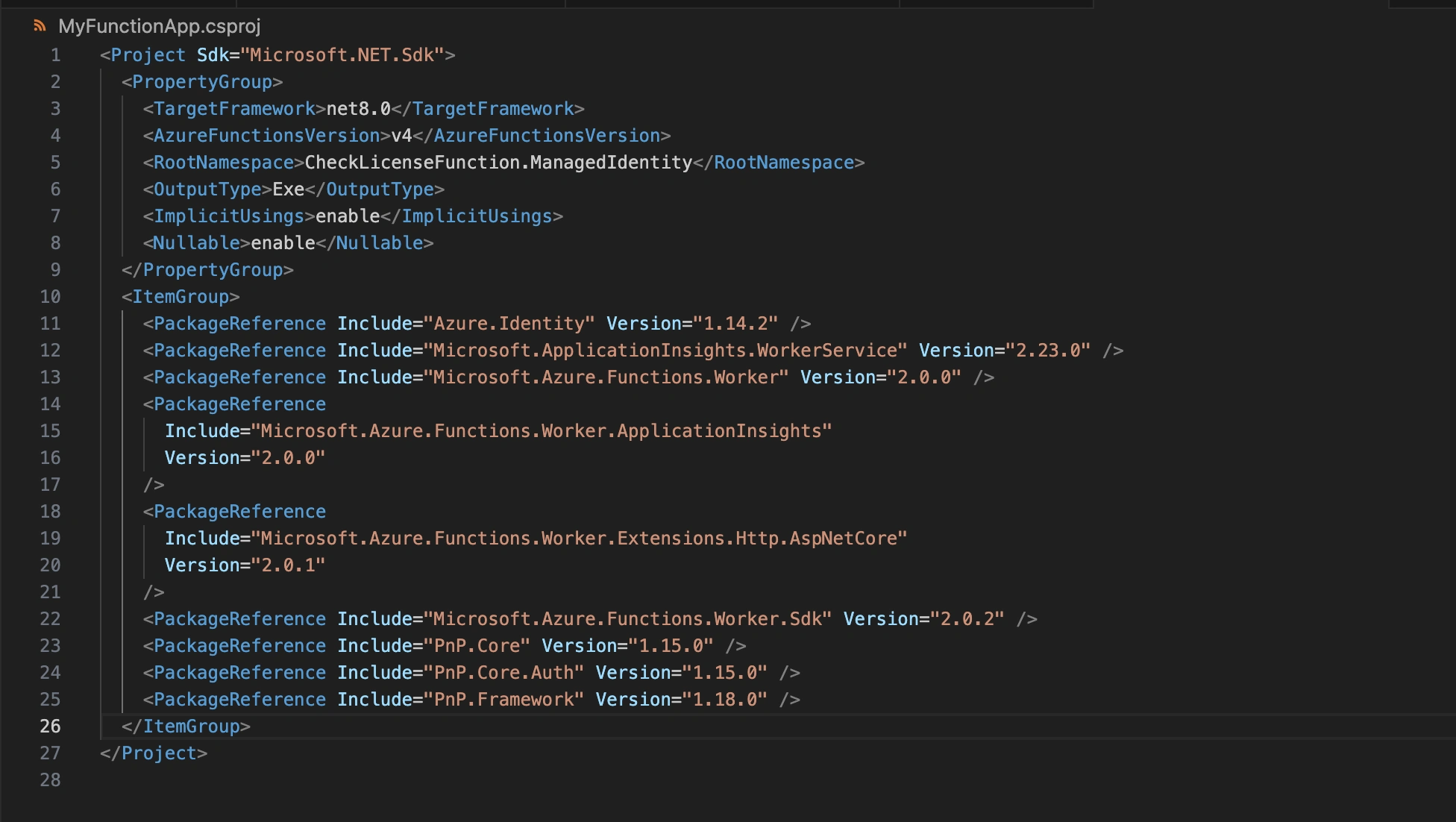
Now just check the YourProject.csproj file. Which must match exactly same versions of dependencies as shown in below image.
After that make a folder at root level called Utils or whatever you like, then create a file inside that folder called AppConfig.cs and update that like below
namespace Demo.AzFunction.ManagedIdentity
{
    // To get an environment variable or an app setting value, use System.Environment.GetEnvironmentVariable
    // The System.Configuration.ConfigurationManager.AppSettings property is an alternative API for getting app setting values, but we recommend that you use GetEnvironmentVariable as shown here.
    // https://learn.microsoft.com/en-us/azure/azure-functions/functions-dotnet-class-library?tabs=v2%2Ccmd#environment-variables
    public class AppConfig
    {
        public static string SiteUrl
        {
            get
            {
                string? url = Environment.GetEnvironmentVariable("SiteUrl");
                if (string.IsNullOrEmpty(url))
                {
                    throw new Exception("SiteUrl is not set in the environment variables");
                }
                return url!;
            }
        }

        // When MSI is enabled for an App Service, two environment variables MSI_ENDPOINT and MSI_SECRET are available
        public bool isMSI = !string.IsNullOrEmpty(Environment.GetEnvironmentVariable("MSI_SECRET"));
    }

    public class AppConfigCert
    {
        public static string ClientId
        {
            get
            {
                string? clientId = Environment.GetEnvironmentVariable("ClientId");
                if (string.IsNullOrEmpty(clientId))
                {
                    throw new Exception("ClientId is not set in the environment variables");
                }
                return clientId!;
            }
        }
        public static string TenantId
        {
            get
            {
                string? tenantId = Environment.GetEnvironmentVariable("TenantId");
                if (string.IsNullOrEmpty(tenantId))
                {
                    throw new Exception("TenantId is not set in the environment variables");
                }
                return tenantId!;
            }
        }
        public static string CertificateThumbprint
        {
            get
            {
                string? thumbprint = Environment.GetEnvironmentVariable("CertificateThumbprint");
                if (string.IsNullOrEmpty(thumbprint))
                {
                    throw new Exception(
                        "CertificateThumbprint is not set in the environment variables"
                    );
                }
                return thumbprint!;
            }
        }
    }
}
Now, with this setup, we are authorised to connect with SharePoint. Now it’s time to build a function which fetches data from SharePoint list.
In your project there would be a function file which created at the function creation time.
In my case that file name is GetSharePointListItems.
So, update GetSharePointListItems file with below code.
using System.IO;
using System.Net;
using System.Text.Json;
using CheckLicenshandelar.Models;
using Microsoft.Azure.Functions.Worker;
using Microsoft.Azure.Functions.Worker.Http;
using Microsoft.Extensions.Logging;
using PnP.Core.Model.SharePoint;
using PnP.Core.Services;

namespace CheckLicenseFunction.ManagedIdentity
{
    public class GetSharePointListItemsFunction(
        IPnPContextFactory pnpContextFactory,
        ILogger<GetSharePointListItemsFunction> _logger
    )
    {
        private readonly ILogger logger = _logger;
        private readonly IPnPContextFactory contextFactory = pnpContextFactory;

        [Function("GetSharePointListItems")]
        public async Task<HttpResponseData> Run(
            [HttpTrigger(AuthorizationLevel.Anonymous, "get", Route = null)] HttpRequestData req
        )
        {
            try
            {
                logger.LogInformation("Function started. Getting SharePoint list items...");
                using var context = await contextFactory.CreateAsync("Default");

                var listTitle = "UserInfo";
                logger.LogInformation("Fetching list items from: {listTitle}", listTitle);

                var list = await context.Web.Lists.GetByTitleAsync(listTitle, l => l.Items);

                var items = list
                    .Items.ToList()
                    .Select(item => new { Id = item.Id, Title = item["Title"]?.ToString() });

                logger.LogInformation("Retrieved {count} items", items.Count());

                foreach (var item in items)
                {
                    logger.LogInformation("Item Title: {Title}", item.Title);
                }

                var response = req.CreateResponse(HttpStatusCode.OK);
                await response.WriteAsJsonAsync(items);
                return response;
            }
            catch (Exception ex)
            {
                logger.LogError(ex, "Error occurred while getting list items.");

                var errorResponse = req.CreateResponse(HttpStatusCode.InternalServerError);
                await errorResponse.WriteAsJsonAsync(
                    new { Error = ex.Message, StackTrace = ex.StackTrace }
                );
                return errorResponse;
            }
        }
    }
}
Now, create one Models folder at the root level of your project which contains one file called AzureFunctinModels.cs with required model classes. And update that with below code.
namespace CheckLicenshandelar.Models
{
    public class AzureFunctionSettings
    {
        public string? SiteUrl { get; set; }
        public string? TenantId { get; set; }
        public string? ClientId { get; set; }
        public string? CertificateThumbprint { get; set; }
        public string AuthorityUri { get; set; } = "https://login.microsoftonline.com";
    }

    public class RequestSPResponse
    {
        public string TenantID { get; set; } = string.Empty;
        public string ExpiryDate { get; set; } = string.Empty;
    }

    public class LicenseRespons
    {
        public bool licenseValid { get; set; }
        public string customerName { get; set; } = string.Empty;
        public string? expirationDate { get; set; }
        public string Message { get; set; } = string.Empty;
        public string licenseKey { get; set; } = string.Empty;
    }

    public class CheckLicenseRequestModel
    {
        public string TenantId { get; set; } = string.Empty;
    }
}
Now, all set at Azure function side now we just need to run this Azure Function and then use that API URL in our SPFx solution to fetch data from SharePoint List.
To run Azure function run below command.
func start After run this command it will provide a link of the function which we can use as an API and use in our SPFx solution to fetch data as show in below image.

Copy this link and then in your SPFx solution update your webparts/webpartName/component/webpartname.tsx file.
With below code.
/* eslint-disable @rushstack/no-new-null */
/* eslint-disable @typescript-eslint/explicit-function-return-type */
/* eslint-disable @typescript-eslint/no-explicit-any */
import * as React from "react";
import styles from "./ThumbDemo.module.scss";
import type { IThumbDemoProps } from "./IThumbDemoProps";
import {
  MessageBar,
  MessageBarType,
  PrimaryButton,
  Spinner,
} from "@fluentui/react";

export interface IThumbDemoState {
  data: any[];
  loading: boolean;
  error: string | null;
}

export default class ThumbDemo extends React.Component<
  IThumbDemoProps,
  IThumbDemoState
> {
  constructor(props: IThumbDemoProps) {
    super(props);
    this.state = {
      data: [],
      loading: false,
      error: null,
    };
  }

  handleClicke = async () => {
    this.setState({ loading: true, error: null });

    try {
      console.log("Fetching data from ngrok endpoint...");

      const response = await fetch(
        "http://localhost:7071/api/GetSharePointListItems",
        {
          method: "GET",
          headers: {
            Accept: "application/json",
            "Content-Type": "application/json",
            "ngrok-skip-browser-warning": "true",
          },
          mode: "cors",
        }
      );

      if (!response.ok) {
        const errorText = await response.text();
        console.error("Error response:", errorText);
      }

      const result = await response.json();
      this.setState({ data: result, loading: false });
    } catch (error) {
      console.error("Fetch error:", error);
      this.setState({
        error:
          error instanceof Error
            ? error.message
            : "An error occurred while fetching data",
        loading: false,
      });
    }
  };

  public render(): React.ReactElement<IThumbDemoProps> {
    const { data, loading, error } = this.state;

    return (
      <section className={styles.thumbDemo}>
        <PrimaryButton
          text="Show Items"
          onClick={this.handleClicke}
          disabled={loading}
        />

        {loading && <Spinner label="Loading data..." />}

        {error && (
          <MessageBar messageBarType={MessageBarType.error}>
            Error: {error}
          </MessageBar>
        )}

        {!loading && !error && data.length > 0 && (
          <div style={{ marginTop: "20px" }}>
            <h3>SharePoint List Items:</h3>
            {data.map((item, index) => (
              <div
                key={item.Id || index}
                style={{ padding: "8px", borderBottom: "1px solid #edebe9" }}
              >
                <strong>ID:</strong> {item.Id} - <strong>Title:</strong>{" "}
                {item.Title}
              </div>
            ))}
          </div>
        )}

        {!loading && !error && data.length === 0 && (
          <MessageBar messageBarType={MessageBarType.info}>
            No items to display. Click the button to fetch data.
          </MessageBar>
        )}
      </section>
    );
  }
}
Now, run your SPFx solution by below command.
gulp serveAnd in your site where your list is exists, copy the debug URL while you run gulp serve in terminal like this
?debug=true&noredir=true&debugManifestsFile=https://localhost:4321/temp/build/manifests.js Paste this in browser after Site url so your URL will become like below
https://testinglala.sharepoint.com/sites/SPFxConnection/SitePages/TopicHome.aspx?debug=true&noredir=true&debugManifestsFile=https%3A%2F%2Flocalhost%3A4321%2Ftemp%2Fbuild%2Fmanifests.js Now, as you add your web-part in SharePoint page.
And it will show you the Button like below image as initial stage.

Once you click on Show Items button, it will fetch data from SharePoint list using that API URL which we have used.
We have data in list like shown in image below.
After fetching data on button click .
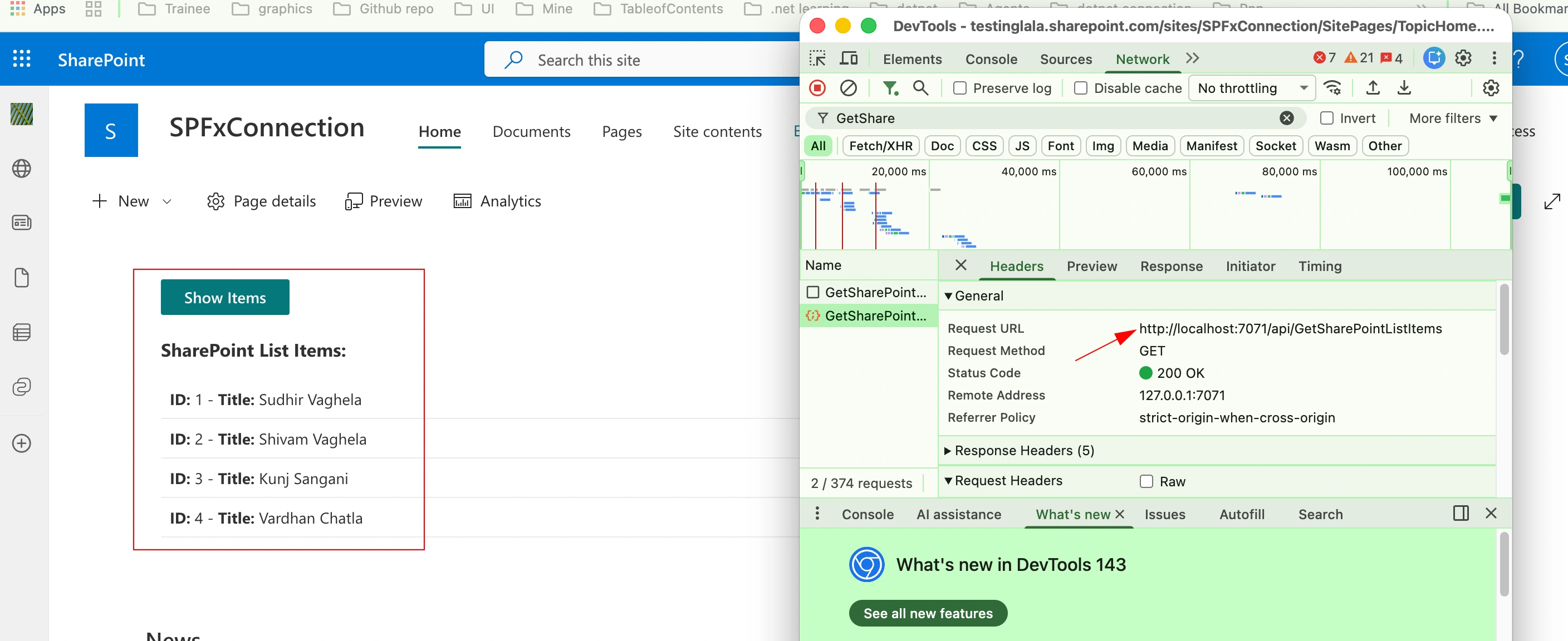
Here in above image you can match those data in lists, those are fetching here by using that URL of azure function.
Conclusion
In this article we have seen a demo of how we can connect with SharePoint using ASP.Net isolated worker model and fetch data of SharePoint list. Also, we have cheeked full step by step process from prerequisites to authentication and data fetching. Also, we have seen Certificate generation and certificate-based authentication, also learned how to register an app in Azure AD and how to use those certificates in our locals and in registered app.
Join the conversation! Your thoughts help the community grow.