

Microsoft Flow is a cloud-based service. It allows us to react to an event in one and do something with the data from that event into another service. It makes it practical and simple for line-of-business. The users can build workflows that automatically do some business tasks and processes across applications and services.
It helps us to monitor all our Workflow with the help of a great Cloud solution called “Microsoft Flow”.
Before reading this article, please go through some important article links, mentioned below.
- Deep Dive Into Microsoft Flow
- How To Connect OneDrive To Google Drive With Microsoft Flow
- How To Connect Facebook to Twitter With Microsoft Flow
- How To Save Email Attachment From Outlook To Dropbox With Microsoft Flow
- How To Send Notification Via SMS When Dropbox Is Modified With Microsoft Flow
Connect outlook mail save to Excel Spreadsheet
Outlook
Microsoft Outlook is a personal information manager from Microsoft, available as a part of the Microsoft Office suite. Although often used mainly as an email application, it also includes a calendar, task manager, contact manager, note taking, journal, and web browsing. Login here
Excel
Microsoft Excel is a spreadsheet developed by Microsoft for Windows, macOS, Android, and iOS. It features calculation, graphing tools, pivot tables, and a macro programming language called Visual Basic for Applications.
Why we save Outlook Email to Excel Spreadsheet
Outlook stores and organizes your email messages, but it cannot perform advanced analysis on them. For example, Outlook cannot count the number of messages that individual customers or clients send to your business. It cannot count the number of messages that you received during specific periods, and it cannot display information on charts. But Microsoft Excel can do all this and more using its spreadsheet functions. Export your Outlook inbox as an Excel file to open it with Excel. We have to manage all these Microsoft Flow introduce the Flow that saves your outlook Emails to Excel sheet which is present in the Dropbox. As soon as we receive your email, your mail will automatically appear in your Excel.
How to Create a Microsoft Flow for saving Outlook Email to Excel Spreadsheet
Here, we can connect Outlook and Excel.
Prerequisites
- Microsoft Account – Corporate ID.
- Outlook Account.
- MS Office.
Follow the below steps to build a Flow using a template.
Step 1
Login to www.flow.microsoft.com
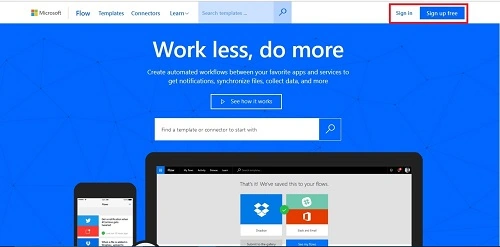
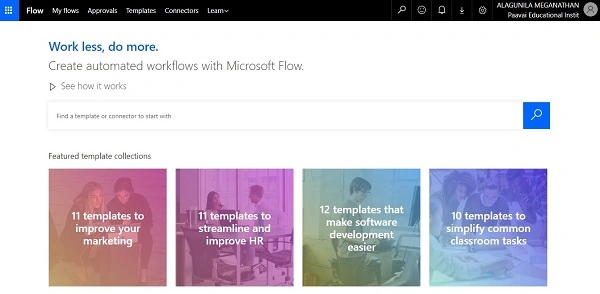
Step 2
Choose the Templates from the menu bar.

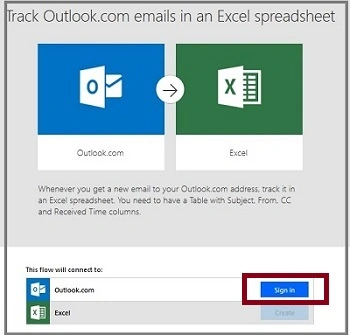
Search Outlook mail to Excel in the search bar and choose "Track Outlook.com emails in an Excel spreadsheet" Template.
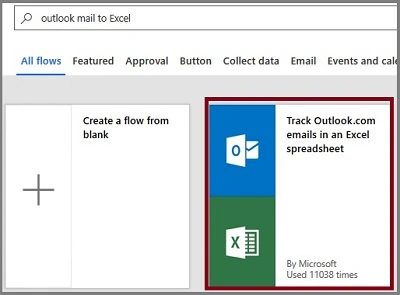
Now, click on the "Use this template" option.
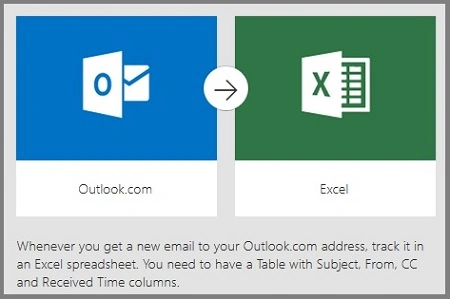
Step 3
Configure by signing in to outlook.com.
Step 4
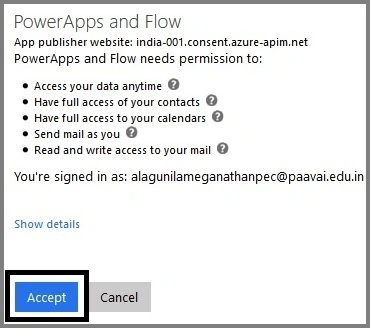
Sign into Outlook and give it permission to access your accounts.
Step 5
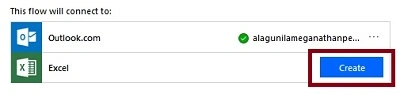
Next, we sign into Excel.
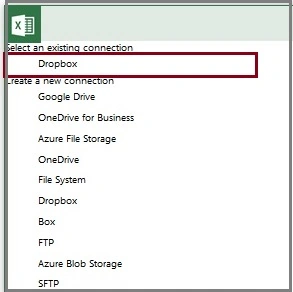
We will choose the Dropbox
Now, both are configured. Choose "Continue".
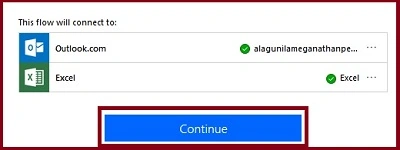
Step 6
Next, let us configure Outlook.com and Excel.
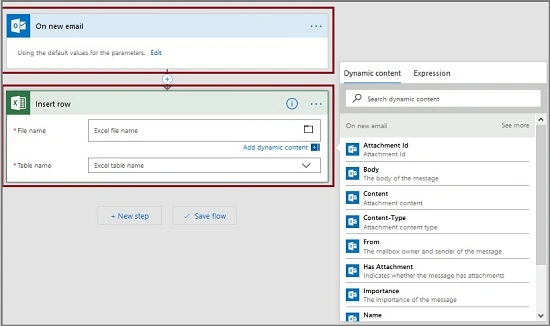
Choose File Name and Table Name for saving the Outlook mail from the Outlook mail.
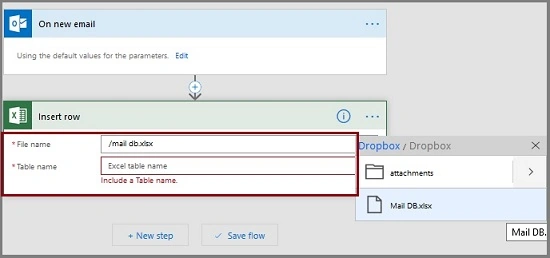
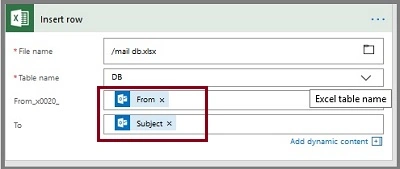
The Flow is created.
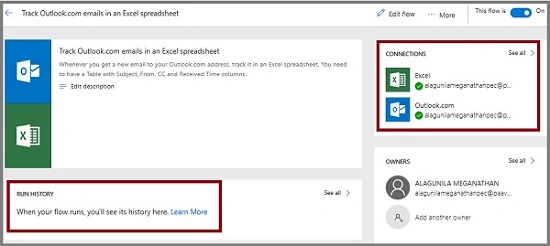
Output
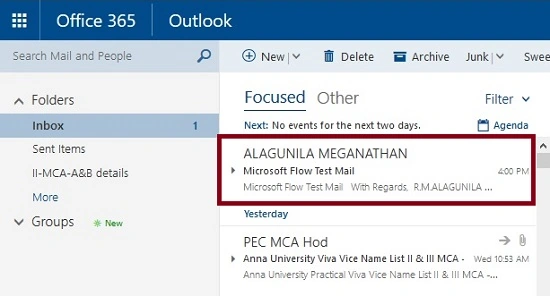
Send an Email to Outlook email id.
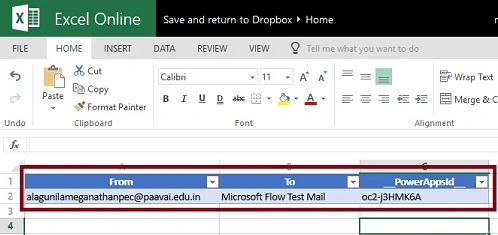
Now, the mail should be saved in Excel.
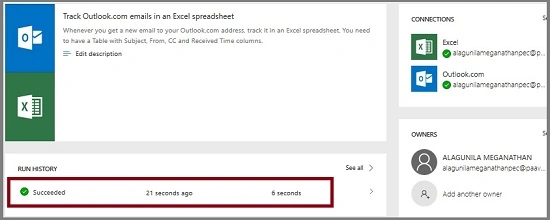
The history of Flow.
Summary
I hope, you understood how to save the Email from Outlook.com to Excel automatically and how to run it. Stay tuned for more Flow articles.
Jasti SreekanthPosted Jul 1, 2018, 2:59 AM
Hi can you help me creating the flow as it allows shows error
Eduardo AnapazPosted Apr 24, 2018, 7:19 AM
Hi Alagunila, do you if know is it possible to connect outlook to excel but to take an specific information in body of the text?
Nilesh ShahPosted Mar 10, 2018, 10:09 PM
The link www.flow.microsoft.com doesnot work anymore, use https://flow.microsoft.com/en-us/
Silvia RuthardtPosted Feb 27, 2018, 5:09 AM
Dear Alagunila, maybe you can help me. I have problems with configuring the Excel document. In the 'insert row' field, when I put in my table name, it says the table name is not found. I tried to change the name, the table, create a new file, nothing works. Do you have any suggestions? (Just to make sure, the table name is the tab on the bottom left where you can type in a name and add tabs). Thank you. Silvia