Most PAC CLI operations that interact with Power Platform resources require authentication. PAC CLI uses authentication profiles, and Microsoft supports keeping multiple profiles on the same machine, which is particularly useful when working with different tenants or environments.
Prerequisites:
Before proceeding, make sure:
You can verify PAC CLI by running:
Enter the below command and click on Enter.
pac
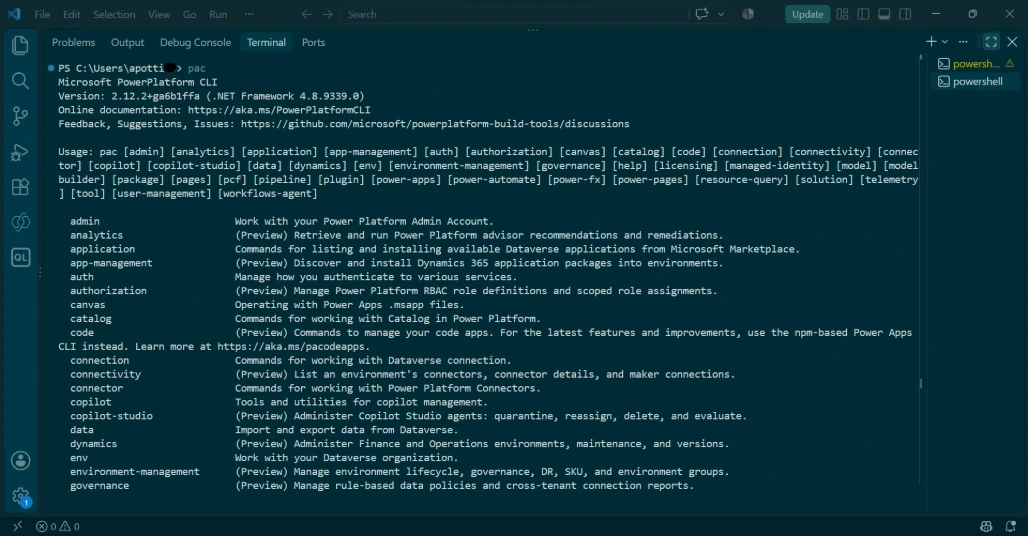
Step 1: Explore the pac auth Command.
Open the Visual Studio Code terminal. Type the below command and Enter.
pac auth
The pac auth command group is specifically used to manage authentication to various services.
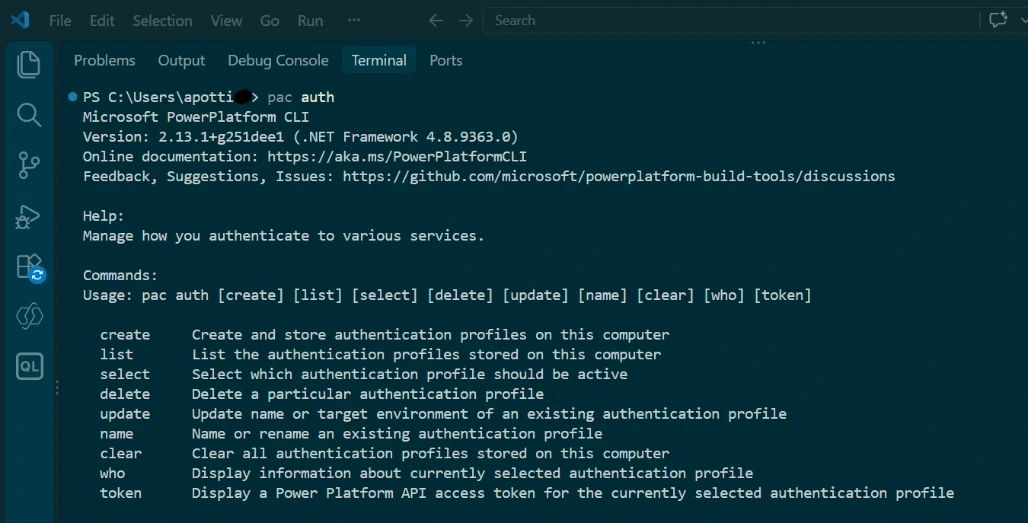
Step 2: Create Your First Authentication Profile.
The simplest authentication command is:
pac auth create
Click on Enter.
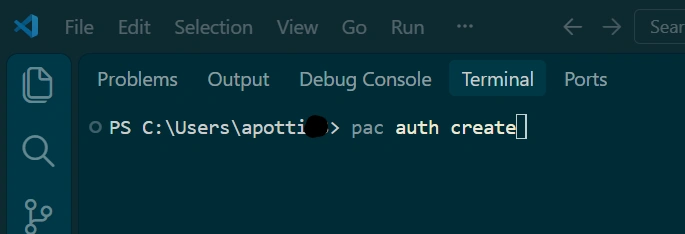
Step 3: Follow the authentication prompts to sign in with the account that has access to your Power Platform resources.
Click on the required account or Use another account.
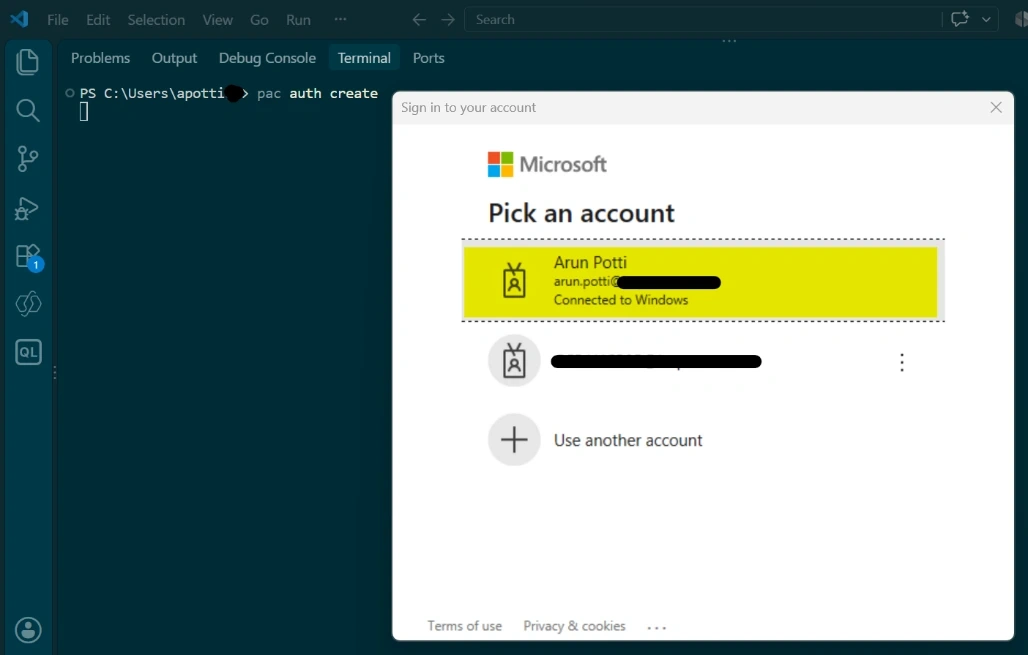
This creates an authentication profile on your machine.

Step 4: Connect to Specific Dataverse Environment.
In most real projects, you don't simply want authentication to the default environment.
For example, imagine we have a Development environment called:
Arun-Dev
We want PAC CLI commands to target this environment.
Use:
pac auth create --environment "Arun-Dev"
Pick an account which is connected already on your PC or Click on Use another account.
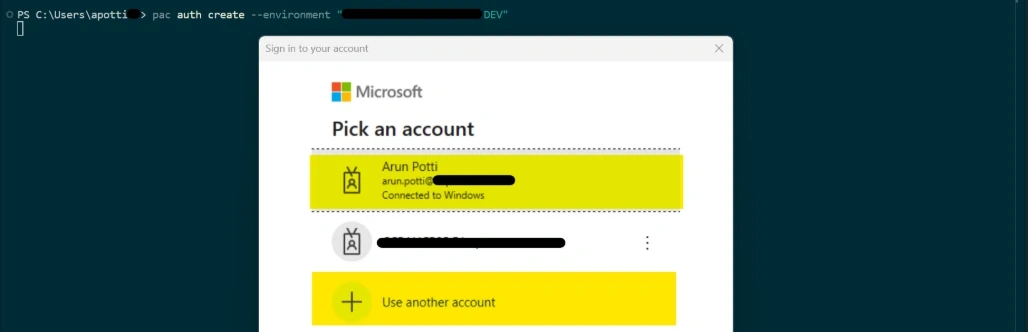
You can see the below message once it is authenticated to the required environment.

Microsoft documents the --environment parameter for specifying which environment PAC CLI should connect to.
The value can be an:
Environment ID
Environment URL
Unique name
Partial environment name
Authenticate Using the Dataverse Environment URL
I particularly like using the environment URL in tutorials because it makes the target environment obvious.
Suppose our Dataverse URL is:
https://contoso-org.crm.dynamics.com
Then the syntax would be like the below.
pac auth create -u https://contoso-org.crm.dynamics.com
and then asks the user to follow the authentication prompts.
Note: Replace the sample URL with your actual Dataverse environment URL.
Step 5: List Authentication Profiles.
Once you have authenticated, view the profiles available on your machine:
pac auth list
This command is for displaying all authentication profiles on your machine.

A profile listing identifies information such as its index and which profile is active.
In this example output uses an asterisk (*) in the Active column for the selected profile.
Step 6: Create Authentication Profiles for Multiple Environments
The important concept is that PAC CLI supports multiple authentication profiles, and the --environment parameter lets you target an environment when creating one.
Let's make the example more realistic.
Assume a Power Platform project has these environments:
Development
Test
UAT
We can establish authentication profiles for our environments individually.
Development
pac auth create --environment "Development"
Test
pac auth create --environment "Test"
UAT
pac auth create --environment "UAT"
Afterward run:
pac auth list
You can now see the profiles available on the machine.

Note: Make sure which environment is Active, before doing any Dataverse operations.
Step 7: Switch Between Authentication Profiles.
This becomes very useful when you have multiple profiles.
First execute:
pac auth list
Identify the Index of the profile that you want to use.
For example, if the required profile has index 3 Dev environment to be used:
pac auth select --index 3

Then check again;
pac auth list
This lets you confirm which authentication profile is currently active.

Now the Dev environment is active.
Using pac auth list and pac auth select together, to switch between multiple authentication profiles.
Conclusion
In this article, we learned how authentication works with Microsoft Power Platform CLI.
We covered:
Creating a PAC CLI authentication profile
Connecting to a specific Dataverse environment
Connecting using the environment URL
Maintaining multiple authentication profiles
Listing available profiles
Switching between profiles
Authentication is the foundation for many of the examples.
Once PAC CLI is authenticated and connected to the correct environment, we can start performing useful Dataverse operations.


Join the conversation! Your thoughts help the community grow.