

In this article, we will see how to give PowerApps access permission to other users. In the previous article, we have gone through the Introduction to PowerApps and Creating Template with it.
PowerApps are mainly used by business people who need to share their app for quick entry in the entire organization. They don’t need any technical support on this. You should follow the below steps and points to share the app with others.
- You can share apps with users in your organization but not users on another tenant.
- You can share an app from powerapps.com but not from PowerApps Studio. (Click or tap the Share icon in PowerApps Studio to open powerapps.com).
- To share an app, you must save it to the cloud, not locally.
Step 1
Click the Gear icon.
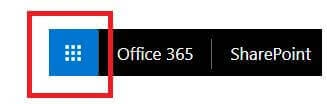
Step 2
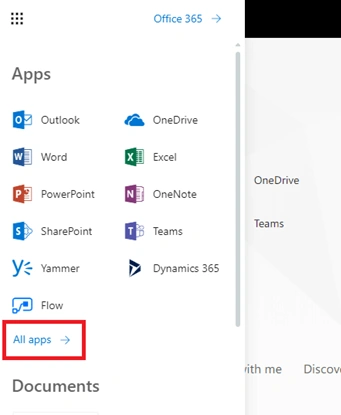
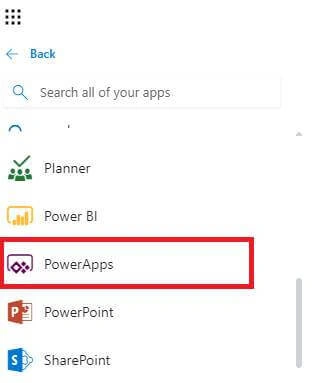
Click "All apps" to choose PowerApps.
Step 3
Three options are there to share the PowerApps. Let us see them.
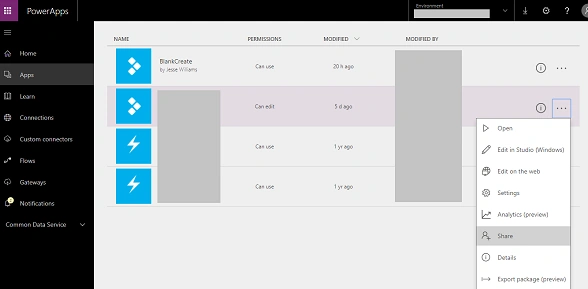
Option 1 - Click “Share”.
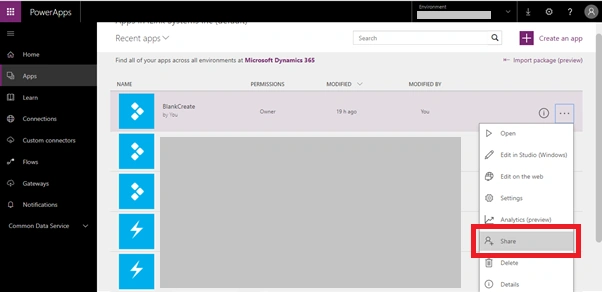
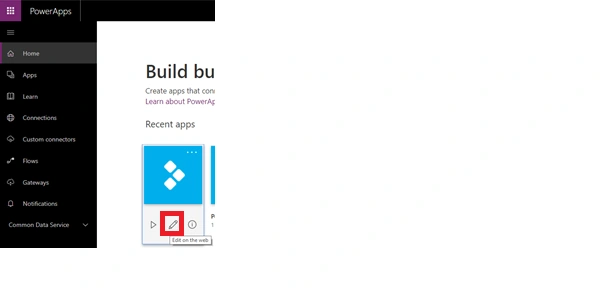
Option 2 - Click “Edit on the Web”.
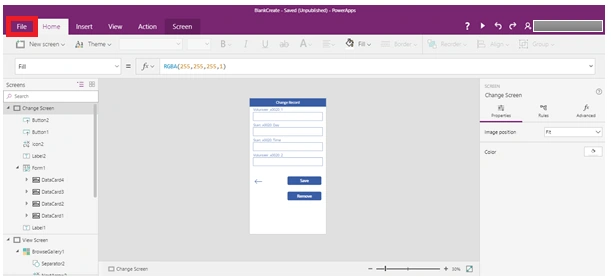
Open the application and click “File”.
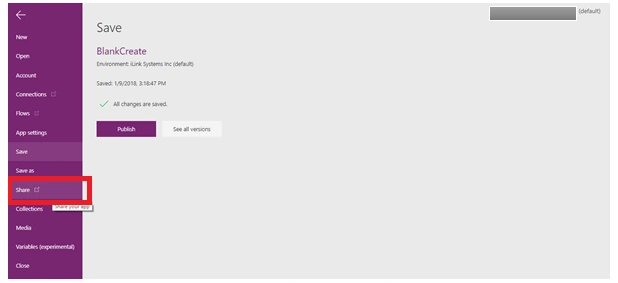
Click “Share”.
Option 3 - Click “Share”.
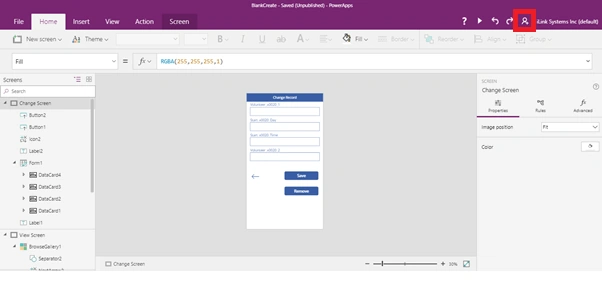
Step 4
The above three options will open the below page. You can specify their names, email addresses, and user groups to share this app with an entire organization.
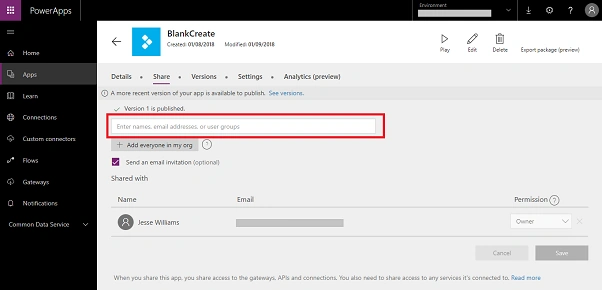
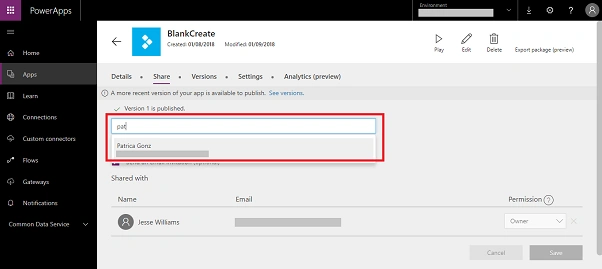
Entered names (Users) are added to Shared Person list. You can choose either “use” or “edit” permission and click “Save”.
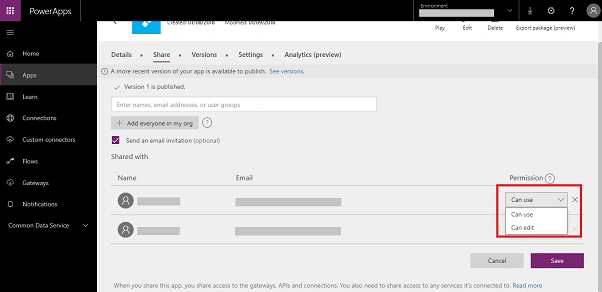
Step 6
If you want to remove the shared permission for a user. Click X icon to remove the users.
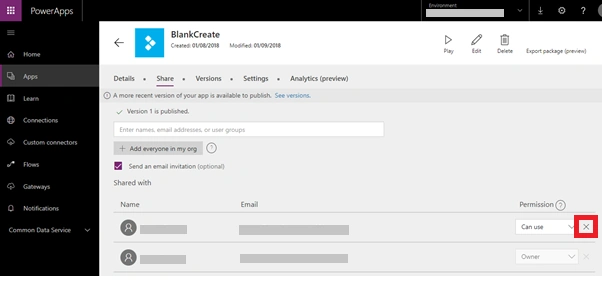
Step 7
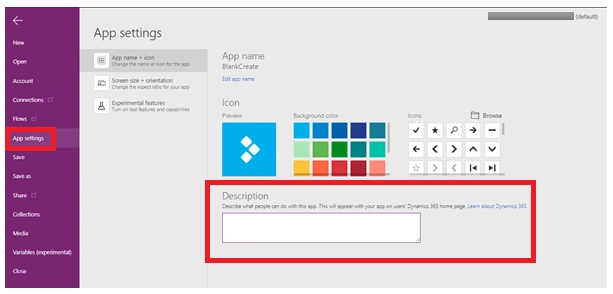
Before you share an app, give it a meaningful name and description, so the users know what your app is about and can easily pick it out from a list. On the File menu in PowerApps, click App settings, and enter a description.
Step 8
Based on the permissions, the shared person uses the app. Under Permissions column, you can see the owner, can use, can edit, values. If the permission has owner value, this means that user has created the app. So, simply, the user who created the app is the owner of the app.
If the owner has given permission to other users, the “edit” permission users can remove the permission whoever given the permission to access.
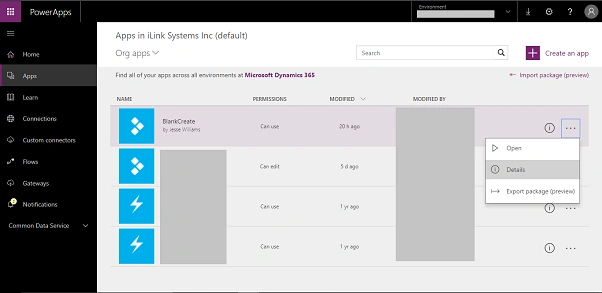
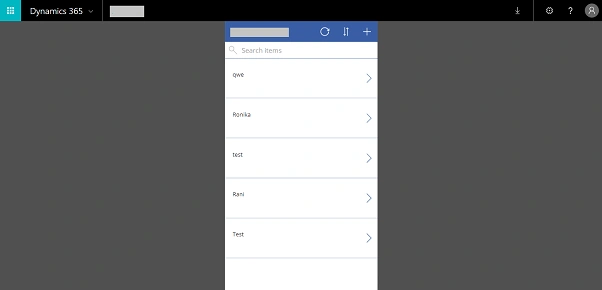
Click “Open” to run the application.
Hope, you have found this article helpful.
Karimulla ShaikPosted Apr 9, 2021, 1:20 AM
Hi Ronika I want restrict power apps portal based on the service account so i have third party portal where I have added the power apps portal url in the third party site and my portal only need to access from that site and other than that site it should not be accessible for example if i tried to access from portal url directly then I should go to login screen
Job kochuPosted Dec 14, 2019, 3:39 AM
Hi kindly suggest a video tutorial for power apps from scratch which is easy to understand
Job kochuPosted Dec 11, 2019, 11:14 PM
If(EditForm1.Mode=New,Department,Department)
Job kochuPosted Dec 11, 2019, 11:13 PM
"I created a simple canvas power app with excel as a data source. for example there are 2 drop downs like employee name and department. i saved the name and department.but when i go to the edit view the dropdown values are not showing the saved values. if this is the case if i have more dropdowns i need to update all the dropdowns and save again."
Hadshana KamalanathanPosted Jul 19, 2018, 7:22 AM
Thanks for sharing the nice information
Piyush AgarwalPosted Mar 8, 2018, 6:06 AM
Really usefullll....Thanks Ronika
Naresh SinghalPosted Jan 17, 2018, 11:26 PM
Nicely Explained Ronika Jency...