

Introduction
In this article we will learn how to create a dropdown navigation menu using a Cascading Style Sheet. So let's dive right in.
The first thing we need to do is to create a simple HTML file in which there will be a div tag with an id “nav”. Inside this div tag, we will create an unordered list using ul in which we will create some list items using li and inside these list items we will create a hyperlink.
<html>
<head>
    <title>Dropdown Navigation Menu</title>
    <link rel="stylesheet" type="text/css" href="style.css"/>
</head>
<body>
    <div id="nav">
        <ul>
            <li><a href="#">Home</a></li>
            <li><a href="#">About Us</a></li>
            <li><a href="#">Blog</a></li>
            <li><a href="#">What's new</a></li>
            <li><a href="#">Contact Us</a></li>
        </ul>
    </div>
</body>
</html>
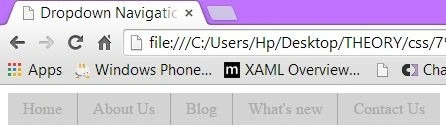
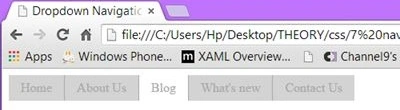
The preceding HTML structure will look like this.
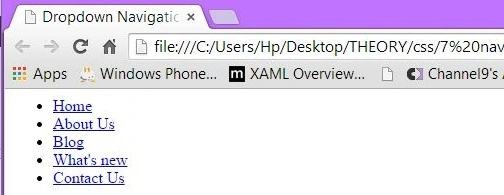
Before adding the second layer of the unordered list in any of the preceding links let's first understand the CSS required to create a basic horizontal navigation menu.
To make the links displayed horizontally we can use the float property and set the value to left and we will also want to remove all the list styles. For that, we can use the list-style property and assign the value “none”.
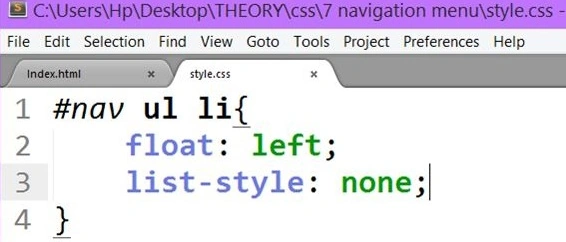
If we refresh the page, you will see the links now sit horizontally.

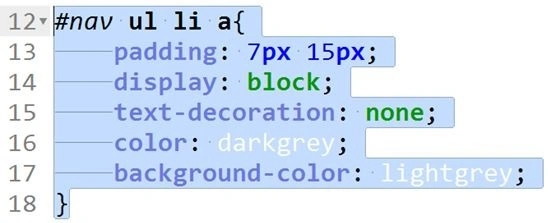
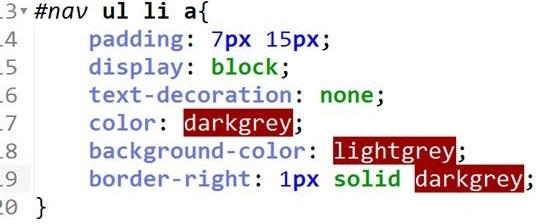
However, links can use a bit of horizontal spacing. So, let's create a new rule in our CSS file and add some padding.
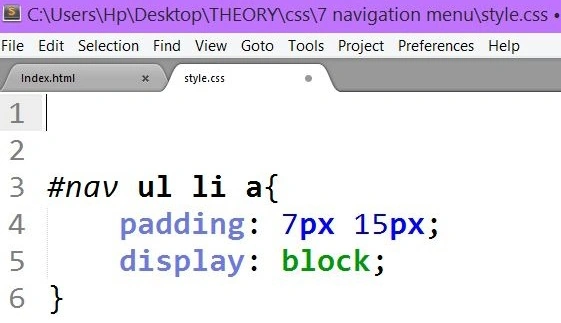
The first padding (of 7px) is the vertical padding and the second padding (of 15px) is the horizontal padding.
We set the display property to block.
To learn more about display blocks click here.
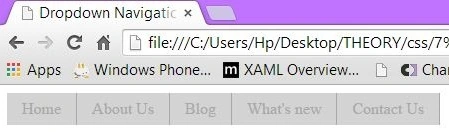
Refresh the page.

The links are now spaced out a bit which is great.
Now the next step is to add the second layer of links and we will add this to the "What's new" link list item. Just after the </a> closing anchor tag, create a new unordered list and inside it create a list item and inside those list items add hyperlinks.
<li>
    <a href="#">What's new</a>
    <ul>
        <li><a href="#">List Item One</a></li>
        <li><a href="#">List Item One</a></li>
        <li><a href="#">List Item One</a></li>
        <li><a href="#">List Item One</a></li>
        <li><a href="#">List Item One</a></li>
    </ul>
</li>
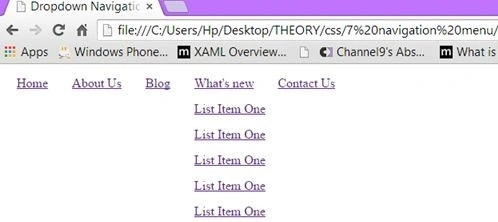
Save the HTML file and refresh the page.

Currently our page looks very chaotic and the first thing we need to do is to hide all the list item links and it will only be displayed when we hover the mouse on the "What's new" link.
So, we need to create another rule in our CSS file that will hide the newly added links.
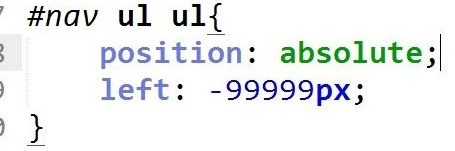
The preceding rule states that inside the #nav “div”, look for an unordered list “ul” and inside that unordered list look for another unordered list “ul” to which we are assigning the properties.
Position: absolute
The absolute value for the position property is used to place any of the page elements exactly where you want it.
Left : -9999px
This property's big negative value is used to hide any elements you want to.

The next step is to create a rule with which, when we hover the mouse on the "What's new" link, it will display the dropdown contents.
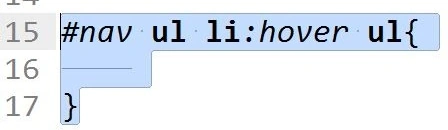
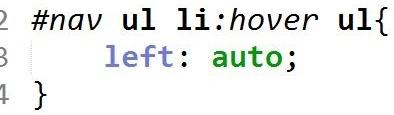
The preceding rule states that inside the nav find an unordered list. If we hover on any of the top-level links or list items (li) then select any unordered list inside of that only if we are hovering.
Inside this rule, set the left property to auto to display the child links.
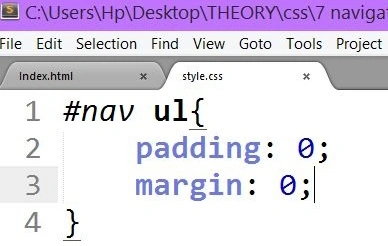
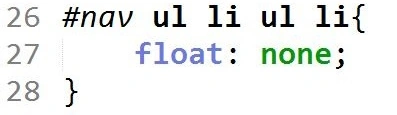
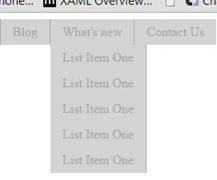
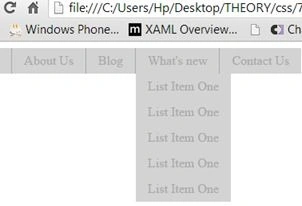
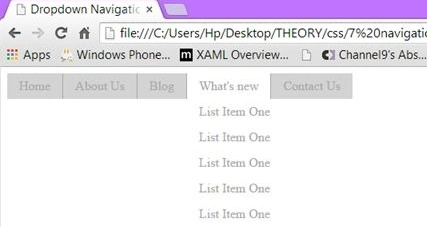
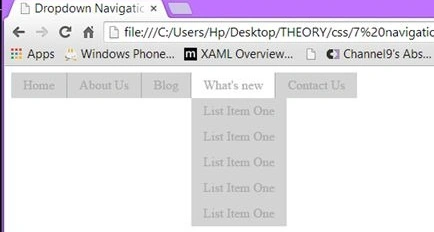
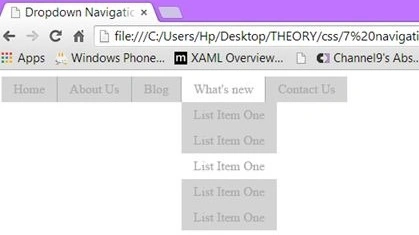
Save and refresh the page.

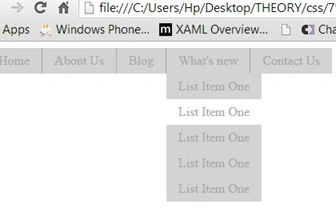
Hover the mouse over the "What's new" link.






Marius VasilePosted Mar 20, 2020, 11:17 AM
Thank you, it was useful to me
Sourabh SomaniPosted Feb 14, 2015, 7:51 PM
Nice one....