

Introduction
In this article, you will see how to create a form in Microsoft Forms. Microsoft Forms allows a user to
- Easily create surveys, quizzes, and polls
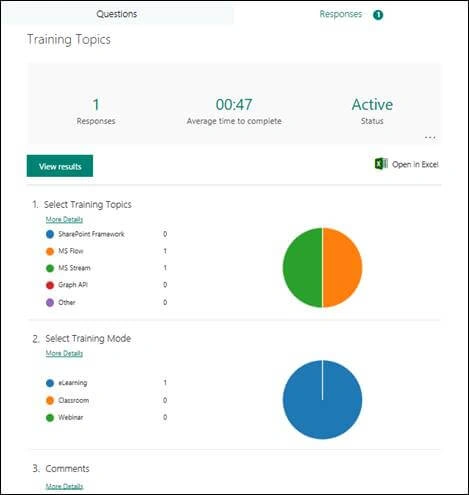
- Analyze the responses or results using built-in analytics
- Access the form or quiz via browser or on mobile and
- Export the form data to Excel for additional analysis.
Create a Form
- Navigate to Microsoft Forms in the browser from here.
- Sign in to Microsoft Forms using Office 365 school/work account or a Microsoft account.
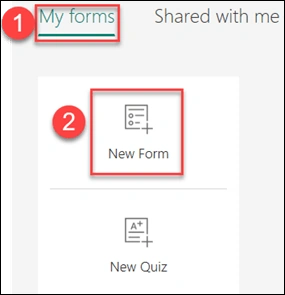
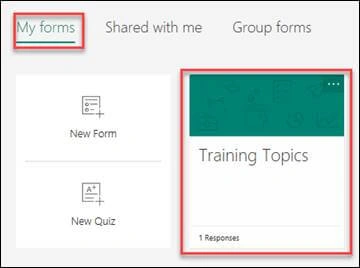
- Navigate to My Forms and then, click New Form.
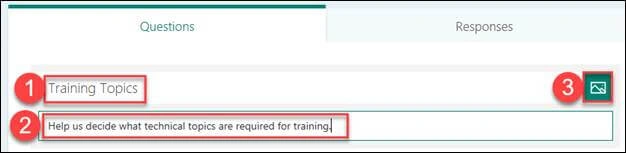
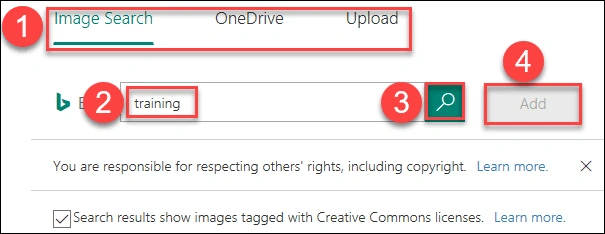
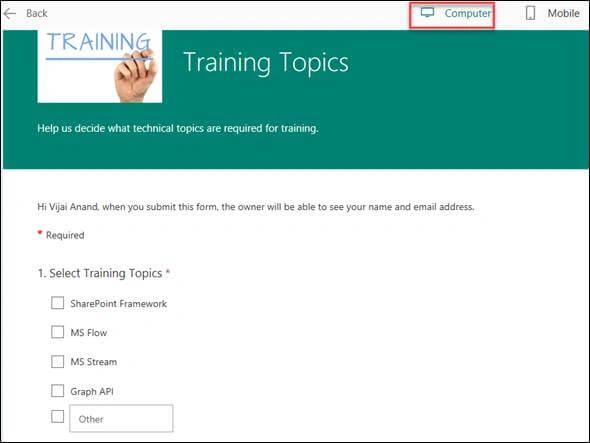
- Enter the name and description for the form. In addition, an image/logo can be used at the top of the form. Click the "Image" icon, select the image, and click "Add".
- Click "Add Question".

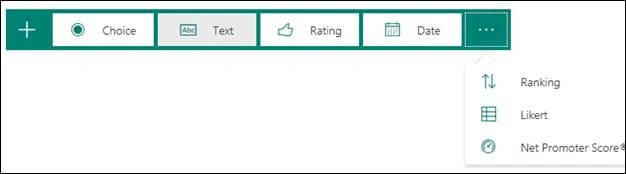
- You can see the following question types.
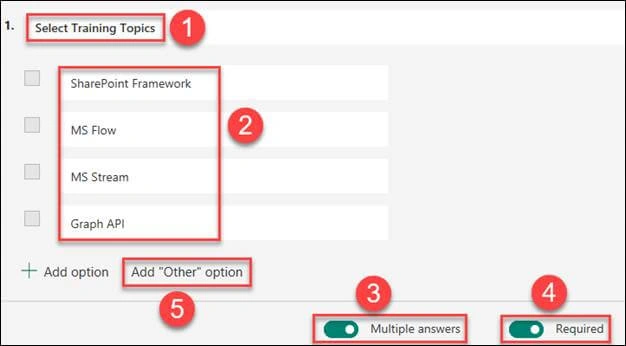
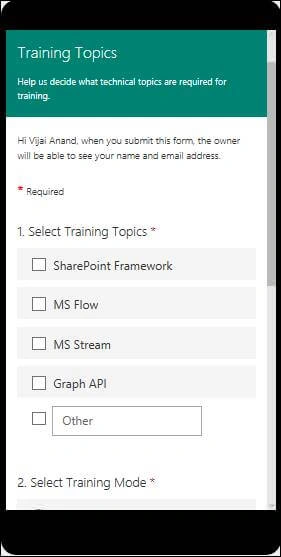
- Click Choice, and add the question and options as shown in the below screenshot. Enable multiple answers and required ones for this question. Click "Add other option in case" if you want the users to give any other answer apart from the list.
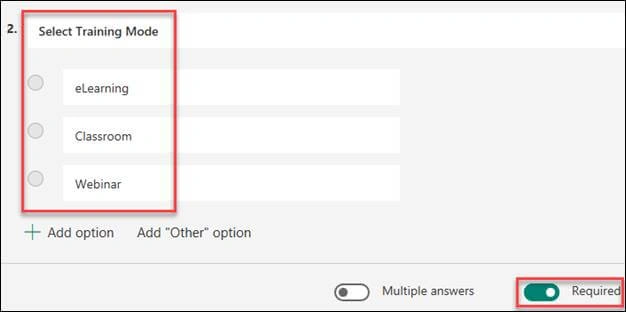
- Similarly, add one more "Choice question", as shown in the below screenshot.
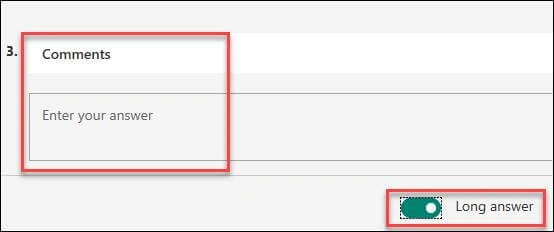
- Add the text question and select "Long answer" toggle (multiline text), as shown in the below screenshot.
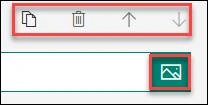
- Each question has the following options - copy question, delete, insert image, and move up or down.
- Note. All questions and forms are auto-saved.
Join the conversation! Your thoughts help the community grow.