

Introduction
Microsoft 365 Admin Center allows administrators to manage users, licenses, security, and services from a single portal. One of the most common administrative tasks is creating a new user account and assigning the required Microsoft 365 license so the user can start accessing services like Outlook, Teams, OneDrive, and SharePoint.
This blog explains the complete process with clear, practical steps , making it suitable for beginners and IT administrators.
Prerequisites
Before you begin, ensure the following:
You have Global Administrator or User Administrator access
An active Microsoft 365 tenant
Available licenses (e.g., Business Standard, Business Premium, E3, etc.)
Steps to create and Assign License
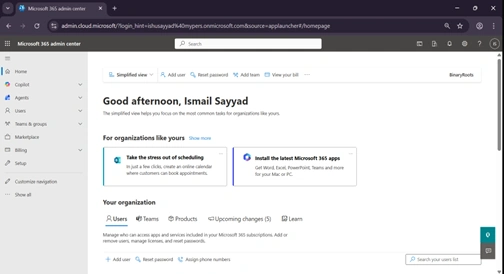
Step 1: Sign in to Microsoft 365 Admin Center
· Open a browser and go to admin.microsoft.com
· Sign in using an admin account
· You will land on the Microsoft 365 Admin Center dashboard
Step 2: Navigate to Users Section
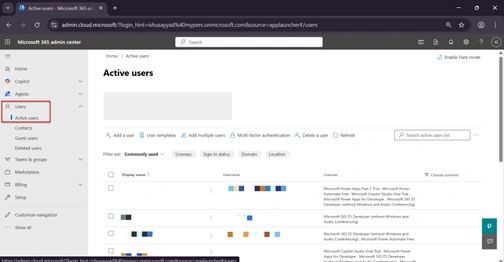
From the left navigation pane
Click Users
Select Active users
This page displays all existing users in your organization.
Step 3: Start Creating a New User
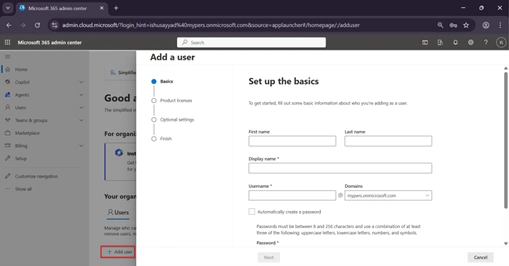
Click Add a user
The user creation window will open
Step 4: Enter User Information
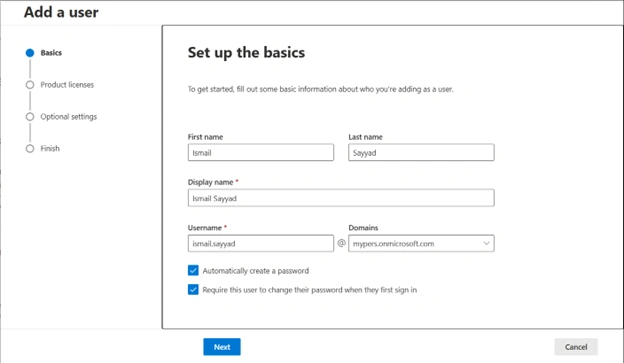
Fill in the basic details:
First name
Last name
Display name (auto-generated but editable)
Username (e.g., [email protected])
You can choose:
Auto-generate a password, or
Create a custom password
Recommended: Enable “Require this user to change password when they first sign in”.
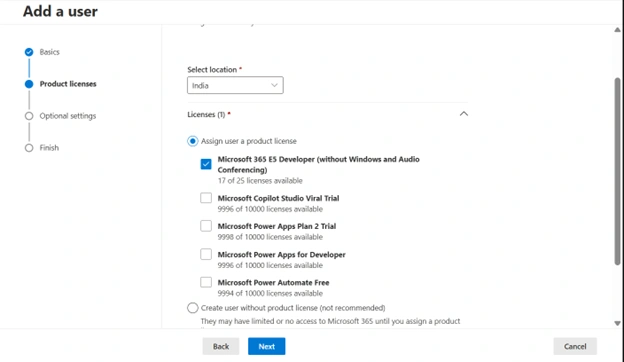
Step 5: Assign a License
This is the most important step.
Under Licenses , toggle Assign licenses to On
Select the required license (e.g., Microsoft 365 E5 Developer)
Enable or disable specific apps if needed:
Outlook
Teams
SharePoint
OneDrive
Step 6: Assign Roles (Optional)
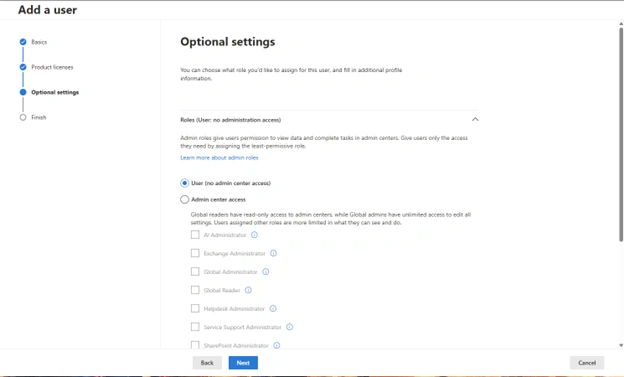
In the Roles section:
Select User (no admin access) for regular users
Assign admin roles only if required (e.g., Global Admin, Helpdesk Admin)
Best practice
Follow least privilege access and avoid assigning admin roles unless necessary.
Step 7: Review and Create User
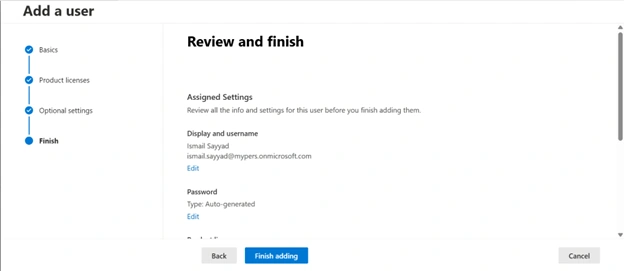
Review all entered details
Click Finish adding
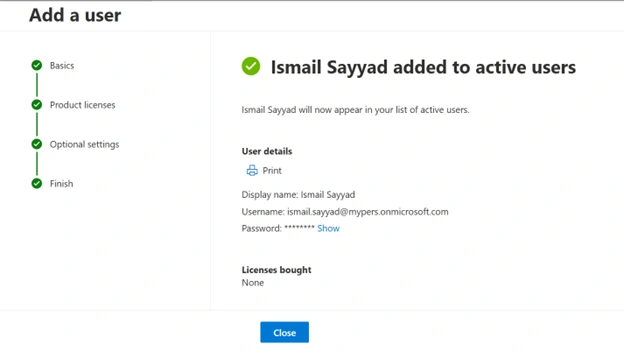
Copy or securely share the login credentials with the user
The user account is now created successfully.
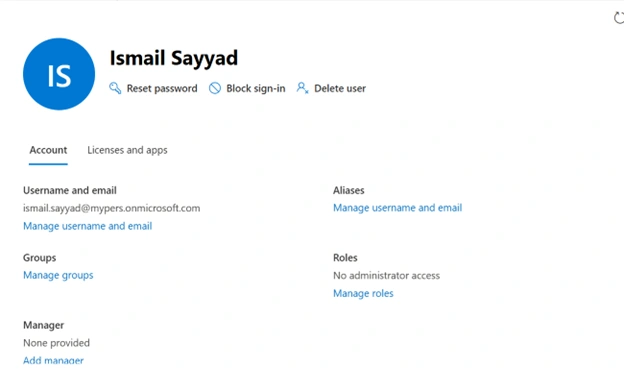
Step 8: Verify User and License Assignment
To confirm:
Go back to Users → Active users
Click on the newly created user
Check:
User status: Active
License: Assigned
Services: Enabled correctly
Common Issues and Troubleshooting
1. License Not Assigning
Ensure licenses are available
Verify Usage Location is set correctly
2. User Cannot Sign In
Check password sharing
Confirm account is not blocked
Ensure license is assigned
3. Services Not Visible (Teams/Outlook)
License app toggle may be disabled
Allow time for license propagation (up to 15–30 minutes)
Best Practices
Use consistent naming conventions for usernames
Assign only required licenses and services
Avoid sharing passwords over unsecured channels
Regularly audit unused users and licenses
Conclusion
Creating users and assigning licenses in Microsoft 365 Admin Center is a straightforward but critical administrative task. By following the structured steps above, administrators can ensure users are onboard securely, efficiently, and with the correct access from day one.
This process is commonly used during:
Employee onboarding
Project-based access provisioning
Partner or vendor access setup
Join the conversation! Your thoughts help the community grow.