

Introduction - This article explains how to create an Excel Macro file.
Software Required
- Microsoft Excel.
Note - Here, I’m using Microsoft Excel Version 2013. But, it doesn’t mean we can create the macros using Microsoft Excel version 2013 only. Well, we can create it with other versions of MS Excel too.
I presume that everyone knows how to install Microsoft Office in your machine.
Open Microsoft Excel 2013.
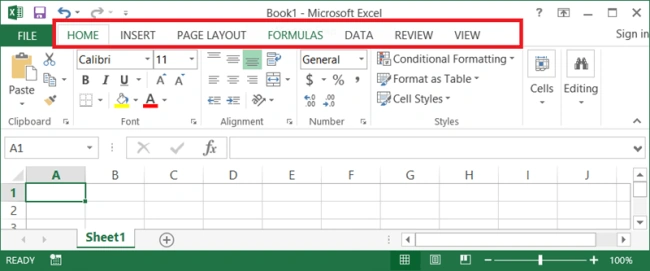
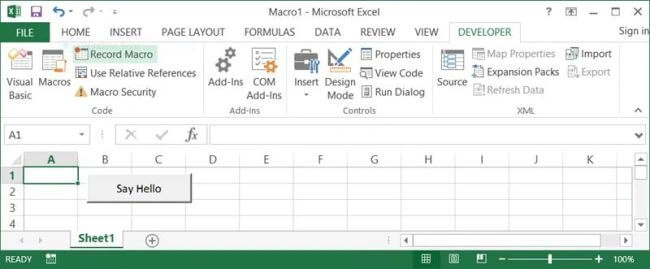
For Creating Macros, we use a tab named DEVELOPER in Excel.
I know, if you are trying to create the macros for the first time in your machine, you will not be able to easily find the DEVELOPER tab when you open Excel.
Don’t think that your MS Office is not installed properly. MS office is installed properly only but by default Excel will not provide Developer Tab in the menu bar because of the below reason.
People use Excel for many purposes. So, the Microsoft Team made only the common functionalities available to the user by default, like browsers. When we launch any browser, we will not be getting any developer options, but if you wish to use or see Developer options, then by just pressing F12 key, you will be getting developer options. Similarly, if you want to utilize Developer Options which are available in Excel, you just need to modify a few settings in your Excel.
Follow the below steps to enable the Developer Tab in Excel.
Click on File menu tab and select Options tab from the below window.
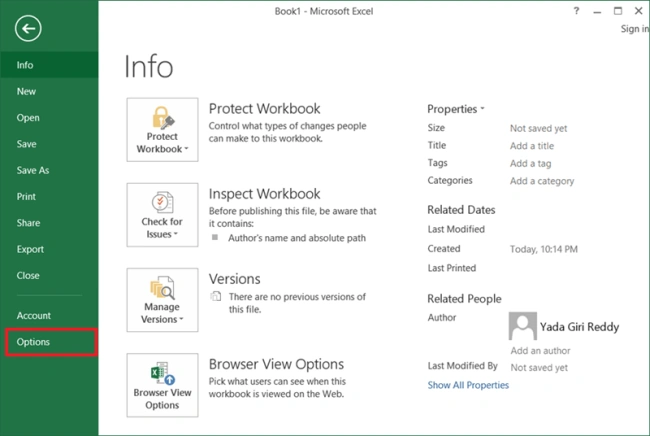
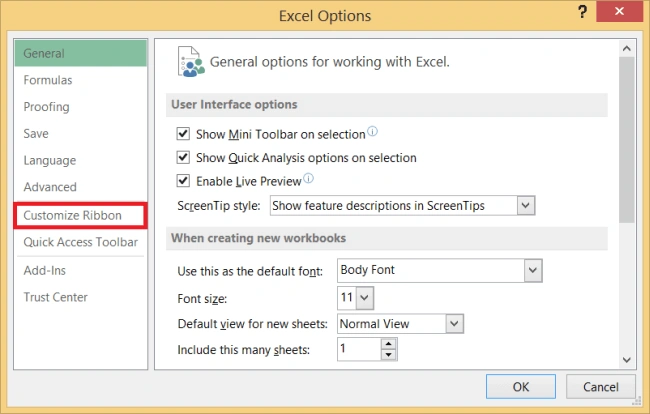
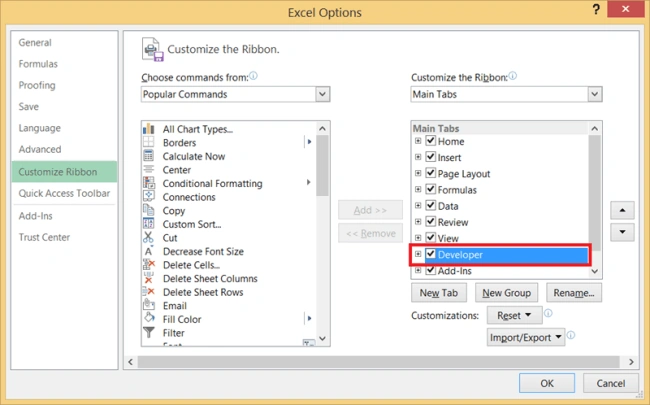
After clicking on Options tab, you will get the below popup with Title as Excel Options. Click on Customize Ribbon which is available at the left side of the below popup.
Once you click on Customize Ribbon, you will get the below options. In the right side, you will have a Developer Checkbox, as shown in the below figure.
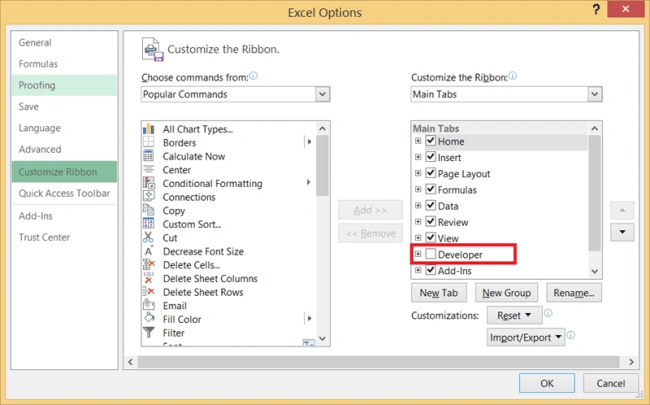
Check the Developer checkbox and click on OK.
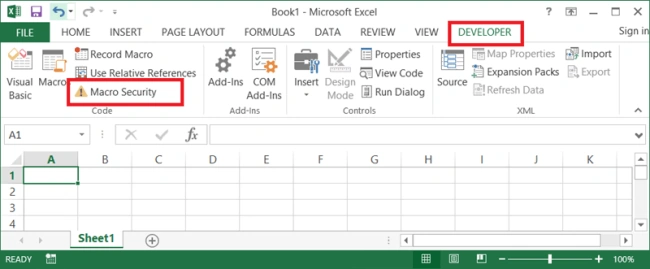
Now, you can find the DEVELOPER Tab in your Menu Bar. Click on Macro Security option available under Developer Tab, as shown below.
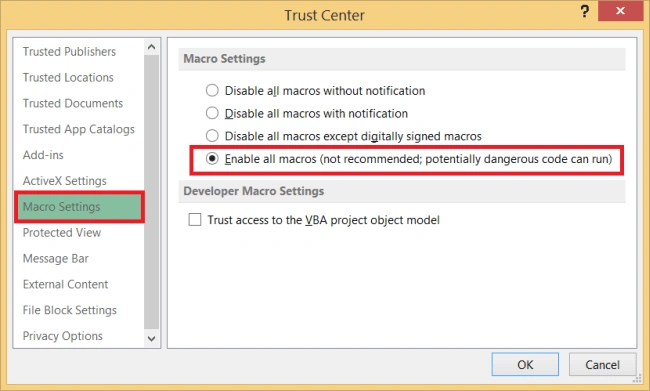
You will get the below Dialog box opened. Now, select Macro Settings from left side, check the fourth radio button (Enable all macros), and click OK.
That’s it!!! The modifications are done.
Now, let's create a basic Macro.
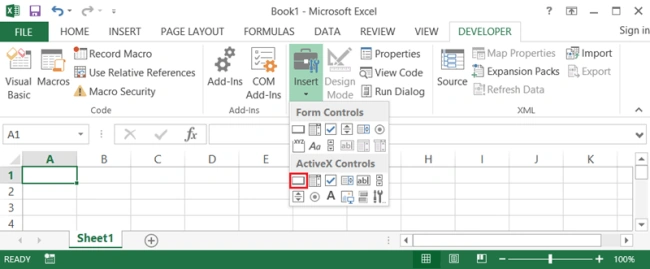
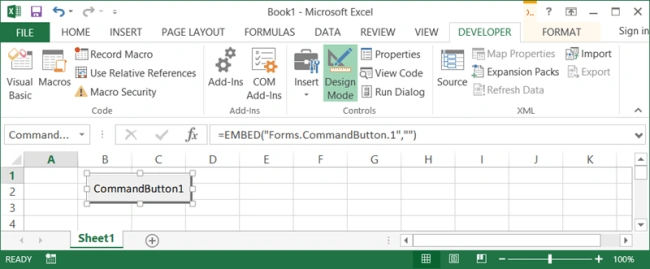
Click on Insert from Developer tab.
Join the conversation! Your thoughts help the community grow.