

In this article, we will describe how to create a test plan in Azure DevOps and how we can use test suites and test cases within that plan.
Azure Test Plans is a test management module within Azure DevOps that lets users manage test plans, test suites, and test cases in the software development process.
The difference between a test plan, a test suite, and a test case are the following.
- Test Plan: The test suites are listed in the test plan.
- Test Suite: Under the test plan, test suites are generated. Several test suites may be included in each test plan. Each test suite may contain several test cases.
We can additionally formulate test suites across various categories.
- Requirement-Based Suite: This is a tool for grouping test scenarios. Each test case contributed to a requirement-based test suite is automatically linked to the backlog item.
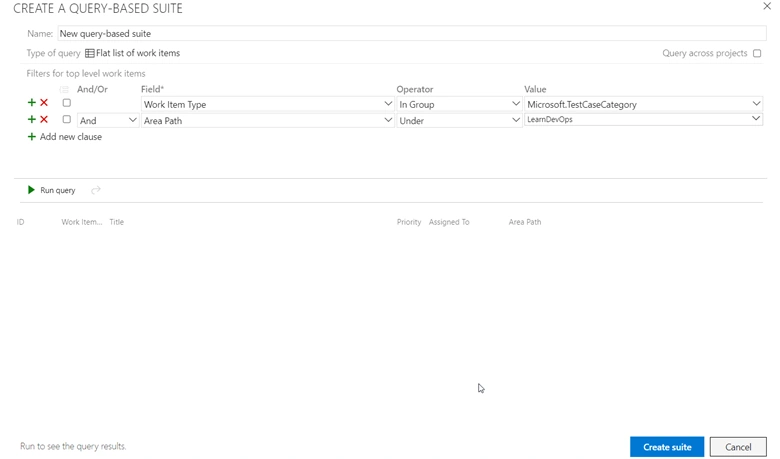
- Query-Based Suite: Test cases are added to a suite based on a query in this form of the test suite. A user can create a specific query matching and add all the test cases listed by the query to the test suite.
- Static-Based Suite: A user can develop a collection of identified scenarios in this sort of suite. The Static Test Suite allows you to test several scenarios in a single session.
Now, let’s know the different types of test suits. Let’s have a look at what a test case is. A test case describes steps to be performed, input data, and an expected result based on user requirements.
Steps to creating a test plan.
First, let’s navigate to the DevOps site and log in. On the left navigation, you can find the test plan. Click on “test plan.”
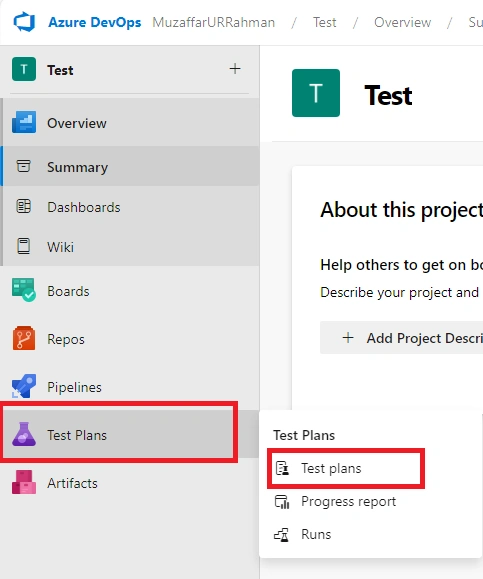
Click on "New Test Plan"
We need enter the test plan name and select the area path and iteration. Click on the "create" button.
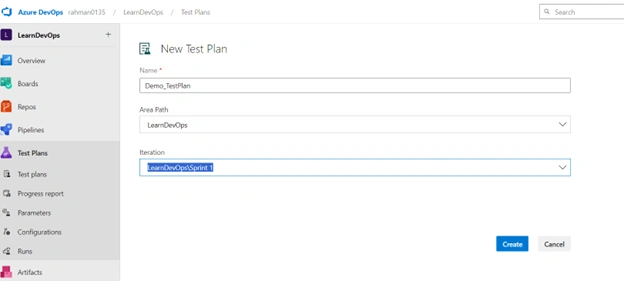
Once the test plan is created, you can find it in all test plans, shown in the below screen.
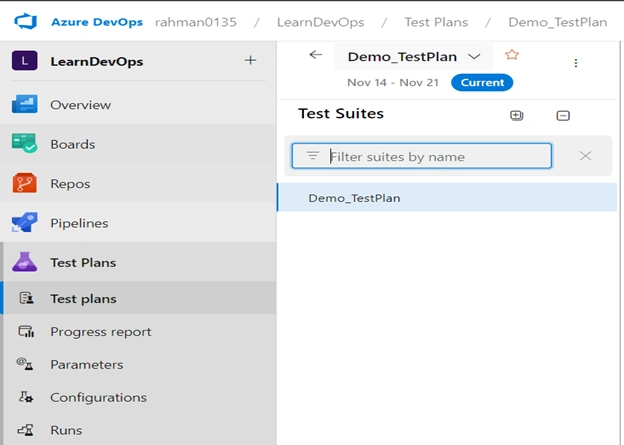
Now let’s go with the steps of creating a test suite.
Steps to creating a test suite.
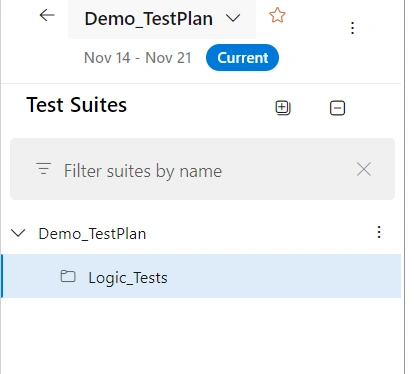
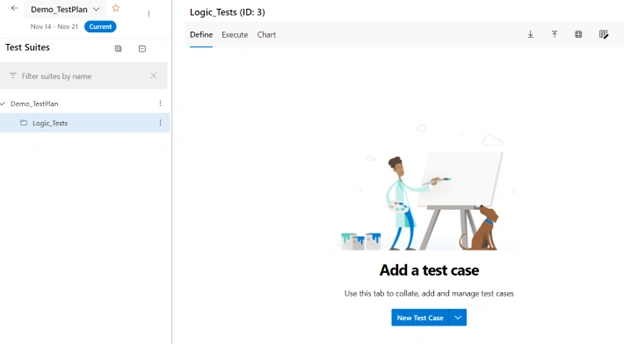
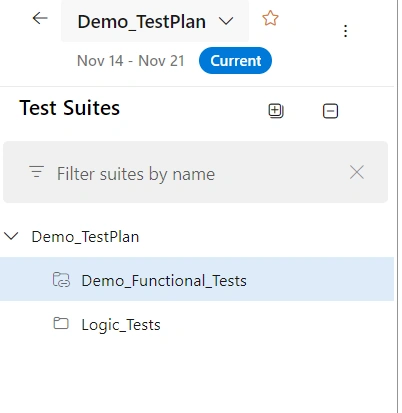
First, we need to select test plan for which we want to create test suites.
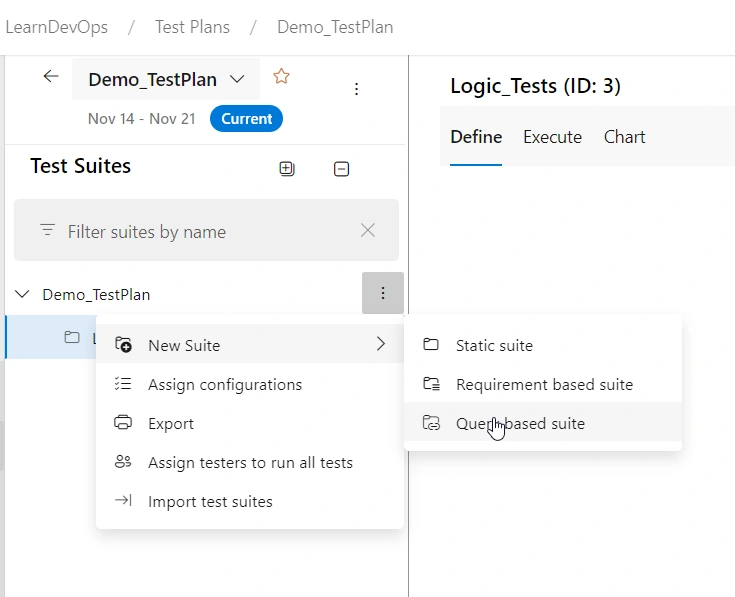
Click on the three dots and select the type of suite that you want to create.
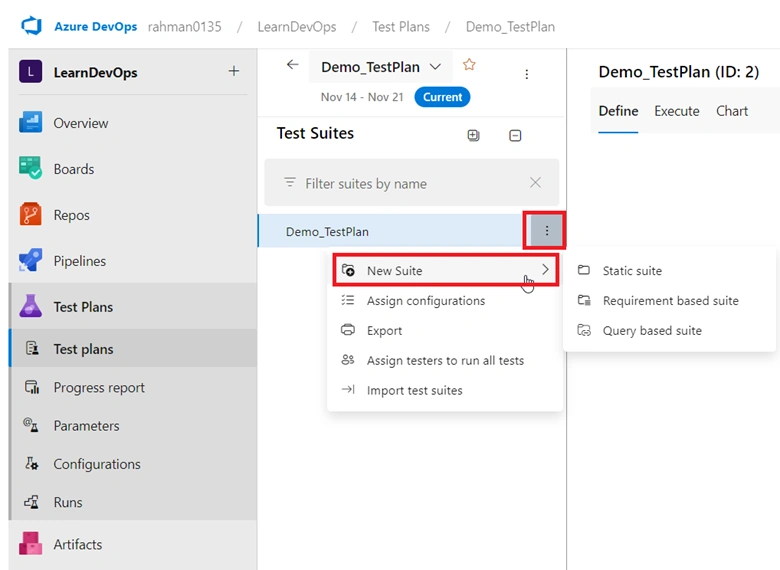
Select the "Static Suite." Then, name the suite.
Join the conversation! Your thoughts help the community grow.