

Introduction
Managing permissions efficiently is essential for maintaining security and collaboration within your organization. In SharePoint Online, groups help administrators control access to sites and content by assigning permissions to multiple users at once.
In this article, we will walk through the step-by-step process of:
Creating a new group
Assigning permissions to the group
Adding/Removing users to the group
Prerequisite: You must have administrative or site owner permissions to create and manage groups.
Steps to Create a New Group in SharePoint Online
Step 1
Log in to your Office 365 account with administrative privileges.
Step 2
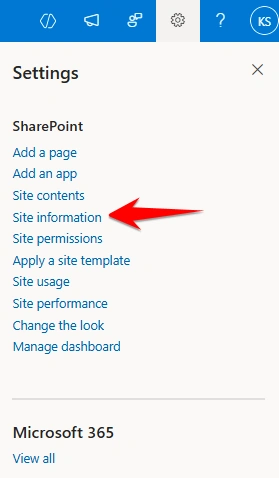
Navigate to your site and click on Site Settings.
Step 3
Under Users and Permissions, click on Site Permissions.


Step 4
At the top menu, click on Create Group.

Step 5
Enter the following details:
Group Name
Description
Owner

Step 6
Specify:
Who can view the list of group members
Who can add or remove members from the group

Step 7
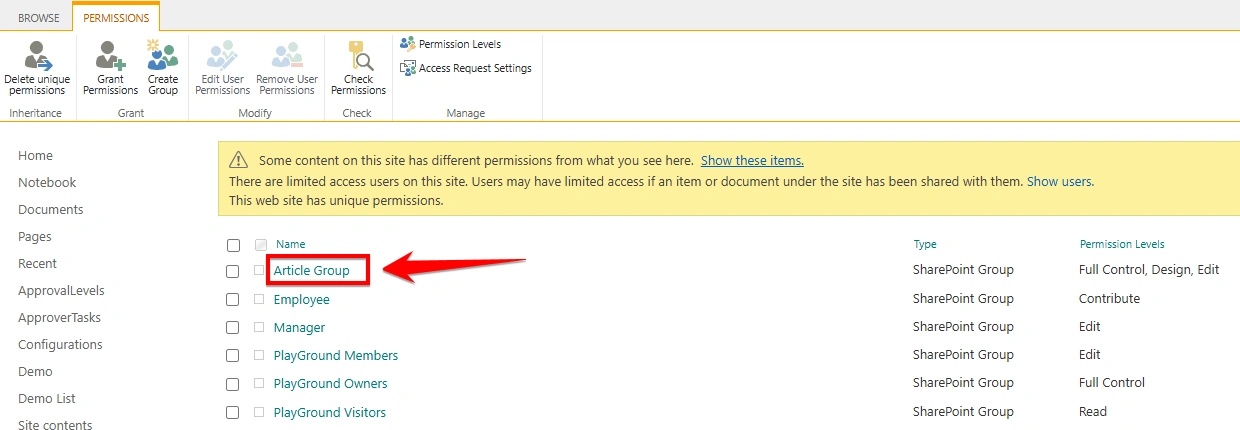
Assign the appropriate Group Permissions for the site and click the Create button.

Step 8
Your custom group is now created successfully.
Adding a User to the Group
Step 9
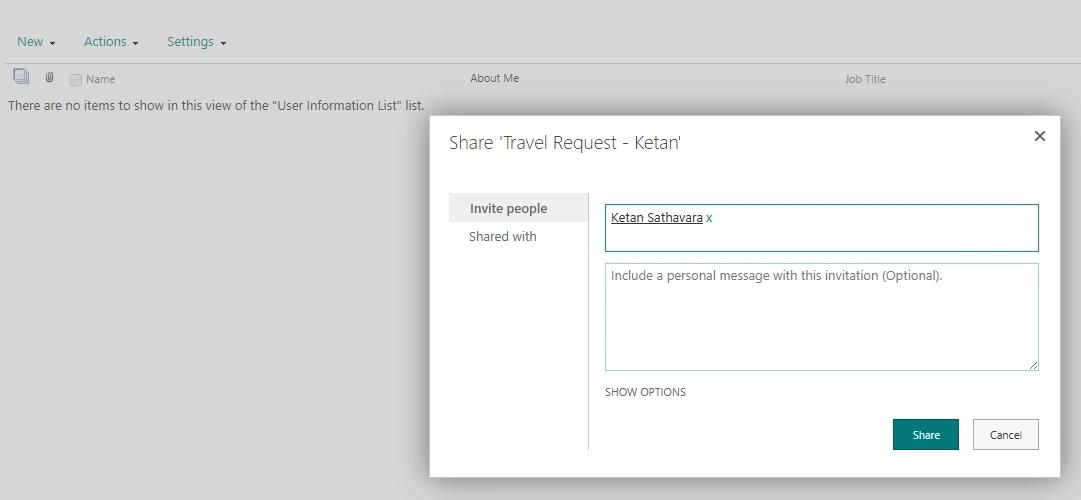
To add a user:
Open the group
Click New → Add Users
Enter the user details
Click the Share button

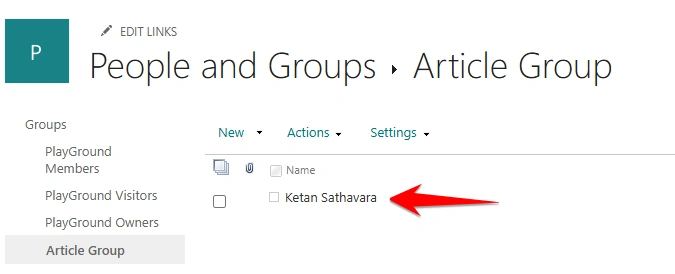
Step 10
The user has now been successfully added to the group.
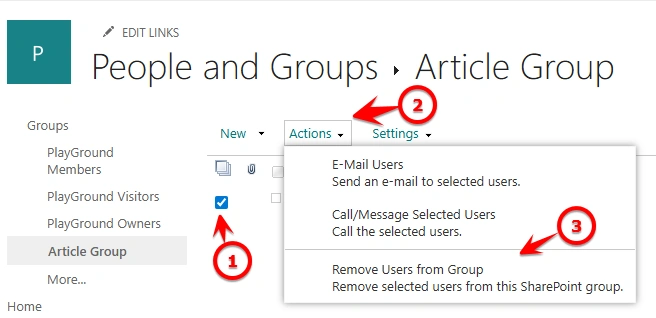
Removing a User from the Group
Step 11
If you want to remove a user:
Open the group
Click Remove Users from Group
Select the user(s) and confirm removal
Conclusion
Creating groups in SharePoint Online is a best practice for managing permissions efficiently. Instead of assigning permissions to individuals, you can manage access through groups, making administration easier and more secure.
Join the conversation! Your thoughts help the community grow.