

In this article, let’s create Azure Key Vault resources. Store and retrieve secrets in Key Vault using Azure CLI. Assign role to Microsoft Entra (Azure AD) user name. Azure Key Vault is a Azure service which securely stores and manages secrets. Secrets might be encryption keys, passwords, or certificates for the applications and services.
Following tasks are performed:
Create Azure Key Vault resources.
Assign role to Microsoft Entra (Azure AD) user name.
Store and retrieve secrets in Key Vault.
Clean up resources.
Create Azure Key Vault resource
Initial task is to create and make ready Azure Key Vault resources and add the secret to Azure. Azure CLI (Azure Cloud Shell) is used to create the required resources. Azure CLI is the free Bash shell which can be run directly within the Azure portal. That is preinstalled and configured within the account. Perform the below steps one by one to achieve this.
Use Azure CLI (Azure Cloud Shell)
It is a free Bash shell which can be run directly within the Azure portal. It is preinstalled and configured within an account.
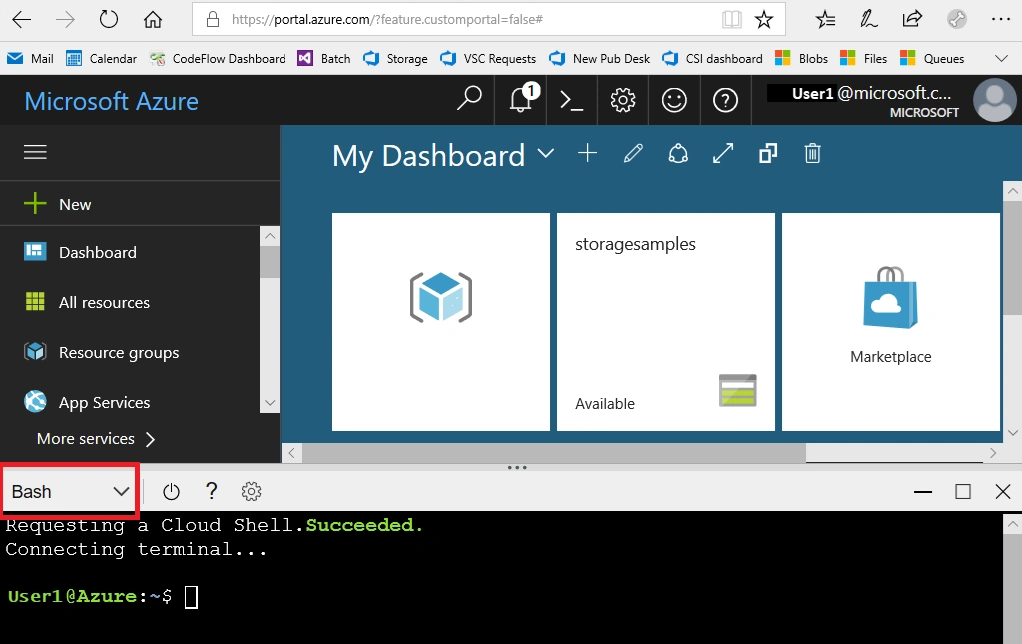
Click Cloud Shell button on the menu bar at the top right side of the Azure portal.

It will launch an interactive shell which can be used to run the steps outlined in this article. Select a Bash environment. To use code editor In cloud shell toolbar go to Settings menu and than select Go to Classic version.
Create resource group
Resource group is a logical container used to hold related resources. In it include the resources which you want to manage as a group. Key Vault belongs to a resource group. Create it using az group create command.
Syntax:
az group create \
     --name <resource-group> \
     --location <location>
Example:
az group create \
     --name myResourceGroup1 \
     --location eastus2
eastus2 is location code instead of it one can use their nearest region location.
az account list-locations command gives complete list of available locations.
az account list-locations
az account list-locations --query "[*].name"
az account list-locations --query "[*].name" --out tsv | sort
Create Azure Key Vault resource
This Azure Key Vault resource will be used as a vault name during creating or retrieving a secret as described in next section. az keyvault create command is used as mentioned to create a Azure key value resource.. It will take few minutes to complete the process.
Syntax:
az keyvault create \
     --name <key-vault> \
     --resource-group <resource-group> \
     --location <location> \
Example:
az keyvault create \
     --name myKeyVaultName1\
     --resource-group myResourceGroup1\
     --location eastus2 \
Assign role to Microsoft Entra (Azure AD) user name
It is important to assign roles to Microsoft Entra (Azure AD) user name. Roles will define what access and permissions a user has within an organization’s Microsoft cloud environment. Roles determine what resources and actions a user can perform.
“Key Vault Secrets Officer” role is to be assigned to Microsoft Entra user before create and retrieve secret. It gives permissions to create, retrieve and delete secrets to user account. “Key Vault Secrets Officer” role will allow to create and read actions while “Key Vault Secrets User” role allows to read action. One by one perform below steps in Azure CLI.
Retrieve userPrincipalName
First step is to retrieve userPrincipalName from the account using following command and this will be used during role creation and assignment time. It will retrieve the information about currently authenticated user including their UPN. It represents that who the role will be assigned to.
userPrincipal=$(az rest
     --method GET
     --url https://graph.microsoft.com/v1.0/me \
     --headers 'Content-Type=application/json' \
     --query userPrincipalName
     --output tsv)
Retrieve resource ID
Second step is to Retrieve resource ID of the key vault using following command. It is used in next command to set scope for role assignment. Resource ID sets scope for role assignment to specific key vault.
resourceID=$(az keyvault show \
     --resource-group myResourceGroup1 \
     --name myKeyVaultName1 \
     --query id \
     --output tsv)
Create and assign Key Vault Secrets Officer role
Third and final step is to Create and assign Key Vault Secrets Officer role. az role assignment create command is used for this operation. It gives permission to manage next routines. Above created variables userPrincipal (ins first step) and resourceID (in second step) are used in this command.
az role assignment create \
     --assignee $userPrincipal \
     --role "Key Vault Secrets Officer" \
     --scope $resourceID
Store and retrieve secrets in Key Vault
Now next task is to store/add and retrieve/get secretes from Key Vault using Azure CLI.
Create secret
Secret can be created using name and it's value along with key vault. az keyvault secret set command is used to create a secret.
az keyvault secret set \
     --vault-name myKeyVaultName1 \
     --name "MySecret1"
     --value "My secret value 1"
Retrieve secret
Secret can be retrieve using name and key vault. az keyvault secret show command is used to retrieve and display secrets for further process.
az keyvault secret show
     --name "MySecret1"
     --vault-name myKeyVaultName1
Output: Command returns JSON result and last line contains the value in plain text.
"value": "My secret value 1"Clean up resources
Once finished the exercise it’s recommended to delete cloud resources are being created to avoid the unnecessary resource usage and any future costs. Deleting a resource group will delete all resources contained within it. Perform following steps one by one in to Azure Portal to achieve this:
Navigate to resource group which is being created here and view it’s contents.
Delete resource group selection from the toolbar.
Choose resource group name and then follow next directions to delete resource group and all the resources it contains.
One can also clean up resources using Azure CLI as following:
Delete role assignment - az role assignment delete command is used to remove role assignment.
az role assignment delete \
     --role "Key Vault Secrets Officer" \
     --scope $resourceID
Delete key vault - az keyvault delete command is used to remove keyvault.
az keyvault delete \
     --name myKeyVaultName1 \
     --resource-group myResourceGroup1
Delete resource group - az group delete command is used to remove resource group, container registry, and container images.
az group delete \
     --name myResourceGroup1
Summary
Here, a complete process flow is described to create and retrieve secrets from Azure Key Vault using Azure CLI. A role is assigned to Microsoft Entra (Azure AD) user name. Finally, resources are cleaned up. Following it the list of key commands used in this article:
Create resource group: az group create
Create Azure Key Vault resource: az keyvault create
Create and assign Key Vault Secrets Officer role: az role assignment create
Store secret: az keyvault secret set
Retrieve secret: az keyvault secret show
Delete role assignment: az role assignment delete
Delete Key Vault: az keyvault delete
Delete resource group: az group delete
Join the conversation! Your thoughts help the community grow.