

Introduction
In this article, we will learn how to create Azure SQL Database using portal. There are database services available in azure portal.
Azure database services
- Azure cosmos database is a globally distributed database service that elastically and independently scales throughout and storage.
- Azure SQL Database is a relational database as a service (DaaS) based on the latest stable version of the Microsoft SQL Server database engine.
- Azure Database for MySQL is fully managed MySQL database service for app developers.
- Azure Database for PostgreSQL is relational database service based on the open-source Postgres database engine.
Step 1
If you don't have an Azure subscription, create an Azure free account before you begin.
Step 2
Sign in to the Azure portal with your Azure account.
Step 3
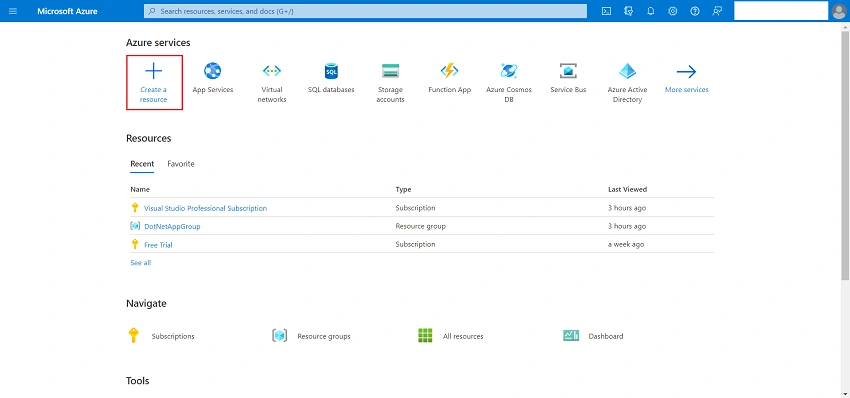
From the Azure portal menu, or from the Home page, select Create a resource.
Step 4
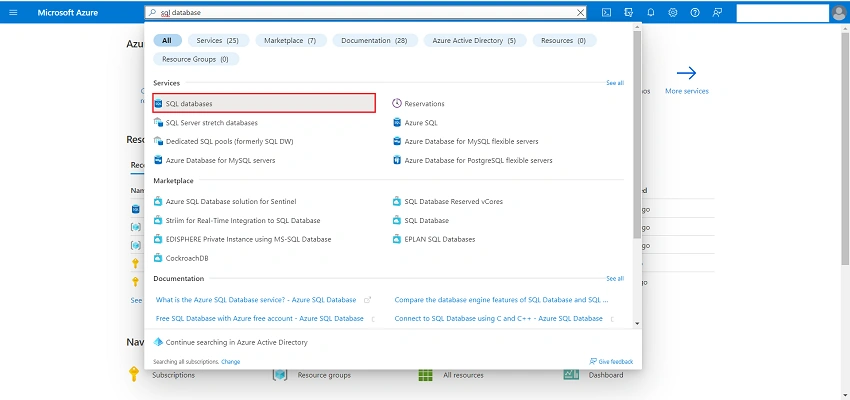
On Azure portal in the Search box, enter SQL Database. From the results list, choose SQL Databases.
Step 5
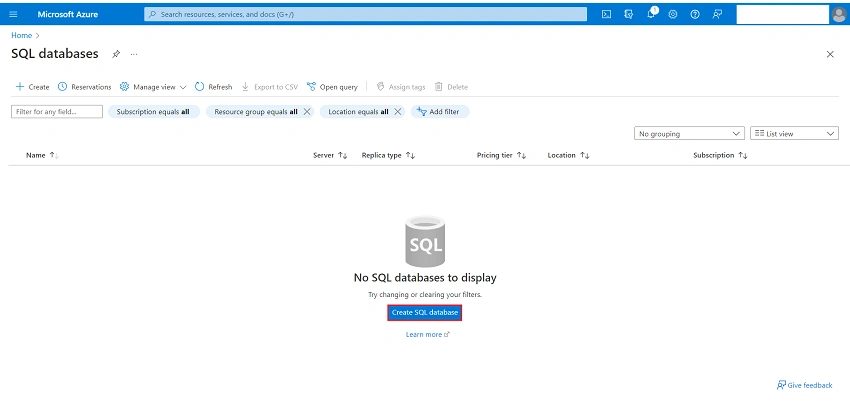
On the SQL Database section, choose Create SQL Database.
Step 6
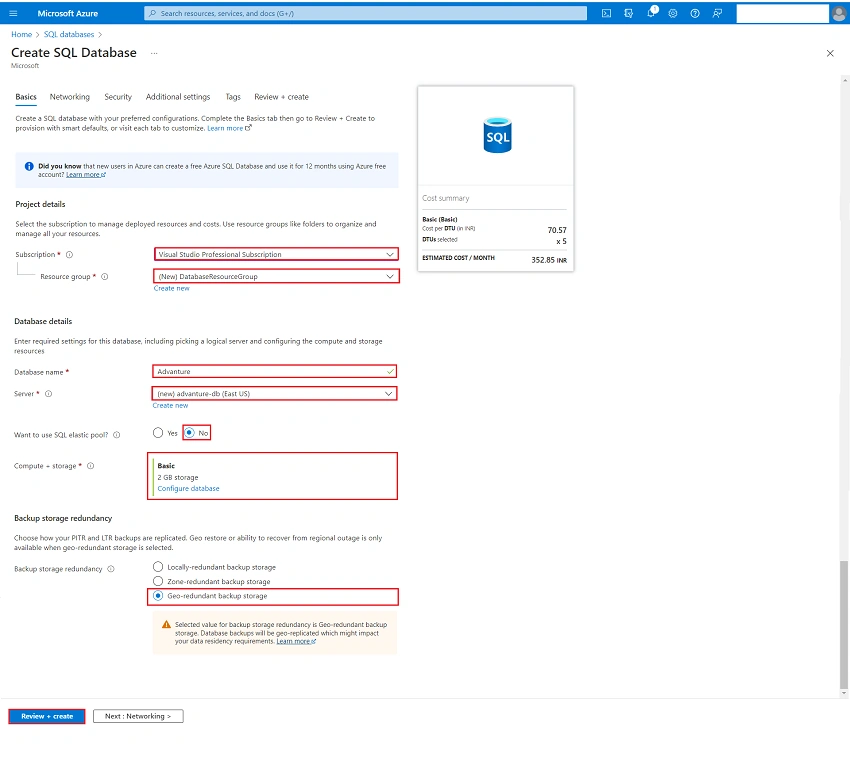
On the Create SQL Database section provide the following information:
1. Subscription: Select the desired Azure Subscription.
2. Resource Group, For Resource group, select Create new, enter DatabaseResourceGroup. You could choose existing resource group if you created.
3. Database Name: A unique name is required. For Database name, enter Adventure.
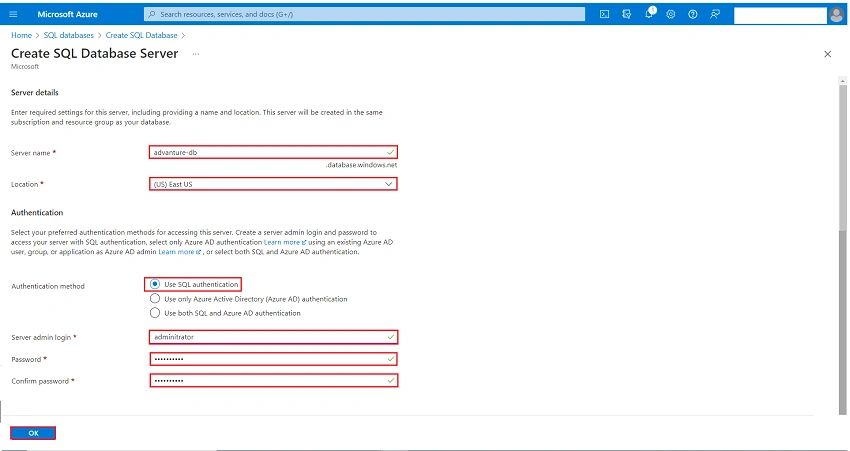
4. Server: For Server, select Create new, and fill out the New Server form with the following values:
- Server name: Enter adventure-db and add some characters for uniqueness. We can't provide an exact server name to use because server names must be globally unique for all servers in Azure, not just unique within a subscription. So, enter something like adventure-db, and the portal lets you know if it's available or not.
- Location: Select a location from the dropdown list.
- Authentication method: Select Use SQL authentication.
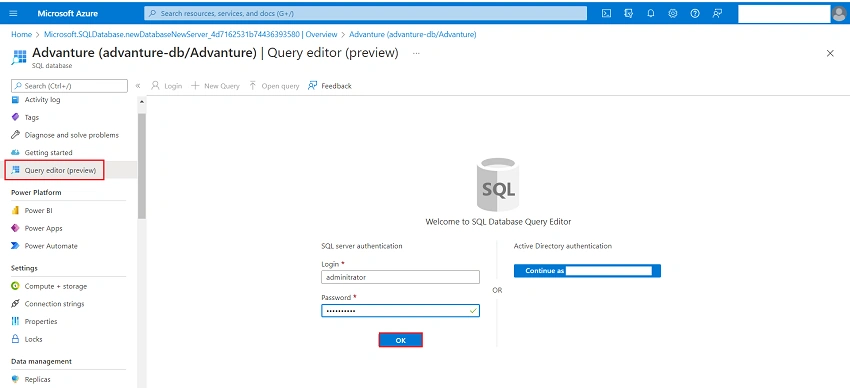
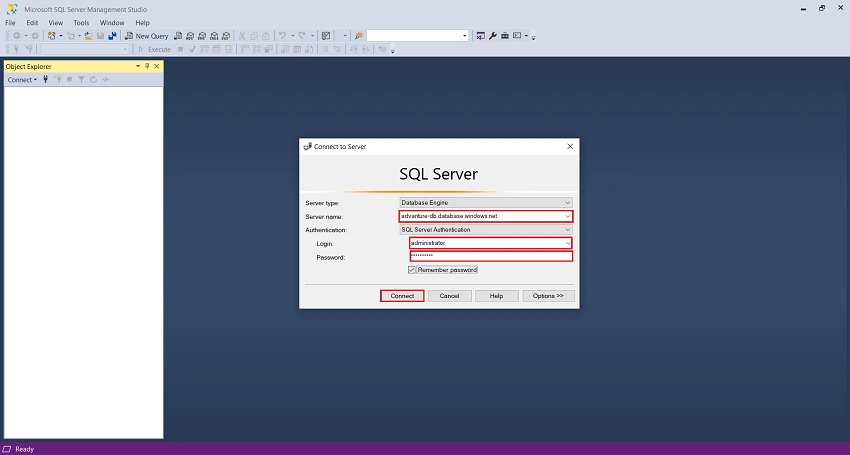
- Server admin login: Enter administrator.
- Password: Enter a password that meets requirements and enter it again in the Confirm password field.
- Select OK.
5. Leave Want to use elastic pool set as No
6.Compute + Storage: Select configuration database Basic 2GB Storage
7. Backup storage redundancy set as: Go redundancy backup storage
8. After providing the information above, select Review + Create. Next validation page appears with Create button. You are done. You have created your first SQL Database.
How to set server firewall
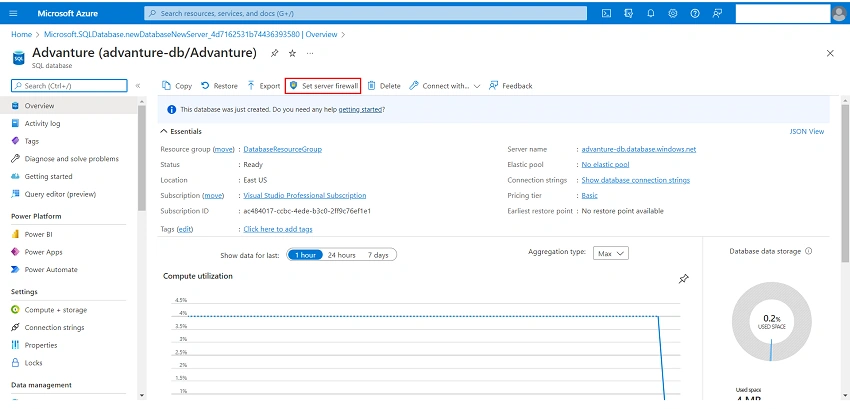
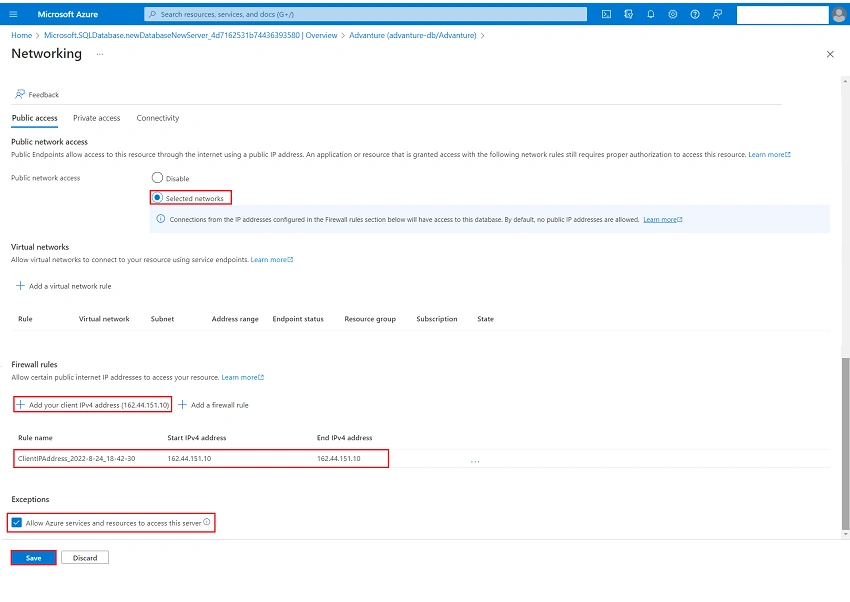
1. After the database deployment completes, select SQL databases from the left-hand menu and then select Adventure on the SQL databases page. The overview page for your database opens. It displays the fully qualified server name (such as advanture-db.database.windows.net) and provides options for further configuration. You can also find the firewall settings by navigating directly to your server and selecting Networking under Security.
Viknaraj ManogararajahPosted Aug 30, 2022, 8:19 AM
Nice Article