Introduction
This article explains how to connect to the Oracle10g database in Java.
Connect To Oracle10g database In Java
There are 5 steps to create a connection with an Oracle10g database in Java.
- First register the driver class
- Create the connection
- Create a statement
- Execute queries
- Close the connection
1. First, register the driver class
The class.forName() method of the class registers the driver class.
Syntax
- public static void forName(String classname) throws ClassNotFoundException
Example
- Class.forName("oracle.jdbc.driver.OracleDriver");
2. Create the connection object
The getConnection() method of the DriverManager class establishes the connection with the Oracle database.
Syntax
- public static Connection getConnection(String url) throws Exception
- public static Connection getConnetion(String name, String url, String password)
Example
- Connection connection=DriverManager.getConnection("jdbc.oracle.thin:@localhost:xe","system","password");
Instead of localhost we provide our system name there.
3. Create the Statement object
The createStatement() method of the Connection interface is used to create the statement. This object is responsible for executing queries with the Oracle database.
Syntax
- public Statement createStatement() throws Exception
Example
- Statement statement=connection.cretaeStatement();
4. Execute the Queries
This method of the Statement interface executes the queries to the Oracle database. This method returns the object of ResultSet that can be used to get all the records of a table.
Syntax
- public ResultSet executeQuery(String s) throws Exception
Example
- ResultSet resultset=statement.executeQuery("Select 8 from emp");
-
- while(resultset.next());
- {
- System.out.println(resultset.getInt(1)+ "" + resultset.getString(2));
- }
5. Close the connection object
By closing the connection object the statement and ResultSet will be closed automatically. The close() method of the Connection interface closes the connection.
Syntax
- public void close() throws Exception
Example
Now, take an example that shows a connection with Oracle10g database
For making a Java application with the Oracle database, we need to use the above 5 steps to perform database connectivity. In this example, we are using Oracle10g as the database. So we need to know the following information for the Oracle database.
Driver class
For Oracle; the driver class is in oracle.jdbc.driver.OracleDriver.
Connection URL
For Oracle10g the URL is "jdbc:oracle:thin:@localhost:1521:xe" (instead of localhost we provide our system name also) where jdbc is the API, Oracle is the database, thin is the driver, localhost is the server name on which Oracle is running, we may also use IP address, 1521 is the port number and XE is the Oracle service name. We may get all that information from the tnsnames.ora file.
username
The default username for the Oracle database is SYSTEM.
Password
This is user define given at the time of installing the Oracle database.
Now, start creating a connection with the Oracle10g database.
Create a table
Now open the Run SQL command line and write the following:
- create table student(s_id number(5), s_name varchar2(35),s_age number(3));
Our table is created, now insert some data into it.
- insert into student values(10,'Sandeep',22);
- insert into student values(11,'Rahul',20);
Now we have inserted two rows into the student table that we have to display using Java.
To connect a Java application with the Oracle database we need the ojdbc14.jar file.
There are two ways to load this jar file
- paste the jar ojdbc14.jar in C:\Program Files\Java\jre7\lib\ext folder.
- set classpath for this jar file.
1. Paste the file
2. Set the classpath
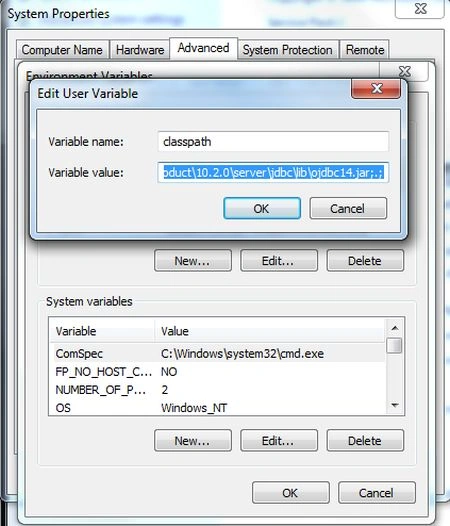
Go to environment variable then click on the new tab. In the variable name write the classpath and in the variable value paste the path to the ojdbc14.jar (like C:\oraclexe\app\oracle\product\10.2.0\server\jdbc\lib\ojdbc14.jar;.;)
See the following image:
Display the student record
The following example Java file displays the student record.
Example
OracleConnectionEx.java
This example fetches all the records of the student table.
- import java.sql.*;
- class OracleConnectionEx
- {
- public static void main(String args[]) throws Exception
- {
- try
- {
- Class.forName("oracle.jdbc.driver.OracleDriver");
- Connection connection = DriverManager.getConnection("jdbc:oracle:thin:@mcndesktop07:1521:xe", "system", "sandeep");
- Statement statement = connection.createStatement();
- ResultSet resultset = statement.executeQuery("select * from student");
- while (resultset.next())
- {
- System.out.println(resultset.getInt("S_ID") + " " + resultset.getString("S_NAME") + " " + resultset.getInt("S_AGE"));
- }
- connection.close();
- } catch (Exception ex)
- {
- System.out.println(ex);
- }
- }
- }
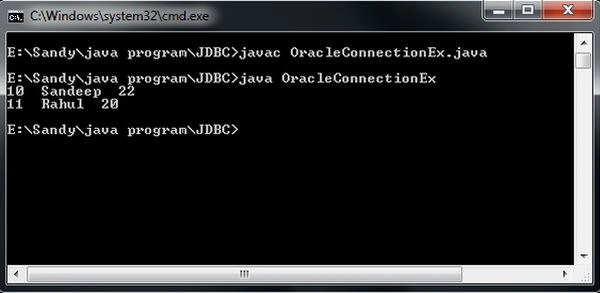
Output


Roshan RajPosted Feb 9, 2017, 12:57 PM
Java.sql.SQLException: Io exception: The Network Adapter could not establish the connection // i got this problem